Quick wins for a faster PC:
What’s actually slowing this PC down?
Pick the symptom - the matching free tool is one click away.
Repair Windows errors before they cause bigger problemsFix Now →Fix the driver behind crashes, sound loss and screen glitchesFind Drivers →Clear out junk files and repair common Windows errorsFree Scan →
ThatPainter is reader-supported. When you buy through links on our site, we may earn an affiliate commission. Learn More
Yes—Canva now supports native subscript and superscript formatting. Type the complete text, highlight only the character or characters you want to change, then open Canva’s advanced text settings and choose Superscript or Subscript under Text position.
For example, type x2, select only 2, and apply Superscript to create x². Type H2O, select only 2, and apply Subscript to create H₂O. Canva lists the feature as available for equations, citations, and other precise notation in its current newsroom feature update.
How to add subscript or superscript in Canva
The following method is the best starting point in Canva’s desktop or web editor. Menu names can vary slightly depending on your screen width, editor layout, language, and Canva product surface.
- Open your Canva design.
- Select an existing text box, or add one from Text.
- Double-click inside the text box to enter text-editing mode.
- Type the complete expression first, such as
x2,H2O,CO2, or1st. - Drag across only the character or character string that needs special positioning. Do not select only the text box outline.
- In the text toolbar, open Spacing, Advanced formatting, or the related overflow menu. On a narrower screen, you may need to click More settings first.
- Find Text position.
- Choose Superscript to raise the selected text or Subscript to lower it.
- Click outside the text box and inspect the result at the design’s normal viewing size.
Canva’s general text-editing workflow is documented in its text help guide. The current control is commonly described as Spacing → More settings → Text position, but look for the typography control containing line spacing, letter spacing, and additional text options rather than relying on one particular icon.
#1 Best Overall

- 【All-in-One Reading & Translation Pen】 Our translation pen features high-precision scanning and translation capabilities. Functions include voice translation, text extraction, online/offline scan translation, image translation, and scan-to-read, making it an ideal assistive tool for individuals with dyslexia. It is a good language translation device for students and global travelers.
- 【Powerful Translator Pen & Language Device】This dyslexia tools for supports online voice and scanning translation in 142 languages, as well as offline translation for 10 major languages (including Chinese, Japanese, Spanish, French, German, etc.), making it suitable for travel, learning, and multilingual environments, A reading pen for adults, students, and language learners.(This device support Bluetooth connected)
- 【Two Way Language Translation】This dyslexia tools for students features scan reading aloud to improve pronunciation and comprehension and highlighting the words on the screen, making it an excellent reading pen for dyslexia, ESL students, and classrooms. This versatile translation device ensures effective communication across language barriers. PLEASE NOTE: This product is not suitable for blind people.
- 【Online/Offline Photo Translation】This translation pen comes with a built-in camera that instantly recognizes and translates text by taking photos—supporting 142 languages for online translation and 10 languages for offline translation. Even without an internet connection, it remains a powerful translation tool for menus, signs, documents, and more.
- 【Text Excerpt Function】This reading pen extracts and translates key text from documents or images, allowing users to capture important details quickly. Ideal for professionals, students, and travelers who need to gather essential information on the go, this feature helps you access the most relevant parts of any text. Whether you're in a meeting, reading a book, or translating a foreign document, this translation device makes it easier to find and understand key information.
Example 1: Make an exponent
To create x²:
- Type
x2in a Canva text box. - Double-click the text and highlight only
2. - Open Spacing or Advanced formatting.
- Choose More settings → Text position → Superscript.
The 2 should become smaller and sit above the normal baseline.
Example 2: Make a chemical formula
To create H₂O or CO₂:
- Type
H2OorCO2. - Highlight only the number.
- Choose Text position → Subscript.
For formulas containing more than one subscript character, highlight the entire group. For example, select 12 in x12 if both digits should be lowered or raised together.
Subscript versus superscript
These terms describe different typographical positions:
| Format | Position | Common examples |
|---|---|---|
| Superscript | Smaller text raised above the baseline | x², 10³, footnote markers, ™ or ® |
| Subscript | Smaller text lowered below the baseline | H₂O, CO₂, a₁ |
Superscript and subscript change the visual position and size of text in Canva. They do not automatically turn an ordinary text string into a mathematically structured equation or add semantic meaning to it.
Canva keyboard shortcuts
On a desktop keyboard, you can apply the formatting without opening the menu. First enter text-editing mode and highlight the character or characters to format. Canva’s localized keyboard-shortcut reference lists these combinations:
| Action | Windows | macOS |
|---|---|---|
| Subscript | Ctrl + , | Command + , |
| Superscript | Ctrl + . | Command + . |
These are Canva shortcuts, not the commonly quoted Microsoft Word shortcut. If nothing happens, confirm that the cursor is inside the text and that the target characters are highlighted—not that the text box is merely selected.
In the current editor, repeating the same command will generally remove the position formatting from the selected text. If it does not, select the characters again and use the same menu option, apply normal text formatting, or press Ctrl/Command + Z to undo.
The Tool Desk
Outbyte PC Repair FREEClear out junk files and repair common Windows errorsFree Scan →Outbyte Driver Updater FREEScan for outdated or missing drivers - takes under a minuteDriver Scan →How to format only part of a text box
Canva has two different kinds of selection, and confusing them is the most common reason the whole sentence changes:
Rank #2
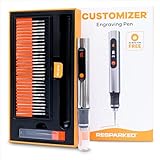
- Unleash Endless Creativity on 50+ Surfaces – From wood, metal, glass, and plastic to ceramics, the Customizer Engraving Pen invites you to transform any material with unique, professional designs. Your ideas, our engraving pen—limitless possibilities await!
- Effortless Precision for Every Artist – Whether you're new to engraving or a seasoned pro, our Customizer Engraving Pen's lightweight, ergonomic design and adjustable 3-speed motor put precision and control in your hands. With our engraving pen, intricate, detailed creations come naturally.
- Cordless Freedom for On-the-Go Creativity – With up to 2 hours of rechargeable battery life and USB-C fast charging, the Customizer Engraving Pen lets you take your art anywhere. Cord-free, hassle-free, and ready when you are.
- The Perfect Gift for DIY Enthusiasts – For Christmas, birthdays, or any special occasion, our professional engraving pen is a thoughtful, inspiring gift for creators of all ages. With the Customizer Engraving Pen, you’re giving more than a tool; you’re gifting creativity and joy.
- Unlock Your Potential with Our Engraving Tool Essentials – Jumpstart your journey with 30 premium bits, a durable carbide burr, and our exclusive Engraving Mastery Guide included in every kit. Your engraving pen set is your gateway to new artistic heights.
- Text-box selection: You see the box boundary or handles. This selects the design element.
- Text selection: You see a text cursor and highlighted characters. This selects the contents you want to format.
To format a single character or phrase, double-click the text box until you can place the cursor in the words. Then drag over the precise characters. Examples include:
CO2→ select2→ Subscriptx12→ select12→ Superscriptaij→ selectij→ Subscript1st→ selectst→ SuperscriptSource1→ select1→ Superscript
You can select one character, several consecutive characters, or a complete string. Canva’s native control is intended for selected text inside a text element; it is not limited to single digits.
What to do if Superscript or Subscript is missing
Do not assume immediately that the feature is Pro-only. Canva’s public feature announcement does not identify a Pro requirement, but it also does not publish a complete plan-by-plan, browser-by-browser, or mobile compatibility table. Try these steps in order:
Do these 3 things before closing this tab:
1Repair Windows errors before they cause bigger problems2Fix the driver behind crashes, sound loss and screen glitches3Clear out junk files and repair common Windows errors- Enter text-editing mode. Double-click inside the text box.
- Highlight the target characters. The option may not appear, or may not apply correctly, when only the element is selected.
- Expand the toolbar. Open the overflow menu if the toolbar is compressed.
- Check the related labels. Look under Spacing, Advanced formatting, Advanced settings, More settings, or Text position.
- Refresh Canva or update the app. A stale browser session or older app build can leave interface controls unavailable.
- Try Canva in a desktop browser. The native control and keyboard shortcuts are easiest to find there.
- Use a fallback method if the control still is not available or does not produce the visual result you need.
Canva’s public documentation confirms the feature generally, but not identical behavior on every web, desktop, iOS, and Android version. On mobile, the toolbar may be condensed or the control may be located elsewhere. If you cannot find Text position in the mobile app, use Unicode for simple symbols or the two-text-box method below.
Fallback 1: paste a Unicode superscript or subscript character
For a quick one-character result, you can paste an existing Unicode character directly into a Canva text box:
Superscript: ¹ ² ³ ⁴ ⁵ ⁶ ⁷ ⁸ ⁹ ⁰ ⁺ ⁻ ⁽ ⁾ ⁿ ⁱ
Subscript: ₀ ₁ ₂ ₃ ₄ ₅ ₆ ₇ ₈ ₉ ₊ ₋ ₍ ₎ ₐ ₑ ₕ ᵢ ⱼ ₖ ₗ ₘ ₙ ₒ ₚ ᵣ ₛ ₜ
This can be convenient for ², ³, ₁, ₂, and similar symbols, particularly on a phone. However, a pasted ² is a separate Unicode character; it is not the same as applying rich-text superscript formatting to an ordinary 2.
Rank #3

- POWERFUL TRANSLATION PEN & READER PEN: The Scanmarker Pal is a versatile translator pen and reading pen for kids and adults. Scan, translate, and have text read aloud while highlighted on the screen—perfect for dyslexia support, studying and travel.
- INSTANT MULTILINGUAL MASTERY: This language translator device scans and translates text in over 100 languages, including offline support for English, Spanish, French, German, and Italian. Ideal for learners and travelers needing quick, accurate translations.
- LISTEN & LEARN: This reading pen for dyslexia reads text aloud instantly, with highlighted words on the screen for improved comprehension. Perfect for auditory learners or those with reading challenges, offering a seamless text-to-speech experience.
- SCAN & EXPORT: Scan text with precision using the scan reader pen, then export as a digital file. Ideal for digitizing documents, creating notes, or saving important information for future use.
- COMPACT & PORTABLE DESIGN: Lightweight and portable, this advanced word translator pen is perfect for on-the-go use. Scan, translate, or read text anywhere, and connect Bluetooth headphones for an immersive audio experience.
Unicode provides only a limited inventory of superscript and subscript letters, numbers, and operators. Not every letter or symbol has a matching character, and the appearance depends on the font’s available glyphs. Unicode’s core specification generally favors styling or markup for ordinary mathematical notation rather than replacing every character with compatibility characters. Its superscript and subscript character chart shows the available inventory.
Use native Canva formatting when you need an editable, consistent string. Use Unicode when the required symbol exists, the font displays it correctly, and speed matters more than flexible editing.
Fallback 2: use two text boxes for precise positioning
Separate text boxes remain useful when the native control is unavailable, when a font does not render the result well, or when you need unusually precise visual placement.
- Create the main text in one text box, such as
xorH. - Create a second text box containing the raised or lowered character, such as
2. - Match the font family, weight, color, and letter styling in both boxes.
- Reduce the secondary character’s size. A practical starting point is roughly 50–70% of the main text size, then adjust by eye. This is an optical starting point, not an official Canva standard.
- Move the secondary text above the baseline for superscript or below it for subscript.
- Adjust the horizontal spacing until the expression looks natural.
- Select both text boxes and group them so they can be moved together.
This method gives you more direct control over the size, height, and spacing, but it has trade-offs: editing the expression takes longer, alignment can shift, and the two pieces are separate objects. Keep the editable Canva version before exporting or flattening the design.
How to make complex equations in Canva
Native superscript and subscript work well for simple inline notation such as x², H₂O, or a₁. They are not a replacement for a full equation editor.
For fractions, square roots, integrals, matrices, long expressions, or multiple stacked scripts, use Canva’s Equations app or another equation tool. Canva describes its Equations app as a way to create and insert formulas into a design. A structured equation element is usually easier to keep consistent than manually positioning many individual text boxes.
Fixing visual problems
The superscript looks too high or too large
Font metrics differ, so two fonts can place the same superscript at noticeably different heights. Try a simpler, more readable font and inspect the design at its final export size. If exact optical positioning matters, use two text boxes and adjust the secondary text manually.
PC Slower Than It Used to Be?
A free scan shows the junk files, broken settings and background clutter dragging Windows down - then fixes them in one click.Free scan · Windows 10 & 11Crashes, No Sound, or Screen Glitches?
Random freezes, missing sound and display glitches usually trace back to one bad driver. Find and replace yours safely.Free scan · under a minuteThe subscript is hard to read
Subscripts can become especially small when a design is reduced for a social post or printed worksheet. Increase the overall text size, choose a legible font, improve contrast, and check the exported file at its real viewing size. Do not let notation become decorative at the expense of readability.
Rank #4

- ALL-IN-ONE READING & TRANSLATION PEN: Unlock learning potential with this versatile dyslexia reading tool. The Scanmarker Pro scans text, and then reads it aloud while highlighting the words on the screen —making it an excellent reading pen for dyslexia, ESL students, and classrooms. Note this is a standalone pen, it doesn't scan to other devices.
- POWERFUL TRANSLATOR PEN & LANGUAGE DEVICE: Overcome language barriers effortlessly. This portable pen translator supports scanning and translating text into over 100 languages online, with offline functionality for English, Spanish, French, German, and Italian. A must-have language translator device for students and global travelers.
- BUILT-IN ENGLISH DICTIONARY & WORD TRANSLATOR: Enhance vocabulary with ease. This pen scanner offers word definitions and translations, helping learners of all ages improve comprehension and literacy skills. Ideal reading pen for kids, students, and language learners.
- SMART NOTE-TAKING & RECORDING: Simplify your workflow with this efficient reader pen. Capture notes and memos directly on the device for accurate data collection—perfect for professionals and students who need a reliable tool for organizing information.
- PORTABLE, LIGHTWEIGHT & USER-FRIENDLY: Designed for convenience, this compact translation pen fits easily in your pocket for on-the-go learning. Connect with earbuds for immersive audio playback and enjoy a 1-year warranty and dedicated customer support for complete peace of mind.
A Unicode symbol has a different appearance
The pasted character may come from a different glyph design within the selected font, or the font may not contain the desired character at all. Try another font, replace the Unicode character with Canva’s native formatting, or use separate text boxes for unsupported letters and symbols.
The entire sentence changes position
You probably selected the text box rather than the characters. Double-click the text, highlight only the intended string, and apply the formatting again. If formatting has already spread across the sentence, select the affected text and toggle the same option off or use Undo.
Checking the exported result
Inspect the final output rather than assuming the editor view will look identical everywhere. Before distributing a worksheet, presentation, poster, or graphic:
Free tools Windows power users keep installed
One-click scans. No signup required.
- Download a short test page first.
- Open it in the format you intend to use—such as PNG, JPG, PDF Standard, PDF Print, or a presentation file.
- Check the superscript or subscript at the final viewing or print size.
- Confirm that the font, spacing, baseline, and contrast remain acceptable.
- Keep a copy of the editable Canva design before flattening or converting the design to an image.
There is no public Canva guarantee that superscript and subscript alignment will be identical across every font, export format, device, and viewer. A test export is the safest way to catch an issue before publishing or printing.
Independent reader supportYour contribution helps us test, update, and keep practical guides available for everyone.Best method for common Canva projects
| Need | Recommended method |
|---|---|
| One exponent, citation marker, or chemical-formula number | Native Canva formatting |
| Many repeated notations on desktop | Native formatting with Canva’s keyboard shortcuts |
| A simple symbol such as ² or ₃ on mobile | Unicode, provided the font supports it |
| Exact visual positioning or an unsupported character | Two text boxes |
| Fractions, roots, matrices, or long equations | Canva’s Equations app or an external equation tool |
Why older Canva tutorials give different instructions
Many older articles say Canva has no native superscript or subscript control and recommend Unicode generators or manually aligned text boxes. That was workaround-based guidance for earlier Canva versions. It should no longer be the primary method: Canva now publicly lists superscript and subscript as an available feature. The older techniques are still useful as fallbacks for missing controls, mobile layouts, unsupported glyphs, and situations requiring precise optical placement.
Frequently Asked Questions
Does Canva have a superscript button?
Yes. Enter text-editing mode, highlight the characters, open Spacing or Advanced formatting, choose More settings if necessary, and look under Text position for Superscript.
What is the shortcut for superscript in Canva?
Canva’s localized desktop shortcut reference lists Ctrl + . on Windows and Command + . on macOS. Highlight the target text first.
What is the shortcut for subscript in Canva?
Use Ctrl + , on Windows or Command + , on macOS, according to Canva’s localized keyboard-shortcut reference. The cursor must be inside the text or the target characters must be selected.
Best Value

- 【ALL-IN-ONE READING & TRANSLATION PEN】 Our translation pen features high-precision scanning and translation capabilities. Functions include voice translation, text extraction, online/offline scan translation, image translation, and scan-to-read, making it an ideal assistive tool for individuals with dyslexia and a perfect reading companion for students. It is a good language translation device for students and global travelers. (This device support Bluetooth connected)
- 【POWERFUL TRANSLATOR PEN & LANGUAGE DEVICE】This dyslexia tools supports online voice and scanning translation in 142 languages, as well as offline translation for 10 major languages (including Chinese, Japanese, Spanish, French, German, etc.), making it suitable for travel, learning, and multilingual environments, A reading pen for adults, students , and language learners.(Note: This scanning translator pen supports horizontal‑direction Japanese text recognition only. Vertical Japanese text cannot be recognized. )
- 【SCANNING PEN WITH TEXT EXTRACTION FUNCTION】This dyslexia tools for students features scan reading aloud to improve pronunciation and comprehension and highlighting the words on the screen, making it an excellent reading pen for dyslexia, ESL students, and classrooms. Providing auditory support and enhance text comprehension skills with printed texts. PLEASE NOTE: This product is not suitable for blind people.
- 【SMART NOTE-TAKING & RECORDING】Capture notes and memos directly on the device for accurate data collection—perfect for professionals and students who need a reliable tool for organizing information. Excellent for study tools, reading pointers for students, and special education classroom essentials.
- 【ONLINE/OFFLINE PHOTO TRANSLATION】This translation pen comes with a built-in camera that instantly recognizes and translates text by taking photos—supporting 142 languages for online translation and 10 languages for offline translation. Even without an internet connection, it remains a powerful translation tool for menus, signs, documents, and more.
Can I format only one character in a Canva text box?
Yes. Double-click the text box, highlight only the required character or string, and apply Superscript or Subscript. Selecting the text-box boundary instead can affect the whole element or prevent the formatting from applying as intended.
Does superscript and subscript work in Canva’s mobile app?
The feature is easiest to locate in Canva’s desktop or web editor. Canva does not publish a complete platform-by-platform compatibility path, so mobile labels and controls may differ. If Text position is missing, try the web editor, paste a suitable Unicode character, or use two text boxes.
Does Canva require Pro for superscript or subscript?
Canva’s public feature announcement does not identify a Pro-only restriction. It also does not provide a complete plan-by-plan entitlement table, so a missing control should first be investigated as an interface, platform, rollout, or app-version issue rather than assumed to be a paywall.
Recommended Free Tools
Why is the superscript or subscript option missing?
Make sure you are editing the text and have highlighted characters, expand the toolbar or overflow menu, check Spacing, Advanced formatting, More settings, and Text position, then refresh or update Canva. Desktop or web is the most dependable place to look. Use a fallback if the control remains unavailable.
How do I make H₂O or CO₂ in Canva?
Type H2O or CO2, highlight only the 2, and choose Text position → Subscript. The same method works for other chemical formulas with selected numbers or letters.
Can Canva create full mathematical equations?
For simple inline expressions, native text formatting is sufficient. For fractions, roots, matrices, integrals, and long structured formulas, use Canva’s Equations app or an external equation tool instead of assembling many individual text boxes.
Why does pasted Unicode superscript look different from Canva formatting?
Unicode superscript and subscript characters are separate characters with limited coverage, and their appearance depends on the font. Native formatting is more flexible for ordinary text because it positions the selected characters instead of replacing them with a special glyph.
Do these 3 things before closing this tab:
1Repair Windows errors before they cause bigger problems2Fix the driver behind crashes, sound loss and screen glitches3Clear out junk files and repair common Windows errorsHow do I remove superscript or subscript in Canva?
Re-select the formatted characters and click the same Superscript or Subscript option again; it generally behaves as a toggle. You can also apply normal text formatting or use Undo.
Will superscript or subscript export correctly from Canva?
It should be checked in the final file rather than assumed. Download a test in the intended format, inspect it at the final size, and keep the editable Canva design in case the font, spacing, or alignment needs adjustment.
The Bottom Line
For most Canva designs, use the native control: type the full text, highlight only the required characters, then choose Text position → Superscript or Subscript. On desktop, Ctrl/Command + . applies superscript and Ctrl/Command + , applies subscript. Use Unicode for a quick supported symbol, two text boxes for exact positioning, and Canva’s Equations app for complex mathematical notation.
Quick Recap

Product prices and availability are accurate as of the date/time indicated and are subject to change. Any price and availability information displayed on Amazon at the time of purchase will apply.




