PC Slower Than It Used to Be?
A free scan shows the junk files, broken settings and background clutter dragging Windows down - then fixes them in one click.Free scan · Windows 10 & 11
Crashes, No Sound, or Screen Glitches?
Random freezes, missing sound and display glitches usually trace back to one bad driver. Find and replace yours safely.Free scan · under a minute
ThatPainter is reader-supported. When you buy through links on our site, we may earn an affiliate commission. Learn More
Why do I get lines when printing photos? Lines usually mean banding or streaking, but the cause may be clogged or deflected nozzles, low ink, printhead misalignment, unsuitable photo paper, incorrect settings, a Windows driver or application problem, or failing hardware. Print a printer-generated nozzle-check page first to separate these possibilities.
If the diagnostic pattern has missing segments, use the printer’s built-in cleaning process and check the pattern again. If the pattern is clean, troubleshoot the paper, print settings, image scaling, application, and driver instead of repeatedly cleaning or replacing parts.
Free tools Windows power users keep installed
One-click scans. No signup required.
Key takeaways
- Lines in printed photos are usually called streaking, banding, striping, or missing-line defects, but the visible symptom does not identify one universal cause.
- A printer-generated nozzle-check or print-quality page is the most useful first test because it separates an ink-path or hardware problem from a computer, application, or file problem.
- Missing or misaligned segments on the diagnostic pattern point toward clogged or deflected nozzles; complete nozzles with blurry or doubled output point more toward printhead alignment.
- Incorrect photo-paper settings, the wrong printable side, damaged paper, low or defective ink, outdated drivers, scaling, and mechanical faults can also create lines.
- Built-in cleaning and alignment utilities should come before an external cleaning product, and repeated cleaning can consume additional ink.
What causes lines when printing photos?
Lines are a symptom rather than a diagnosis. The most common explanations are clogged or deflected ink nozzles, poor printhead alignment, low or defective ink, unsuitable or incorrectly loaded photo paper, incorrect print settings, Windows driver or application problems, and paper-feed or printhead hardware faults.
HP’s print-quality guidance lists low or empty cartridges, air in the printhead, insufficient automatic servicing, unsuitable paper, and printhead condition among possible causes of horizontal streaks or lines. Epson and Microsoft identify the same broad pattern: nozzle condition, alignment, media, settings, drivers, and hardware all need to be considered rather than assuming that every line means a clogged printhead.
#1 Best Overall

- 【Printhead Nozzles Cleaner 100mL for All Inkjet Printers】Absonic Inkjet Printer Cleaning Solution for Epson Inkjet Printer, Printer Nozzle Cleaning Kit Solution for HP Inkjet Printer, Printer Printhead Cleaning Kit for Canon Inkjet Printer, Printer Head Cleaning Kit for Brother Inkjet Printer, Printhead Cleaner Kit for Samsung Printer, Print Head Cleaner Kit for Lexmark Printer, Printer Head Cleaner Kit for DTF Printer (If you don't find your inkjet printer model, you can always contact us)
- 【Printer Cleaner Solution for All Inkjet Printers】Absonic Inkjet Printhead Cleaner Kit is suitable for Epson EcoTank/Epson WorkForce/Epson Expression/Epson Stylus Inkjet Printers, such as ET 2720 2750 2760 3760 2760 2800 4800 4850; WF 7710 7720 3820 3823 4820 4830; XP 4205 7100 970, Printer Head Cleaning Solution for Canon MegaTank/Maxify/Office and Business Inkjet Printers, such as MX492 MX922 MG2520 MG2522 MG2525 MG3620 GX5020 IP110 G3260 G3270 G6020 TS702a TS3520 TS5120 TS5320 TS6320
- 【Print Head Nozzles Cleaner with All Inkjet Printers】Print Head Cleaning Solution for Brother MFC Inkjet Printers, such as J825DW J1010DW J1205W J1170DW J4335DW J4535DW J4620DW J5340DW; Printer Printhead Cleaning for HP Officejet/HP Deskjet/HP Envy/HP Smart Tank Inkjet Printers, such as HP OfficeJet 3830 4650 7740 8015 8020 8035 8210 8600 6978 Pro 9015 9025 9018, HP Envy 4520 5055 6055e 6455e 7955e, HP DeskJet 2640 2700 2723e 2742e 2755e 3755e 4155 4158, HP Smart Tank 5101 6001 7001 7301 7602
- 【Ink Cleaner for Inkjet Printer】Ink Cartridge Cleaner Ink Jet Head Cleaner Ink Jet Printer Cleaner Kit Cleaner for Ink, Inkjet Printhead Cleaning Solution Print Head Cleaner for Sublimation Ink Printhead Nozzles Cleaner Kit Print Head Cleaner Set Inkjet Cleaning Solution Cleaning Printer Head Cleaning Printer, Ink Head Cleaning Kit Inkjet Cleaning Kit Inkjet Cleaning Solution Kit Inkjet Head Cleaner Ink Head Cleaner Kit Ink Cartridge Head Cleaner Kit
- 【Printhead Cleaning Solution for Inkjet Printer Easy to Operate】The Printer Printhead Nozzle Cleaning Kit includes 100mL Inkjet Print Head Cleaning Fluid, syringe, white nozzle, yellow nozzle, L-shaped tubes, silicone tubing, gloves, and instructions. Inkjet Printhead Cleaning Kit comes with different sizes of nozzles to fit different ink-filling ports. The yellow nozzle is for Epson and Brother Inkjet Printers; The white nozzle is for HP and Canon Inkjet Printers
What should you test first?
Print a nozzle-check or print-quality diagnostic page directly from the printer before repeatedly cleaning the printhead or changing computer settings. The printer’s control-panel menu may call the test Nozzle Check, Print Quality Report, Quality Diagnostic Page, or something similar; the exact path depends on the model.
- Load ordinary printer paper or the media specified by the manufacturer for the diagnostic test.
- Open the printer’s control-panel Maintenance, Tools, or Setup menu, or open the manufacturer’s printer utility on the computer.
- Choose Nozzle Check, Print Quality Diagnostic, or the closest available test.
- Inspect each color pattern for missing segments, gaps, broken lines, or lines that do not align.
- Print the pattern again after any maintenance so that the result—not a single photo—shows whether the problem improved.
Canon describes the diagnostic principle clearly: “As long as the horizontal lines are in line, and not missing, the nozzle is working normally.” Canon’s nozzle-check instructions explain that missing or misaligned lines can indicate a blocked color nozzle. Epson’s printhead guide likewise recommends printing a nozzle pattern, cleaning affected nozzles, and checking the pattern again.
What does the diagnostic page tell you?
The diagnostic pattern determines the next troubleshooting branch more reliably than the orientation of the lines in the photograph. Use the table as a decision guide, then follow the exact maintenance instructions for the printer model.
| Diagnostic result | Likely direction | Next action |
|---|---|---|
| Missing segments or gaps in one or more color patterns | Clogged or deflected nozzles, low ink delivery, cartridge or vent problem | Run the model’s built-in head-cleaning or cartridge-cleaning utility, then print another nozzle check. |
| Lines are complete but output is blurry, doubled, jagged, or displaced | Printhead alignment or carriage-position problem | Run printhead alignment and repeat the diagnostic or alignment pattern. |
| Diagnostic page is poor and remains poor after model-appropriate maintenance | Persistent ink-path, printhead, carriage, feed, or other hardware fault | Check the model’s service guidance and contact the manufacturer or an authorized repair provider. |
| Printer-generated diagnostic page is clean but a computer-sent photo has lines | Paper type, print quality, scaling, application, color-management path, or driver issue | Test another application and image, verify print settings, and update or reinstall the manufacturer’s driver. |
| Only one photograph has the defect | Image file, excessive enlargement, application, or image-specific processing | Print a different image and the printer’s own test page before changing hardware or ink. |
| Every print has the same defect on fresh paper | Printer, ink supply, settings, or mechanical problem | Continue with nozzle, cartridge, paper, alignment, and hardware checks. |
How do you fix banding on photo prints?
Fix banding in order from the least invasive, most informative step to the more expensive or model-dependent step: verify the nozzle pattern, run the appropriate built-in maintenance, check alignment, inspect ink and paper, verify the computer-side settings, and escalate to service if the defect persists.
1. Run built-in printhead cleaning only when the pattern shows a defect
Use the printer control panel or the official printer utility. The function may be named Clean Printhead, Head Cleaning, Clean Cartridges, or Maintenance. If the nozzle-check pattern is complete and aligned, cleaning is unlikely to be the appropriate first response.
Rank #2

- Printhead Cleaning Kits for Inkjet Printers: Fosgoit Inkjet Printhead Cleaner for Epson Printer, Ink Jet Cleaning Solution for Canon Inkjet, Printer Printhead Cleaning Kit Cleaner for Print Head, Inkjet Cleaning Solution Kit for HP Printer Head, Inkjet Printhead Cleaning Kit Epson Eco Tank, Ink Cartridges Cleaning Solution for et-4800, Ink Cartridges Cleaner Solution for Epson, Printhead Cleaner for Print Head, Inkjet Cleaner Solution for Canon Print Head
- Cleaner for Inkjet Printers: Fosgoit Printhead Cleaning Solution for Inkjet Printers are Suitable for Epson EcoTank WorkForce Inkjet Printers, Print head Cleaner Solution for HP Officejet HP Deskjet Canon Inkjet Printers. Inkjet Cleaning Solution for Epson 2720 2750 2760 2800 2803 2850 3760 4700 4800 5170 8500 8550 15000 Inkjet Printers; Epson WF 7710 7720 110 2830 2860 3820 4820 4830 7310 7820 7840 Inkjet Printers; Epson XP 330 340 424 15000 4100 4105 7100 960 Inkjet Printers
- Compatible with HP Epson Canon Inkjet Printers: Print Head Nozzle Cleaning for HP OfficeJet 8600 8610 8620 8025 6835 3830 5255 6230 6700 6978 7740 8022 8710 Inkjet Printers HP Envy 4520 5055 6052 6055 6055e 6075 6452 HP DeskJet 2622 2752 2752e 2755 2755e Inkjet Printers, Inkjet Cleaning Solution for MFC J491DW J5845DW J995DW J1010DW J1170DW Inkjet Printers, Cleaning for Inkjet Printer for Canon MX492 MX922 MG2522 MG2525 MG3620 G3260 TS3520 TS5320 TS6320 Inkjet Printers
- Compatible Design of Printers Cleaning Solution: The yellow nozzle is for Epson and printers. The white is for HP and Canon printers. Each size of the nozzles is specifically designed to fit different ink fig port, which can avoid liquid leakage. Cleaning your inkjet printer with an effective printer head cleaner instead of discarding, it can bring your printer a brand new look and help you save money. Printer cleaning supplies protect the printhead and extend your printer life!
- Wide Applications of Printer Cleaner: Fosgoit printer head cleaning kit can be used for OEM factory ink, dye ink, pigment ink, sublimation ink, heat transfer ink. Our print head cleaning solution contains degradation factors, which can dissolve the hard block and other soluble impurities left after the ink hardens, making the ink flow more smoothly and wouldn't corrode the print head.
Print another nozzle check after cleaning. Do not run cleaning repeatedly without checking the result: printer cleaning cycles can consume additional ink. Epson separates nozzle checks, head cleaning for banding or gaps, and printhead alignment for blurry or lined output in its printer-utility documentation.
Recommended Free Tools
An external printhead cleaning kit for inkjet printers is an optional escalation, not a universal fix. Confirm that the kit is compatible with the exact printer and ink system, follow the manufacturer’s instructions first, and understand that liquid cleaning can be unsuitable for some cartridge-integrated, tank, professional, or non-removable printhead designs. Do not use a generic kit merely because one cleaning cycle did not immediately restore a photograph.
2. Align the printhead when nozzles are complete but the image is displaced
Printhead alignment addresses a different failure pattern from a blocked nozzle. Run alignment when the test pattern is complete but the photo looks blurry, doubled, jagged, or lined, or when the printer has been moved or its printhead has been replaced.
Alignment can correct the timing and placement of ink droplets, but alignment cannot restore ink from a blocked nozzle or repair a damaged carriage. If the alignment pattern itself remains abnormal, follow the printer’s service instructions rather than repeating alignment indefinitely.
Can ink or a cartridge cause lines in printed photos?
Yes. Low or empty ink, a defective cartridge, incompatible or refilled supplies, clogged vents, and air in the ink path can affect the nozzle pattern and produce streaks or missing colors. Check the ink level and cartridge condition, but treat the ink indicator as evidence to investigate—not proof that replacing a cartridge will solve every line defect.
Rank #3

- High Success Rate: Save hundreds of dollars with our best printing cleaning kit for restoring print quality on inkjet printers. Access additional video support of the best printers cleaning kit on YouTube Channel. Remember to run a printhead or power cleaning after use to bring ink back into the printhead
- User-Friendly Design: DIY Print Head Cleaning Kit for Epson. No expertise is required! This cleaning kit fixes common printing issues like discoloration, missing colors, low-quality prints, blank pages and streaks
- Wide Compatibility: Works with popular printer models, including Epson EcoTank, Epson WorkForce HP SmartTanks, HP OfficeJet, Canon Pixma, Brother MFC, DTF, Sublimation and many more.
- Complete Cleaning Solution: Includes a LARGE 20ml print head cleaner syringe and multiple attachments for hp officejet printhead cleaning kit. Our ionized cleaning solution is safe to use on all printer components
- Complete Printhead Cleaning Solution: Includes specialized cleaning fluid, syringes, and tools; printer cleaning kit flush cleaner removes dried ink buildup; extends printhead lifespan and delays replacement
HP’s print-quality guidance for Deskjet and Photosmart printers notes that ink indicators are estimates and discusses non-genuine or refilled cartridges as possible contributors to print-quality problems. Replace ink with the exact cartridge number specified for the printer model. A generic cartridge recommendation is unsafe because cartridge fit, ink chemistry, venting, and printhead design vary by model.
If the diagnostic page shows that only one color is missing, inspect that color’s cartridge or tank and its ink path first. If every color is affected, also consider printhead condition, paper, alignment, settings, and mechanical problems instead of assuming that all cartridges failed simultaneously.
Can bad photo paper cause lines?
Yes, unsuitable or damaged photo paper can contribute to streaks, banding, poor ink absorption, and smearing, although paper is not the explanation for every lined print. Use clean, dry, undamaged inkjet photo paper recommended for the printer, load the printable side in the correct direction, and select the matching paper type in the print dialog.
Check these paper-related causes:
- The paper is loaded with the printable coating facing the wrong way.
- The selected media type does not match the actual paper, such as choosing plain paper for glossy photo media.
- The sheet is curled, wrinkled, damp, dirty, or damaged.
- Paper has been stored exposed to humidity or heat.
- The paper size, border setting, or feed path does not match the printer’s requirements.
HP’s guidance on banding, streaks, and lines warns that paper that does not accept ink properly can cause print defects. Microsoft also identifies incorrect paper type and print-resolution settings as possible causes of poor output. Test one fresh sheet from a properly stored pack before buying replacement hardware.
The Tool Desk
Outbyte PC Repair FREERepair Windows errors before they cause bigger problemsFix Now →Outbyte Driver Updater FREEFix the driver behind crashes, sound loss and screen glitchesFind Drivers →Why does the printer test page look fine but my photo does not?
A clean printer-generated test page usually shifts the investigation from the printer’s ink path toward the computer, application, image, paper settings, or driver. Print the same image from another application, print a different image from the original application, and compare both results with the printer-generated page.
Rank #4

- Item Model: B5L35A Fuser Maintenance Kit (100V-120V)
- OEM Number: B5L35-67901 B5L35-67902
- Page Yield: About 150000 pages
- Printer Compatibility: For MFP M552dn M553dh M553dn M553n M553x M553dnm M553xm M554dn M555dn M555x M577c M577z M577dn M577cm M577f M577dnm M578dn M578f M578c M578z Printer
- This is Fuser Maintenance Kit
Verify that the print dialog uses the correct paper size and media type, a photograph-appropriate quality setting rather than Draft or Economy, and a sensible scaling option. Avoid enlarging a low-resolution image excessively; an image can contain file or scaling problems even when the printer’s own diagnostic pattern is perfect.
On Windows, update or reinstall the printer driver from the manufacturer or through Windows’ supported driver path. Microsoft’s poor-print-quality guidance includes incorrect settings, paper type, print resolution, outdated drivers, low ink or toner, and hardware among possible causes. Microsoft’s driver installation guidance says that the latest driver can help resolve printing issues, improve performance, and add features.
An optional third-party driver-maintenance tool belongs only in this Windows software branch, after the manufacturer’s driver has been checked. Such software cannot unclog nozzles, align a printhead, correct wrong photo paper, or repair a feed mechanism, and current product and affiliate availability must be verified before recommending a particular tool.
What’s actually slowing this PC down?
Pick the symptom - the matching free tool is one click away.
Do horizontal or vertical lines identify the cause?
Line orientation provides a clue but cannot diagnose the problem by itself. Repeating horizontal lines are compatible with nozzle, ink-delivery, feed, or banding problems; vertical lines can involve alignment, carriage movement, paper handling, or a dirty print path. The printer-generated diagnostic pattern is more decisive than whether the photograph’s lines run horizontally or vertically.
If the lines repeat at regular intervals, compare a second photograph, inspect the paper path for contamination, and check whether the defect appears on the printer’s own test page. Do not touch the print surface or smear ink while handling the test sheet, because handling damage can resemble a printer defect.
Best Value
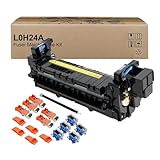
- Item Model: L0H24A L0H24A-67903 L0H24-67901 Printer Maintenance Kit (100V-120V)
- Page Yield: about 225000 pages
- Printer Compatibility: For HP M607 M608 M609 M610 M611 M612 M631 M632 M633 M634 M635 M636 E62555dn serise printer
- Product Advantages: Our L0H24A printer maintenance kit uses high quality raw materials to ensure an efficient and clear printing experience, and no longer need to worry about long printing times. You will enjoy the whole printing process
- Customer support: All products have undergone strict quality inspection before leaving the factory. If you have any questions, please feel free to tell us, we will reply you in 12 hours
When should you stop troubleshooting and get service?
Contact the manufacturer or an authorized repair provider when the nozzle pattern remains defective after the model’s recommended cleaning, when the printer reports a printhead error, when ink leaks, when the carriage moves abnormally, or when the same lines persist across multiple fresh sheets and independent test pages.
A replacement printhead may be appropriate for some printers, but a printhead is not a universal part. Select a replacement only by exact printer model and only after the manufacturer’s diagnostic guidance identifies a failed or nonrecoverable printhead. Compare the likely cost of the part and service with the printer’s age, remaining warranty, ink-system design, and the cost of a replacement printer.
Free tools Windows power users keep installed
One-click scans. No signup required.
| Remedy | Best evidence for using it | Risk or limitation |
|---|---|---|
| Settings or paper correction | Diagnostic page is clean; defect changes with media or application | Cannot repair a clogged nozzle or damaged hardware |
| Built-in nozzle cleaning | Diagnostic pattern has missing or broken segments | Consumes ink; should be verified with another nozzle check |
| Built-in printhead alignment | Nozzle lines are complete but output is displaced, blurry, or doubled | Does not remove a clog or repair a carriage |
| Exact replacement cartridge | Ink is low, empty, defective, incompatible, or not feeding correctly | Must match the printer model and may not solve a mechanical fault |
| External cleaning kit | Manufacturer-directed maintenance has failed and the kit is confirmed compatible | Model-dependent; liquid cleaning can carry compatibility and warranty risks |
| Replacement printhead or service | Persistent defective diagnostic pattern, error, leak, or abnormal carriage/feed behavior | Part compatibility and repair cost vary substantially by model |
A practical checklist for lined photo prints
- Print the printer’s own nozzle-check or print-quality page.
- Look for missing, broken, or misaligned color segments.
- Clean the affected nozzles with the built-in utility only when the pattern indicates a problem.
- Print another diagnostic page before repeating maintenance.
- Run printhead alignment when nozzles are complete but the image is blurry, doubled, or displaced.
- Check ink level, cartridge number, cartridge condition, vents, and compatibility.
- Load fresh, dry photo paper with the printable side facing correctly.
- Match paper size, media type, and print quality to the actual paper.
- Compare another image and another application.
- Update or reinstall the manufacturer’s Windows printer driver if the printer test page is clean but computer prints are defective.
- Escalate to manufacturer support or authorized repair when the diagnostic pattern remains defective or the printer shows physical symptoms.
Frequently Asked Questions
Why do I get lines when printing photos?
Lines are often caused by clogged or deflected ink nozzles, but low or defective ink, misalignment, unsuitable photo paper, incorrect settings, outdated drivers, and mechanical faults can produce similar streaks. Print a printer-generated nozzle-check page before assuming the printhead is clogged.
How do I find out whether my printhead is clogged?
Print the printer’s built-in nozzle-check or print-quality page. Missing or broken segments indicate an ink-delivery or nozzle problem; complete but displaced lines suggest alignment. A clean diagnostic page shifts attention to paper, settings, scaling, applications, or the printer driver.
Can bad photo paper cause lines?
Yes, incorrect photo-paper type, the wrong printable side, curled or damp sheets, and paper that absorbs ink poorly can cause streaks or banding. Test fresh, undamaged paper and match the print dialog’s media setting to the actual paper.
Should I clean the printhead to fix lined photo prints?
Run the printer’s built-in cleaning utility only when the nozzle pattern shows missing or broken segments, then print another nozzle check. Use an external cleaning kit only after manufacturer-directed maintenance fails and only when the kit is confirmed compatible with the exact printer and ink system.
PC Slower Than It Used to Be?
A free scan shows the junk files, broken settings and background clutter dragging Windows down - then fixes them in one click.Free scan · Windows 10 & 11Crashes, No Sound, or Screen Glitches?
Random freezes, missing sound and display glitches usually trace back to one bad driver. Find and replace yours safely.Free scan · under a minuteWhy does the printer test page look fine but my photo does not?
A clean printer-generated test page usually means the printer’s basic ink path is working, so check the photo application, image scaling, paper and quality settings, and Windows printer driver. Print another image from another application and update or reinstall the manufacturer’s driver.
The Bottom Line
When printed photos have lines, print the printer’s own nozzle-check or quality page first. Missing or broken segments justify model-specific cleaning; complete but displaced lines point toward alignment. If the test page is clean, investigate paper, settings, scaling, the application, and the driver. Persistent defects across independent test pages indicate a cartridge, printhead, feed, or other hardware problem that may require exact-model service.
Quick Recap

Product prices and availability are accurate as of the date/time indicated and are subject to change. Any price and availability information displayed on Amazon at the time of purchase will apply.




