The Tool Desk
PC Slower Than It Used to Be?
A free scan shows the junk files, broken settings and background clutter dragging Windows down - then fixes them in one click.Free scan · Windows 10 & 11Outdated Drivers Are Slowing You Down
One free scan finds every outdated or missing driver and matches the right update for your exact hardware.Free scan · exact hardware matchOutbyte Driver Updater FREEScan for outdated or missing drivers - takes under a minuteDriver Scan →Outbyte PC Repair FREERepair Windows errors before they cause bigger problemsFix Now →
ThatPainter is reader-supported. When you buy through links on our site, we may earn an affiliate commission. Learn More
Use Stable Diffusion effectively by choosing a model and route that fit your goal, writing a clear prompt, and improving the result through deliberate iterations. Start with a simple generation, compare seeds, and change only a few things at a time; settings and results can differ across models, interfaces, and checkpoints.
Choose how to run Stable Diffusion
You can run Stable Diffusion locally, on a rented cloud GPU, or through hosted inference. The right route depends on how much control, setup, privacy, and hardware management you want. Stability AI describes local use as offering control, offline generation, and workflow customization, while hosted inference leaves infrastructure and GPU management to a provider.
| Route | Useful when | Trade-offs |
|---|---|---|
| Local | You want control over files and workflows, offline use, or frequent generation. | You manage installation, model downloads, storage, drivers, and hardware limits. |
| Cloud VM | You want to run your own interface on rented GPU infrastructure. | You still manage the software and cloud setup; costs and configuration vary by provider. |
| Hosted inference | You want a provider to manage the infrastructure and GPU. | Model availability, privacy, pricing, queues, and usage terms vary by service. |
Stability AI’s self-hosting guide names ComfyUI, Automatic1111 WebUI, and InvokeAI as local interface options. These are vendor descriptions, not independent usability rankings; check current installation instructions because interfaces evolve.
Choose a model and interface for the task
Compare models by how well they suit the task, prompt adherence, speed, hardware needs, customization, and license. Stability AI describes Stable Diffusion 3.5 Large as its high-capability option, Large Turbo as a faster distilled variant, and Medium as a balance of quality and customization. These are publisher descriptions, not independent benchmark results.
#1 Best Overall

- Powered by NVIDIA DLSS 3, ultra-efficient Ada Lovelace architechture, and full ray tracing
- 4th Generation Tensor Cores: Up to 4x performance with DLSS 3
- 3rd Generation RT Cores: Up to 2x ray tracing performance
- Powered by GeForce RTX 4070
- Integrated with 12GB GDDR6X 192-bit memory interface
| Model or interface | What the dossier supports | What to check |
|---|---|---|
| SD 3.5 Large | Stability AI describes it as an 8.1-billion-parameter model for professional use at 1 megapixel. | Hardware needs, availability, workflow compatibility, and the exact license. |
| SD 3.5 Large Turbo | Stability AI describes it as a distilled version that generates in four steps. | Whether its speed and output suit your task and interface. |
| SD 3.5 Medium | Stability AI describes it as a 2.5-billion-parameter model balancing quality and customization. | Its requirements and supported workflow; the vendor cites 9.9 GB VRAM for full performance, excluding text encoders. |
| ComfyUI | Node-based, modular workflows. | Whether you want to build or adapt node graphs. |
| Automatic1111 WebUI | A traditional web interface with community support and plugins. | Current installation instructions and extension compatibility. |
| InvokeAI | A modern dashboard and post-processing features such as upscaling and inpainting. | Whether its workflow suits your project. |
Check that models and add-ons belong to compatible model families. Do not assume a LoRA, ControlNet, or other component made for one architecture works with another.
Write prompts around the image you want
Start with the subject and intended scene or visual treatment, then refine the wording in response to actual outputs. A useful prompt makes the important content and relationships clear, such as what is in the foreground, what the subject is doing, and how the scene is framed.
- Name the subject and the action or pose.
- Describe the setting and the framing.
- Add relevant visual treatment, such as lighting, palette, or medium.
- State important relationships, such as which object is in front of another.
- Review the result and revise the parts that did not come through.
For example: “Editorial portrait of a botanist examining a glass terrarium, three-quarter view, soft window light, muted green and amber palette, quiet studio background.” Use concrete details before adding decorative style terms. Stability AI notes that SD 3.5 outputs can vary by seed and that a prompt lacking specificity may increase uncertainty; this is not a guarantee that one prompt recipe works for every model.
Quick wins for a faster PC:
Scan for outdated or missing drivers - takes under a minuteDriver Scan →Repair Windows errors before they cause bigger problemsFix Now →Use negative prompts and weighted prompts selectively
Some interfaces and models support negative prompts; use them for recurring, observable problems rather than treating a long list as a substitute for a suitable model or a clear composition. Stability AI’s API also documents multi-prompting, which assigns weights to prompts to mix concepts. These are API features: do not assume that the same syntax or effect is available in every third-party interface or model.
Rank #2

- Chipset: NVIDIA GeForce RTX 3060
- Video Memory: 12GB GDDR6
- Memory Interface: 192-bit
- Output: DisplayPort x 3 (v1.4a) / HDMI 2.1 x 1.Avoid using unofficial software
- Digital maximum resolution: 7680 x 4320
Iterate with settings and seeds
Keep experiments interpretable by changing one or a few elements at a time. Generate several seeds, choose a promising result, and then compare revisions using the same seed and other unchanged settings when possible. A seed helps identify a starting random state; it is not a quality score, and it may not reproduce an identical image across changed models, software, or settings.
Settings are version-sensitive. Stability AI’s API documents controls including seed, negative prompt, CFG scale, and style preset. Its API parameter guide gives typical CFG ranges of 4–8 for v2.x models, 7–14 for v1.x, and 4–12 for SDXL. These ranges apply to those model families in that API guidance; follow the documentation for your chosen checkpoint and interface and compare results on your own task.
For image-to-image, Stability AI’s API uses a source image and a strength value controlling how much influence the input has. Interfaces may label or implement controls differently. Start with the model or workflow documentation, make a small comparison, and avoid assuming that a particular setting is universal.
What’s actually slowing this PC down?
Pick the symptom - the matching free tool is one click away.
A dependable generation loop
- Choose a route and compatible model. Check the model’s requirements, intended use, license, and workflow compatibility.
- Write a clear first prompt. Establish the subject and scene before adding extra style details.
- Generate several seeds. Look for a useful composition and subject treatment.
- Revise deliberately. Change one or a few prompt elements or settings and compare results.
- Use targeted editing when needed. Image-to-image can incorporate a source image; inpainting can repair a selected region where supported.
- Save useful outputs and settings. Keep the prompt, seed, model, interface, and relevant generation settings so you can revisit the experiment.
Hardware and local use
Hardware needs depend on the model, resolution, text encoders, and workflow. Stability AI’s self-hosting guide gives at least 6 GB of GPU VRAM as general local setup guidance and recommends an RTX 3060 or higher. That general guidance does not mean every recent model or workflow will fit. For SD 3.5 Medium, Stability AI cites 9.9 GB VRAM for full performance, excluding text encoders.
Rank #3
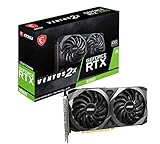
- Strong performance thanks to NVIDIA Ampere with NVIDIA GeForce RTX 3060, 12GB GDDR6, ray tracing and DLSS support
- Display outputs: DisplayPort v1.4a x 3 / HDMI 2.1 x 1
- DUAL FAN COOLING Two fans, combined with a huge heatsink, make the VENTUS series quiet and powerful
- Award winning MSI TORX Fan 3.0 design for high static pressure and effective cooling
- MSI Dragon Center: With just a few clicks, performance can be monitored and optimized in real time
Choose hardware based on the particular model and workflow you intend to run, and check current requirements before buying. Hosted inference is an alternative when you do not want to manage local hardware, but compare provider pricing, privacy, model availability, and terms. No hardware purchase is necessary if hosted use meets your needs.
Licensing and responsible use
Check the exact model and add-on licenses before commercial use. Stability AI’s current license page describes a USD $1 million annual-revenue threshold for commercial use of Core Models; other Stability AI models and community components may have different terms. Do not treat that threshold as permission for every checkpoint, derivative, platform, or use. Read the applicable current license and provider terms before using or distributing generated work.
Independent reader supportYour contribution helps us test, update, and keep practical guides available for everyone.Frequently Asked Questions
Should I run Stable Diffusion locally or use a hosted service?
Local use suits people who want control, offline access, and customization and are prepared to manage software and hardware. Hosted inference can be more convenient if you do not want to manage a GPU, but check current pricing, privacy terms, model availability, and usage conditions.
Which Stable Diffusion interface should I choose?
Stability AI’s self-hosting guide describes ComfyUI as node-based and modular, Automatic1111 as a traditional web interface with community support and plugins, and InvokeAI as emphasizing a modern dashboard and post-processing. Choose based on the workflow you prefer and verify current setup instructions.
Rank #4

- Powered by the NVIDIA Blackwell architecture and DLSS 4 OC mode: 2640MHz/Default mode: 2610MHz (Boost Clock)
- Military-grade components deliver rock-solid power and longer lifespan for ultimate durability
- Protective PCB coating helps protect against short circuits caused by moisture, dust, or debris
- 3.125-slot design with massive fin array optimized for airflow from three Axial-tech fans
- Phase-change GPU thermal pad helps ensure optimal thermal performance and longevity, outlasting traditional thermal paste for graphics cards under heavy loads
How can I improve a Stable Diffusion prompt?
Describe the subject, action, setting, framing, and important visual relationships. Review the generated image and revise the details that were missed instead of adding unrelated adjectives. Results vary by model and seed.
What settings should I change first?
Follow the chosen model and interface documentation. Change one or a few settings at a time and compare results on your task. Stability AI’s documented CFG ranges are model-family-specific API guidance, not universal settings for every interface or checkpoint.
How much GPU memory do I need?
It depends on the model and workflow. Stability AI’s self-hosting guide gives at least 6 GB VRAM as general setup guidance, while its SD 3.5 Medium release cites 9.9 GB for full performance excluding text encoders. Check the exact requirements for the model you plan to run.
Can I use Stable Diffusion images commercially?
Check the exact model, add-on, and service terms. Stability AI’s current license page describes a USD $1 million annual-revenue threshold for commercial use of Core Models, but that does not establish the terms for every model or derivative.
Quick Recap

Product prices and availability are accurate as of the date/time indicated and are subject to change. Any price and availability information displayed on Amazon at the time of purchase will apply.




