Outdated Drivers Are Slowing You Down
Outbyte Driver Updater · freeOne free scan finds every outdated or missing driver and matches the right update for your exact hardware.
Scan My Drivers Free →ThatPainter is reader-supported. When you buy through links on our site, we may earn an affiliate commission. Learn More
Procreate’s lasso-like tool is called Freehand. Tap the ribbon-shaped Selection button in the top menu, choose Freehand, and outline the area you want to edit. Once the selection is committed, edits such as painting, erasing, filling, and transforming are isolated to that area.
You can draw with a finger or Apple Pencil, lift and resume the outline, and mix curved strokes with tapped points for straight edges. The steps below explain where to find Freehand, how to close and refine a selection, and what to do with it afterward.
Where is the lasso tool in Procreate?
Tap the ribbon-shaped Selection button in the top menu. In the Selection toolbar, choose Freehand. Freehand is Procreate’s lasso-like mode for outlining irregular areas of artwork.
For the available selection modes and controls, see Procreate’s Selections interface handbook.
#1 Best Overall

- Bluetooth Wireless Connectivity
How to lasso something in Procreate
- Open the artwork and choose the layer you want to edit.
- Tap Selection, then choose Freehand.
- Draw around the area with a finger or Pencil. Lift and place your input down again to continue the outline if needed.
- For straight edges, tap successive points; Procreate connects them with dashed segments. You can mix tapped points and drawn curves.
- Tap the gray circle at the starting point to close the outline. You can also apply the selection with Add or Remove, or tap another tool to commit it.
- Check the selection, then paint, smudge, erase, fill, or transform the selected area.
While in Selection mode, you can use Procreate’s navigation gestures to zoom, pan, and rotate. The selection limits edits; it does not automatically create a separate layer or identify an object as an independent item. Your active layer still matters.
How to close a Freehand selection
Tap the gray circle marking the starting point to close the outline. Alternatively, tap Add or Remove to apply the selection while keeping Selection mode active, or tap another tool to commit it and begin editing.
A committed selection is indicated by moving diagonal lines outside the selected area. If the selection does not look right, use Add or Remove to refine it before editing.
What’s actually slowing this PC down?
Pick the symptom - the matching free tool is one click away.
Refine a lasso selection
Add to a selection
Tap Add, then outline another region to include it. This is useful for disconnected parts or when building a complex selection from smaller areas.
Remove part of a selection
Tap Remove, then outline the area to subtract. This can correct an accidental inclusion without starting over.
Invert the selection
Tap Invert to switch the selected and unselected areas. For example, select a subject and invert if you want to edit the area around it.
Feather the edge
Tap Feather to soften the selection boundary. At 0%, the edge remains crisp. A softer edge can help with compositing, but too much feathering can blur details.
Rank #2
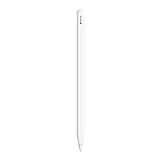
- WHY APPLE PENCIL — With pixel-perfect precision, tilt and pressure sensitivity, and imperceptible lag, Apple Pencil (2nd generation) makes painting, sketching, doodling, and note-taking better than ever. Attaches magnetically for wireless pairing and charging.
- COMPATIBILITY — Apple Pencil (2nd generation) works with iPad Pro 12.9-inch (3rd, 4th, 5th, and 6th generation); iPad Pro 11-inch (1st, 2nd, 3rd, and 4th generation); iPad Air (4th and 5th generation); and iPad mini (6th generation).
- EASY AND NATURAL — Featuring a flat edge that attaches magnetically, Apple Pencil (2nd generation) allows you to change tools with just a tap from your finger.
- TRANSFORMS IPAD INTO A CANVAS — Draw, sketch, color, take notes, and mark up documents. Apple Pencil does it all with pixel-perfect precision, tilt and pressure sensitivity, and imperceptible lag. Apple Pencil attaches, charges, and pairs magnetically.
Undo a bad stroke
A two-finger tap undoes the last action, and a three-finger tap redoes it. These gestures can help correct a selection stroke without canceling the entire selection.
What to do after lassoing
Paint or recolor the selected area
Keep the selection active, choose a brush, and paint inside it. The selection restricts the edit to the selected area. Check that the intended layer is active before painting.
Erase or clear the selected area
Choose the Eraser and erase within the selection, or use an available clear or cut operation. To edit the area around a subject, select the subject and tap Invert first.
Move the original pixels
- Make and check the Freehand selection.
- Tap the Transform arrow.
- Drag inside the bounding box to move the selected content.
- Pinch to scale or rotate as needed.
A selection alone does not move anything; use Transform to reposition selected content. If the whole layer moves instead, undo and check that the selection is committed and active.
The Tool Desk
Outbyte Driver Updater FREEScan for outdated or missing drivers - takes under a minuteDriver Scan →Outbyte PC Repair FREERepair Windows errors before they cause bigger problemsFix Now →Move a duplicate
- Make the Freehand selection.
- Choose Copy & Paste.
- Procreate places the selected content on a new layer labelled From selection.
- Use Transform to reposition or adjust the duplicate.
Copy & Paste preserves the original pixels. Choose a cut operation instead when you want to remove the selected content from its original location.
Freehand, Automatic, Rectangle, or Ellipse?
| Mode | Best for | How it works |
|---|---|---|
| Freehand | Irregular boundaries and shapes needing a mix of curves and straight edges. | Draw curves and tap points for polygonal segments. |
| Automatic | Areas separated by color boundaries. | Tap an area and drag to adjust the threshold. |
| Rectangle | Rectangular areas. | Creates a geometric selection. |
| Ellipse | Round or oval areas. | Creates an elliptical selection. |
Rectangle and Ellipse can be combined with Freehand or with each other. See Procreate’s guides to Automatic selections and Rectangle and Ellipse selections for more detail.
Select all content on a layer
If artwork is already isolated on a layer, selecting the layer’s content may be easier than tracing it. This is different from Freehand Selection: it selects layer content rather than an area you draw around.
Rank #3

- WHY APPLE PENCIL - With pixel-perfect precision, tilt sensitivity, and low latency, Apple Pencil (USB-C) makes note-taking, signing documents, and drawing easy at an affordable price. It pairs and charges via USB-C and can magnetically attach to your iPad.
- COMPATIBILITY - Apple Pencil (USB-C) works with iPad Pro 13-inch (M4 and M5); iPad Pro 12.9-inch (3rd, 4th, 5th, and 6th generation); iPad Pro 11-inch (M4 and M5); iPad Pro 11-inch (1st, 2nd, 3rd, and 4th generation); iPad Air 13-inch (M2, M3, M4); iPad Air 11-inch (M2 and M3); iPad Air (4th and 5th generation); iPad (A16), iPad mini (A17 Pro), iPad mini (6th generation); and iPad (10th generation).
- EASY AND NATURAL - Write, sketch, and draw with pixel-perfect precision. Apple Pencil (USB-C) does it all with low latency and tilt sensitivity. Apple Pencil pairs and charges via USB-C and features a flat edge that attaches magnetically.
- TRANSFORMS IPAD INTO A CANVAS - Draw, sketch, color, take notes, and mark up documents. Use built-in apps like Notes and Freeform, or choose from over a million more apps available on the App Store. And for pros, use Apple Pencil hover on iPad Pro and iPad Air to preview your mark before you make it.
- WHAT'S IN THE BOX - Apple Pencil (USB-C)
Selections do not automatically combine artwork across every layer. Choose the method that matches what you need: select or lasso content on the active layer, use a combined copy when you need visible artwork from multiple layers, or Copy & Paste after a selection to make a duplicate.
Free tools Windows power users keep installed
One-click scans. No signup required.
Why is the lasso not working?
You cannot find a button labeled Lasso
Tap Selection, then choose Freehand. Procreate uses Freehand as the label for its lasso-like selection mode.
The outline does not create the expected selection
Close the outline by tapping its gray starting point, or apply it with Add or Remove. You can also tap another tool to commit the selection.
The wrong part is selected
Use Add to include a missed area, Remove to subtract an area, or Invert to switch the selected and unselected regions.
The edit affects the wrong artwork
Check the Layers panel and make sure the intended layer is active. A selection does not automatically target matching pixels on other layers.
Outdated Drivers Are Slowing You Down
One free scan finds every outdated or missing driver and matches the right update for your exact hardware.Free scan · exact hardware matchWindows Errors? Fix Them Before They Spread
Repair common Windows errors and clear accumulated junk for a smoother, more stable PC - no reinstall needed.Free scan · no reinstallThe selection mask obscures the artwork
After a selection is committed, moving diagonal lines appear outside the selected area. Procreate’s Selection mask visibility setting can adjust how the mask is shown.
Independent reader supportYour contribution helps us test, update, and keep practical guides available for everyone.How to cancel or clear a selection
Tap the Selection button again to cancel the selection and return to the artwork. Be careful not to confuse canceling a selection with clearing or deleting artwork.
Rank #4

- WHY APPLE PENCIL PRO — Apple Pencil Pro is loaded with intuitive features for ultimate creative control. Gestures and haptics allow you to seamlessly create without missing a beat. And Apple Pencil Pro features pixel-perfect precision, tilt and pressure sensitivity, and low latency. Attaches magnetically for wireless pairing and charging.
- COMPATIBILITY — Apple Pencil Pro works with iPad Pro 13-inch (M5 and M4), iPad Pro 11-inch (M5 and M4), iPad Air 11-inch (M2, M3, and M4), iPad Air 13-inch (M2, M3, and M4), and iPad mini (A17 Pro).
- ADVANCED TOOLS — Apple Pencil Pro gives you ultimate creative control. Use gestures like squeeze and barrel roll to access tools, change brushes, and create strokes without missing a beat. Haptics allow you to feel shapes snap into place, and more. Use Apple Pencil hover on iPad Pro (M5 and M4) and iPad Air (M3 and M2) to preview your mark before you make it. And now you can use Find My to locate your Apple Pencil Pro.
- EASY AND NATURAL — Apple Pencil Pro does it all with pixel-perfect precision, tilt and pressure sensitivity, and low latency. Featuring a flat edge, Apple Pencil Pro allows you to change tools with just the tap of a finger. Apple Pencil Pro attaches, charges, and pairs magnetically.
- TRANSFORMS IPAD INTO A CANVAS — Draw, sketch, color, take notes, and mark up documents. Use built-in apps like Notes and Freeform, or choose from over a million more apps available on the App Store. And for pros, use Apple Pencil hover on iPad Pro and iPad Air (M2) to preview your mark before you make it.
Useful Procreate selection shortcuts
- Two-finger tap: undo the last action.
- Three-finger tap: redo the last action.
- Navigation gestures: zoom, pan, and rotate while selecting.
See Procreate’s Selections interface handbook for the documented controls.
A reliable lasso workflow
- Choose the layer you want to edit.
- Tap Selection > Freehand.
- Draw with a finger or Pencil, lifting and resuming as needed.
- Use tapped points for straight edges and drawn strokes for curves.
- Close the outline at its gray starting point, or apply it with Add or Remove.
- Inspect the committed selection and refine with Add, Remove, Invert, or Feather.
- Paint, erase, smudge, fill, transform, or Copy & Paste as needed.
- Tap Selection again when you want to cancel the selection.
FAQ
Can I use my finger to make a Procreate lasso selection?
Yes. Procreate’s Freehand selection instructions support drawing with a finger or Pencil.
Recommended Free Tools
Can I pause while drawing a Freehand selection?
Yes. Lift your finger or Pencil and place it down again to continue the outline.
How do I make a straight edge with Freehand?
Tap successive points to create straight polygonal segments. You can combine them with drawn curves in the same outline.
How do I finish the selection?
Tap the gray circle at the starting point to close the outline. You can also apply it with Add or Remove, or tap another tool to commit it for editing.
How do I duplicate a lassoed object onto a new layer?
Use Copy & Paste after making the selection. Procreate places the selected content on a new layer labelled From selection.
What’s actually slowing this PC down?
Pick the symptom - the matching free tool is one click away.
Quick Recap

Product prices and availability are accurate as of the date/time indicated and are subject to change. Any price and availability information displayed on Amazon at the time of purchase will apply.




