Quick wins for a faster PC:
Clear out junk files and repair common Windows errorsFree Scan →Scan for outdated or missing drivers - takes under a minuteDriver Scan →
ThatPainter is reader-supported. When you buy through links on our site, we may earn an affiliate commission. Learn More
Microsoft Word can produce a professional-looking poster when the design is simple, the page is correctly sized, and the layout is built with separate text boxes, shapes, and images. It works especially well for school projects, event announcements, classroom notices, community flyers, office signs, and one-page posters printed on supported paper sizes.
For the most reliable result, set the page size and orientation first, build a clear visual hierarchy, keep important content inside the printer’s safe area, and export the finished design to PDF before sharing or printing.
Is Microsoft Word good for making posters?
Word is a practical choice when you need an editable, one-page design and already use Microsoft 365 or Microsoft Word. It can handle page setup, text boxes, shapes, pictures, cropping, image wrapping, alignment, grouping, and PDF export.
What’s actually slowing this PC down?
Pick the symptom - the matching free tool is one click away.
It is suitable for:
- Event announcements and invitations
- School, classroom, and research posters
- Sale notices and community flyers
- Internal workplace signage
- Simple posters shared as PDFs or digital images
- Small-format printing on a home or office printer
Word is not equivalent to dedicated page-layout software. It becomes a less suitable choice when you need A0 or larger output, full bleed and crop marks, complex grids, precise image-resolution control, color-managed production, or commercial press specifications. Available page sizes also vary by Word version, operating system, regional settings, and printer driver. If the required size is unavailable in Page Setup, use another layout tool or the print provider’s template rather than forcing the document to fit.
#1 Best Overall
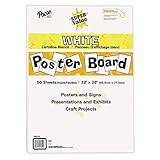
- ECONOMICAL: Great value poster board for use with posters, signs, craft projects, and more; Comes in a reclosable carton for easy storage
- BRIGHT WHITE: White, uncoated poster board will make any presentation or class project look great
- ALL-PURPOSE: Can be used for so much more than presentations such as block printing, stenciling, painting, coloring, vision boards, and more
- USA MADE: Proudly made in America and is acid-free and recyclable
- TRUSTED BRAND: The Pacon brand is part of the Dixon Ticonderoga family of products and is beloved by children, parents, and teachers alike for its bold colors and superior durability
Desktop Word is generally the better option when the poster contains many floating objects or requires precise positioning. Word for the web can handle basic page setup, pictures, text boxes, and shapes, but Microsoft documents limitations involving some advanced layout, printing, gridline, page-border, and table features. See the Word for the web feature description.
Plan the poster before opening Word
A poster is easier to design when you decide what it must communicate before adding decoration. Write down the essential message and answer these questions:
- Purpose: What should the viewer understand or do?
- Audience: Who will see it, and from what distance?
- Final size: Will it be Letter, 11 × 17 inches, A3, or another format?
- Orientation: Portrait suits most announcements; landscape works better for wide schedules, diagrams, or banners.
- Output: Will it be printed at home, sent to a print shop, emailed, uploaded to a website, or shared on social media?
- Required information: Collect the headline, date, time, location, price, contact details, website, logo, QR code, and call to action.
- Images: Use original, licensed, public-domain, or permission-cleared artwork. Images found online are not automatically free to reuse.
Most posters need only one primary message. If viewers must read several paragraphs to understand the point, the copy probably belongs in a handout or webpage instead.
Set the page size and orientation
The page, PDF, and physical sheet are related but not identical. A document designed at one size can be printed on another with scaling, tiling, or trimming. Decide the intended final dimensions before building the layout.
Desktop Word steps
- Open Word and select Blank document or a suitable template.
- Go to Layout > Size and select the intended paper size.
- Go to Layout > Orientation and choose Portrait or Landscape.
- Choose Layout > Margins > Custom Margins if the default margins leave too little usable space.
- Turn on View > Ruler to help position objects.
- Save the document before beginning the design.
Common choices include Letter at 8.5 × 11 inches, Tabloid at 11 × 17 inches, and A3 at 297 × 420 mm. Not every installation will display every option. The available list depends on the software, operating system, regional settings, and installed printer.
Keep important text and logos comfortably inside the page edge. Desktop printers normally have a nonprinting region, so artwork that reaches the edge may be clipped unless the printer supports borderless printing. Microsoft’s large-publication printing guidance explains this limitation.
Build a clear poster structure
Arrange the information in the order viewers need it:
Quick wins for a faster PC:
Repair Windows errors before they cause bigger problemsFix Now →Scan for outdated or missing drivers - takes under a minuteDriver Scan →Clear out junk files and repair common Windows errorsFree Scan →- Primary headline: The largest and most noticeable element.
- Supporting statement: A short explanation, benefit, or theme.
- Main visual: One strong image, illustration, or graphic.
- Key details: Date, time, location, price, instructions, or eligibility.
- Call to action: For example, “Register today” or “Scan to RSVP.”
- Branding and contact: Logo, website, email, phone number, or social handle.
A viewer should be able to identify the subject and next action within a few seconds. Do not make every element equally large, bold, or colorful. Contrast in size and weight creates hierarchy.
Rank #2

- LARGE WHITE PREMIUM PAPER - 25 in. x 30 in., 30 Sheets/Pad, 2 Pad/Pack
- INK BLEED-THROUGH RESISTANT PAPER - Large white premium self-stick flip chart paper that resists marker bleed-through to keep great ideas on the page, not on what's under the page
- IDEAL FOR BRAINSTORMING AND MANAGING PROJECTS - Perfect for training or teaching sessions, brainstorming sessions, planning sessions, project management and agile processes, meetings and presentations
- STICKS SECURELY AND HOLDS UP TO 2X LONGER - Easel paper can be repositioned without surface damage. No tape or tacks needed unlike standard flip chart paper. Keep agenda and ideas where everyone can see
- DESIGNED TO FIT MANY EASEL STANDS - Sturdy backcard has a handle to make the easel pad portable and slots to fit most easel stands. Perfect for student activities and training sessions
Add text with separate text boxes
Do not construct a poster by pressing Enter repeatedly, inserting spaces, or using tabs to imitate a layout. Word’s normal document-flow model can shift those elements when text or images change.
Use independent text boxes for the headline, subtitle, details, call to action, and footer. This makes each element movable without disturbing the rest of the page.
- Go to Insert > Text Box.
- Choose a built-in text box or select Draw Text Box and drag it onto the page.
- Enter the text and apply the desired font, size, weight, color, alignment, and spacing.
- Use the text-box formatting controls to adjust internal margins and vertical alignment.
- For a floating text element, remove the fill and outline through the shape-formatting options.
- Resize the box until no text is clipped, then align it with the other objects.
Microsoft explains how to control text direction, position, wrapping, internal margins, and automatic resizing in a text box or shape.
Insert and position images
- Choose Insert > Pictures and select an image from your device or an available online source.
- Select the image and use Picture Format > Crop to improve its composition.
- Choose Wrap Text, then select an option such as Square, Tight, Behind Text, or In Front of Text.
- Resize from a corner handle to preserve the image’s proportions.
- Use alignment tools to position the image relative to the page or other objects.
Use an image that reinforces the message rather than filling an empty area. One dominant visual is often more effective than several unrelated pictures.
A small web image may look acceptable on screen but become blurry or pixelated when enlarged. Replace it with a larger source image whenever possible. Also check the final PDF at 100% magnification before sending it to a printer.
Use shapes, color, and layers
Shapes can create header bands, highlight panels, call-to-action areas, dividers, image frames, arrows, and simple diagrams.
- Go to Insert > Shapes and draw the required shape.
- Set Shape Fill and Shape Outline.
- Use Send to Back or Bring to Front to control the layer order.
- Use Align and Distribute to keep spacing consistent.
- Add text in a separate text box when you need finer control over placement.
Use a restrained palette: one primary color, one accent, and neutral background and text colors is often enough. Avoid placing small text over a busy photograph, and do not rely on color alone to communicate meaning.
Free tools Windows power users keep installed
One-click scans. No signup required.
Rank #3
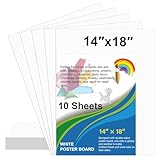
- Package Included: 10 sheets 14 x 18 inches white poster board paper bulk. Ideal for school projects, classroom arts and crafts, displays and signs, sales, promotions, scrapbooking, sports events and office use
- Premium Quality: Our poster cards are made of high quality paper card, thickness is 250gsm, the material is thick and sturdy, not easy to break
- Double-sided poster board design, one side is glossy and the other side is matte. the paper surface is smooth and flat. Blank white poster boards are great for small posters, signs, announcements, charts and art projects
- Make your own poster: Our poster boards are suitable for painting, marking, cutting, stencil printing, woodcut printing, sports event poster, party poster, yard sale sign, etc. You can use your imagination to create different functions
- Wide range of uses: Great for school projects, arts and crafts, displays, promotions, scrapbooking, birthday party decorations, Christmas, Halloween, Easter holiday celebrations, sporting event sign, parade sign, retail store sales sign, vision board and more
Align objects like a designer
Professional-looking posters usually depend more on alignment and spacing than on elaborate effects. Keep repeated edges on the same invisible lines and use consistent padding inside boxes.
- Use Align Left, Align Center, or Align Right.
- Choose whether to align objects to the page or to the selected objects.
- Use Distribute Horizontally or Distribute Vertically for equal spacing.
- Use the ruler, gridlines, or guides where available.
- Select related objects and choose Group after positioning them.
Grouping lets a logo, label, and background panel move together. If grouping is unavailable or unreliable, keep related content inside one shape or text box.
Apply professional design principles
Keep the copy short
Use short headlines, brief phrases, and bullets instead of paragraphs. Include only information needed to understand the offer or take action.
Choose readable type
Use one typeface family with two or three weights, or two complementary typefaces. Reserve decorative styling for emphasis. There is no universally correct poster font size: readability depends on the final dimensions, viewing distance, typeface, contrast, and printing method. Test the design at actual size or print a reduced proof.
Do these 3 things before closing this tab:
1Fix the driver behind crashes, sound loss and screen glitches2Repair Windows errors before they cause bigger problems3Scan for outdated or missing drivers - takes under a minuteProtect white space
Empty space separates groups and gives the eye somewhere to rest. Filling every area with text, borders, and icons usually makes a poster harder to scan.
Check accessibility
- Use strong contrast between text and its background.
- Use plain language and a clear reading order.
- Do not convey essential meaning through color alone.
- Provide alt text when a meaningful poster image is distributed digitally.
- Provide a text-based version of essential information when accessibility is important.
- Keep text selectable in a digital PDF instead of exporting the entire design as a low-resolution screenshot.
Preflight the poster before printing
The DOCX is not finished simply because it looks correct on screen. Use this checklist:
- Is the headline readable at the intended viewing distance?
- Can viewers quickly find the date, time, location, and call to action?
- Are spelling, URLs, phone numbers, and dates correct?
- Are all objects inside the printable area?
- Are any text boxes clipped or overlapping?
- Are images proportionally scaled and sharp enough?
- Is the contrast still adequate when viewed in grayscale?
- Does the design work if the printer cannot print to the edge?
- Have you printed a proof at the intended size?
- Have you opened and inspected the exported PDF?
If exact dimensions matter, check the printer dialog as well as Word. Confirm that the selected paper matches the document and that scaling is set to Actual size or 100%, rather than “Fit to page.”
Rank #4

- Strong poster board: Our white poster board is 11 inches x 14 inches and is large enough. Made of sturdy double glued paper, it is lightweight, durable and smooth. So you can write or draw as much as you want on the poster board.
- Design: 11in x 14in white poster board has a matte design on both sides, the bright white color will make the design pop. The poster board writes smoothly and is suitable for all kinds of paintbrushes. More options for your DIY poster or display art projects.
- Production and Printing: Large poster board can be printed on the front and back of the poster board using a multifunctional printer or photocopier. The printing is very clear and presents the effect you want. Our poster board can also bring out your unlimited imagination to create your favorite things. Painting DIY, making brochures, photo mats and more.
- Wide Application: Our poster board it suitable for school projects, art, classroom poster displays, craft projects and more. Poster board is also suitable for drawing, marking, printing, posters and other applications, you can let your imagination go wild and create different features. It is the best choice for office, school or home use.
- You Will Get: 18Pack white poster board(11in x 14in), and our 7*24 friendly customer service for peace of mind.
Save the Word poster as a PDF
- Choose File > Save As or File > Save a Copy.
- Select PDF as the file type.
- Choose the standard or high-quality publishing option available for your purpose.
- Save the PDF.
- Open the PDF and inspect every page for changed line breaks, missing fonts, clipped objects, altered positioning, and image quality.
Send the PDF rather than the editable DOCX unless the recipient specifically needs to make changes. Microsoft recommends PDF when appearance must remain consistent across computers or when a file is being printed commercially. See Microsoft’s PDF export instructions.
The Tool Desk
Outbyte PC Repair FREEClear out junk files and repair common Windows errorsFree Scan →Outbyte Driver Updater FREEFix the driver behind crashes, sound loss and screen glitchesFind Drivers →PDF preserves layout more reliably, but it does not guarantee correct color, bleed, crop marks, font embedding, printer compatibility, or image resolution.
Independent reader supportYour contribution helps us test, update, and keep practical guides available for everyone.How to print a poster larger than your printer supports
Print at the final size
Use this method when the printer supports the selected paper size. Set the Word page to the final dimensions, select the same paper size in the printer dialog, verify the scaling setting, and print a proof first.
Tile the design across multiple sheets
Word is not the ideal tool for tiling an oversized poster. A PDF viewer, printer driver, Publisher, or dedicated design application may provide better controls for poster printing, overlap, and assembly. If you create the design at a smaller proportional size, coordinate the scaling with the print provider; scaling affects margins, image quality, and the final dimensions.
Microsoft Publisher historically offered large-publication and tiled-printing features, including adjustable overlap. However, Microsoft says Publisher will no longer be supported after October 2026, so it is a transitional rather than future-proof recommendation. Its documentation covers tiling large publications and custom publication sizes.
Recommended Free Tools
Send the file to a print shop
Ask the printer for the final dimensions, bleed requirements, color specifications, preferred PDF settings, paper stock, and proofing process before designing. Do not assume a Word PDF includes bleed or crop marks. Whether RGB artwork is acceptable or conversion to CMYK is required depends on the selected printer and production workflow.
A commercial printer is usually the sensible choice for oversized posters, borderless output, multiple copies, better paper stock, laminating, mounting, or color consistency.
When Word is not the best choice
| Need | Best fit |
|---|---|
| Simple editable one-page poster | Word |
| Existing Microsoft Office workflow | Word |
| Fast template-led visual design | Adobe Express or Canva |
| Precise freeform positioning | PowerPoint or a dedicated design tool |
| Oversized output, bleed, crop marks, or complex grids | Dedicated design software or a print provider’s template |
| Professional physical finish or color control | Commercial printer |
Adobe Express offers poster templates and custom page sizing, along with documented margin and bleed controls. Canva is another template-focused option for quick visual layouts and variations. Check each service’s current plan, asset licensing, and export limitations before committing to a commercial project.
Best Value

- Easel pad for work presentations, brainstorming sessions, classroom exercises, and more
- Includes 2 easel pads with 30 sheets of paper per pad (60 sheets total)
- Water-based microsphere adhesive on the back, unsuited to rough walls, easily to smooth surfaces like wood doors, glass, whiteboards,blackboards and metal
- Removes effortlessly from the pad, but remains sticky on surfaces; won't damage surfaces or leave an adhesive residue
- Bleed-through-resistant paper with no curling edges; for use with markers, pens, crayons, and other writing tools
Choose Word when editability, familiarity, and an office-compatible file matter most. Choose a browser-based design tool when speed, templates, collaboration, and visual composition matter more. Choose a professional printer or page-layout application when physical size, trimming, bleed, color, or finish is more important than creating the file yourself.
Quick troubleshooting
The image moves when text is edited
Select the image, choose Wrap Text, and use a floating option such as Square, Behind Text, or In Front of Text. Then position it deliberately rather than leaving it as an inline object.
Text disappears inside a shape
Resize the box, reduce its internal margins through Format Shape, reduce the font slightly, or shorten the copy. Automatic resizing can help, but concise text is usually the better fix.
The design changes after export
Font substitution, object positioning, unsupported effects, and differences between desktop Word and Word for the web can alter the result. Export from the same application used to create the poster, use commonly available fonts, and inspect the PDF immediately.
The printer cuts off the edges
Keep important elements inside a safe margin, enable borderless printing only if the printer supports it, or print on larger paper and trim it. Use a commercial printer when full bleed is essential.
Outdated Drivers Are Slowing You Down
One free scan finds every outdated or missing driver and matches the right update for your exact hardware.Free scan · exact hardware matchWindows Errors? Fix Them Before They Spread
Repair common Windows errors and clear accumulated junk for a smoother, more stable PC - no reinstall needed.Free scan · no reinstallThe poster prints blurry
Replace low-resolution images with larger originals, avoid enlarging small web graphics, choose an appropriate export quality, and inspect the PDF at 100%.
The desired page size is unavailable
Check the desktop version of Word, confirm the printer’s supported sizes, and ask the print provider whether proportional scaling is acceptable. If the dimension still cannot be handled, move to PowerPoint, Adobe Express, Canva, another page-layout tool, or a commercial printer’s template.
Quick Recap

Product prices and availability are accurate as of the date/time indicated and are subject to change. Any price and availability information displayed on Amazon at the time of purchase will apply.




