The Tool Desk
Outbyte PC Repair FREEClear out junk files and repair common Windows errorsFree Scan →Outbyte Driver Updater FREEFix the driver behind crashes, sound loss and screen glitchesFind Drivers →
ThatPainter is reader-supported. When you buy through links on our site, we may earn an affiliate commission. Learn More
A compelling label does two jobs: it identifies the product instantly and survives the physical realities of printing and application. Photoshop is excellent for image editing, compositing, texture, color treatment, and mockups. For a production label, however, begin with the printer’s dieline and specifications—and move vector-heavy or text-heavy work to Illustrator or InDesign when appropriate.
Plan the label before opening Photoshop
Start with the real container, not an arbitrary canvas. Confirm the usable label area, curved surfaces, seam or overlap, cap and fold interruptions, substrate, adhesive, finish, and whether the job is supplied as individual cuts, a roll, or sheets. Request the printer’s template or dieline and keep its trim, bleed, safe-area, fold, cut, perforation, glue, white-ink, and varnish instructions on a locked, clearly named layer.
Collect the printer’s required dimensions, bleed, safe area, color profile, resolution, file format, barcode specifications, and any special-ink instructions. Never assume a universal bleed value; vendors differ. For example, PsPrint specifies 0.125 inch on each side for certain products (its Photoshop guidelines).
Recommended Free Tools
Decide the content and hierarchy
Separate persuasive design from regulatory copy. A typical label may need a brand name, product name, variant, short description or benefit, net quantity, ingredients, allergens, directions, warnings, manufacturer or distributor, origin information where applicable, lot and date areas, barcode or QR code, certifications, recycling symbols, and contact details. Requirements vary by product category and jurisdiction, so verify mandatory wording, symbols, minimum type sizes, and barcode rules with the regulator, brand owner, and printer.
#1 Best Overall

- Wacom Intuos Small Graphics Drawing Tablet: Enjoy industry leading tablet performance in superior control and precision with Wacom's EMR, battery free technology that feels like pen on paper
- Works With All Software: Wacom Intuos tablet can be used in any software program to explore new facets of digital creativity; draw, paint, edit photos/videos, create designs, and mark up documents
- What the Professionals Use: Wacom's industry leading pen technology and pen to paper feeling makes it the preferred drawing tablet of professional graphic designers
- Software and Training Included: Only Wacom gives you software with every purchase. Register your Intuos tablet and gain access to some of the best creative software and Wacom's online training
- Wacom is the Global Leader in Drawing Tablet and Displays: For over 40 years in pen display and tablet market, you can trust that Wacom to help you bring your vision, ideas and creativity to life
Design hierarchy so viewers can identify the product at shelf distance or thumbnail size:
- Brand establishes recognition.
- Product name answers what it is.
- Variant identifies flavor, scent, size, or formula.
- Benefit or description provides a reason to choose it.
- Supporting and required information completes the sale and compliance needs.
A luxury skincare label, children’s snack, craft beer, and handmade soap should not share one assumed “professional” style. Match type, color, imagery, spacing, and contrast to the audience, category, and retail setting. Reserve a distinctive focal point—an illustration, photograph, color field, unusual type treatment, or shape—but keep text readable over it.
Set up a print-aware Photoshop document
- Choose inches or millimeters to match the specification.
- Use the finished size plus the printer-specified bleed. Do not add a guessed amount.
- Set resolution to the printer’s requirement. Around 300 pixels per inch is common for typical print work, but it is not a quality guarantee; source sharpness, final dimensions, substrate, and process also matter. Adobe’s print guidance explains the relationship between image resolution and output resolution (Adobe Photoshop print basics).
- Choose RGB or CMYK and the embedded profile requested by the printer. Photoshop supports both RGB-first and conversion workflows; there is no universal “always convert to CMYK” rule (Adobe’s commercial-printing guidance).
- Use 8 bits/channel unless the workflow specifically requires otherwise, and set orientation from the actual label.
For a 4 × 2 inch finished label at 300 ppi, the artwork area is 1200 × 600 pixels before adding bleed. Keep dimensions physical and explicit in the file name and specification sheet.
Build an editable layer system
00_GUIDES_AND_DIELINE
01_BACKGROUND
02_BRAND_MARK
03_PRODUCT_NAME
04_VARIANT_OR_FLAVOR
05_HERO_IMAGE_OR_ILLUSTRATION
06_SUPPORTING_COPY
07_ICONS_AND_BADGES
08_BARCODE_OR_QR
09_TEXTURES_AND_EFFECTS
10_COLOR_ADJUSTMENTS
11_MOCKUP_PRESENTATION
Use groups, descriptive names, masks, adjustment layers, and Smart Objects. Keep text editable and retain an untouched master. Duplicate a variant group to make new flavors or scents instead of rebuilding the label. Keep the mockup presentation separate from the flat production artwork.
Rank #2

- Wacom Intuos Medium Bluetooth Graphics Drawing Tablet: Enjoy industry leading tablet performance in superior control and precision with Wacom's EMR battery free technology that feels like pen on paper
- Works With All Software: Wacom Intuos tablet can be used in any software program to explore new facets of digital creativity; draw, paint, edit photos/videos, create designs, and mark up documents
- Wireless Superior Connectivity: Connect wirelessly via Bluetooth or directly using USB-A cable which enables you to work, draw or create whether it's at a desk, on the sofa, in classrom or even outside
- Software and Training Included: Only Wacom gives you software with every purchase. Register your Intuos tablet and gain access to some of the best creative software and Wacom's online training
- Wacom is the Global Leader in Drawing Tablet and Displays: For over 40 years in pen display and tablet market, you can trust that Wacom to help you bring your vision, ideas and creativity to life
Create the visual design
1. Establish the background
Use a solid color, gradient, color block, photograph, subtle paper grain, pattern, illustration, or masked painted form. Apply tonal changes with adjustment layers and masks. Avoid high-frequency noise behind small copy or backgrounds whose contrast changes unpredictably across the label.
2. Place the brand
Give the logo breathing room and keep it inside the safe area. Use the original vector file whenever possible; enlarging a low-resolution logo produces soft edges. Keep brand placement and scale consistent across variants.
3. Set typography hierarchy
Control emphasis with size, weight, color, position, tracking, leading, alignment, and supporting shapes—not with competing decorative effects. Avoid ornamental fonts for small or legally important text. Zoom out until the artwork approximates shelf or product-page size; if the product name disappears, revise the hierarchy.
What’s actually slowing this PC down?
Pick the symptom - the matching free tool is one click away.
4. Add imagery or illustration
Photoshop excels at cutouts, retouching, compositing, grading, light, shadow, and painterly effects. Place source images as Smart Objects, isolate them with layer masks, and use clipping masks and adjustment layers rather than destructive erasing or repeated rasterization.
Rank #3

- WACOM’S BEST PEN TECHNOLOGY: Pro Pen 3 offers amazing precision, 8192 pressure levels, tilt support & lag-free tracking for smooth, precise strokes; choose slim, straight or flared grip, adjust balance & button layout for precision and comfort
- DIAL INTO PRODUCTIVITY: Speed up and stay in the creative flow with 10 customizable tablet ExpressKeys & 2 mechanical dials conveniently located at the top of the tablet and close to your keyboard for efficiency
- DESIGNED FOR MODERN MONITORS: With a versatile 16:9 format perfect for multiple monitors and wide displays; medium size has a large active area with a small footprint 11.4 x 8.1” / 291 x 206 mm
- SLEEK AND STURDY: Measuring 4mm at its thinnest this professional-grade drawing tablet feels like pen-on-paper on your desk, combined with the robust durability of magnesium making it equally suited for your office or life on the go
- WIRELESS FREEDOM: use Intuos Pro with USB or connect wirelessly via Bluetooth to multiple computers with a simple switch
5. Use editable shape layers
Shape layers work well for panels, borders, banners, badges, simple icons, and framing. Keep them editable. Complex paths, repeated vector assets, technical dielines, and production spot-color structures are usually more reliable in Illustrator.
6. Add texture with restraint
Paper grain, halftone, distressed edges, soft shadows, and low-opacity overlays can communicate material and positioning. Put every effect in its own group so it can be disabled for proofing. A foil-like highlight is only a visual suggestion; it does not reproduce actual foil, varnish, embossing, or metallic ink.
Reserve functional space
Keep clear areas for ingredients, nutrition information, warnings, net quantity, batch/date coding, certification marks, barcode or QR code, and any printer-requested marks. Do not place important copy on a fold, seam, overlap, or trim edge. A code must meet its applicable standard for size, contrast, quiet zone, and distortion; a generic Photoshop-generated barcode is not automatically scannable. Generate and test codes through an approved workflow on the final printed proof.
The Tool Desk
Outbyte Driver Updater FREEFix the driver behind crashes, sound loss and screen glitchesFind Drivers →Outbyte PC Repair FREEClear out junk files and repair common Windows errorsFree Scan →Review readability and color
Inspect at 100%, at actual physical size, in grayscale, on a curved mockup, and with the label viewed from a distance. Temporarily hide textures and imagery to check copy. Look for thin strokes, reversed white text, low contrast, cropped information, and type that becomes unreadable over a changing background.
When a suitable profile is available, use View > Proof Setup and View > Proof Colors to preview the expected condition. Monitor, desktop printer, commercial press, and substrate gamuts differ; Adobe notes that a desktop printer cannot faithfully simulate commercial-press output (Adobe commercial printing). Request a physical proof when brand color or small type matters.
Rank #4

- Wacom Intuos Small Bluetooth Graphics Drawing Tablet: Enjoy industry leading tablet performance in superior control and precision with Wacom's EMR, battery free technology that feels like pen on paper
- Works With All Software: Wacom Intuos tablet can be used in any software program to explore new facets of digital creativity; draw, paint, edit photos/videos, create designs, and mark up documents
- Wireless Superior Connectivity: Connect wirelessly via Bluetooth or directly using USB-A cable which enables you to work, draw or create whether it's at a desk, on the sofa, in classroom or even outside
- Software and Training Included: Only Wacom gives you software with every purchase. Register your Intuos tablet and gain access to some of the best creative software and Wacom's online training
- Wacom is the Global Leader in Drawing Tablet and Displays: For over 40 years in pen display and tablet market, you can trust that Wacom to help you bring your vision, ideas and creativity to life
Prepare files for the printer
Follow the printer’s requested profile, marks, and format. Possible deliverables include:
- PSD: editable master.
- TIFF: flattened raster artwork when requested.
- PDF or PDF/X: common production options when the printer specifies them.
- JPEG: review proof, not a default production master.
- AI or INDD: appropriate when vector or structured layout production is required.
Provide a production file, editable source, flattened preview, dimensions and profile, linked assets or font information as requested, and a proof showing trim, bleed, and safe area. Do not add crop marks, trapping, registration marks, calibration bars, white-ink, or varnish plates unless the service provider gives explicit construction and naming instructions.
Make a realistic Photoshop mockup
- Photograph or obtain the correct bottle, jar, box, pouch, or tube.
- Place the flat label in a Smart Object.
- Use perspective or warp to follow the container.
- Mask edges, seams, overlaps, and curved areas.
- Place realistic shadows and highlights above the label.
- Adjust opacity and blending for paper, plastic, glass, or metal.
- Compare the flat artwork beside the mockup.
Smart Objects support a non-destructive workflow (PHLEARN’s packaging mockup tutorial). A mockup demonstrates appearance; it does not prove bleed, color separation, barcode compliance, physical scale, material behavior, or regulatory compliance.
Independent reader supportYour contribution helps us test, update, and keep practical guides available for everyone.Troubleshoot common failures
| Symptom | Likely cause | Recovery |
|---|---|---|
| Label is stretched or does not fit | Wrong usable area or no dieline | Rebuild from the printer’s template; do not casually scale finished artwork. |
| White edge after trimming | No bleed | Extend full-bleed background by the specified amount. |
| Text is clipped | Critical elements too close to trim or fold | Move them inside the safe area and recheck the template. |
| Brand colors become dull | Out-of-gamut color or wrong profile | Soft-proof, adjust intentionally, consult the printer, and approve a proof. |
| Logo or type looks jagged | Low-resolution source or excessive scaling | Replace with vector or higher-resolution artwork. |
| White artwork prints transparent | White ink is a special production layer | Ask the printer how to construct and name the white-ink plate. |
| Mockup looks right but print fails | Mockup hides scale, color, and prepress issues | Inspect flat artwork and obtain a physical proof. |
| Corrections require rebuilding | File was flattened too early | Retain layered master; flatten only a duplicated export. |
| Barcode or QR code will not scan | Wrong size, quiet zone, contrast, compression, or distortion | Use an approved generator, preserve clear space, and test the final proof. |
When Photoshop is not the best primary tool
| Project need | Better fit |
|---|---|
| Photography, compositing, painterly effects, or presentation mockups | Photoshop |
| Logos, icons, dielines, spot colors, white ink, varnish, foil, or scalable vector systems | Illustrator |
| Multiple panels, extensive copy, styles, or language versions | InDesign |
| Fast template-based artwork accepted by the printer | A browser-based editor may suffice |
Adobe explains that commercial-press images are commonly placed into Illustrator or InDesign rather than printed directly from Photoshop (Adobe). Photoshop can place vector data and use spot channels, but complex packaging prepress should be coordinated with the service provider.
Best Value
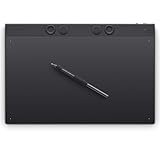
- WACOM’S BEST PEN TECHNOLOGY: Pro Pen 3 offers amazing precision, 8192 pressure levels, tilt support & lag-free tracking for smooth, precise strokes; choose slim, straight or flared grip, adjust balance & button layout for precision and comfort
- DIAL INTO PRODUCTIVITY: Speed up and stay in the creative flow with 10 customizable tablet ExpressKeys & 2 mechanical dials conveniently located at the top of the tablet and close to your keyboard for efficiency
- DESIGNED FOR MODERN MONITORS: With a versatile 16:9 format perfect for multiple monitors and wide displays; large size has a large active area with a small footprint 14.8 x 9.9” / 377 x 253 mm
- SLEEK AND STURDY: Measuring 4mm at its thinnest this professional-grade drawing tablet feels like pen-on-paper on your desk, combined with the robust durability of magnesium making it equally suited for your office or life on the go
- WIRELESS FREEDOM: Use Intuos Pro with USB or connect wirelessly via Bluetooth to multiple computers with a simple switch
Final preflight checklist
- Correct container, finished dimensions, orientation, dieline, bleed, and safe area.
- All required copy, symbols, barcode space, and coding areas verified.
- Product name and variant readable at actual size and from a distance.
- Images sharp at final size; logos remain vector or high resolution.
- Layers, masks, Smart Objects, and variants remain editable.
- Printer-approved profile, color workflow, special-ink setup, and export format.
- Flat artwork checked separately from the mockup.
- Physical proof approved when color, substrate, or small type is critical.
Frequently Asked Questions
Should every product label be converted to CMYK in Photoshop?
No. Use the printer’s specified profile and workflow. Some printers prefer RGB artwork with embedded profiles and convert in prepress; others require a controlled CMYK conversion. Soft-proof and approve a physical proof when accuracy matters.
Is 300 ppi enough to make a label print-ready?
Not by itself. It is a common target for typical print work, but dimensions, source quality, color management, bleed, typography, substrate, and the printer’s process also determine the result.
Quick wins for a faster PC:
Clear out junk files and repair common Windows errorsFree Scan →Scan for outdated or missing drivers - takes under a minuteDriver Scan →Repair Windows errors before they cause bigger problemsFix Now →Can a Photoshop mockup serve as the print proof?
No. A mockup shows presentation on a container. Check the flat production file for bleed, dimensions, color, barcode performance, and legibility, then follow the printer’s proofing process.
The Bottom Line
Build the label around the real container and printer template, keep the Photoshop file non-destructive, and separate persuasive presentation from production validation. Photoshop is a powerful image-and-mockup tool; Illustrator or InDesign may be the safer final-production choice for vector, dieline, or copy-heavy packaging.
Quick Recap

Product prices and availability are accurate as of the date/time indicated and are subject to change. Any price and availability information displayed on Amazon at the time of purchase will apply.




