Windows Errors? Fix Them Before They Spread
Recommended Free Tools
Repair common Windows errors and clear accumulated junk for a smoother, more stable PC - no reinstall needed.
Fix My PC Now →Free scan · no reinstall
ThatPainter is reader-supported. When you buy through links on our site, we may earn an affiliate commission. Learn More
The right fix depends on what “not working” means: a tablet that is not detected needs connection checks, while a pen that moves the cursor but has no pressure may need an app setting or macOS permission. Start with a direct USB connection, restart the Wacom driver and computer, then test the pen outside your drawing app before reinstalling drivers or replacing hardware.
Start with the symptom
| What you see | Check first |
|---|---|
| No tablet light, no device detection, no cursor movement | Power, cable, USB port, Bluetooth pairing, and model-specific driver |
| Tablet appears in Wacom Center, but the pen does not move the cursor | Restart the driver; check macOS permissions, nib, and diagnostics |
| Cursor moves, but the pen will not click or draw | Nib mechanism, app input settings, and pen diagnostics |
| Pen draws, but strokes have no pressure variation | Pressure support and brush settings in the app; then test pressure in diagnostics |
| Lagging or jumping | Try wired instead of Bluetooth; check app performance and stroke smoothing |
| Marks appear before the pen touches the surface | Inspect for a stuck nib or pressure sensor |
| Cursor appears on the wrong screen or is offset | Display mapping, Display Toggle, and calibration |
| Cintiq or another pen display has a black screen | Check its power and video connection separately from pen input |
Wacom’s troubleshooting guide separates pen, touch, and connection symptoms for good reason: one driver reinstall will not fix every failure.
#1 Best Overall

- The Intuos Pen is compatible with Intuos Art, Comic, Draw and Photo tablets (CTH490AB, CTH490AK, CTH490CB, CTH490CK, CTH490PK, CTH690AB, CTH690AK, CTL490DB and CTL490DW)
- Cordless and battery free, programmable side switch
- 1024 levels of pressure sensitivity
- Not compatible with prior Intuos (CTL480, CTH480, CTH680), Intuos 3, 4, 5, Intuos Pro tablets or Cintiq products
1. Check power, cable, and connection
- Disconnect the tablet, then reconnect it and check its status light.
- Connect directly to the computer, bypassing a hub, dock, monitor, or adapter.
- Try another USB port. If you can, test a known-good data-capable cable; some cables supply power but do not carry data.
- If using Bluetooth, turn Bluetooth off and on, remove and re-pair the tablet, then test with USB if the model supports it.
- Restart the computer and see whether the device appears in Wacom Center or Wacom Tablet settings.
A lit tablet is not proof that pen data is reaching the computer. For a pen display, check power and video separately: it may receive power without a working video signal, or show an image while pen input is unavailable. Wacom’s driver installation guide and support and diagnostics documentation explain the communication checks.
2. Restart Wacom’s driver
Save your work and close drawing applications. In Wacom Center, restart the driver if that option is available, then restart the computer. Reopen Wacom Center and test the cursor on the desktop. This is a sensible early step if the tablet is visible but input or pressure suddenly stopped. Wacom recommends restarting the driver and computer for issues such as lag, jumping, or continuous drawing.
3. Install the driver for your exact tablet model
Find the model number on the tablet’s back, box, or device information in Wacom Center. It may look like CTL-4100, PTH-660, or a DTK- model. Go to Wacom’s driver page, select the exact model, choose your operating system, and read the compatibility notes before installing.
As of August 18, 2026, Wacom’s page lists driver 6.4.13-4 for Windows and macOS, updated April 28, 2026. The listed Windows package supports Windows 10/11 x64 and Windows 11 ARM64; the listed macOS package supports macOS 13–15 and macOS 26. Those listings do not mean every Wacom model is supported by that package. Legacy devices may need an older driver: Wacom’s Windows reinstall guidance, for example, names Intuos 3 and the first-generation Cintiq 21UX DTZ-2100 as requiring 6.3.15-3. Use the model’s compatibility information, not the newest version number alone.
What’s actually slowing this PC down?
Pick the symptom - the matching free tool is one click away.
4. Clean reinstall on Windows
Use this escalation if the right driver is installed but the tablet is still not communicating. A reinstall can remove customized Wacom preferences, so back them up first if you need them. You may need administrator credentials.
Rank #2
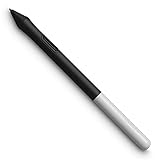
- Pressure sensitivity and natural tilt support for more precision and control
- The cordless, battery-free pen never needs to be charged and is light and comfortable to use thanks to Wacom’s EMR (Electro-Magnetic Resonance) technology
- 1 programmable pen button puts shortcuts at your fingertips
- Includes 3 Wacom One Pen nibs
- Save and close your work, then disconnect the tablet.
- If you use Bluetooth, temporarily turn off the tablet’s Bluetooth connection and the computer’s Bluetooth.
- Open Control Panel → Programs and Features. Uninstall Wacom-related entries, such as Wacom, Wacom Tablet, or Bamboo, as applicable.
- Restart Windows.
- Download and install the driver selected for your exact model and Windows version.
- Restart again if prompted, then reconnect the tablet and test it.
Follow Wacom’s Windows uninstall and reinstall instructions if labels or steps differ. Wacom mentions temporarily disconnecting from the internet or disabling security software if installation is blocked; treat that as a last resort, only for the installation, and restore security protections immediately afterward.
5. Check macOS permissions
On macOS, a tablet can appear in Wacom Center while the pen still cannot control the computer if required privacy permissions are missing. Open System Settings → Privacy & Security and review the Wacom-related entries for Accessibility and Input Monitoring. Screen Recording may apply to certain devices or features. The exact prompts and labels can vary by macOS and driver version. Restart the Mac after changing permissions.
If permissions were skipped during setup or granted at the wrong time, Wacom’s instructions may require uninstalling and reinstalling the driver so the permission prompts appear again. If a Wacom application itself will not open, that is a separate installation or driver issue. For macOS 26 (Tahoe), Wacom says compatible devices need driver 6.4.11 or newer and advises checking release notes for the model. Some system settings windows may not respond to pen input after installation, so use a mouse or trackpad there. See Wacom’s macOS 26 compatibility guidance.
Quick wins for a faster PC:
Clear out junk files and repair common Windows errorsFree Scan →Fix the driver behind crashes, sound loss and screen glitchesFind Drivers →Repair Windows errors before they cause bigger problemsFix Now →6. Test the pen outside your drawing app
Use Wacom’s diagnostic tool in Wacom Center or the relevant tablet settings, then test the cursor on the desktop and, if possible, in a second drawing application. The diagnostic interface and labels vary by driver and device.
- It works in diagnostics and on the desktop, but not in one app: focus on that app’s tablet input, pressure, brush, and per-app settings rather than replacing hardware.
- It works in one app but not another: the pen and tablet are likely communicating; investigate the app that fails.
- The cursor moves but pressure readings do not change: app configuration, driver communication, permissions, or pen hardware could be responsible.
- It fails diagnostics on more than one compatible computer: a nib, pen, tablet sensor, or other hardware fault becomes more likely.
Wacom describes its diagnostics in the Wacom Center support documentation.
Rank #3

- ERGONOMIC DREAM: Designed for comfort the Dr. Grp Digital Pen for Wacom will allow you to draw, write, and create for hours
- BATTERY-FREE PEN: Pen never needs charging, ensuring uninterrupted creativity and productivity
- PRECISION: Achieve precise and natural strokes with the 4096 levels of pressure sensitivity, tilt-response and exceptional accuracy
- Compatible with Wacom One 12 (DTC121W), Wacom One 13 touch (DTH134W), Wacom One S (CTC4110WL), Wacom One M (CTC6100WL), Wacom One (DTC133W0A)
7. If the pen moves but pressure does not work
Pressure is a separate input from cursor movement. Confirm that your drawing application supports pen pressure, that pressure is enabled in its settings, and that the selected brush uses pressure for size, opacity, or another property. Try another brush and another app. Some applications need pressure capabilities enabled or configured individually; Wacom cites Photoshop, Clip Studio, and Corel Painter as examples.
On Windows, Windows Ink and WinTab choices can affect how a particular app receives input, but there is no universal “turn Windows Ink off” fix. The right setting depends on the model, driver, and application. Change it only according to that app’s Wacom-specific guidance, then retest. On macOS, also confirm the permissions above.
Do these 3 things before closing this tab:
1Clear out junk files and repair common Windows errors2Scan for outdated or missing drivers - takes under a minute3Repair Windows errors before they cause bigger problems8. If the pen lags, jumps, or only fails over Bluetooth
- Test a direct wired connection, bypassing hubs and adapters. Wacom notes that Bluetooth can be slower than wired input.
- If USB works but Bluetooth does not, re-pair the tablet and keep it close to the computer. That points more toward the wireless connection than a defective pen.
- Try a second drawing app. Reduce excessive stroke smoothing or stabilization if strokes trail behind the cursor, and check whether the computer or app is under heavy load.
- If the cursor jumps only over one particular area of the tablet, note that area and test again; a persistent dead zone can indicate a tablet sensor problem.
For these symptoms, see Wacom’s lag, jumping, and continuous-drawing guidance.
Independent reader supportYour contribution helps us test, update, and keep practical guides available for everyone.9. If the pen draws without touching
Continuous drawing can mean the pressure sensor is registering input while the nib is not being pressed. Remove the nib, let the pen rest on its stand overnight, reinsert the nib, and test again in diagnostics. Replace a visibly worn, bent, or contaminated nib only with one compatible with that pen model. Avoid pressing on the nib while storing the pen, and do not disassemble the pen unless Wacom provides a service procedure for it.
If a compatible fresh nib does not help and diagnostics still show pressure when the pen is hovering, the pen’s pressure mechanism may have failed. Wacom advises contacting support if the symptom persists; a replacement pen is a more appropriate possibility than replacing a tablet that otherwise works.
Rank #4

- BATTERY-FREE PEN: pen never needs charging, ensuring uninterrupted creativity and productivity
- PRECISION: achieve precise and natural strokes with the 4096 levels of pressure sensitivity, tilt-response and exceptional accuracy
- PEN BUTTONS: streamline your workflow and save time with quick access to frequently used keyboard shortcuts at your fingertips
- CUSTOMIZABLE: purchase additional pen rears and choose between a range of colors and clips to craft a pen that embodies your unique style
- Compatibility: Wacom One 12, Wacom One 13 touch, Wacom One Small, Wacom One Medium
10. If the cursor is on the wrong screen or offset
For a multi-monitor setup, open Wacom’s display or mapping settings and select the monitor the tablet should control. Check any Display Toggle assignment. On a pen display, recalibrate the pen and verify that the operating system detects the displays correctly.
Recommended Free Tools
In Windows, open Control Panel → Hardware and Sound → Tablet PC Settings. Use Setup to identify the correct pen or touch display; use Calibrate the screen for pen or touch input if the cursor is offset. If only the pen-display image is missing, check its video connection and display detection rather than treating it as a pen calibration fault.
When to suspect a hardware fault
Before buying anything, test the tablet on another compatible computer with the correct driver, if one is available. If possible, test with another pen known to be compatible with the tablet; Wacom pens are not universally interchangeable across product families or generations.
- Tablet works on another computer: investigate the original computer’s driver, permissions, connection, or app.
- Tablet is detected but one pen fails on multiple computers: suspect that pen or its nib mechanism.
- Multiple compatible pens fail over the same tablet area: suspect the tablet sensor; contact Wacom.
- Nothing detects the tablet on another compatible computer after cable and driver checks: tablet hardware or model/OS incompatibility is more likely.
For support, provide the exact model, computer and operating system, Wacom driver version, connection method, symptoms, and tests already completed. Check Wacom Support for model-specific help.
Quick Recap
Quick checklist
- Tablet has power and is connected directly with a data-capable cable.
- Bluetooth has been re-paired or wired operation tested.
- Exact model and compatible driver have been confirmed.
- Wacom driver and computer have been restarted.
- macOS permissions have been checked, if applicable.
- Pen and pressure have been tested outside the main drawing app.
- Nib has been inspected, and a compatible replacement tested if needed.
- A second-computer or compatible-pen test has narrowed down the fault.

Product prices and availability are accurate as of the date/time indicated and are subject to change. Any price and availability information displayed on Amazon at the time of purchase will apply.




