Do these 3 things before closing this tab:
What’s actually slowing this PC down?
Pick the symptom - the matching free tool is one click away.
1Scan for outdated or missing drivers - takes under a minute2Repair Windows errors before they cause bigger problems3Fix the driver behind crashes, sound loss and screen glitches
ThatPainter is reader-supported. When you buy through links on our site, we may earn an affiliate commission. Learn More
PowerPoint lets you use solid colors, gradients, patterns, textures, and pictures as slide backgrounds, or add graphics as separate objects. Choose a background when the design should sit behind the whole slide; insert an image or shape when you need to position, crop, or reuse it independently. The best choice supports the slide’s message while keeping text readable.
Choose a background or an inserted graphic
A slide background covers the slide and stays behind its content. It works well for a subtle texture, a branded color, or a low-detail image that sets a mood. An inserted picture or shape is a separate object: you can move it, crop it, resize it, and layer it with other content. Use an object for diagrams, illustrations, logos, or decorative elements that need precise placement.
For a background, consider whether the visual reinforces the subject, whether it remains legible at presentation size, and whether it belongs on one slide, a section, or the whole deck. A detailed image or high-contrast pattern can compete with text, especially when projected.
The Tool Desk
Outbyte PC Repair FREERepair Windows errors before they cause bigger problemsFix Now →Outbyte Driver Updater FREEScan for outdated or missing drivers - takes under a minuteDriver Scan →How to add a pattern or picture background in PowerPoint
Desktop PowerPoint
- Open the presentation and select the slide to change.
- Go to Design > Format Background.
- Choose the fill type you need, such as a solid or gradient fill, picture or texture fill, or pattern fill. Use the options shown for that fill to select and adjust the design.
- Leave the change on the current slide, or select Apply to All to use that background throughout the presentation.
Microsoft documents these fill types in the desktop Format Background workflow. Ribbon labels and available options can vary by platform and version, so use the controls displayed in your copy of PowerPoint.
#1 Best Overall

- Three (3) Refill Sheets of Interfacing Templates
- Made for use with PlumEasy's Point of View Folded Star Table Topper Pattern. Pattern sold seperately and available on Amazon.
- Level: Confident Beginner to Intermediate
- Finished Size: Approximately 17" in diameter
- Follow along step-by-step with Jennifer Bosworth from Shabby Fabrics by watching "How to Make a Point of View Folded Star Table Topper | a Shabby Fabrics Tutorial" on the Shabby Fabrics YouTube channel
PowerPoint for the web
- Select Design > Background.
- Choose a solid-color or picture background from the available controls.
The web version has fewer background controls than desktop PowerPoint: Microsoft says slide background gradients are not supported there. A picture background is resized to fill the slide, so choose an image whose orientation suits the deck. For more advanced formatting, including picture transparency, use desktop PowerPoint.
How to add graphics to a slide
To place a graphic as an editable slide object rather than a full-slide background, use PowerPoint’s insert options. Depending on the Office version, available content includes pictures, stock images, and icons. Choose an asset that fits the point being made, then size and position it so it supports rather than crowds the text.
Rank #2

- PowerPlugs: Templates for PowerPoint will give your presentations a neat, unified, and memorable appearance a sophisticated look that today's audiences expect.
- Each template includes a title master and a slide master, with artfully coordinated graphics for each.
- Each template's default text formatting is carefully positioned and colored to complement the background graphics, and enhanced with intelligent font styles for optimal readability.
- Includes 50 total templates. 4 are Flash animated templates!
- Supports Microsoft PowerPoint 97-2010.
Do not assume an image found online is free to reuse. Microsoft’s premium-content guidance notes that material bought from a stock site is governed by that site’s license. Check the terms for the asset and your intended use, including whether distribution or commercial use is permitted.
Make patterns and graphics easier to read
- Keep text contrast strong. Use a plain or quiet area behind text; Microsoft’s style guidance warns that shaded or screened backgrounds behind text reduce readability.
- Do not use color as the only distinction. For chart categories, pair color with patterns, labels, symbols, or another visual cue. Microsoft’s Style Guide advises against conveying information with color alone.
- Use meaningful visuals accessibly. Add concise alt text to informative pictures and diagrams that describes their content and purpose; avoid simply repeating nearby slide text.
- Check the slide’s structure. Use a unique, descriptive title for each slide and check reading order so assistive technology can present the content sensibly.
- Review beyond the automated checker. PowerPoint’s accessibility checker does not catch every issue, including some cases involving transparent text backgrounds and non-text contrast. Inspect the slides yourself at their actual viewing size.
Match the background to the presentation
A restrained pattern or texture can add structure without becoming the subject of the slide. Use a picture background when the image should fill the canvas, and an inserted picture when it needs independent placement or cropping. If the graphic carries information, make sure that information is also available through labels or concise alt text. Before applying a design to every slide, check that it works with different content layouts rather than reducing contrast or obscuring details.
Quick Recap
Best Value
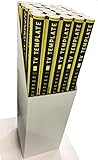
- Case of 25 TV Template Sets
Rank #4

- Mathematical formulas stencil: : You will get 1 pcs painting stencil of math theme. The pattern is mathematical formulas and example diagram, unique designs surely design inspire you. Our stencil are perfect for decorating on a budget for easy DIY decoration.
- Size reference: : Overall stencil measures 30x30cm/11.8x11.8inch, universal size for home decoration and daily use. Ideal for painting and doodling. Spray this pattern wherever you want to decorate, enjoying a life of art.
- Reusable and safety: Our DIY craft stencils are made of PET, lightweight and reusable. With smooth edges, and designed with round corners, safe for your DIY creation.
- How to use: : Place this template on a clean surface. Then, draw patterns on objects with brushes, paints, or crayons. You can even use airbrush paint for simple airbrush painting. You will get a nice crafts.
- Wide application: These reusable stencils can be painted on walls, furniture, floor, tile, wood, paper, canvas and other flat plane to meet your artistic creation. Ideal for drawing tracing, house embellishment and DIY craft.
Rank #3

- Three (3) Refill Sheets of Interfacing
- Made for use with PlumEasy's Point of View Kaleidoscope Folded Star Table Topper Pattern
- Level: Intermediate
- Pattern Sold Separately

Product prices and availability are accurate as of the date/time indicated and are subject to change. Any price and availability information displayed on Amazon at the time of purchase will apply.




