Do these 3 things before closing this tab:
1Fix the driver behind crashes, sound loss and screen glitches2Clear out junk files and repair common Windows errors3Scan for outdated or missing drivers - takes under a minute
ThatPainter is reader-supported. When you buy through links on our site, we may earn an affiliate commission. Learn More
Adobe’s Generative Remove uses Firefly AI to replace selected objects with generated pixels inside Lightroom. It can quickly clean up many background distractions, but it is not literally one-click: you identify the object, refine the selection if needed, and choose from generated results. Adobe announced the feature on May 21, 2024; Lightroom’s current Remove tool also offers object detection, three variations, and a Refresh option.
What Lightroom’s Generative Remove does
Generative Remove is an AI-assisted object-removal feature in Lightroom’s Remove tool. You brush over an unwanted object—or use object detection to help select it—and Lightroom generates replacement content intended to fit the surrounding image. Adobe says the feature is powered by Firefly. The original 2024 announcement identified Firefly Image 1, but that launch detail should not be assumed to describe the model used in the current implementation.

Unlike traditional retouching that samples or copies existing pixels, Generative Remove synthesizes new ones. That can make it useful when there is no clean nearby patch to borrow, but a natural-looking fill is not necessarily a faithful reconstruction of what was actually there.
Adobe introduced the feature as early access on May 21, 2024. It has since expanded Lightroom’s removal workflow with features including object detection and one-click removal of distracting people, described in Adobe’s June 2025 Creative Cloud update.
#1 Best Overall

- Built for photographers: Lightroom Classic's most-used commands come pre-mapped one per key, named and color-coded so you can scan quickly while you cull and edit.
- Remap anything in KeyStudio, the browser-based remapping tool we built for Dash keyboard. Nothing to install, and the layout saves onto the keyboard so it works the same on every machine you use.
- 20 spare shortcut keycaps in the box: move the keys to match the way you actually cut and grade, rather than learning someone else's layout.
- The compact, low-profile design frees desk space and keeps your mouse within reach for better posture. Winner of the Red Dot Product Design Award in 2025 and designed in Vancouver, Canada. We've been building tools for creative work since 2009, and every Dash comes a 12 month warranty.
- Tri-mode connection across Mac, PC, iOS, iPadOS, Android and Linux: Bluetooth for three devices, 2.4GHz wireless or USB-C wired, on a 3500mAh battery good for 450 hours.
Why “one-click” needs a qualification
Adobe’s “one-click” framing refers to processing after the unwanted element has been identified; it does not mean Lightroom understands every distraction without guidance. In the brush workflow, you select the object, Lightroom generates a fill, and you review the options. Broad selections can take in adjacent subjects or details, while narrow selections can leave a halo, shadow, or fragment behind.
Lightroom generates three variations for a removal, and its current help documentation says Refresh can generate three more. Treat these as options to inspect, not as proof that the software has recovered the original scene. Generative Remove is designed for removal, not for Photoshop-style prompt-driven compositing.
How to use Generative Remove in Lightroom
Desktop brush workflow
- Open the photograph in Lightroom’s Edit view and select the Remove tool.
- Turn on Use generative AI and adjust the brush Size.
- Paint over the unwanted object. If its shadow or reflection should disappear too, include that area in the selection.
- Use Add to extend the selection or Subtract to exclude parts you accidentally covered. Overlay controls can help you see the mask.
- Select the removal action. Adobe’s documentation and tutorial show labels such as Remove or Apply; the wording can differ by Lightroom surface or release.
- Inspect the three generated variations and choose the most convincing one. If none works, use Refresh for three more options.
- Check the edit against the original and zoom in before exporting. Undo the removal if the result is not acceptable.
Adobe’s tutorial recommends brushing beyond the object’s edges and accounting for associated shadows. Do not make the selection indiscriminately large: include what should be removed, but use Subtract to protect nearby content.
Outdated Drivers Are Slowing You Down
One free scan finds every outdated or missing driver and matches the right update for your exact hardware.Free scan · exact hardware matchPC Slower Than It Used to Be?
A free scan shows the junk files, broken settings and background clutter dragging Windows down - then fixes them in one click.Free scan · Windows 10 & 11Rank #2

- Adobe Lightroom Classic keyboard cover with over 100 color-coded shortcuts for faster photo editing, culling and organizing, printed over each key.
- Built for Lightroom workflows: quickly find flags, ratings, Develop and Library commands when sorting and editing large photo batches.
- 0.3 mm ultra-thin silicone keyboard protector keeps rapid culling and editing keystrokes responsive while Lightroom shortcuts stay visible.
- Washable protection helps keep dust, crumbs and everyday spills off the keyboard. Remove, rinse, dry and reuse. Includes a 12-month warranty.
- Fits MacBook Pro 14/16 (M1-M5), MacBook Air 13/15 (M2-M5) and MacBook Neo 13 (A18 Pro). US English ANSI layout.
Object detection
When available, Detect objects can be used with Use generative AI. Circle or scribble over the target and let Lightroom analyze the selection before generating replacements. Detection can save time, but check its boundary carefully when the target overlaps a person, reflection, fine structure, or complicated background.
Where it is most useful—and where it can mislead
Good candidates
The tool is best suited to unwanted objects whose removal can be plausibly filled from surrounding visual context. Examples include a distant person in a travel photograph, a pole or wire against scenery, a signboard, a vehicle, table clutter, or a tourist in the background. Adobe also highlights crowded beaches and unwanted items in food photography.
Repeated or relatively continuous textures often give the generator more context than a scene where the object hides unique information. Even in a simple-looking area, inspect edges and patterns; generated content may repeat oddly or change details.
Rank #3
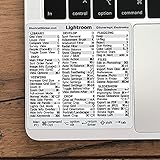
- 💻 ✔️ EVERY ESSENTIAL SHORTCUT - With the SYNERLOGIC Reference Keyboard Shortcut Sticker, you have the most important shortcuts conveniently placed right in front of you. Easily learn new shortcuts and always be able to quickly lookup commands without the need to “Google” it.
- 💻 ✔️ Work FASTER and SMARTER - Quick tips at your fingertips! This tool makes it easy to learn how to use your computer much faster and makes your workflow increase exponentially. It’s perfect for any age or skill level, students or seniors, at home, or in the office.
- 💻 ✔️ QUALITY GUARANTEE - We stand behind our product! It’s made with outstanding military-grade durable vinyl and the professional design gives our stickers an OEM appearance. Our responsive and dedicated customer service team is here to promptly respond to your messages and resolve any issues you may have.
- 💻 ✔️ From BASIC to ADVANCED - Whether you are a seasoned computer professional or a beginner, the SYNERLOGIC Sticker will save you both time and frustration, guaranteed! You can easily reach a new level of computer proficiency using our convenient and affordable sticker.
- 💻 ✔️ Cross-platform compatibility. The sticker is specially designed to work for both PC and Mac computer keyboards.
Higher-risk edits
- People and anatomy: An object crossing a face, hand, limb, or another person can leave distorted edges or alter nearby features.
- Precise structure: Fences, railings, brickwork, architectural lines, text, and logos can be difficult to continue convincingly.
- Fine detail: Hair, branches, and thin wires may blend into the selection or be reconstructed inaccurately.
- Reflective or transparent areas: Water, glass, and reflections can reveal inconsistencies because the hidden scene is ambiguous.
- Large or overlapping objects: Removing a foreground subject, a crowd, or several objects at once asks the tool to invent much more of the image.
- Edges and shadows: A selection near the frame edge or one that omits a cast shadow can produce an obvious remnant or implausible fill.
Use particular restraint in documentary, news, scientific, legal, real-estate, and forensic images. A generated fill can look plausible while depicting details that were never present. For work where the record must remain faithful, avoid using generated pixels to alter evidentiary content and follow the applicable disclosure rules.
What to try when the result looks wrong
- Undo the edit and repaint a smaller, more precise selection.
- Include the shadow or reflection if it should be removed; use Subtract to protect nearby people or detail.
- Break a large removal into smaller sections rather than selecting the whole area in one stroke.
- Compare the three variations, then use Refresh to generate additional options.
- Use Heal or Clone for leftover spots or small cleanup, then inspect at 100% or higher magnification.
- Move the image to Photoshop if the job needs exact geometry, layers, intricate masking, or careful compositing.
Adobe describes Generative Remove as nondestructive: Lightroom’s edit does not permanently overwrite the original source photograph. That does not make every downstream copy editable—the exported image is a rendered file—so keep the original and export a separate delivery copy.
Generative Remove vs. Heal, Clone, and Photoshop
| Tool | How it works | Best suited to |
|---|---|---|
| Generative Remove | Generates replacement pixels for the selected area. | Distractions or larger objects where surrounding context can guide a plausible fill. |
| Heal | Blends sampled texture, color, and tone from nearby pixels. | Small cleanup such as sensor spots or blemishes, especially when you want to rely on existing image content. |
| Clone | Copies pixels from a chosen source area. | Small repairs where a specific existing patch should be copied rather than synthesized. |
| Photoshop | Provides a broader layer-based editing and compositing workflow. | Complex masking, precise perspective or geometry, text and logos, multiple overlapping subjects, or pixel-level control. |
Adobe recommends Heal and Clone for smaller cleanup jobs. Lightroom can handle many routine removals without a trip to Photoshop, but it is not a substitute for detailed retouching when the scene demands precise control.
Rank #4
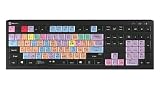
- 90+ intuitive keyboard shortcuts
- Backlit keys, adjustable in 5 levels
- Built-in USB 3.0 Super-Speed hub
- USB wired
- Plug-and-play with Windows 10/11
Availability, subscription, and generative credits
At launch, Adobe said Generative Remove was available across Lightroom desktop, Lightroom Classic, mobile, iPad, and web for paid Lightroom-plan subscribers. Current controls and availability can vary by platform, operating system, account, and app release. Install the latest version and check the Remove panel; do not assume that every free mobile account has the full feature.
Adobe’s current Remove-tool documentation says Generative Remove does not deduct generative credits. That statement applies to this tool, not to every generative feature in Adobe’s product lineup.
What’s actually slowing this PC down?
Pick the symptom - the matching free tool is one click away.
Adobe’s pricing information is inconsistent for U.S. buyers. The general plan page displays Lightroom at US$11.99 per month and Photography at US$19.99 per month, each annual billed monthly, while Adobe’s June 2026 FAQ says the 1TB Lightroom plan increased from US$11.99 to US$14.99 per month for new subscribers and affected renewals beginning March 20, 2026. Check the checkout price for your region, account, and billing term rather than relying on either displayed figure. Adobe says the Lightroom plan includes Lightroom across mobile, desktop, and web, Lightroom Classic, and 1TB storage; the Photography plan includes Lightroom, Lightroom Classic, and Photoshop.
Choosing an editor around your workflow
Lightroom is a natural fit if you already organize photographs in its catalog, want cloud synchronization, and need quick nondestructive cleanup. If you need layered compositing or exact reconstruction, Photoshop is the more appropriate Adobe tool; the Photography plan bundles it with Lightroom and Lightroom Classic.
Non-Adobe choices are not interchangeable Lightroom clones. DxO PhotoLab is worth considering for RAW processing and lens corrections, but is less suited to Lightroom’s cloud-centered library workflow. Capture One offers an alternative professional RAW and catalog/session workflow, not Adobe’s Firefly feature set. Luminar Neo focuses on approachable AI editing and creative effects; check current offers and renewal terms at checkout. ON1 Photo RAW may suit readers seeking an all-in-one alternative, but evaluate its current edition, upgrade terms, and migration fit. Affinity Photo is a layer-based editor rather than a Lightroom-style asset manager. Darktable is a free, open-source RAW workflow for readers willing to use a different ecosystem and accept a steeper learning curve.
These choices involve more than object removal: consider catalog management, cloud sync, editing depth, subscription tolerance, privacy needs, and whether synthesized image content is acceptable for your work.
Verdict
Generative Remove is a useful Lightroom shortcut for routine cleanup, especially when a distraction sits against a background that can be plausibly continued. Its speed comes after you identify the target, and its generated fill still needs scrutiny. Use it for convenience, not as a guarantee of faithful reconstruction; switch to Heal, Clone, or Photoshop when the image requires greater control.
Quick Recap

Product prices and availability are accurate as of the date/time indicated and are subject to change. Any price and availability information displayed on Amazon at the time of purchase will apply.




