Windows Errors? Fix Them Before They Spread
Repair common Windows errors and clear accumulated junk for a smoother, more stable PC - no reinstall needed.Free scan · no reinstall
Crashes, No Sound, or Screen Glitches?
Random freezes, missing sound and display glitches usually trace back to one bad driver. Find and replace yours safely.Free scan · under a minute
ThatPainter is reader-supported. When you buy through links on our site, we may earn an affiliate commission. Learn More
For most home fabric projects, the best HP printer is a compatible color inkjet used with inkjet transfer paper or printable fabric sheets—not a printer that feeds loose fabric directly. Check the exact printer manual and media instructions before buying: compatibility depends on the sheet’s coating, thickness, and feed requirements. For commercial textile work, HP’s relevant platforms are Stitch dye-sublimation printers and textile-capable Latex printers.
First choose what “printing on fabric” means
These methods produce different results, require different media, and suit different workloads. A home inkjet can print a design onto a prepared sheet; that does not make it a direct-to-fabric textile printer.
Recommended Free Tools
Iron-on transfer paper
The printer puts the image on specially coated paper, which is then applied to fabric with an iron or heat press. It is usually the most practical route for occasional shirts, totes, costumes, and other craft projects. The image sits as a transfer layer on the fabric, so its feel and wash performance depend on the transfer product, fabric, and application process. Light- and dark-fabric papers are not interchangeable.
Printable fabric sheets
These are fabric pieces bonded to a carrier so they can pass through a printer. They can suit quilting labels, appliqué, embroidery projects, and small craft pieces. Loose fabric should not be fed into an ordinary paper path. Even prepared sheets may be too thick, stiff, curled, or otherwise unsuitable for a particular printer.
#1 Best Overall

Commercial direct-to-fabric and dye-sublimation printing
Commercial systems are designed for textile workflows and production volumes. Dye sublimation commonly suits polyester or specially coated substrates; cotton generally needs a different ink and process. These systems bring higher equipment, ink, space, maintenance, and finishing requirements than a home craft setup.
Which HP printer route fits your project?
| Project | HP route | Fabric and workflow | Main limitation |
|---|---|---|---|
| Occasional shirt or tote design | Compatible HP color inkjet | Print on inkjet transfer paper, then apply it to the garment | Transfer paper and application determine the final feel and durability; compatibility is model- and media-specific |
| Quilting label or small craft piece | HP color inkjet that accepts the selected printable fabric sheet | Feed prepared, carrier-backed fabric sheet | Thickness, stiffness, and feed reliability may rule out a printer even if it accepts ordinary paper |
| Repeated craft printing | Potentially an HP ink-tank color inkjet, if the media is compatible | Same transfer-paper or fabric-sheet process | Lower ink cost per page may help, but does not ensure media compatibility or eliminate maintenance |
| Professional polyester apparel, flags, or textile production | HP Stitch dye-sublimation platform | Transfer paper and, on applicable systems and textiles, direct-to-fabric workflows | Commercial equipment and production workflow, not an occasional-use purchase |
| Textile signage, décor, banners, or selected cotton and cotton-linen work | HP Latex platform, subject to the exact model, ink set, and validated media | Large-format textile and signage applications | Not every Latex printer or fabric is suitable; follow HP’s media profiles and application guidance |
HP describes Stitch and Latex as commercial fabric-printing platforms in its fabric applications overview. Its Stitch S1000 product information describes a professional dye-sublimation system with transfer-paper and applicable direct-to-fabric workflows. These are not equivalent to a consumer DeskJet, ENVY, or OfficeJet.
Do these 3 things before closing this tab:
1Scan for outdated or missing drivers - takes under a minute2Clear out junk files and repair common Windows errors3Fix the driver behind crashes, sound loss and screen glitchesRank #2

- Epson EcoTank includes enough ink to last up to 3 years⁴.
- WORRY-FREE PRINTING — Epson EcoTank comes with enough ink to print up to 3,600 pages black/6,500 color⁹ for fewer out-of-ink frustrations. Each replacement ink bottle set is equivalent to about 80 cartridges¹⁰
- SIMPLE INK REFILLING — Supersized ink tanks and uniquely keyed EcoFit bottles make refilling ink simple—no mess, no stress and no ink bottle mix-ups; fits in virtually any workspace
- THE WORLD’S #1 SELLING SUPERTANK PRINTER² — Epson invented EcoTank to revolutionize the way people print; we’ve sold 100 million EcoTanks worldwide⁷ and this is our 7th generation of cartridge-free printers
- KEY PRODUCTIVITY FEATURES — 11 black/6 color ISO ppm print speeds with zero warmup time, 100-sheet paper tray, high-resolution flatbed scanner and a 1.44" color display for simple navigation
What to look for in a home HP printer
Do not choose a model solely because a listing calls it a “fabric printer.” The central question is whether the exact media is approved for the printer’s feed path and print system. HP support guidance discusses printing with iron-on transfer paper, and HP community guidance indicates that many consumer inkjets may work with compatible transfer media, but the printer manual and transfer-paper maker’s instructions control for your combination. See HP’s transfer-paper guidance and its support-community discussion of T-shirt transfer paper.
- Color inkjet technology: Most home transfer media is specified for inkjet or laser printing. Match the media to the printer; do not put inkjet transfer paper in a laser printer unless its manufacturer explicitly says it is suitable.
- Feed path and media limits: Check supported media thickness and weight, tray instructions, and whether the sheet must be fed singly. A straighter or manual feed may help with some media, but verify the model rather than assuming it has one.
- Ink and coating match: Dye-based ink can produce vivid results on some coated papers; pigment ink can suit other products. Neither type guarantees compatibility. The transfer coating is part of the system, so check the paper maker’s ink requirements.
- Print controls: Look for a way to set the recommended media type and quality and to mirror artwork when required. App and driver labels vary by printer, operating system, and software version.
- Running costs: Include ink, transfer paper or fabric sheets, failed prints, and a heat press or iron. An ink-tank model may reduce ink expense when printing repeatedly, but its higher initial cost and inactivity-related maintenance still matter.
- Availability: Check the current model and replacement ink availability in your country. A cartridge listing or family name does not establish that a particular transfer medium is supported.
HP’s cartridge guidance can help identify ink systems, but cartridge compatibility alone does not establish fabric-media compatibility. HP’s warranty guidance also distinguishes damage attributable to non-HP ink; an unsupported ink conversion may bring printhead, color, maintenance, and warranty complications.
Rank #3
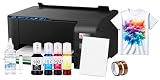
- Package includes: New Printer / 100 sublimation paper sheets / Printhead cleaning kit / Heat transfer tape (OEM inks not included)
- Comprehensive Starter Kit: Jump right into your projects with a starter kit that includes high-quality sublimation ink and a stack of sublimation paper for testing your designs.
- Versatile Applications: From custom t-shirts and mugs to mouse pads and phone cases, this bundle allows you to explore a wide range of products you can personalize and sell.
- Cost-Effective: Save on initial costs and ongoing supplies with our efficiently designed printer that minimizes ink usage without compromising on print quality.
- Printing tip: Suitable for light colored polyester fabrics and polyester coated items with ≤30% cotton content. Store sublimation paper in a cool, dry place away from direct sunlight and humidity for best results
How to print a fabric transfer with an HP inkjet
Use the transfer-paper package as the authority for its settings and pressing instructions. The steps below are a general sequence, not a substitute for product-specific directions.
- Confirm the match. Check that the sheet is made for inkjet printing, fits the printer’s supported size and thickness, and is suitable for the target fabric color and fiber.
- Prepare the artwork. Use a sufficiently high-resolution image. Mirror text and asymmetrical artwork if the transfer product requires it. HP’s transfer-paper instructions refer to horizontal mirroring, including through HP Smart; exact controls differ by software and device.
- Load one sheet correctly. Identify the printable/coated side and tray orientation from the media instructions. HP trays do not all load media the same way. Disable automatic duplex printing.
- Set print options. Select the media type and quality recommended by the transfer maker. Avoid a setting that lays down excessive ink or an unapproved paper type.
- Print a test. Check direction, margins, size, and color before using a final sheet. Keep important text and logos inside the printable area.
- Let the print dry. Drying time depends on ink, coating, humidity, and the product. Do not handle or press it sooner than instructed.
- Trim if instructed. Some products call for close trimming to reduce visible carrier material; others have different handling.
- Apply to clean fabric. Follow the product’s exact temperature, pressure, and dwell time for an iron or heat press. Do not guess or increase heat arbitrarily.
- Peel at the specified stage. Transfer sheets may be hot-peel, warm-peel, or cold-peel. Use the product’s directions.
- Wash as directed. The transfer manufacturer’s washing instructions are essential; there is no universal wash-life figure for all papers and fabrics.
Light and dark fabric need different transfer media
Light-fabric transfer products rely on the fabric showing through unprinted areas, so they are intended for pale backgrounds. Dark-fabric products generally use an opaque layer to keep the design visible against a dark garment and may require different preparation, trimming, or peeling steps.
Quick wins for a faster PC:
Clear out junk files and repair common Windows errorsFree Scan →Fix the driver behind crashes, sound loss and screen glitchesFind Drivers →Rank #4

- Vivid Colors: This printable heat transfer vinyl is your must-have for transferring your favorite images. You will definitely love the amazing transfer outcome of our heat transfer paper for t shirts. <HEAT PRESS SETTINGS: 320-338°F FOR 8-12 SECONDS>
- Easy to Use: Our iron on transfer paper allows you to apply creative ideas to projects effortlessly. Simply with an inkjet printer and a home iron, you can make your own customization by our heat transfer paper for t shirts. <ONLY COMPATIBLE WITH INKJET PRINTERS, DYE INK & PIGMENT INK!>
- Durable & quality: Our printable htv is durable enough to withstand repeated washes without fading, cracking and peeling. Our easy make heat transfer paper for t shirts heat press is your go-to choice for long-lasting projects
- Widely Used: Each iron on transfers for t shirts is designed for dark colored cotton or cotton/poly blend fabric. From terrific T-shirts to sweet home decos, amazing accessories to handmade presents, this dark fabric transfer paper is a great way to create something unique and pleasing to the eye. IT IS NOT HTV BUT PRINTABLE HTV WHICH CAN COMPATIBLE WITH CUTTING MACHINE TOO
- Great Service: Your happiness and satisfaction is our only priority. If you have queries about our inkjet transfer paper, please feel free to contact us.If you are pleased with our printable iron on vinyl, please help us share it with more craft lovers or any social media you own
Ordinary consumer HP color inkjets do not print white ink. A white design element cannot be produced as white ink by the printer; a dark-fabric transfer may supply an opaque white backing layer, while other workflows need a printing technology designed for white ink. Follow the specific transfer product’s instructions rather than assuming the light- and dark-fabric processes are the same.
Independent reader supportYour contribution helps us test, update, and keep practical guides available for everyone.Why a standard HP inkjet is not a supported sublimation shortcut
Color printing alone does not make an inkjet a sublimation printer. Sublimation requires compatible sublimation ink, transfer paper, heat, and a suitable substrate—commonly polyester or a specially coated material. HP does not present ordinary consumer DeskJet, ENVY, or OfficeJet printers as supported sublimation systems. Converting one to nonstandard ink can introduce clogging, color-management, printhead, and warranty problems.
Best Value

- 💕TRU-LIGHT HEAT TRANSFER PAPER: Compatible with both INKJET & LASER printers, scissors & cutting machine. The printing quality is quite vivid and vibrant. Easy to transfer and use. Machine washable with cold water in Full Cycle mode. No tumble dry. No peeling, no cracking after 30 washes. Pack of 20 Sheets Light 3.0 Transfer Paper and 2 Sheets 11x17" Teflon Paper.
- 💕REQUIREMENTS: Laser Printers (HP,OKI,Brothers) & All Inkjet Printers | Dye Ink and Pigment Ink (Do not use sublimation ink) | Scissors or Cutting Machine | Iron or Easy Press or Heat Press machine | Teflon Paper (in the pack).
- 💕APPLICATIONS: The Upgraded Light 3.0 printable iron on vinyl can transfer your design, text, images, photos and pictures to light or white t shirts or fabrics. Make custom personalied DIY gifts to your friends or family on Mother's Day, Father's Day, Birthday, Thanksgiving, Easter, Halloween, Christmas, Valentine's Day or Wedding Day.
- 💕EASY TO USE: [1] Print & Cut out the image. [2] Peel & Place the printed image facing UPWARD onto fabric and cover the image with Teflon Paper. [3] Transfer Image with Iron or Heat Press. [4] Remove the teflon paper. Transfer has been done! Step-by-step instructions are on the back of cover paper in the pack. Video tutorial is in Videos Section of this page for your reference.
- 💕WHO ARE WE: We are a leading manufacturer with 20 years R&D, production and ODM experience (for many premium global brands) in heat transfer paper, waterslide decal paper and more. TransOurDream is one of our brands which is committed to offer high quality products for both home and professional users. Meanwhile we can help you build your own brand and print your logo on the backing of transfer paper. Any questions please don't hesitate to contact us.
For professional HP dye-sublimation work, the relevant line is Stitch. HP describes validated media and textile-oriented workflows for the platform; its Stitch media-partner information covers supported materials. A standard sublimation workflow should not be assumed to print directly on cotton.
When HP Stitch or HP Latex makes sense
HP Stitch for polyester-focused production
Stitch is the HP route to investigate for professional dye-sublimation work such as polyester apparel, flags, displays, and textile production. HP identifies the S1000 as a large-format production system; its suitability for a particular textile depends on the system and validated workflow. HP also provides product information for the Stitch S500. Commercial Stitch systems are a different class of investment and operation from a home printer.
HP Latex for selected textile and signage workflows
HP positions Latex for applications that include textiles, banners, décor, and selected cotton or cotton-linen materials. That is not a blanket claim that every Latex model prints every cotton fabric. Confirm the exact printer, ink set, fabric, profile, and finishing requirements in HP’s fabric application guidance.
For either platform, request a sample or technical consultation for the actual substrate and intended use. HP’s commercial pages direct buyers toward demos, samples, expert contact, or quotes rather than a simple universal consumer price. Space, finishing equipment, media validation, maintenance, and production support belong in the buying decision.
Troubleshoot common transfer problems
- The image is backward: The design was not mirrored when the product required it. Mirror the artwork before printing a new sheet; check the package because some specialty products use a different process.
- Colors look dull: Check the media setting, print quality, artwork resolution, ink/paper compatibility, and any color-management instructions from the transfer maker. Test on the actual fabric before committing a final sheet.
- The transfer peels or cracks: Review application temperature, pressure, time, peel timing, fabric stretch, and washing or drying conditions. Changing only the heat setting may damage the fabric or transfer.
- The sheet jams or skews: Curling, excessive thickness, multiple sheets feeding together, an unsuitable tray, or incorrect loading may be responsible. Use one flat sheet and the recommended feed path; never force it through.
- White parts vanish on a dark garment: The printer has not printed white ink. Use a dark-fabric transfer with an opaque layer or a process that supports white ink.
- A transfer sheet prints but a fabric sheet does not: Fabric sheets have different thickness, stiffness, coating, and friction. Check the sheet maker’s compatibility list and the printer’s media limits; transfer-paper success does not prove fabric-sheet compatibility.
- The result fails after washing: Durability depends on the transfer formulation, fiber and weave, application, and care. Follow the product’s wash directions and do not treat an inkjet printer’s paper output as a guarantee of garment durability.
When a printer is the wrong purchase
If you need only a few shirts, a local or print-on-demand service may cost less and avoid printer, ink, maintenance, and heat-press expenses. For a small business, match the process to the order: heat-transfer vinyl suits simpler solid graphics and lettering; screen printing can fit higher volumes of limited-color designs; direct-to-garment is a different route for cotton and white-ink apparel; and commercial Stitch or Latex systems suit their respective validated textile workflows. Printable fabric sheets remain useful when the goal is a small craft or quilting piece rather than a finished garment.
Generic product roundups often use “fabric printing” for all of these methods. That obscures the decisive distinction: a consumer HP inkjet normally prints onto prepared media, while commercial textile systems are designed around the fabric, ink, transfer process, and production scale.
Free tools Windows power users keep installed
One-click scans. No signup required.
Quick Recap

Product prices and availability are accurate as of the date/time indicated and are subject to change. Any price and availability information displayed on Amazon at the time of purchase will apply.




