What’s actually slowing this PC down?
Free tools Windows power users keep installed
One-click scans. No signup required.
Pick the symptom - the matching free tool is one click away.
ThatPainter is reader-supported. When you buy through links on our site, we may earn an affiliate commission. Learn More
Short answer: choose Clip Studio Paint for illustration, line art, manga, comics and animation; choose Krita for the strongest free drawing and painting experience; and choose Adobe Photoshop when photo editing, compositing or Adobe compatibility matters most.
There is no single Huion-only drawing app. A Huion tablet is an input device, while the Huion driver connects its pen pressure, shortcut keys and display mapping to the operating system. The creative application must also support the relevant tablet protocol, such as Windows Ink or WinTab. That is why a pen can move the cursor in an application while pressure still fails. Huion provides the driver through its download center; the best software depends on your task, operating system, budget and whether you own a screenless pen tablet, a Kamvas display, a standalone Android Kamvas Slate or a Windows Kamvas Studio.
PC Slower Than It Used to Be?
A free scan shows the junk files, broken settings and background clutter dragging Windows down - then fixes them in one click.Free scan · Windows 10 & 11Crashes, No Sound, or Screen Glitches?
Random freezes, missing sound and display glitches usually trace back to one bad driver. Find and replace yours safely.Free scan · under a minute#1 Best Overall
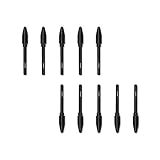
- Suitable for Huion PW100 battery-free stylus.
- Only suitable for the pen of HUION H610 Pro v2, H640P, H950P, H1060P, HS610, H1161, H320M, HS64.
- 10 pack replacement pen nibs is included. Perfect replacement for graphics drawing stylus.
- Easy to install. Produced by Huion.
Quick picks: the best Huion software by task
These are task-based recommendations rather than a claim that one application is best at everything. Cursor movement is usually much easier to support than pressure-sensitive brushes, so always check the combination of your exact Huion model, host device, operating system and application version.
| What you want to do | Best first choice | Why choose it | Main qualification |
|---|---|---|---|
| Illustration, line art, manga and comics | Clip Studio Paint | Excellent inking, rulers, screentones, comic tools, references, 3D models and animation. | Choose PRO for most illustration and short animation. EX is the relevant edition for multi-page comics and full-length 2D animation. |
| Free digital painting | Krita | Free and open source, with a capable brush engine, layers, masks, vector layers and animation tools. | Its interface is powerful rather than especially simple, and large canvases can require substantial memory. |
| Photo editing plus painting | Photoshop | Strong selections, masks, retouching, compositing, painting and PSD-based professional workflows. | It is subscription-only and more complex than necessary if you only want to draw. |
| No-subscription photo, vector and layout work | Affinity | The redesigned application combines photo editing, vector design and page layout in one free desktop application. | It is a new unified product, not simply the old separate Affinity Photo, Designer and Publisher apps. Huion-specific documentation is limited. |
| Natural-media painting | Corel Painter | Specialized oil, watercolor, charcoal, chalk, ink and textured-media brushes. | Confirm the current edition, operating-system support and license before buying; much older coverage discusses Painter 2023. |
| Professional 2D animation | Toon Boom Harmony | Studio-oriented vector drawing, onion skinning, ink and paint and pressure-sensitive brushes. | It costs considerably more than Krita or Clip Studio Paint. |
| 2D and 3D hybrid animation | Blender | Grease Pencil supports pressure-sensitive drawing, storyboards, cut-out animation, motion graphics and 3D scenes. | Its 3D environment makes it less immediately approachable than a dedicated 2D application. |
| 3D sculpting | ZBrush | Pressure can control sculpting size, intensity, color intensity and other brush variables. | It is primarily a 3D sculpting application, not a general illustration or photo editor. |
| Windows handwriting and notes | Microsoft OneNote | Supports digital ink, handwriting, annotations, recognition and pen-pressure sensitivity. | Pressure is mainly useful for expressive ink, not ordinary typed notes. |
| Linux notes and PDF annotation | Xournal++ | Supports pressure-sensitive styluses and specifically lists Huion among supported tablet brands. | Linux behavior still depends on the driver, desktop environment and X11 or Wayland session. |
If you want only one drawing program: start with Clip Studio Paint. If you need free software, start with Krita. If photographs and Adobe workflows are central to your work, start with Photoshop instead.
First identify which Huion device you own
The phrase Huion tablet covers several different products, and the software decision changes accordingly.
- Pen tablet: a screenless surface such as an Inspiroy. It connects to a computer, and you draw while looking at the computer monitor.
- Pen display: a Kamvas or Kamvas Pro display that shows the computer’s image and accepts pen input. Most models need a connected Windows or Mac computer, or a compatible mobile device. Huion explains this pen-display operating model.
- Standalone Android tablet: Kamvas Slate devices run Android independently and can install Android applications from Google Play. They are not simply external monitors for a computer.
- Windows pen computer: Kamvas Studio models run Windows, so desktop applications can be installed directly on the device.
A recommendation that works well on a Windows Kamvas display may not apply to a Kamvas Slate. Similarly, an application supporting generic tablet input is not automatically verified for every Huion model.
Why Huion software compatibility is more complicated than it sounds
The Huion driver is the bridge between the tablet, operating system and applications. It communicates pen pressure, shortcut keys, display mapping and related input; firmware is a separate component. The application then has to interpret that input through a compatible protocol and expose pressure controls in its brush or tool settings.
It helps to distinguish four levels of compatibility:
- Basic cursor compatibility: the pen moves the pointer.
- Drawing compatibility: the application accepts pen strokes.
- Pressure compatibility: brush size, opacity or another property responds to pressure.
- Reliable model-specific support: the driver, operating system, application and tablet behave consistently together.
Many online lists use the word compatible to mean only the first or second level. For painting, the third and fourth levels are what matter.
Best Huion software in detail
1. Clip Studio Paint: best overall for drawing, comics and illustration
Clip Studio Paint is the strongest all-round recommendation for a Huion owner whose main work is illustration, clean line art, manga, comics, webtoons or drawing-led animation. Its rulers, perspective tools, stabilisation, screentones, panel tools, 3D references and brush ecosystem are more focused on drawn artwork than Photoshop’s general-purpose interface.
The Tool Desk
Outbyte Driver Updater FREEFix the driver behind crashes, sound loss and screen glitchesFind Drivers →Outbyte PC Repair FREERepair Windows errors before they cause bigger problemsFix Now →Choose PRO if you mainly illustrate, design characters, create single-page comics or make animated illustrations and GIFs. Choose EX if you need multi-page comic management or full-length professional 2D animation. EX is not required for every animation project: PRO already includes animation features, but EX adds the production-oriented capabilities that matter for longer work.
Clip Studio’s current lineup advertises Version 5.0 and lists EX at US$277.00 on its product page. Older articles that quote Version 4.0 prices such as US$58.50 for PRO or US$258 for EX should not be treated as current. Perpetual desktop licenses and monthly or annual plans also have different device rights and update behavior, so check the current license explanation before purchasing.
For Android and Galaxy versions, Clip Studio’s support documentation specifically lists HUION Kamvas among pressure-sensitive tablets tested with the application. Platform licenses and features are not identical, however, so check the plan for the device you actually intend to use.
Best for: illustrators, comic artists, manga artists, webtoon creators and artists who want drawing and animation in one focused application.
Look elsewhere if: you mainly retouch photographs, need a free application or want a traditional-media simulation above all else.
2. Krita: the best free option
Krita is the best free recommendation for most Huion owners who want a serious desktop painting application without a subscription. It is free and open source, with a professional brush system, brush tagging and organisation, layers, masks, vector layers, a dedicated animation workspace and graphics-tablet support.
Rank #2
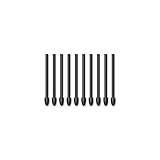
- Suitable for Huion Digital Stylus PW517: Compatible only with Huion Kamvas 12, Kamvas 13, Kamvas 16 (2021), Kamvas 22, and Kamvas 22 Plus. Please note: This product is NOT compatible with Kamvas Slate 10 or Kamvas 13 (Gen 3). Please check your device model before purchasing to ensure compatibility.
- 10 pack replacement pen nibs is included that is enough to use for long time.
- Simple to install, made of durable materials. perfect for Huion graphics drawing tablets.
Krita is particularly attractive for concept art, illustration, texture painting, painted animation and Linux use. Its tablet documentation explains how pressure input works, while its support guidance covers switching between Windows 8+ Pointer, which uses Windows Ink, and WinTab when pressure is uneven or missing.
The trade-off is complexity. Krita offers enough control that a beginner may need time to understand dockers, brush presets, layer types and tablet settings. Performance also depends on canvas size, layer count, brush complexity and available memory. It is an excellent free painting tool, but not automatically the best choice for a multi-page comic production pipeline, Adobe-integrated studio or traditional-media simulation.
Best for: free digital painting, concept art, illustration, Linux users and artists avoiding recurring payments.
Look elsewhere if: you need a highly specialised comic-production workflow, extensive Adobe integration or the most realistic physical-media simulation.
3. Photoshop: best for photo editing and broad professional workflows
Photoshop is the broadest option for a Huion user who edits photographs as well as painting. It combines retouching, selections, masks, compositing, colour correction, layered image editing and painting, and it remains a practical choice when PSD compatibility and Creative Cloud workflows are important.
Adobe’s US plans page currently lists Photoshop at US$22.99 per month on the annual-billed-monthly individual plan and the Photography plan at US$19.99 per month. Adobe also lists a seven-day full trial. Photoshop has no perpetual desktop license, so compare the long-term subscription cost with Krita or a perpetual-license alternative before choosing it. Adobe’s current desktop requirements page covers Photoshop 27.x and later, lists Windows 10 and 11 and current macOS requirements, and specifies 8 GB RAM minimum with 16 GB or more recommended.
Photoshop is not automatically the best drawing application merely because it is widely used. Its brush tools are capable, but the interface and subscription can be excessive for someone who only wants line art or painting.
Best for: photographers, compositors, professional image editors, digital painters already using Adobe and anyone exchanging layered PSD files.
Look elsewhere if: you want free software, a one-time purchase or a more specialised manga and illustration workflow.
4. Affinity: the current no-subscription alternative
Canva announced the redesigned Affinity on October 29, 2025. The current application combines photo editing, vector design and page-layout tools and is described by Canva as free for everyone. This changes older buying advice that treats Affinity Photo, Affinity Designer and Affinity Publisher as the only relevant products.
Affinity is appealing if you need raster editing, vector illustration, logos, print layout or a general Adobe alternative without a recurring subscription. Canva says Affinity work is stored locally and that Affinity content is not used to train or develop Canva AI features; its free-model explanation also distinguishes the core application from separate Canva AI considerations.
Pressure-sensitive drawing is most relevant in Affinity’s pixel or raster workflows. A vector application does not make every vector stroke pressure-sensitive automatically: use a pressure-enabled brush controller in the appropriate Pixel Persona or brush tool. Huion-specific Affinity documentation is limited, so describe it as compatible in principle with supported desktop tablet input rather than as a guaranteed identical experience across every Huion model, operating system and driver.
Best for: artists who combine painting with vector work, photo editing or page layout and want to avoid a subscription.
Look elsewhere if: you need extensively documented Huion-specific troubleshooting, advanced manga tools or a dedicated animation environment.
Recommended Free Tools
Rank #3

- Pack of 10 replacement felt nibs for PW550, PW550S, PW600, PW600S, PW600L,PW600A
- Made from felt material, the felt nib PN06F allows the friction between pen nib and the tablet/screen surface to be greatly improved, which can further enhance the Anti-Glare surface and bring you back to the feeling of drawing on paper.
- This felt pen nib comes in two colors: dark gray and light gray.
5. Corel Painter: best for natural-media simulation
Corel Painter is designed to reproduce the feel of oils, watercolour, charcoal, chalk, ink and other traditional materials. It is a better fit than a general image editor for artists who care about bristle behaviour, pigment-like blending and textured media.
Corel’s product information explicitly lists support for Huion and other Wintab-compatible pen and display tablets. Corel also offers a 15-day Windows and Mac trial through its trial page, which is worth using because brush feel and performance are personal and system-dependent.
Be careful with the year in older reviews. Public product information has often centred on Painter 2023, and the product portfolio has changed; verify the current edition, operating-system requirements and license on the purchase page instead of assuming an old review describes the current release.
Best for: fine-art painters moving from physical media to digital tools.
The Tool Desk
Outbyte PC Repair FREERepair Windows errors before they cause bigger problemsFix Now →Outbyte Driver Updater FREEScan for outdated or missing drivers - takes under a minuteDriver Scan →Look elsewhere if: you mainly create comics, need a free application or require extensive vector, page-layout or photo-compositing features.
6. Animation: choose by production style
There is no single best animation program for every Huion owner.
- Clip Studio Paint PRO or EX: best when animation grows out of illustration, manga or character drawing. PRO handles animated illustrations and GIFs; EX is the relevant upgrade for full-length 2D animation and multi-page comic production.
- Krita: a strong free choice for independent frame-by-frame and painted 2D animation.
- Blender Grease Pencil: best for a 2D and 3D hybrid workflow. Blender’s Grease Pencil documentation describes traditional 2D animation, cut-out animation, motion graphics and storyboarding inside a 3D scene. Its draw tools accept pressure-sensitive stylus input.
- Toon Boom Harmony: best for professional studio-oriented 2D animation, with vector drawing, onion skinning, ink and paint and pressure-sensitive brushes. The US store currently lists Harmony Essentials at US$30 per month or US$252 per year; student pricing is separate. Check the current system requirements rather than copying requirements from older Harmony releases.
For most solo artists, Krita or Clip Studio Paint offers a better cost-to-learning-curve balance. Harmony becomes more compelling when a studio pipeline, specialised animation tools and collaboration requirements justify the price. Blender is the better choice when camera moves, 3D assets or hybrid scenes are central.
7. ZBrush: best for 3D sculpting
ZBrush uses tablet-pressure curves to control brush size, intensity, colour intensity and other sculpting variables. It is the specialist recommendation for a Huion owner who wants to sculpt characters, creatures or hard-surface forms in 3D.
Do these 3 things before closing this tab:
1Repair Windows errors before they cause bigger problems2Fix the driver behind crashes, sound loss and screen glitches3Clear out junk files and repair common Windows errorsZBrush’s system requirements specify Wacom-compatible WinTab or Carbon tablet input. That is evidence of the input path it expects, not a promise that every Huion model will behave identically. Confirm current operating-system and tablet requirements before purchasing.
Do not choose ZBrush simply because your Huion advertises many pressure levels. ZBrush is primarily a 3D sculpting environment and is not a substitute for Krita, Clip Studio Paint or Photoshop when your work is mostly 2D.
8. Notes, handwriting and PDF annotation
For Windows handwriting, Microsoft OneNote supports digital ink, handwriting, annotations, handwriting recognition and an option to use pen-pressure sensitivity. The Windows version is the safest target for a Huion workflow. Pressure is useful for expressive handwritten ink, diagrams and markup, although it adds little to ordinary note-taking.
On Linux, Xournal++ is a strong free choice for handwriting and PDF annotation. It supports pressure-sensitive styluses and explicitly lists Huion among supported drawing-tablet brands. Its real-world behaviour still depends on your Huion driver, distribution, desktop environment and whether you use X11 or Wayland.
What’s actually slowing this PC down?
Pick the symptom - the matching free tool is one click away.
Free, paid and no-subscription choices
| Budget preference | Good choices | What you give up or gain |
|---|---|---|
| Free and open source | Krita, GIMP, Blender, MyPaint, Xournal++ | No subscription. Krita is the strongest general painting choice; GIMP is more oriented toward image editing; Blender is for 3D and hybrid animation; MyPaint is deliberately focused on painting; Xournal++ is for notes and PDFs. |
| Free current unified design suite | Affinity | Photo, vector and layout tools in one application, but the new product should not be confused with older Affinity V2 product pages or assumed to have identical Huion behaviour everywhere. |
| Perpetual desktop license or platform-specific plan | Clip Studio Paint | Strong drawing and comic tools. Check whether the selected license covers your device and how updates are handled. |
| Subscription professional workflow | Photoshop, Toon Boom Harmony | Regular cost in exchange for broad features or studio-oriented tools. US prices and student plans differ by product and can change. |
| Specialist paid painting | Corel Painter | Natural-media brushes and a trial, but a narrower purpose than Photoshop or Affinity. |
GIMP can be a useful free image editor, and Huion’s Linux compatibility page also lists GIMP, Blender, Inkscape, Lightworks, MyPaint, Pinta, RawTherapee and LibreOffice in particular version combinations. Those entries are not proof that every current release works perfectly. Huion lists, for example, Krita 4.4.5, GIMP 2.10.28, Blender 3.1.0, Inkscape 1.1.2, Lightworks 2020.1.1, MyPaint 2.0.0, Pinta 2.0.2, RawTherapee 5.8 and LibreOffice 6.4.7.2. Treat the page as a compatibility reference for the versions it names, not as a universal certification of current versions.
Operating-system compatibility
Windows: the widest choice, with the most protocol confusion
Windows supports the largest selection of desktop art software, but pressure failures frequently come from a mismatch between the Huion driver’s Windows Ink setting, the application’s WinTab or Windows Ink setting, old WinTab files and application-specific preferences.
Rank #4

- Please note that The color of the felt pen nibs can range from light gray to dark gray, depending on the production batch.
- Suitable for HUION Pen Tech 3.0 Battery-Free Stylus PW517 ( Only can be used to Inspiroy Keydial KD200, Kamvas Pro 16 (4K), Kamvas Pro 16 Plus (4K),Kamvas Pro 24 (4K), Kamvas 12, Kamvas 13 ,Kamvas 16 (2021),Kamvas 22, Kamvas 22 Plus, Kamvas 24, Kamvas 24 Plus).
- 10 Pack Upgraded Replacement Felt Nibs PN05F, made of upgraded durable materials, simple to install, makes every stroke more fluent and more pencil-like feel.
- The digital pen felt nibs is firm enough so that it doesn't have the usual in-out movement, bring you a lifelike drawing experience.
- Felt nibs Length-0.98in(25mm), upgraded PN05F felt nibs features high-friction and gives you the most accurate pen performance and realistic handwriting feel.
Huion’s current guidance is simple: the driver and application must use the same protocol. For an application that supports Windows Ink, enable Windows Ink in the Huion driver. For an application expecting WinTab32, disable Windows Ink and use WinTab instead. Do not switch randomly while the application is open; change the setting, restart the application and test again.
macOS: allow the driver and application to control input
On macOS, the Huion driver and the art application may need Accessibility or related privacy permissions. For Photoshop, Huion specifically advises allowing both Photoshop and the tablet driver in macOS privacy permissions. In current macOS versions, check System Settings > Privacy & Security > Accessibility; the exact label or location can vary by macOS release. Restart the application after changing permissions.
Linux: excellent possibilities, but verify the exact stack
Krita, GIMP, Blender, Inkscape, MyPaint and Xournal++ are sensible Linux starting points. However, Linux support is not universal. Check the current Huion driver for your model, your distribution’s package version and whether you are running X11 or Wayland.
Huion documents Wayland support in Linux driver version 15.0.0.179, but warns that behaviour can vary across distributions and desktop environments. Incomplete or inconsistent Wayland implementations can cause double cursors, incorrect cursor behaviour and other problems. If the tablet works in X11 but not Wayland, that difference is a useful diagnostic clue rather than evidence that the tablet is defective.
Android: the app and the cable are both part of compatibility
Android compatibility depends on the Huion model, OTG support, the phone or tablet’s USB-C capabilities, display output, power, firmware and the drawing application. For an external Kamvas display, Huion specifies that the Android host may need USB 3.1 Gen 1 data transfer and DisplayPort 1.2 support for a USB-C display connection.
If a compatible device is not detected, check OTG compatibility, reconnect the cable and adapter, switch the Huion to Android mode, provide adequate power where required and update firmware. Huion’s Android troubleshooting guide and display-connection requirements are more reliable than assuming every USB-C port supports video.
Windows Errors? Fix Them Before They Spread
Repair common Windows errors and clear accumulated junk for a smoother, more stable PC - no reinstall needed.Free scan · no reinstallOutdated Drivers Are Slowing You Down
One free scan finds every outdated or missing driver and matches the right update for your exact hardware.Free scan · exact hardware matchFor a standalone Kamvas Slate, choose Android applications available to that device. Clip Studio Paint, Krita, ibisPaint, HiPaint and similar Android options may be appropriate depending on the model and workflow. Check the Google Play listing and the tablet’s compatibility rather than assuming a desktop license or desktop plug-in will transfer.
iPadOS: do not assume Huion replaces an Apple Pencil
Procreate is an iPadOS and iOS application, not a general-purpose Huion application. Huion’s Kamvas Slate FAQ explicitly says Procreate is not compatible with those Android devices. A normal screenless Huion tablet also cannot simply replace an Apple Pencil on an iPad. For a standalone Android Huion, investigate Android applications instead of buying an iPad-only app.
ChromeOS: check the model and pressure path together
ChromeOS support is model- and application-specific. Clip Studio Paint currently lists Chromebook among its supported platforms, but that does not by itself guarantee pressure behaviour for every Huion model, ChromeOS version or connection method. Check the current Clip Studio system-support page and the Huion documentation for your device.
Independent reader supportYour contribution helps us test, update, and keep practical guides available for everyone.How to make Huion pen pressure work
Universal first-time setup
- Write down the exact Huion model and identify whether the host is Windows, macOS, Linux, Android, ChromeOS or iPadOS.
- Download the current driver for that model and operating system from Huion’s official driver center. Do not confuse a driver update with a firmware update.
- Close Photoshop, Clip Studio Paint, Krita and other painting software before installing or reinstalling the driver.
- Restart the computer after installation.
- Open the Huion driver. Confirm that the pen moves the cursor and that the correct display or monitor is selected.
- Use the driver’s pressure-test area. If pressure is missing there, repair the driver or connection before changing application settings.
- Open the target application and choose a simple pressure-enabled brush.
- Test pressure before importing brush presets, plug-ins or a large document.
Huion advises closing painting software before driver installation and reinstalling the latest driver when pressure is missing. The driver pressure test separates a hardware or driver problem from an application-specific problem.
Free tools Windows power users keep installed
One-click scans. No signup required.
On Windows, Outbyte Driver Updater is an optional way to check for missing or outdated system drivers, but use Huion’s official driver package for model-specific support.
Windows Ink versus WinTab
Use one input path consistently:
- Windows Ink path: enable Windows Ink in the Huion driver for applications that support it. In Clip Studio Paint, open Preferences > Tablet and select Tablet PC. Use the corresponding Windows Ink setting where the application exposes one.
- WinTab path: disable Windows Ink in the Huion driver and select WinTab in the application when that option is available.
There is no universal winner. A current application may work best with Windows Ink while an older application may expect WinTab. The important rule is that the driver and application agree, followed by an application restart.
Photoshop pressure setup
In Photoshop:
- Select the Brush tool.
- Open Window > Brush Settings.
- Enable Shape Dynamics.
- Set Control under Size Jitter to Pen Pressure.
- Test pressure on a new document.
On Windows, enable Windows Ink in the Huion driver when using Photoshop’s Windows Ink path. If the installation has a WinTab problem, open HuionTablet > Settings > Version Info > Software Diagnostics and use the diagnostic repair option when available. Change only one protocol path at a time and restart Photoshop.
On macOS, allow both Photoshop and the Huion driver under the required privacy permissions. If pressure worked before an update, restart Photoshop and the computer after permissions or driver changes.
Quick wins for a faster PC:
Fix the driver behind crashes, sound loss and screen glitchesFind Drivers →Clear out junk files and repair common Windows errorsFree Scan →Huion also documents a repair path for older Photoshop and SAI installations whose WinTab files are damaged or incompatible. That is particularly relevant when pressure works in newer applications but not in an old copy of Photoshop or SAI.
Best Value

- Suitable for Huion PW500 and PW507 battery-free stylus.
- Only suitable for the pen of HUION HS611/WH1409 V2/Q11K V2/Kamvas 20/Kamvas Pro 12/Kamvas Pro 13/Kamvas Pro 16/Kamvas Pro 20/Kamvas Pro 22.
- 10 pack replacement pen nibs is included. Perfect replacement for graphics drawing stylus.
- Easy to install. Produced by HUION.
Illustrator pressure setup
On current Windows installations, first check the Windows Ink configuration in the Huion driver. If pressure remains absent, test the opposite, consistent Windows Ink or WinTab configuration. In Illustrator, open Edit > Preferences > Input Devices and ensure Enable Wacom or Tablet Input is enabled, even when the physical tablet is made by Huion. Restart Illustrator after changing it.
Krita pressure setup
First test pressure in the Huion driver, then use a Krita brush known to respond to pressure. If the stroke is uneven or pressure is absent, open Krita’s tablet settings and switch between Windows 8+ Pointer or Windows Ink and WinTab to match the Huion driver. Krita’s tablet documentation and user-support guidance explain the relevant tablet APIs.
Adjusting the pressure curve
The Huion driver includes a pressure-test box and pressure curve. A steeper curve makes the pen respond more strongly to lighter pressure; the useful setting depends on your hand strength and the brush engine. Adjust it only after the protocol and application brush settings are correct.
What’s actually slowing this PC down?
Pick the symptom - the matching free tool is one click away.
Do not confuse three different controls:
- the tablet driver’s pressure curve;
- the application’s tablet or input curve;
- the brush’s size, opacity or flow response.
All three can change how a stroke feels. More pressure levels printed on a tablet box are not automatically better. Sensor quality, driver behaviour, calibration, brush-engine response, latency and your ability to control pressure matter more than the largest quoted number.
Common Huion problems and the fastest diagnostic path
The pen moves the cursor, but pressure does not work
- Test pressure in the Huion driver.
- Check that the selected brush actually uses pressure for size, opacity or flow.
- Confirm that the Huion driver and application use the same Windows Ink or WinTab protocol.
- Check application version and operating-system compatibility.
- On macOS, check privacy permissions.
- Restart the application after every protocol or permission change.
If pressure works in the driver’s test box but not in one application, the pen is unlikely to be defective. Focus on that application’s brush, tablet API or permissions.
Pressure works in Krita but not Photoshop
This normally indicates an application-specific setting rather than a dead pen. Compare the Huion driver test, a simple Krita brush and Photoshop’s Shape Dynamics setting. Then check the protocol and Photoshop’s WinTab diagnostic path. Do not immediately replace the tablet.
The cursor is offset or lands on the wrong monitor
In the Huion driver, select the intended display and recalibrate a pen display if necessary. Also check the operating system’s monitor arrangement, scaling, resolution and monitor order. A stale mapping can remain after changing monitors or resolutions. Driver labels vary by Huion model and driver version, so use the controls shown for your exact device rather than relying on a universal menu path.
Do these 3 things before closing this tab:
1Clear out junk files and repair common Windows errors2Scan for outdated or missing drivers - takes under a minute3Repair Windows errors before they cause bigger problemsThe Android device is not detected
Check OTG support, Android mode, the USB-C cable and adapter, external power, firmware and the application’s Android support. For a display connection, confirm that the host USB-C port supports the required data and DisplayPort output; charging capability alone is not enough.
Linux works in X11 but not Wayland
Check the current Huion Linux driver and desktop-environment documentation. Huion documents Wayland support in driver version 15.0.0.179, while warning that desktop implementations can still produce double cursors or incorrect pointer behaviour. Testing an X11 session can identify whether the problem lies in the Wayland input stack rather than the tablet itself.
A pen display has input but no image
Separate the two symptoms. If the pen is detected but the Kamvas screen is blank, check the host computer’s display-output capability, cable arrangement, power and display selection before changing drawing applications. On Android, specifically verify the USB-C DisplayPort requirement and adequate power. An application cannot display a canvas until the operating system is sending an image to the pen display.
How to choose when two recommendations seem similar
Use these criteria instead of comparing brush counts or generic compatibility lists:
Recommended Free Tools
- Task fit: choose drawing software for drawing, a photo editor for retouching, a vector application for logos and a 3D sculptor for sculpting.
- Pressure and stylus support: look for pressure, tilt, eraser input and the protocol your operating system uses.
- Huion evidence: specific model testing is stronger evidence than generic Wacom or WinTab support.
- Operating system: Windows and macOS support cannot be assumed to carry over to Linux, Android, ChromeOS or iPadOS.
- Cost model: compare free, subscription, perpetual, trial and student options over the period you expect to use the software.
- File compatibility: consider PSD, SVG, PDF, TIFF, EXR, layered files and animation export before committing to a workflow.
- Learning curve: a more powerful program can be a worse beginner choice if its tools obscure the basic task.
- Performance: large canvases, many layers, animation, 3D scenes and high-resolution displays increase RAM and GPU demands.
- Offline and privacy needs: check activation, cloud storage, local-file handling and whether optional AI features are separate from the core application.
- Workflow integration: existing Adobe, Clip Studio, Blender, Affinity or Toon Boom projects can matter more than an isolated brush comparison.
Why generic Huion software lists can mislead
Huion’s own drawing-app roundup is useful for discovering common applications and broad platform availability. It mixes desktop, mobile and iPad-only software, however, and its prices can become stale. It also does not provide a complete Windows Ink versus WinTab decision tree or fully separate external tablets from standalone Kamvas Slate devices. Its Clip Studio pricing should be checked against the current Version 5.0 lineup.
WindowsReport’s Huion software list is useful as a quick shortlist, but its broad use of compatible does not sufficiently distinguish cursor movement from pressure support, current from old application versions, or desktop from mobile software. Creative Bloq’s digital-art comparison offers useful task-based comparisons of Photoshop, Clip Studio Paint, Krita and Painter, but it is not Huion-specific. Neither type of roundup replaces checking the model driver, operating-system permissions, tablet protocol and connection requirements.
The final decision tree
- I draw manga, comics or clean line art: Clip Studio Paint PRO. Use EX for multi-page comics or full-length 2D animation.
- I want free professional painting: Krita.
- I edit photos as much as I draw: Photoshop, if the subscription fits your budget; Affinity if you want the current no-subscription alternative.
- I want realistic oil or watercolor behaviour: Corel Painter.
- I animate professionally in a studio workflow: Toon Boom Harmony.
- I want 2D animation mixed with 3D scenes: Blender Grease Pencil.
- I sculpt in 3D: ZBrush.
- I annotate PDFs or write notes: OneNote on Windows or Xournal++ on Linux.
- I use Linux: start with Krita, GIMP, Blender, MyPaint or Xournal++, then verify the current Huion driver and your X11 or Wayland setup.
- I use a Kamvas Slate: choose Android applications and check the model’s Google Play and input compatibility. Do not assume Procreate will run.
The Bottom Line
Bottom line: Clip Studio Paint is the best all-around Huion choice for illustration, manga, comics and drawing-led animation. Krita is the best free alternative. Photoshop wins when photo editing and Adobe compatibility matter most, while Affinity is the current no-subscription option for combined photo, vector and layout work. Whichever application you choose, install the correct Huion driver, test pressure in the driver first, and make the application and driver use the same Windows Ink or WinTab path.
Quick Recap

Product prices and availability are accurate as of the date/time indicated and are subject to change. Any price and availability information displayed on Amazon at the time of purchase will apply.




