PC Slower Than It Used to Be?
Crashes, No Sound, or Screen Glitches?
Random freezes, missing sound and display glitches usually trace back to one bad driver. Find and replace yours safely.Free scan · under a minutePC Slower Than It Used to Be?
A free scan shows the junk files, broken settings and background clutter dragging Windows down - then fixes them in one click.Free scan · Windows 10 & 11A free scan shows the junk files, broken settings and background clutter dragging Windows down - then fixes them in one click.
Run a Free PC Scan →Free scan · Windows 10 & 11
ThatPainter is reader-supported. When you buy through links on our site, we may earn an affiliate commission. Learn More
Blender shortcuts depend on the active editor, mode, keymap, and keyboard. This guide uses Blender’s default keymap for its common commands; your assignments may differ if you use Industry Compatible or a custom setup. For a command you cannot find, move the pointer over the relevant editor and press F3 to search. The full, editable reference is in Blender’s Keymap documentation and Edit → Preferences → Keymap.
How to read Blender shortcut notation
A plus sign means to hold keys together. A comma or “then” means press and release the first key before pressing the next. That distinction matters: G, then X starts a move and constrains it to the X axis; it is not a simultaneous G + X combination.
What’s actually slowing this PC down?
Pick the symptom - the matching free tool is one click away.
#1 Best Overall

- Blender - New Color Shortcut Sticker for Keyboard ( keys 11.5x13 mm)
- Keyboard Sticker Shortcut for Blender are laminated and made with typographical method on high-quality Matt Vinyl using non-toxic materials. Thickness - 80mkn. Made in USA.
- High quality sticker for keyboard! Once you apply the stickers, you can start editing right away.Stickers help all types of users, from beginner to professional.
- Shortcut will help improve your productivity by 15-40%, saving you time, while helping you enjoy your work
- Keyboard Shortcut Blender. KEYBOARD NOT INCLUDED
| Notation | Meaning |
|---|---|
| G | Press G. |
| Ctrl + S | Hold Ctrl and press S. |
| Shift + Alt + A | Hold all three modifier keys and press A. |
| G, then X | Press G, release it, then press X. |
| Numpad 1 | The 1 key on a dedicated numeric keypad, not necessarily the number-row 1. |
| MMB / LMB / RMB | Middle, left, or right mouse button. |
Blender supports customizable keyboard and mouse shortcuts, and its manual describes common assignments rather than an unchanging exhaustive list. Check the official keymap introduction if your setup differs.
Essential shortcuts for everyday work
These are common assignments in Blender’s default keymap. Some are context-sensitive, and Spacebar is configurable.
| Action | Shortcut | Where it helps |
|---|---|---|
| Search operators and commands | F3 | Searches commands available in the current context. |
| Rename active item | F2 | Renames many objects and data-blocks. |
| Move, rotate, scale | G, R, S | 3D Viewport transforms. |
| Duplicate | Shift + D | Creates an independent duplicate. |
| Enter or leave Edit Mode | Tab | For an editable object. |
| Extrude | E | Edit Mode; result depends on selected geometry. |
| Loop Cut | Ctrl + R | Edit Mode; requires suitable topology. |
| Bevel | Ctrl + B | Edit Mode; geometry-dependent. |
| Hide / reveal | H / Alt + H | Hides selection / reveals hidden items. |
| Maximize area | Ctrl + Spacebar | Expands the area beneath the pointer. |
| Front / side / top view | Numpad 1 / Numpad 3 / Numpad 7 | Viewport orthographic views. |
| Camera view / frame selected | Numpad 0 / Numpad . | Viewport navigation. |
| Render / show render | F12 / F11 | Render the current frame / open render display. |
For the broader default assignments, see Blender’s Default Keymap reference.
Rank #2

- 【Large Mouse Pad】Our extra-large mouse pad 31.4×11.8×0.07 inch(800×300×2 mm) is perfect for use as a mouse mat, keyboard and mouse pad, or keyboard mat, offering you unparalleled comfort and support during long gaming sessions or work days.
- 【Shortcut Rference to Blender】Extensive compilation of commonly used shortcuts lines for Blender.The Blendershortcuts cheat sheet Mouse Pad can abovisly improve the user's productivity efficiency. A special gift helping your friend, family and partner succeed in school and in their career.
- 【Durable-stitched】The huge mouse pad equips durable-stitched edges, which is anti-fray, no deformation, preventing degumming. When liquid splashes on the computer mouse pad, just clean it with a piece of wet cloth wash, without fading, durable for long time using.
- 【 Non-slip Rubber Base】-Dense shading and anti-slip natural rubber base can firmly grip the desktop. Premium soft material for your comfort and mouse-control.
- 【Ultra Smooth Surface】 Mouse Pad Designed With Superfine Fiber Braided Material, Smooth Surface Will Provide Smooth Mouse Control And Pinpoint Accuracy. Optimized For Fast Movement While Maintaining Excellent Speed And Control During Your Work Or Game.
File, undo, and interface shortcuts
| Action | Default shortcut |
|---|---|
| Open file | Ctrl + O |
| Save | Ctrl + S |
| Save As | Shift + Ctrl + S |
| New file | Ctrl + N |
| Undo / redo | Ctrl + Z / Shift + Ctrl + Z |
| Quit | Ctrl + Q |
| Adjust last operation | F9 |
| Toggle Sidebar / Toolbar | N / T |
| Fullscreen area | Ctrl + Alt + Spacebar |
| Next / previous workspace | Ctrl + Page Up / Ctrl + Page Down |
| Cancel / confirm many active operations | Esc or RMB / Enter or LMB |
Some operations use different confirmation behavior, so follow the prompt shown in Blender. F9 adjusts the most recent operation; once another action replaces it, those settings may no longer be available. The behavior of Spacebar can be set in preferences to play animation, activate tools, or open search.
Recommended Free Tools
Navigate and frame the 3D Viewport
| Action | Default shortcut or input |
|---|---|
| Front / back view | Numpad 1 / Ctrl + Numpad 1 |
| Right / left view | Numpad 3 / Ctrl + Numpad 3 |
| Top / bottom view | Numpad 7 / Ctrl + Numpad 7 |
| Camera view | Numpad 0 |
| Toggle perspective and orthographic | Numpad 5 |
| Frame selected | Numpad . |
| Frame all | Home |
| Orbit | Drag MMB |
| Pan | Shift + drag MMB |
| Zoom | Mouse wheel or Ctrl + drag MMB |
| View navigation pie menu | AccentGrave (backtick key) |
| Walk/fly navigation | Shift + AccentGrave |
Working without a numeric keypad
- Enable Emulate Numpad in Preferences if you want the number row to act like the keypad for view navigation. Number-row keys can still serve other purposes, including Edit Mode selection, so do not assume the two sets are interchangeable in every context.
- Use the AccentGrave navigation pie menu for common view directions.
- Use Home to frame all, or press F3 and search for a view command such as “View Selected” or “Front View.”
Object Mode: transform, duplicate, and organize
In the 3D Viewport, the default transform workflow begins with a command and can then take an axis or numeric value. For example, G, then X, then 2 moves along X by a value of 2 in the current unit context. Press Enter to confirm or Esc to cancel.
| Action | Shortcut | Notes |
|---|---|---|
| Move / rotate / scale | G / R / S | Follow with an axis or value as needed. |
| Constrain to X, Y, or Z | Axis key after transform | For example, R, then Z. |
| Scale in X/Y plane, excluding Z | S, then Shift + Z | Sequential transform input. |
| Duplicate / duplicate linked | Shift + D / Alt + D | Linked duplicate shares data with the original. |
| Apply transform menu | Ctrl + A | Opens the Apply menu. |
| Parent / clear parent | Ctrl + P / Alt + P | Opens the corresponding menu. |
| Enter / exit Edit Mode | Tab | Requires a compatible active object. |
| Mode menu | Ctrl + Tab | Mode switching menu in many contexts. |
Precision, snapping, and repeat
- Hold Ctrl during a transform for snapping to coarse increments.
- Hold Shift while transforming for slower, finer movement; Shift + Ctrl gives fine snapping.
- Press Shift + R to repeat the last operation in many contexts. Use F9 immediately after an operation to change its options.
Modifier behavior can depend on the operation and context; Blender documents these common interactions in its keymap introduction.
Rank #3

- More than 140+ intuitive keyboard shortcuts
- Backlit keys, adjustable in 5 levels
- Built-in USB 3.0 Super-Speed hub
- USB wired
- Plug-and-play with Windows 10/11
Edit Mode and common modeling commands
| Action | Shortcut | Context or qualification |
|---|---|---|
| Vertex / edge / face selection mode | 1 / 2 / 3 | Edit Mode number row. |
| Combine selection modes | Shift + a selection-mode number | Can enable more than one mode. |
| Select all / deselect / invert | A / Alt + A / Ctrl + I | Default-keymap behavior. |
| Extrude | E | Effect depends on selected vertices, edges, or faces. |
| Inset faces | I | Most relevant with faces selected. |
| Bevel | Ctrl + B | Depends on the selected geometry. |
| Loop Cut and Slide | Ctrl + R | Needs a topology Blender can follow. |
| Knife | K | Starts the Knife tool. |
| Fill | F | Context-dependent. |
| Merge menu / Separate menu | M / P | Merge or separate selected geometry. |
| Proportional editing | O | Toggles proportional editing. |
| Edge/vertex slide | G, then G | Applicable selection and context required. |
These commands are not universal across every object or mode. For example, Ctrl + R cannot create a loop where topology does not provide one, and an object that is linked, hidden, or not editable may not respond as expected.
Select, hide, and isolate objects or geometry
| Action | Shortcut | Notes |
|---|---|---|
| Select all / deselect / invert | A / Alt + A / Ctrl + I | Default keymap; context and preset matter. |
| Hide selected / reveal hidden | H / Alt + H | Selection and editor context matter. |
| Linked geometry selection | L or Ctrl + L | Edit Mode and pointer position affect behavior. |
| Circle / box select | C / B | Viewport selection tools. |
| Lasso select | Ctrl + drag RMB | Common viewport context; mouse settings can affect workflow. |
| Select more / less | Numpad + / Numpad - | Selection context. |
| Toggle X-Ray | Alt + Z | Viewport. |
| Toggle Local View | Numpad / | Isolates or restores the local view. |
| Select loop / ring | Alt + LMB / Ctrl + Alt + LMB | Usually requires a suitable edge and topology. |
Animation shortcuts
Animation commands depend particularly strongly on the editor and pointer location. A keyframe command may work over a property or in an animation editor but behave differently over the 3D Viewport.
| Action | Shortcut | Context |
|---|---|---|
| Play or pause | Spacebar | Playback configuration; Spacebar is customizable. |
| Insert keyframe | I | Relevant property or animation context. |
| Clear keyframe | Alt + I | Context-dependent. |
| Clear all keyframes | Shift + Alt + I | Context-dependent. |
| Next / previous keyframe | Up Arrow / Down Arrow | Timeline or animation editor. |
| First / last frame | Shift + Left Arrow / Shift + Right Arrow | Timeline context. |
For interpolation or keyframe options, use the relevant editor’s context menu or search with F3; available actions depend on the current editor.
Rank #4
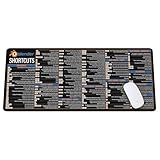
- Extra Large & Comfortable: Measuring 31.5 x 11.8 inches with a 3mm thickness, this XL mouse pad offers ample space for your mouse, keyboard, and more - ensuring comfort and reducing noise.
- Smooth & Precise Control: Enjoy effortless mouse movement with the ultra-smooth surface, perfect for both gaming and office work.
- Non-Slip Rubber Base: The anti-slip rubber base keeps the pad securely in place during intense gaming or work sessions.
- Durable & Stylish Design: Invisible stitching prevents edge wear while maintaining a sleek look, extending the pad’s lifespan.
- Waterproof & Easy to Clean: The water-resistant coating allows for quick cleaning—spills and stains wipe away easily.
Rendering and camera commands
| Action | Shortcut or route |
|---|---|
| Render current frame | F12 |
| Show render display | F11 |
| Cancel render | Esc |
| Camera view in 3D Viewport | Numpad 0 |
| Set active camera | Ctrl + Numpad 0 in the 3D Viewport |
| Render animation or save render | Use Render menu, F3 search, or the Image Editor’s Save command |
Not every rendering action has a single-key default shortcut. Search for the operator from the relevant editor when you need an action that is not listed.
Independent reader supportYour contribution helps us test, update, and keep practical guides available for everyone.Shortcuts in other Blender editors
The 3D Viewport is only one part of Blender. The UV and Image Editors, Shader Editor, Compositor, Geometry Nodes editor, Graph Editor, Dope Sheet, Video Sequencer, Text Editor, Python Console, Outliner, and File Browser have their own context-sensitive commands. A static list of viewport keys will not cover those assignments reliably.
To find a command in one of these editors, place the pointer over that editor, press F3, and search by the operation’s name. For scripting work, Blender’s common keymap reference includes these commands when hovering over the relevant interface element:
Quick wins for a faster PC:
Clear out junk files and repair common Windows errorsFree Scan →Scan for outdated or missing drivers - takes under a minuteDriver Scan →Best Value

- Extended Dimensions: 31.5" x 11.8" x 0.1" It will fit your desktop perfectly and provide the perfect space to move around, you can also use this extended mouse pad as office, gaming, keyboard pad, platform protector or desk pad, and for all types of mice and more
- Exquisite Design: We choose beautiful and trendy patterns and use superior printing technology to ensure vibrant colors. This is a great desk and home table mat decoration to add some character to your workplace and home
- Stitched Edges: The latest stitching technology ensures that the mouse pad will not fray or deform during use. The stitched frame ensures that it won't fray or come off like other mouse pads, making it easy to use
- Non-Slip Base: The base of this extra-large mouse pad is made of high-quality natural rubber, the mouse pad is designed with densely textured rubber that grips the desktop firmly and provides stable operation for the mouse/keyboard
- Colorfast:Thermal transfer printing process, can be washed again and again and does not fade, so that this mouse pad always maintains the beautiful
- Ctrl + C over an operator button copies its Python command.
- Shift + Ctrl + C over a field copies its relative data path.
- Shift + Ctrl + Alt + C over a field copies its full data path.
See Blender’s common keymap documentation for these and other context-specific assignments.
Blender default or Industry Compatible?
The default keymap is the practical choice if you are new to Blender or following Blender-focused tutorials. Industry Compatible is intended for artists migrating from other 3D applications or teams that prefer a shared industry-style workflow. Its assignments differ from Blender default, and Blender’s documentation presents its mappings as common examples rather than a complete list. Review the Industry Compatible keymap reference before switching.
| Consideration | Blender default | Industry Compatible |
|---|---|---|
| Following Blender tutorials | Usually aligns with instructions. | May require translating shortcut directions. |
| Moving from another 3D application | Requires learning Blender conventions. | May feel more familiar, depending on prior application. |
| Working with a team | Consistent if the team uses default. | Consistent if the team agrees on this preset. |
Find, customize, export, or restore shortcuts
Open Edit → Preferences → Keymap. Blender’s keymap preferences let you select built-in presets, search assignments, edit shortcuts, and import or export keymap files. The exact items and available assignments can change with Blender versions and custom configuration; consult the Keymap Preferences manual.
- Move the pointer to the editor where you expect the command to run and press F3 to confirm that the operator is available.
- Open Edit → Preferences → Keymap and search for the operator or shortcut.
- Inspect the assignment and any conflict before changing it; the same key may be used in different contexts.
- Make the change and try it in the intended editor and mode.
- Export a backup of your keymap before making substantial changes or sharing a configuration.
Customization can reduce repetitive menu navigation and accommodate ergonomic needs, but it can also make tutorials, collaboration, and troubleshooting less predictable. A shared preset or exported backup makes it easier to reproduce a known setup.
Recommended Free Tools
Why a Blender shortcut may not work
- Wrong mode: the command may require Edit, Pose, Sculpt, or another mode.
- Wrong editor under the pointer: Blender routes many shortcuts according to the active area.
- Different keymap: Industry Compatible or a custom preset can assign another command.
- Conflict: another operator may use the same key combination.
- No numeric keypad: keypad commands may not be available; Emulate Numpad may be off.
- Non-editable selection: the object may be linked, hidden, locked, or the wrong data type.
- Mouse or keyboard layout difference: selection preferences and punctuation-key positions can alter how an instruction maps to your device.
- Operating-system shortcut: macOS or another operating system may intercept a combination.
- Sequence mistaken for a chord: press G, release, then press X; do not hold both as though they were one shortcut.
- Missing selection or target: the shortcut may run but have no visible effect without the required active object or selected geometry.
Quick recovery sequence
- Check the mode shown in the 3D Viewport header.
- Place the pointer over the editor where the command belongs and press F3.
- Search for and run the operator. If it is not available, check the selected object, mode, and editor context.
- Open Edit → Preferences → Keymap, search for the operator, and inspect its assignment and conflicts.
- Switch to a built-in preset or restore a known-good exported keymap if custom assignments are the cause.
Mac, keyboard layouts, and version differences
On macOS, Cmd often serves where a Windows or Linux instruction uses Ctrl, but operating-system conflicts create exceptions. Do not substitute it mechanically for every shortcut. Keys such as AccentGrave, punctuation, brackets, and symbols may also sit in different physical positions on different keyboard layouts.
The tables here describe common Blender default assignments, not a guarantee for every Blender release or customized installation. Blender’s manual includes versioned documentation, including the Blender 4.5 manual; verify a command against your installed version and the Keymap preferences when exact behavior matters.
Quick Recap

Product prices and availability are accurate as of the date/time indicated and are subject to change. Any price and availability information displayed on Amazon at the time of purchase will apply.




