Do these 3 things before closing this tab:
Quick wins for a faster PC:
Scan for outdated or missing drivers - takes under a minuteDriver Scan →Repair Windows errors before they cause bigger problemsFix Now →1Scan for outdated or missing drivers - takes under a minute2Clear out junk files and repair common Windows errors3Fix the driver behind crashes, sound loss and screen glitches
ThatPainter is reader-supported. When you buy through links on our site, we may earn an affiliate commission. Learn More
Usually, a Wacom pen will not work directly on a Samsung Galaxy tablet just because both use EMR technology. Some specific Wacom or partner EMR pens are listed for specific Samsung devices, mostly older models; a Wacom One pen tablet can also connect to selected Android devices as a separate input surface. Those are different kinds of compatibility. Check the exact pen and tablet models before buying.
First, what do you mean by “Wacom pen”?
Wacom sells several kinds of pens, and they are not interchangeable categories:
- Wacom Pro Pens, including Pro Pen 2 and Pro Pen 3, are designed for particular Wacom tablets and displays. Do not assume one will work on a Galaxy screen.
- Wacom One pens are accessories for specified Wacom products. A loose Wacom One pen is not the same thing as a Wacom One pen tablet connected to Android.
- Bamboo Smart for Samsung is a legacy stylus intended for selected older Samsung S Pen devices.
- Hi-uni DIGITAL for Wacom is a partner EMR pen that Wacom lists for certain Samsung S Pen devices.
- Wacom One pen tablet is an external drawing surface. You draw on that tablet with its pen while your Samsung device runs the app; the pen does not write directly on the Galaxy screen.
- Bamboo Ink is aimed at compatible Windows Ink/Microsoft Pen Protocol devices, not a general-purpose Galaxy S Pen replacement. See Wacom’s Bamboo Ink information.
Wacom itself cautions that EMR compatibility is not universal: two devices can use electromagnetic resonance and still have incompatible pen protocols. The digitizer and pen have to communicate in a compatible way, so the “EMR” label alone is not enough to establish support. Wacom’s compatibility discussion explains this limitation.
Which Wacom pens are listed for Samsung devices?
Wacom’s lists apply to particular pen-and-device combinations. A listing for one pen does not mean that all Wacom pens will work with that Samsung tablet.
#1 Best Overall
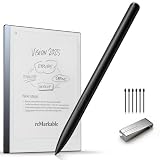
- EMR Stylus Pen for reMarkable 2 - This remarkable 2 stylus features advanced electronic technology and requires no charging, Bluetooth pairing, or setup—just pick the stylus pen up and start writing. Compatible with EMR-enabled devices including reMarkable 2/1, Kindle Scribe, Galaxy Tab, BOOX, Wacom, and more. Note: Not compatible with Apple devices, reMarkable Paper Pro, or reMarkable Pro.
- 4096 Levels of Tilt Sensitivity - The emr stylus pen for samsung tablet features 4096 levels of pressure sensitivity. Usi 2.0 recognizes the pressure and tilt angle applied by the stylus and renders lines of varying thickness (the greater the pressure, the thicker the line). The 45mm tip, with real-time ink flow, enables fine control, precise outlines, shading, and screen coloring. Additionally, the smart chip built into the pen ensures sensitive and smooth tip response with zero lag!
- Write or draw just like on paper - The upgraded textured emr penil tip delivers a writing experience with resistance similar to real paper, preventing the stylus from sliding across the screen and ensuring natural transitions in line thickness. It’s perfect for everyday note-taking, hand-drawn sketches, and detailed illustrations.
- Palm Rejection Technology - The remarkable 2 pen features palm rejection technology. When drawing or writing, you can rest your hand naturally on the tablet screen without worrying about accidentally touching the screen and interrupting your text or drawing input. It’s as simple and natural as drawing and writing on paper! It feels very free and fluid.
- Magnetic Design & Eraser Button—The emr stylus for kindle scribe features a dedicated eraser button; press and hold to activate the eraser function, which offers high precision and easily removes incorrect letters and stray lines. Additionally, the stylus is equipped with two powerful magnets that allow it to securely attach to the side of the tablet, making it easy to carry and access whenever you need it.
Bamboo Smart for Samsung: selected older models
Wacom’s compatibility material lists Bamboo Smart for selected older Galaxy devices, including the Galaxy Note 3, Note 4, Note 5 and Note Edge, as well as the Galaxy Tab A 8.0, Tab A 9.7 and Tab A 10.1 variants with S Pen. These are model-specific listings, not a basis for assuming compatibility with a newer Tab S model. Check Wacom’s compatibility page and its Bamboo Smart announcement. The product is legacy stock, so availability, nib supply and seller return terms may vary.
Hi-uni DIGITAL for Wacom: a broader but still specific list
Wacom’s accessory compatibility list includes the Hi-uni DIGITAL for Wacom for selected Samsung devices. Listed examples include the Galaxy S21 Ultra; Note 8, Note 9, Note 10-series and Note 20-series models; Tab A 8.0 (2019); Tab Active2; Tab A Plus; and Tab S3, S4, S6, S6 Lite, S7 and S7+. Wacom specifies that it is for Galaxy devices supporting S Pen and advises removing another stylus if the pen behaves incorrectly. Confirm the exact entry in Wacom’s accessory compatibility database before ordering.
Rank #2
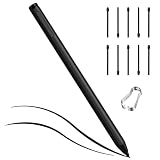
- 【Wide Compatibility with EMR Devices】Compatible with a wide range of EMR-enabled devices, including reMarkable 2, Kindle Scribe, BOOX tablets, Samsung Galaxy Note/Tab models, Wacom EMR tablets and other compatible EMR touchscreen devices. Please confirm your device supports EMR stylus input before purchase.
- 【Built-in Top Eraser Function】Designed with a convenient eraser on the top, this EMR stylus lets you erase notes, sketches and marks naturally, just like using a traditional pencil. No need to switch tools frequently, making writing, drawing and document editing smoother and more efficient.
- 【4096 Pressure Sensitivity & Tilt Support】With 4096 levels of pressure sensitivity and tilt support, the stylus accurately responds to different writing pressure and angles. It allows you to create fine lines, bold strokes and natural shading, ideal for note-taking, sketching, drawing, marking documents and digital learning.
- 【Palm Rejection & No Charging Needed】The palm rejection function allows you to rest your hand naturally on the screen while writing or drawing. Powered by EMR technology, this stylus requires no charging, no batteries and no Bluetooth pairing—just pick it up and start writing anytime.
- 【Complete Accessory Set with 10 POM Tips】The package includes 1 EMR stylus pen, 1 pen clip and 10 POM replacement tips. The durable POM nibs provide smooth, stable writing and extend the service life of the pen, while the included clip makes it easier to carry, store and attach to notebooks, cases or bags.
Samsung’s documentation lists S Pen support across later Galaxy Tab families, including Tab S6 through S11, but that confirms Samsung S Pen support—not compatibility with every Wacom-branded pen. For an unlisted newer model, treat a Wacom pen as unverified unless the exact combination appears in the compatibility information. See Samsung’s S Pen guide.
What’s actually slowing this PC down?
Pick the symptom - the matching free tool is one click away.
Direct-on-screen use is different from connecting a Wacom tablet
There are two distinct setups:
- Direct-on-screen: the pen touches the Galaxy display. This requires a stylus compatible with that tablet’s digitizer. For dependable direct drawing, use the matching Samsung S Pen or a third-party pen explicitly listed for the exact model.
- External tablet: the pen touches a Wacom One pen tablet, which sends input to a supported Android device running the drawing app. The Samsung screen displays the app, but is not the surface the pen touches.
Wacom provides Android setup guidance for supported Wacom One pen tablets. Its guidance describes Android 8 or later support for the product family, with connection requirements depending on device and model; Android 14 and later devices require USB-C or Bluetooth Low Energy connectivity. Check the Wacom One Android setup instructions and supported Android device list for your precise hardware. A suitable data-capable USB-C cable or adapter may be needed. Android app behavior, mapping and pressure support can differ, and Wacom’s Android driver options are more limited than its Windows and macOS support.
Rank #3

- [Wide Compatibility]-This stylus pen for touchscreen is for capacitive screen electronic product and is specially designed for Android device on the market.The iphone stylus pen is suit with suit with XiaoMi/Huawei/Vivo/Lenovo/Pixel/iPhone 6-15 ,Amazon Fire Series tablet and more other android devices. Some compatible device models- Galaxy Tab A9/A9+/S9/S23 FE/S24/S25/Z Fold5/Z Fold 6/A13 /A25/ (Note: This lenovo pen is not compatible with Microsoft devices,Apple iPad,Kindle devices,Windows,Laptop,S7+, tab s4,S10 and One note app. Please check your device model before placing an order.
- 【Smart Touch Switch & Power Save】-The touch screen pen stylus is easy to use: just double-tap the top of the android tablet capacitive stylus pen . There's no need for drivers or bluetooth settings. This iphone pen uses the USB-C charging port,just 35 minutes of charging will give you 8-10 hours of operation.Our digital pen has smart energy-saving feature, automatically turn to "sleep mode" after 5 minutes of inactivity and avoid unnecessary battery consumption.
- 【High Precise and Sensitive】-The pom tip of the stylist pen is wear-resistant,designed for professionals who need high precision and accuracy,is a great feature for anyone who uses a stylus pen android for designing work or drawing. They are very smooth and high responseon the screen, without lag or jumping.Luntak android stylus pen also a great gift for family and friends who love to create.
- 【Magnetic Absorption】-The magnetic feature is a great convenience for users who want to keep their samsung pen close at hand and prevent it from getting lost,more portable and more easier to organize.(Note: The magnetic function requires a built-in magnet on your tablet; otherwise, it cannot be attached. The magnetic surfaces of other tablets may not be a perfect fit.)
- 【What You Get】-Our tablet pens for touch screen set includes:1* stylist pens,3* Replaceable POM Tips,1* Type-C charging cable,1* User Manual.We support 1-year product warranty and 1-month free return and exchange policy for our pen with stylus tip. If you encounter any issues, please don't hesitate to contact us. Please note the apple pens does not support palm rejection, so avoid touching the screen with your hands.Does not support pressure sensitivity.
In short: if you want to draw on the Galaxy’s glass, check stylus compatibility. If you want to use Wacom hardware with Android, check whether the external Wacom tablet works with your Samsung model and Android version.
What might work—and what may not
On a compatible direct EMR combination, basic ink input may work, and pressure, hover, palm rejection or pen buttons may also work. Do not assume every feature will. “The tip writes” does not mean the pen is fully compatible.
Rank #4

- COMPATIBLE MODELS -- (NO Bluetooth,Not Original)The Tab Active 3 Pen Replacement Galaxy Tab Active Pro Touch Stylus Pen Compatible with For Samsung Galaxy Tab Active 2 T390 T395 T397 Pen. (also fit for Tab Active Pro S T540T545 T547 Pen, for Samsung Galaxy Tab Active 3 SM-T570 SM-T575 SM-574 S Pen Repair.But the Tab Active 2 Pen Dimensions Are Different Tab Active Pro Pen and Tab Active 3 Pen ,So The Galaxy Tab Active 3 S Pen Won'T fit In the Case for Tab Active 2, Galaxy Tab Active4 Pro Stylus
- HIGH QUALITY -- The Galaxy Tab Active 3 S Pen 100 percent Tested Well Before Shipping Out .Very Durable And Responsive Touch Pen Perfect Fit For Samsung Galaxy Tab Active 2 Pen,Galaxy Tab Active4 Pro Stylus Pen.Tab Active Pro S pen And Tab Active 2 Touch S Pen Replacement Spares Parts.
- EASY TO USE -- You Just Need Use The New Galaxy Tab Active 3 T570 Pen To Replace You Old Or Broken Tab Active Pro S Pen.And You Can Use The New Tab Active 3 S Pen Tips To Replace Your Worn Tips With Replacement Tweezer,Please Double Make Sure Your Phone Model Version Before Buy The Galaxy Tab Active Pro T540 Pen
- WHAT YOU GET -- 1 X Galaxy Tab Active 3 Stylus Pen Replacement Tab Active Pro Pen For Galaxy Tab Active 3 S Pen . 5 X Galaxy Tab Active 3 Replacement Tip.1 X Replacement Tweezer for T577 Stylus S Pen.
- ATTENTION -- The Galaxy Tab Active 3 SM-T570 SM-T575 SM-T577 S Pen also fit for Samsung Tab Active Pro S T540 Pen, for Samsung Galaxy Tab Active 3 SM-T570 SM-T575 SM-574 S Pen Repair.But the Tab Active 2 Pen Dimensions Are Different Tab Active Pro Pen and Tab Active 3 Pen ,So The Galaxy Tab Active 2 S Pen Won'T fit In the Case for Tab Active 3 and Tab Active Pro !!!Please Feel Free To Contact With Us if You Have Any Questions and Doubts for Tab Active3 S Pen.
| Feature | What to expect |
|---|---|
| Writing or drawing | Possible only if the pen and tablet are compatible; verify the exact pair. |
| Pressure and hover | May work on a supported combination, but test them in the apps you use. |
| Palm rejection | Depends on device, pen and app behavior; do not assume it from basic ink input. |
| Side button or eraser | May be unsupported or behave differently from the Samsung S Pen. |
| Bluetooth, charging and battery status | Require the relevant pen and tablet features; many EMR pens do not provide Samsung S Pen wireless functions. |
| Air Actions and Air Command features | Samsung-specific functions are not guaranteed with third-party pens. Air Actions require supported hardware and features. |
| Tilt and app shortcuts | Support varies by pen, tablet and app; verify rather than infer. |
Samsung distinguishes S Pen models with Bluetooth Low Energy (BLE) functions from models without them; pairing, charging, battery reporting and Air Actions are model-dependent. Some recent S Pens—including those for Tab S9 FE, Tab S10 FE and Tab S11-series devices—lack some or all BLE/Air Actions features. Check Samsung’s S Pen pairing and charging information and S Pen connection troubleshooting guide for the specific device. A third-party pen should not be expected to gain those Samsung-specific functions merely because it can write.
Check compatibility before you buy
- Identify the exact tablet. On the tablet, open Settings → About tablet and note the model name and, if possible, model number. Similar names do not guarantee identical digitizers or accessories.
- Identify the exact pen. Check the product name and part number, not just the brand. Wacom examples include Wacom One Pen CP91300B2Z, Wacom One Standard Pen CP92303B2Z and Pro Pen 2 KP504E.
- Search Wacom’s compatibility information for the pair. Use the accessory compatibility database or compatibility page. If the exact tablet and pen are not listed, call it unverified—not compatible.
- Check Samsung’s documentation. Confirm which S Pen is intended for the tablet and whether its wireless features differ. Samsung’s S Pen guide and device support pages are better evidence for Samsung pen functions than a general EMR claim.
- Buy with a return option if support is uncertain. This matters especially for discontinued Bamboo Smart stock or third-party partner pens.
- Test the functions you actually need. Try hover, pressure variation, palm rejection, buttons and eraser separately, in Samsung Notes and in your drawing app. Also test any wireless features rather than assuming they follow from writing support.
Choose by your drawing setup
| Your goal | Best starting point |
|---|---|
| Draw directly on a Galaxy Tab screen | The Samsung S Pen made for that tablet, or an exact-model-compatible replacement. |
| Replace a lost S Pen | Check Samsung’s replacement for your tablet family first; it is the simplest route to fit and supported device functions. |
| Use a Wacom pen you already own on the screen | Check Wacom’s exact compatibility list. Do not assume a Pro Pen or Wacom One pen is a generic Android stylus. |
| Use a Wacom pressure-sensitive surface with Android | A Wacom One pen tablet, if your Samsung device and connection method are supported. |
| Own an older Galaxy Note or Tab A with S Pen | A specifically listed Bamboo Smart or partner EMR pen may be an option; account for legacy-stock risks. |
| Make art on a computer | Use a Wacom tablet or display with a supported computer and the pen specified for that Wacom model. |
Samsung’s S Pen Pro is another product, but it is not a universal answer for every Galaxy tablet. Samsung lists compatible devices on its S Pen Pro support page; check the list for your model rather than assuming newer or FE models are covered. Also distinguish S Pen writing from optional wireless features: Samsung says the Tab S11-series S Pen supports writing but does not include some BLE-related functions. Wacom’s announcement that its pen technology was adopted in the Tab S11 series likewise does not establish that retail Wacom pens interchange with that S Pen; see Wacom’s announcement.
Quick Recap
Best Value

- [Wide Compatibility] This stylus is designed for EMR devices. It is perfectly compatible with Remarkable 1/2 / Kindle Scribe / Samsung / BOOX Onyx / Wacom devices. Note: It is not compatible with Apple devices / Remarkable Paper Pro / Remarkable Paper Pro Move. Please refer to the compatibility chart in the image for a complete list of supported devices.
- [Smart EMR Technology] Built-in advanced EMR technology, this stylus don't need to charge or pair. Just pick it up and start writing right away. It precisely captures every intricate stroke and works flawlessly across all scenarios, whether you’re taking quick notes in business meetings, drafting creative sketches as a designer, or annotating textbooks as a student. It fully recreates the smooth and natural feel of pen-on-paper writing to keep your inspiration flowing nonstop.
- [4096-Level Professional Pressure Sensitivity] Equipped with 4096-level high-precision pressure sensitivity, this pencil intuitively translates your writing force into perfectly varied line thickness and shade. Light strokes outline exquisitely detailed contours; heavy pressure delivers rich, vivid colors. Fully meets the creative demands of professional designers, illustrators, and handwriting enthusiasts.
- [Eraser on Pen Cap] This stylus pen features a built-in eraser function on pen cap, allowing you to correct mistakes instantly without switching between tools. Whether you’re touching up delicate details in a digital sketch, or erasing typos in quick meeting notes, a simple flip of the pen lets you wipe errors away smoothly. This hassle-free design cuts out tedious operation steps, boosts your work and creative efficiency.
- [Sensitive Tilt Support] Effortlessly create varied line thicknesses and natural shadows by simply adjusting the stylus angle. It’s perfect for your creative drawing and writing projects.
If the pen does not work as expected
- Remove other styluses. Wacom specifically recommends removing another stylus when troubleshooting the Hi-uni DIGITAL for Wacom.
- Take off magnetic cases or accessories temporarily, then test again; magnetic interference can disrupt digitizer input.
- Restart the tablet and install pending Samsung system updates.
- Check the pen’s requirements. Determine whether it needs a battery, Bluetooth pairing or a particular charging method. Basic EMR input and Bluetooth functions are separate.
- Inspect the nib. Reseat or replace it if the pen is detected but strokes are intermittent.
- Test in another app or on a known-compatible device. If input works in one app but not another, the issue may be app-specific rather than proof that all pen functions are supported.
- Separate input failure from feature failure. If the tip writes but Air Actions, battery reporting or a button does not work, the pen may have only partial compatibility.
- For a Wacom One tablet, start with USB-C. Confirm that the cable and adapter support data, not just charging; consult Wacom’s Android setup instructions. Try Bluetooth only if your particular Wacom model supports it, and check the app’s input settings if mapping or pressure is wrong.

Product prices and availability are accurate as of the date/time indicated and are subject to change. Any price and availability information displayed on Amazon at the time of purchase will apply.




