Free tools Windows power users keep installed
One-click scans. No signup required.
ThatPainter is reader-supported. When you buy through links on our site, we may earn an affiliate commission. Learn More
Yes—the Galaxy S23 Ultra works well as a portable sketchbook for visual notes, thumbnails, line art, and many illustration tasks. Its built-in S Pen supports pressure-sensitive drawing, but the app you choose determines how that pressure, layers, palm rejection, and exports behave. The phone is convenient to carry; its small screen is less comfortable than a tablet for long sessions or large, detailed compositions.
What the S23 Ultra offers for drawing
The S23 Ultra is the model in the Galaxy S23 family with an S Pen stored inside the phone. Samsung specifies 4,096 pressure levels and a 0.7 mm tip; those figures describe the input hardware, not a guarantee that every brush or app will make pressure differences equally visible. Brush engines decide whether pressure changes line width, opacity, or another property. Samsung’s S Pen support page covers the pen’s core functions, while its S Pen compatibility information describes supported drawing features and S Pen Pro compatibility.
- Stored and charged in the phone: The built-in pen is always close at hand. Insertion pairs and charges it for Bluetooth-dependent functions.
- Hover cursor: When the pen is close to the display, the cursor helps show where a stroke will land before you touch down.
- Side button: Its function depends on the app and settings; supported apps may use it for an eraser or other shortcut.
- Air Command and Air Actions: Air Command opens a shortcut menu; Air Actions use Bluetooth for remote gestures and controls. These can speed up navigation or camera control, but they do not improve the quality of a stroke.
- Screen-off memo and handwriting recognition: Samsung Notes supports quick writing from the locked screen and handwriting features, useful for capturing an idea before turning it into a drawing.
- Water resistance: Samsung rates the S Pen IP68. That is a resistance rating, not an invitation to draw underwater or expose the phone and pen to liquids unnecessarily.
- S Pen Pro: Samsung lists it as compatible, but it is a separate accessory with different ergonomics; most people who draw only on the S23 Ultra can start with the pen stored in the phone.
Pressure sensitivity, tilt, hover behavior, palm rejection, and button shortcuts are not uniform across apps. Confirm them in the app and brush you intend to use rather than assuming that S Pen compatibility means identical controls everywhere.
Do these 3 things before closing this tab:
1Scan for outdated or missing drivers - takes under a minute2Repair Windows errors before they cause bigger problems3Fix the driver behind crashes, sound loss and screen glitches#1 Best Overall

- 【Compatibility】Galaxy S23 Ultra 5G All Version (Not Compatible with Galaxy S23 & S23 Plus). It's reliable s23 ultra pen replacement
- 【Product Features】0.7mm Pen Tips/Nibs, 4096 Pressure Sensor, S Pen S23 Ultra allows you to make quick notes, draw or edit along with all other typical touch-screen
- 【Connect Mobile】This s23 ultra s pen replacement can connect your s23 ultra phone, Samsung Galaxy s23 ultra pen can control your mobile phone to take photos and video recording. PPT page turning
- 【Packaging】S23 Ultra Pen Replacement for Samsung Galaxy S23 Ultra S Pen, Tip/Nibs Replacement
- 【Service】Please contact me if you need help about Samsung Galaxy s23 ultra stylus pen replacement, I will reply within 24 hours
Set up the S Pen and test your drawing app
- Remove the S Pen from its slot, then open Settings > Advanced features > S Pen. Menu labels may differ with One UI version, region, or software updates.
- Review Air command, Air actions, Screen off memo, S Pen to text, Keep S Pen connected, and Pen proximity alerts. Enable only the features you expect to use.
- Open Air Command and add the tools or drawing apps you use often. Samsung’s Galaxy S23 simulator shows Samsung’s drawing-related menu examples; exact items can vary by software version.
- Open a drawing app and make light and firm strokes, slow and fast lines, and diagonal lines. Check the hover cursor, eraser, undo, and whether resting your hand creates stray marks. Test near the screen edges as well as in the center.
- Reinsert the S Pen after setup so it can pair and charge for Bluetooth features.
Do this short test on a blank canvas before starting a finished piece. It helps separate an app setting or brush behavior from a hardware issue.
Choose an app for the kind of drawing you do
There is no single best drawing app for every S23 Ultra owner. Choose by workflow: quick notes, guided practice, painting, design sketches, or production illustration.
| App | Best for | Strengths | Main trade-off |
|---|---|---|---|
| Samsung Notes | Visual notes, thumbnails, storyboards, and annotated references | Fast access; handwriting, images, text, selection, page organization, and export in one place | It is a note-taking app, not a full production painting studio with extensive brush and layer controls |
| PENUP | Beginners, coloring, and low-pressure practice | Drawing and coloring activities, learning and community features | Less suited to complex, layered production artwork |
| Sketchbook | Sketching and line art on a straightforward canvas | Clean interface; its Android documentation describes Samsung S Pen support and a Pen Mode that can restrict canvas drawing to the pen | Not an infinite-canvas design suite or a specialized comic-production environment |
| Infinite Painter | Painting and brush experimentation | Google Play describes hundreds of built-in brushes, more than 100 customizable brush settings, stylus pressure and tilt support, and timelapse recording | Free to install with in-app purchases; brush behavior still varies by brush |
| Concepts | Product sketches, diagrams, perspective studies, and design ideation | Infinite canvas, design-oriented tools, and export options that include PNG, PSD, SVG, and DXF depending on plan | It is less focused on traditional natural-media painting; features and platform parity vary |
| Clip Studio Paint | Comics, manga, character illustration, and animation-oriented work | Advanced layers, comic tools, 3D references, and illustration and animation features | More complex than a simple sketchbook, with smartphone-specific usage and plan conditions |
For visual notes: Samsung Notes
Use Samsung Notes when a sketch belongs beside handwriting, a reference image, or explanatory labels. Its pen, pencil, brush, highlighter, color, thickness, eraser, image insertion, lasso, page organization, and export tools cover quick studies and working notes. Samsung confirms S23 Ultra support for Samsung Notes handwriting features, Screen-off memo, and handwriting recognition on its S Pen support page.
For guided practice: PENUP
PENUP is a friendly place to try drawing and coloring exercises and browse other artists’ work. Samsung describes it as an S Pen drawing and coloring environment with social and instructional elements. Choose a dedicated art app instead when you need a more extensive layer-based production workflow. Samsung’s PENUP overview describes its learning and community features.
Recommended Free Tools
For a clean sketching canvas: Sketchbook
Sketchbook suits artists who want a conventional canvas without a crowded interface. Its Android documentation confirms Samsung S Pen input and explains Pen Mode, which can help keep touch input from making marks on the canvas. Check that the specific export and file workflow you need is available in the Android app. Sketchbook’s documentation explains its Android S Pen support.
Rank #2

- 【 Compatible with Galaxy S23 Ultra】S Pen Compatible with Samsung Galaxy S23 Ultra 5G All Versions .Don’t Fit Galaxy S23/S23 Plus/S23 FE All Verisons. S Pen S23 Ultra Replacement, S23 Ultra Pen replacement for your Original S23 Ultra S Pen
- 【 About Product Quality 】Brand New High Quality S23 Ultra Stylus Pen .Before the product is transported, we check the appearance / touch / color / function of the product one by one to ensure that you receive high-quality S23 ultra pen replacement products
- 【 About Product Function】 S23 Ultra S Pen Tested 4096 levels of pressure.The effect is perfect, WithBluetooth Connect your Phone.0.7mm Fine Tip for Precision, S23 Ultra Pen Air Command Touch-Free Control Your Mobile Phone to Take Photos and Video Recording. PPT Page Turning
- 【Packing】 1* S23 Ultra Stylus Pen WithBluetooth + 5* Replacement Tips,1*Tweezer
- 【About after-sales 】365 days of quality assurance.If there are any non-human factors quality problems, Please contact us in time, we will reply you within 24 hours.
For mobile painting: Infinite Painter
Infinite Painter is a reasonable choice when brush feel and experimentation matter more than note organization. Its Google Play listing advertises pressure and tilt support, customizable brush settings, and a painting-oriented toolset. Try the brushes you expect to use: stylus support does not mean every brush responds to pressure or tilt in the same way.
For an infinite design canvas: Concepts
Concepts works well for brainstorming, product sketches, diagrams, and perspective studies that benefit from an open-ended canvas. Its feature and pricing page lists a free tier with an infinite canvas, unlimited drawings, five layers, and basic JPG export. The page viewed on August 18, 2026, listed Pro at $4.99 per month or $29.99 per year and one-time Essentials purchases from $1.99 to $39.99. Those figures are page-listed prices, not guaranteed checkout prices; region, platform, and plan affect availability and price.
For comics and advanced illustration: Clip Studio Paint
Clip Studio Paint is the more production-oriented option for comic, manga, character-art, and animation workflows. Its compatibility information lists the Galaxy S23 Ultra as a supported smartphone; smartphone features and plans are not the same as the tablet or desktop editions. The Galaxy page describes a six-month offer under its stated promotion and a 30-hour monthly free smartphone allowance after that offer. Its product page listed mobile starting prices of US$0.99 per month for PRO and US$2.49 per month for EX. These are listed starting prices, not a promise of the current checkout price; offers, region, billing term, and device category can change.
Build confidence with a short S Pen drawing exercise
Spend about 20 minutes on a new canvas. The point is to learn how your chosen brush responds and how the phone feels in your hand, not to produce a polished picture.
- Draw several straight lines, gradually varying pressure from light to firm. Notice whether the brush changes width, opacity, or both.
- Fill a small area with circles and ellipses. Try to keep the shapes loose rather than correcting every wobble.
- Sketch a sphere, cube, and cylinder using simple construction lines.
- Add one light source and shade each form with a brush you can control.
- Import or place a reference image and trace a simple subject to study its proportions.
- Hide the reference and redraw the same subject without tracing.
- Compare the two versions for proportion, line confidence, and pressure control; save the practice page as a record of what to work on next.
Use a repeatable sketch-to-finished-art workflow
1. Set up a practical canvas
Use portrait orientation for character studies and phone-friendly sketches; switch to landscape for wide compositions. Pick the largest canvas that remains responsive on your chosen app and leave the background plain while learning. Keep a reference image visible nearby or import it into the project.
Rank #3
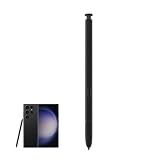
- Match:For Samsung Galaxy S23 Ultra 5G SM-S918B, SM-S918B/DS, SM-S918U, SM-S918U1, SM-S918W, SM-S918N, SM-S9180, SM-S918E, SM-S918E/DS Stylus Pen Replacement WithoutBluetooth.
- Quality: Brand New High Quality Guaranteed. You can make quick notes, draw or edit along with all other typical touch-screen. Durable And Responsive stylus Pen Fit For.
- Use: You can make quick notes, draw or edit along with all other typical touch-screen. Quite Durable And Responsive stylus Pen Fit For.
- Package Includes: 1 x Galaxy S23 Ultra S Pen.
- After-sales: If you have any questions about our products, please contact us in time, we will give you a satisfactory answer within 24 hours.
2. Block in gesture and proportions
Start with a large, low-opacity brush and simple shapes. Establish the pose, silhouette, and proportions before details. Adjust pressure and opacity rather than repeatedly changing brush size if you want a loose, light construction pass.
3. Separate stages on layers
A useful starting stack is: reference image, rough gesture, construction shapes, clean line art, flat colors, shadows, highlights, and notes or texture. You do not need every layer for every drawing. Layer limits depend on the app, canvas dimensions, available memory, and plan; if performance slows, simplify the stack or reduce the canvas size.
Recommended Free Tools
4. Refine line and color
Lower the rough layer’s opacity or hide it as you clean up the drawing. Use pressure intentionally for line weight, pencil darkness, opacity, or blending, depending on the brush. Add flat colors before shadows and highlights so you can judge the overall read without getting lost in surface detail.
5. Zoom, rotate, and check the whole image
Zoom in for small features, lettering, and line intersections, then zoom out often to catch proportion and value problems. Rotate the canvas if the app supports it instead of forcing your wrist into an awkward angle. Two-finger gesture behavior differs between apps, so learn the navigation controls before a long session.
6. Save a project and export an image
Keep an editable project file before exporting a flattened image. PNG is useful for transparency and crisp line art; JPG is convenient for smaller, flattened sharing files. Use PSD or the app’s native format when layer preservation matters, and confirm that the Android version of the app supports the format you need. Concepts lists formats including PNG, PSD, SVG, and DXF, with availability depending on the plan, on its feature page.
Rank #4

- S Pen Stylus for Galaxy S23 Ultra – Designed for use with compatible Samsung Galaxy S23 Ultra devices for writing, drawing, and navigation.
- Precise Input Control – Enables accurate handwriting, sketching, and on-screen interactions with supported Samsung devices.
- Precise Input Control – Enables accurate handwriting, sketching, and on-screen interactions with supported Samsung devices.
- Button Function Support – Includes a side button for supported actions and shortcuts on compatible Samsung software.
- No Battery Required – Passive stylus design does not require charging or an internal battery.
Make pressure sensitivity useful
Try three quick drills with the same brush: draw a tapered line by starting lightly, pressing harder, then releasing; draw parallel strokes with consistent spacing and pressure; and make a pressure ramp that gradually moves from light to firm across one stroke. These reveal whether the selected brush maps pressure to size, opacity, or another setting. If a stroke looks unchanged, test another brush before deciding the S Pen is not responding.
Pressure can control line weight, opacity, brush size, pencil darkness, or blending intensity, but the mapping is chosen by the app and brush. In Infinite Painter, for example, the listing advertises pressure and tilt support, while the actual response still depends on the selected tool. A drawing app may recognize S Pen input without matching another app’s curve, tilt behavior, palm rejection, or button shortcuts.
Improve palm rejection and hand comfort
Palm rejection depends on the app, hover detection, pen mode, screen protector, pen condition, touch settings, and the way you hold the S Pen. No single setting guarantees identical results across Samsung Notes, Gallery, and third-party apps.
- Keep the pen close enough to the display for the hover cursor to appear before you rest your hand.
- Enable the app’s pen-only mode if available. Sketchbook documents a Pen Mode for this purpose.
- Test a blank canvas first, including screen edges and corners.
- If stray marks continue, try a drawing glove or hold your palm slightly above the glass.
- If the problem started after adding a thick or damaged screen protector, test the screen without it if practical and safe.
A phone is a small drawing surface: your hand can cover more of the composition, tool panels leave less room, and the wrist may tire during long sessions. Frequent zooming, canvas rotation, and short breaks help; they do not turn the phone into a large tablet.
Fix common S Pen drawing problems
The pen writes, but Air Actions do not work
Air Actions use Bluetooth features and are separate from basic pen input. If handwriting works but remote gestures do not, check the connection path first:
Best Value
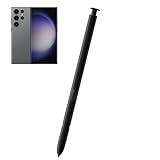
- Compatibility With:For Samsung Galaxy S23 Ultra 5G All Version.
- 4096 Levels of Pressure Sensing - The Galaxy S23 Ultra S Pen for Lenovo builds on the 4096 levels of pressure sensing technology by adding a flexible nib to create a more natural feel.
- Natural Writing: The Galaxy S23 Ultra S Pen provides natural writing, whether it's sketching, drawing, or note taking, it can be very smooth, improving work and study efficiency.
- High Quality:We will check the appearance/touch/color/function of the products one by one to make sure you receive high quality products.
- Package Includes : 1*for Galaxy S23 Ultra 5G S Pen
- Insert the S Pen fully and leave it in the phone long enough to charge.
- Open Settings > Advanced features > S Pen and check that Air Actions are enabled.
- Remove and reinsert the pen, then test a supported control such as the camera shutter or Air Command.
- If the pen still writes but remote functions fail, investigate pairing, charge, settings, pen compatibility, or app support rather than treating it as a drawing-digitizer failure.
A replacement pen may not offer the same remote features as the original. Check Samsung’s S Pen compatibility comparison before buying a replacement; physical fit, pressure, charging, Air Command, and Air Actions are distinct compatibility questions.
Strokes appear without pressure variation
- Test a basic pencil or ink brush before judging the hardware.
- Check whether the brush uses pressure for size or opacity; some brushes use neither by default.
- Compare strokes in the center and near the edges, and try another compatible S Pen if available.
- If the issue appears across multiple apps and pens, record where it occurs and contact Samsung service.
One community report described pressure inconsistency near the upper-right area of an S23 Ultra display. That is anecdotal, not evidence that the model has a general defect.
The app slows down on a large project
- Reduce canvas dimensions and the number of large reference images.
- Merge or rasterize layers you no longer need to edit separately.
- Close background apps, keep internal storage available, and save incremental copies.
- Reopen the project after simplifying it; a powerful phone does not eliminate limits from canvas size, memory use, and layer complexity.
When to add an accessory or move to a larger screen
Consider a genuine replacement S23 Ultra S Pen if yours is lost, physically damaged, or no longer behaves reliably. Generic capacitive styluses do not reproduce the S Pen’s pressure, hover, button, and palm-rejection behavior. Samsung’s S Pen support page and compatibility comparison help distinguish supported pens and features. A price in an older compatibility document should not be treated as a current store price.
The S Pen Pro makes more sense for someone moving between compatible Samsung devices and wanting a larger pen body than for an S23 Ultra-only artist. A drawing glove can help with palm contact; a small stand can reduce the need to hold the phone while drawing. A matte screen protector may change friction, clarity, durability, and pen response, so it is a preference to test rather than a universal upgrade.
Quick wins for a faster PC:
Scan for outdated or missing drivers - takes under a minuteDriver Scan →Clear out junk files and repair common Windows errorsFree Scan →Fix the driver behind crashes, sound loss and screen glitchesFind Drivers →For large compositions, extended sessions, or a more spacious interface, use the phone for thumbnails and studies, then continue on a tablet or computer. An infinite-canvas app such as Concepts can help with planning, but it does not enlarge the physical screen. Samsung DeX or an external display may provide a larger working environment; check whether the particular drawing app behaves well in that setup before relying on it.
Pick the workflow that fits your art
- Casual sketches and visual notes: Start with Samsung Notes.
- Guided coloring and beginner practice: Try PENUP.
- Clean sketching and line art: Use Sketchbook and test Pen Mode.
- Brush-led painting: Try Infinite Painter and evaluate its brushes directly.
- Design, diagrams, and open-ended planning: Choose Concepts for its infinite canvas.
- Comics, manga, and advanced illustration: Consider Clip Studio Paint if its smartphone workflow and plan suit you.
The S23 Ultra can be a capable, always-with-you drawing tool. Its strongest role is portable sketching and illustration, with the app and workflow matched to the job; its screen size remains the constraint when a project calls for long, detailed work.
Quick Recap

Product prices and availability are accurate as of the date/time indicated and are subject to change. Any price and availability information displayed on Amazon at the time of purchase will apply.

