The Tool Desk
Outbyte Driver Updater FREEScan for outdated or missing drivers - takes under a minuteDriver Scan →Outbyte PC Repair FREERepair Windows errors before they cause bigger problemsFix Now →
ThatPainter is reader-supported. When you buy through links on our site, we may earn an affiliate commission. Learn More
If Photoshop can’t detect or use your graphics processor, first check whether Windows sees the GPU, then run Photoshop’s compatibility check. The cause may be a missing or unsuitable driver, Windows assigning Photoshop to the wrong adapter, a damaged Photoshop preference, or hardware that does not meet the current requirements. Follow the checks below in order; each one helps distinguish a detection problem from a GPU that is present but disabled or unstable.
Identify what “not detecting” means
Photoshop GPU problems can look similar but need different fixes:
- No GPU model appears: Photoshop may not be receiving a usable adapter from Windows, or its driver may be missing or incompatible.
- The model appears, but “Use Graphics Processor” is grayed out: Photoshop has identified a problem with compatibility or configuration. A disabled checkbox is not something to force on; check the compatibility report and system requirements.
- The model appears, but the checkbox is unchecked: Photoshop may have disabled acceleration after a crash or configuration problem.
- The wrong model appears: Common on laptops with integrated and discrete graphics. Windows may be assigning Photoshop to the integrated adapter.
- The GPU appears and acceleration is on, but Photoshop glitches or crashes: The driver, renderer, or a particular GPU setting may be the problem.
- Only one feature fails: A particular feature may have its own GPU requirements even when the rest of Photoshop works.
Adobe says a supported GPU normally appears in Performance preferences, with “Use Graphics Processor” enabled by default. See Adobe’s Performance preferences guidance.
Quick wins for a faster PC:
Scan for outdated or missing drivers - takes under a minuteDriver Scan →Repair Windows errors before they cause bigger problemsFix Now →Fix the driver behind crashes, sound loss and screen glitchesFind Drivers →1. Confirm that Windows detects the GPU
- Press Windows + X and select Device Manager.
- Expand Display adapters. Confirm that your graphics adapter appears and does not have a warning icon.
- Optionally open Task Manager > Performance > GPU to see whether Windows reports the adapter and activity.
On a hybrid-graphics laptop, it is normal to see both an integrated GPU and a discrete NVIDIA or AMD GPU. Photoshop may simply be assigned to the integrated one.
#1 Best Overall

- Powered by NVIDIA GeForce GT 610, 40nm chipset process with 523MHz core frequency, integrated with 2048MB DDR3 memory and 64-bit bus width
- Compatible with windows 11 system, no need to download driver manually
- HDMI / VGA 2 ports output available. HDMI Max Resolution-2560x1600, VGA Max Resolution-2048x1536
- Support DirectX 11, OpenCL, CUDA, DirectCompute 5.0
- Original half height bracket matches with the low profile brackets make the Glorto GeForce GT 610 graphics card fit well with all PC tower, small form factor and HTPC(except micro form factor)
If the adapter is missing from Device Manager or has a warning, resolve that Windows-level issue first: Photoshop cannot use a GPU that Windows does not expose correctly. Check Windows updates, the computer maker’s driver support, and, on a desktop, the GPU’s seating and power connections. If it remains absent, investigate the system firmware or hardware before changing Photoshop settings.
2. Run Photoshop’s GPU Compatibility check
- Open Photoshop.
- Select Help > GPU Compatibility.
- Read the report and note the GPU model, driver status, and any specific warning.
- After applying a recommended change, run the check again.
This built-in check, introduced in Photoshop 23.0, can help separate an unsupported GPU from a driver or configuration issue. See Adobe’s GPU usage and compatibility guidance.
3. Check Performance preferences
- In Photoshop for Windows, select Edit > Preferences > Performance.
- Under Graphics Processor Settings, look for the model under Detected Graphics Processor.
- If available, check Use Graphics Processor.
- Select Advanced Settings to inspect the renderer and GPU options. On Windows, Adobe identifies D3D12 as the preferred mode; Photoshop may use CPU or Software mode when the GPU is unavailable or a fallback is selected.
- Select OK and restart Photoshop after changing settings.
You can check the active state by setting the Document Status bar to GPU Mode, or by viewing GPU Mode in the Info panel. Photoshop’s GPU mode and rendering behavior are described in Adobe’s GPU documentation.
What’s actually slowing this PC down?
Pick the symptom - the matching free tool is one click away.
4. Install a suitable graphics driver
Identify the GPU model in Device Manager, then obtain its driver from the computer manufacturer or the GPU maker. For laptops and OEM-customized systems, try the computer manufacturer’s driver first, especially if a generic driver causes display, power, or sleep problems. Otherwise, use the official vendor pages:
Install the driver, restart Windows, reopen Photoshop, and run Help > GPU Compatibility again. Avoid third-party driver-download sites.
Rank #2

- The Geforce 210 is with a 589MHz core clock,up to 1066Mbps effective,perfect for working,video and photo editing,allows good fluency,which can effectively meet your needs.
- PCI Express 2.0 interface,offers compatibility with a range of systems. Also includes VGA and HDMI outputs for expanded connectivity,supports up to 2 monitors.Good for adding a simple low profile gpu to a small form factor pc.
- The computer graphics cards is small in size and saves more space,easy to install,plug and play,you can build a compact PC system easily for slim/ITX chassis.
- This low profile video card is good value option for entry level, if you just want basic upgrade graphics and daily simple work for your computer, or not be AAA gamer.(include low profile bracket)
- No external power supply and the all-solid-state capacitor keeps low power consumption and high performance,supports Windows 10/8/7/Vista/XP(not compatible with windows 11).
The newest driver is not always the most stable choice. If the problem began after a driver update, or the newest suitable driver does not help, try the OEM driver or a previously stable version. Adobe’s GPU and graphics-driver troubleshooting guidance also recommends considering an older stable driver when necessary. A clean reinstall may be reasonable after repeated driver corruption, but most users do not need third-party driver-cleaning software.
5. Assign Photoshop to the high-performance GPU
If Windows sees both integrated and discrete graphics, set Photoshop’s preference in Windows:
Free tools Windows power users keep installed
One-click scans. No signup required.
- Open Settings > System > Display > Graphics.
- Add Photoshop if it is not listed. Select the actual Photoshop application executable, not just the Creative Cloud launcher.
- Select Photoshop, choose Options, then High performance.
- Save the setting and restart Photoshop.
Windows Graphics Settings is the primary place to make this assignment on current Windows versions. NVIDIA notes that Windows can override the preferred GPU set in NVIDIA Control Panel on Windows 10 version 20H1 and later. NVIDIA Control Panel can be a secondary or older configuration path, but check Windows first. See Microsoft’s graphics preference instructions and NVIDIA’s preferred graphics processor guidance.
Assigning Photoshop to a discrete GPU does not necessarily mean the integrated GPU will disappear: the integrated adapter may still drive the laptop display while the discrete GPU handles Photoshop’s workload. Photoshop does not combine multiple graphics cards for additional performance.
6. Reset Photoshop preferences if detection remains abnormal
A damaged preference file can preserve a broken GPU configuration. Resetting preferences can also remove personal settings, including custom shortcuts, workspaces, actions, and color settings, so back up or export anything important where possible.
Rank #3
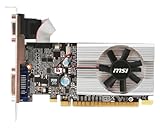
- Dual core center
- MSI Afterburner Overclocking Utility
- Low Profile Design-One slot thermal and low profile design work perfect with slim or smaller system
- Military Class Concept Components
- Close Photoshop.
- Hold Alt + Ctrl + Shift while launching Photoshop.
- Confirm that you want to delete the Adobe Photoshop Settings file.
- Reopen Photoshop and check Edit > Preferences > Performance.
Adobe includes preference reset among its GPU troubleshooting steps.
7. Isolate OpenCL or GPU compositing problems
If Photoshop detects the GPU but shows artifacts, crashes, flickering, or poor performance, test the advanced options one at a time:
- Open Edit > Preferences > Performance > Advanced Settings.
- Temporarily disable Use OpenCL, then restart and test the operation that failed.
- If the issue remains, try disabling GPU Compositing, restart, and test again.
- If one change fixes the problem, re-enable the options individually to identify the trigger.
These are targeted compatibility workarounds, not universal performance improvements. Some GPU-dependent features—including Oil Paint, Perspective Warp, Smooth Brush Resizing, and certain 3D functionality—may not work correctly or may be unavailable when GPU acceleration is disabled. Adobe documents these options in its GPU troubleshooting guidance.
8. Check for the Microsoft OpenCL/OpenGL Compatibility Pack
On some Windows systems with Intel graphics, Photoshop may report that the graphics processor is incompatible when the Microsoft OpenCL/OpenGL Compatibility Pack is installed. Adobe’s documented workaround is to uninstall that pack and restart the computer, then run Photoshop’s compatibility check again.
Do not install this pack as a general Photoshop fix. If another application depends on it, consider the consequences before uninstalling it. See Adobe’s GPU compatibility troubleshooting page and Intel’s guidance on the Intel incompatibility message.
Recommended Free Tools
Rank #4

- Powered by NVIDIA GeForce GT 730, 28nm GK208 chipset process with 902MHz core frequency, integrated with 4096MB DDR3 memory and 64-bit bus width
- More stable performance, compatible with Win11, can automatically install new driver
- Support NVIDIA Surround technology for 4 screens output by dual HDMI and VGA / DP. HDMI Max Resolution-2560x1600, VGA Max Resolution-2048x1536, DP Max Resolution-2560x1600
- Support DirectX 12, OpenGL 4.6, CUDA, OpenCL, DirectCompute and DirectML
- Original half height bracket matches with the low profile brackets make the Glorto GeForce GT 730 graphics card fit well with all PC tower, small form factor and HTPC(except micro form factor)
9. Test Photoshop with GPU acceleration disabled
Use this as a diagnostic test or temporary fallback, not as the first permanent fix:
- Go to Edit > Preferences > Performance.
- Uncheck Use Graphics Processor.
- Select OK, restart Photoshop, and repeat the action that previously failed.
If the problem disappears, the GPU, driver, renderer, or Photoshop GPU configuration is likely involved. Continue with the driver, assignment, and advanced-setting checks above. Turning acceleration off can improve stability temporarily, but it can make some operations slower, remove interface improvements, or disable GPU-dependent features. Adobe describes this as a way to test whether the video adapter or its driver is causing a problem in its compatibility troubleshooting guidance.
10. Check the Photoshop version and hardware requirements
Requirements vary with Photoshop releases. For the Photoshop 27.x requirements listed by Adobe, the supported Windows versions are Windows 11 24H2 or 23H2, and Windows 10 22H2 or 21H2 LTSC. Adobe specifies a DirectX 12 GPU with feature level 12_0 or later and at least 1.5 GB of GPU memory; it recommends 4 GB or more for 4K displays and above. Adobe also says it does not test with GPUs older than seven years. That age guidance is not an absolute cutoff, but a driver update cannot add a missing DirectX feature level to older hardware.
Check Adobe’s Photoshop technical requirements for the current release before concluding that the GPU is unsupported. If it falls below the requirements, software rendering may be the practical fallback; a newer GPU may be needed for supported acceleration.
The Tool Desk
Outbyte Driver Updater FREEFix the driver behind crashes, sound loss and screen glitchesFind Drivers →Outbyte PC Repair FREERepair Windows errors before they cause bigger problemsFix Now →Unsupported or unusual configurations
- Remote Desktop or a virtual machine: Adobe does not support GPU acceleration under Remote Desktop or virtual machines, and virtualized setups are not extensively tested. Test Photoshop locally on the physical Windows installation before replacing hardware or repeatedly reinstalling drivers.
- Multiple graphics cards: Photoshop does not take advantage of multiple GPUs. Choose one suitable adapter and avoid conflicting or incomplete drivers.
- Multiple monitors: Adobe recommends connecting monitors to the same graphics card before starting Photoshop.
- Older or low-memory GPU: If the card lacks the required DirectX feature level or memory, software rendering or hardware replacement may be the only realistic options. The older GPU mode, where available, is a compatibility fallback for older hardware, not a guaranteed speed boost.
See Adobe’s GPU usage documentation for its notes on virtual machines, multiple GPUs, monitors, and GPU modes.
What to do if Photoshop still will not use the GPU
Use the evidence from each check to choose the next step rather than repeating driver installs:
- Windows does not list the GPU: resolve Device Manager, OEM driver, firmware, or hardware issues first.
- Windows lists it, but Photoshop does not: run the compatibility check, install a suitable driver, verify the Windows GPU assignment, and reset Photoshop preferences.
- Photoshop lists it but disables acceleration: follow the compatibility report and compare the GPU with the requirements for your Photoshop version.
- It works only with acceleration off: treat that as evidence of a GPU, driver, or renderer conflict. Try stable drivers and targeted advanced-setting changes; keep acceleration off only if stability matters more than the affected features and speed.
- The GPU misses a stated requirement, or the problem occurs only over Remote Desktop or in a VM: stop treating it as a normal detection fault. Use Photoshop locally with software rendering if practical, or consider supported hardware.
GPU acceleration can improve or enable functions such as Camera Raw, Neural Filters, Object Selection, zooming and panning, Blur Gallery, Select and Mask, Smart Sharpen, Lens Blur, Oil Paint, Perspective Warp, and Smooth Brush Resizing. How much depends on the feature and configuration; not every Photoshop operation requires a GPU, though some may be slower or behave differently without one. Adobe’s feature and GPU-mode notes provide further detail.
Quick Recap

Product prices and availability are accurate as of the date/time indicated and are subject to change. Any price and availability information displayed on Amazon at the time of purchase will apply.




