PC Slower Than It Used to Be?
Outbyte PC Repair · freeA free scan shows the junk files, broken settings and background clutter dragging Windows down - then fixes them in one click.
Run a Free PC Scan →ThatPainter is reader-supported. When you buy through links on our site, we may earn an affiliate commission. Learn More
Laser-cutter projects range from quick plywood coasters and acrylic jewelry to assembled nameplates and architectural models. The best tutorial to start with depends on what you want to learn—cutting, engraving, file preparation, or assembly—and on whether its machine and material assumptions match your own. The resources below are a practical starting point, not a verified list of 60 individual tutorials.
Start with a project that teaches one new operation
Stanford’s starter-project guide is organized around approachable examples and estimated project times. Its estimates apply to the projects as Stanford presents them; your actual time will depend on preparation, equipment, and experience.
- City coasters: a plywood project for learning basic cutting and engraving.
- Earrings and pendant jewelry: acrylic examples that introduce small decorative pieces.
- Rastered picture with a stand: an engraving project with a separate support.
- Luggage tag: a small personalized item.
- Nameplate and architectural model: more involved examples that introduce interfacing parts and assembly.
Stanford estimates 5–10 minutes for its quick examples and 10–15 minutes for the nameplate and architectural model. These are estimates published for those projects, not guarantees for other machines or makers.
Quick wins for a faster PC:
Scan for outdated or missing drivers - takes under a minuteDriver Scan →Clear out junk files and repair common Windows errorsFree Scan →Fix the driver behind crashes, sound loss and screen glitchesFind Drivers →Use a project to try a compatible stock
The coaster example makes plywood a natural material to explore. If you shop for laser-compatible plywood sheets, check that the specific stock is suitable for your machine before using it. Dremel’s LC40 FAQ identifies birch and walnut plywood as material stock and advises confirming that non-Dremel stock is laser-specific; that guidance does not establish compatibility with every laser cutter.
#1 Best Overall
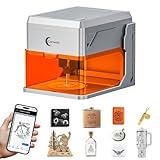
- TIRED OF WASTING MATERIALS ON MISALIGNED ENGRAVINGS? Carverall A1 Pro 5W laser engraver features an HD camera – place material, snap a picture, drag your design to the exact spot. Zero guesswork. 0.01mm precision delivers 4K detail. Presets for materials under 3mm – no focus needed. Smart memory stores your last file for one-button repeat. TF card pre-installed for offline batch jobs – save and press offline, no PC or phone needed. Ideal for custom pet tags and small crafts. Carverall makes pro results effortless.
- HATE COMPLICATED SOFTWARE WITH HIDDEN FEES? Carverall A1 Pro 5W laser engraving machine includes CutLabX – free forever on computers, tablets, and phones. Snap a photo to engrave, or type a prompt for AI designs – no design skills needed. Control via mobile APP – monitor from anywhere. Works with LightBurn and LaserGRBL for advanced users. Carverall laser engraver – powerful yet beginner-friendly. Start creating – no hidden fees.
- NERVOUS ABOUT SETUP OR GETTING STUCK WITH NO ONE TO ASK? Join 500,000+ creators who trust Carverall. Your A1 Pro laser engraver machine includes 1-year warranty and lifetime tech support. YouTube tutorials get you started fast. Join the “Carverall Users Group” on Facebook for tips and inspiration – backed by a community of laser cutter and engraver users. 24/7 support – manuals, videos, one-on-one help. You're never alone.
- WORRIED YOUR LASER CAN'T HANDLE DAILY PROJECTS? Carverall A1 Pro 5W laser engraver delivers verified 5.12–5.35W power – no inflated claims. Powers through 4mm plywood and 3mm acrylic in one pass. Works with 150+ materials – wood, leather, acrylic, glass, fabric, coated metals, even food. Swap in the IR head for bare metal marking – no second machine needed. Carverall laser engraving machine – reliable performance for everyday projects.
- WORRIED ABOUT LASER EXPOSURE WITH KIDS OR PETS AROUND? Carverall A1 Pro 5W laser engraver features a fully enclosed Class 1 design. Two safeguards: laser stops when open, auto-shuts if tilted over 15° – kids and pets stay safe. Built-in air assist for clean cuts, exhaust fan for fume control. No assembly – beginners master it in 5 minutes. Safe, clean, and ready to go.
Explore projects by material and machine setup
Project collections can help you discover ideas, but a project’s material, machine type, and accessories matter. Vendor libraries are useful for seeing what their own resources cover; they are not independent evaluations or proof that a project will transfer unchanged to another machine.
| Resource | Examples and learning focus | Machine or material information | Files and settings |
|---|---|---|---|
| xTool learning collection | Phone holders, cat puzzles, engraved basswood, rock coasters, leather bags, glass bottles with rotary attachments, stainless-steel marking, paper projects, and material tests. | The collection is a vendor resource. Check each item for its specific machine and material assumptions. | Availability varies by item; check the linked tutorial. |
| OMTech Learning Hub | Tumbler engraving, acrylic awards, CerMark metal marking, leather debossing, slate coasters, and rotary wine bottles. | OMTech describes these as learning topics. Rotary examples require attention to the setup specified for the project. | OMTech says its hub includes downloadable project files and material-setting tables for plywood, MDF, acrylic, leather, anodized aluminum, slate, and glass across several power levels. Treat these as vendor guidance for the applicable equipment, not universal settings. |
Within either collection, choose an example by the operation you want to practice: a flat cut, raster engraving, marking, or rotary work. Before starting, confirm that the tutorial identifies a compatible machine and material; if it does not, those details are not established by the collection-level description.
Rank #2
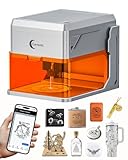
- HD Camera, 4K Precision, Memory & Offline – Carverall A1 Pro 12W laser engraver features an HD camera for one-click photo preview – place your material, snap a picture, and drag your design to the exact spot on the image for pinpoint positioning. Zero guesswork. 0.01mm precision delivers 4K detail. Presets for materials under 3mm – no focus needed. Smart memory stores your last file for one-button repeat. A TF card is pre-installed in the rear slot for offline batch jobs – just save and press the offline button. Ideal for keychains, bookmarks, and small crafts. Carverall laser engraving machine makes pro results easy.
- Smart Software, AI-Powered & Free – Carverall A1 Pro 12W laser engraving machine includes CutLabX – free forever on computers, tablets, and phones. Snap a photo to engrave, or type a prompt for AI-generated designs. Control via mobile APP. Works with LightBurn and LaserGRBL. Carverall A1 Pro laser engraver – powerful yet beginner-friendly.
- Trusted by 500,000+ Creators – Carverall A1 Pro laser engraver machine includes 1-year warranty and lifetime tech support. YouTube tutorials get you started fast. Join the “Carverall Users Group” on Facebook for tips and inspiration – backed by a community of laser cutter and engraver users. 24/7 support – manuals, videos, one-on-one help.
- 12W Power, 200+ Materials & IR-Ready – A1 Pro 12000mW laser engraver delivers verified 12.36–12.58W power for heavy-duty engraving and cutting. Works with 200+ materials – wood, leather, acrylic, glass, fabric, coated metals, even food for creative food engraving. Cuts 12mm plywood and 8mm acrylic with ease. Swap in the IR head for bare metal marking. From custom signs to production runs, Carverall A1 Pro laser engraving machine delivers professional-grade results.
- Compact Work Area, 27cm Height & 12000mm/min – Carverall A1 Pro mini laser engraver features a 3.94×3.94-inch work area – perfect for dog tags, keychains, jewelry blanks, and bookmarks. Three heights up to 10.63 inches (27cm) handle thicker items. Runs at 12,000mm/min to save time. Compact yet powerful – Carverall A1 Pro portable laser engraver fits home studios, crafters, and small-batch makers.
Learn file preparation before sending a design to the laser
Harvard Graduate School of Design’s laser tutorial hub covers workflow and file preparation, with software links for Rhino, AutoCAD, and Adobe Illustrator. It also includes material and settings topics, acrylic cutting, a training checklist, methods, and 3D engraving. It is a useful path when the challenge is getting a design ready, rather than choosing a finished object to make.
Dremel’s LC40 FAQ describes vector files as preferred for cutting and raster images as suitable for tonal engraving. The distinction helps when preparing artwork: vector paths describe lines or shapes for cutting, while raster artwork is processed as an image. Dremel also advises users to have legal rights to the design files they use.
Rank #3
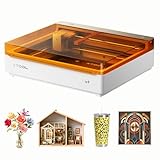
- NOTE: CMYK Inkjet module and RA3 Lite Rotary are not included in this M2 standalone, available separately as add-ons.
- Ultimate Versatility in One Machine: Innovative dual-mode architecture lets the M2 laser engraver add a CMYK Inkjet module((sold separately) to work with the laser. Transform 300+ materials—cardstock, felt, leather, wood, etc.—into masterpieces. Enjoy full-color printing (module required), precision cutting, and custom engraving with a seamless print-to-cut workflow in one setup.
- Smart Crafting with Dual-Camera: Built-in dual cameras, this M2 laser engraving machine offers a real-time preview of your workspace. Backed by ACS, it fuses this vision with motion control for a "Place & Go" experience-ensuring high accuracy while eliminating guesswork and wasted material.
- Effortless Software with Customizable Templates: Beginner-friendly xTool Studio offers hundreds of ready-to-use templates and an integrated AI image generator. Go from creative text ideas to finished personalized gifts and home decor in just minutes. No steep learning curve—just design, click, and create.
- Power Options for Every Creative Goal: Comes standard with 10W diode lasers. You can add the CMYK Inkjet module or 3W IR laser (both sold separately) to unlock full-color printing or fine engraving on metal/plastic. The M2 adapts to every project you imagine, from delicate engravings and high-speed batch cutting to full-color printing.
A practical learning sequence
- Pick one small project and identify its material and intended operation.
- Prepare the design in the software workflow appropriate to your machine; check whether the job calls for vector cutting, raster engraving, or both.
- Review the tutorial’s machine, material, and accessory requirements before loading stock.
- Follow your machine’s own instructions for setup and operation, and test settings on scrap where appropriate.
- Assemble the parts only after checking their fit and the project’s assembly instructions.
Choose settings safely instead of copying numbers blindly
Laser settings and permitted materials vary by machine and material. Dremel says its LC40 software includes recommended material settings, while also noting that natural material variation may require adjustments or custom settings. Its FAQ directs users to the owner’s manual for commonly used and prohibited materials and says to confirm that non-Dremel stock is laser-specific. Those points apply to Dremel’s guidance; they do not provide a universal settings chart.
Stanford makes the same machine-specific point in its operating guidance: “Each laser cutter has its own unique operating procedures, so it’s important to familiarize yourself with the specific guidelines for the laser cutter you’ll be using.” Read the manual for your machine and follow local shop rules for training, materials, preparation, and operation. A tutorial’s settings are a starting point only when they match your equipment and stock.
Rank #4

- 【10W High-Power Laser 】Equipped with a 10000mW optical power and a 450nm blue light diode laser, this engraver delivers deep, fast engraving on wood, bamboo, acrylic, leather, dark glass, and coated / anodized metal. Not for Bare Steel. Please note: bare stainless steel or uncoated metal is not recommended unless using a marking spray or surface preparation. This ensures you get the right tool for your actual material needs.
- 【Laser Cutter 300x300mm Work Area】TTS-10 Pro offers a 300x300mm (approx. 11.8x11.8 inches) engraving area, perfect for custom coasters, jewelry, keychains, phone cases, and small signage. If your project requires larger than 12 inches, Please measure your workpiece before purchasing to avoid size mismatches.
- 【Main Board Upgrade】 Laser engraving the mainboard adopts 32-bit dual-core MCU with various functions. Faster processing speed. It can engrave online and TF card offline. You can also use the mobile app and computer WEB for engraving.
- 【Full Metal Frame & Reliable Motion System】Built with aluminum alloy + injection-molded parts, dual Y-axis motors (42 stepper), and GT2-6mm synchronous belts. We take quality control seriously – every unit is tested before shipping.
- 【Software Compatibility and TF Card Offline Work】Comes with a detailed manual, TF card (4GB), card reader, and all necessary assembly tools. Supports LightBurn & LaserGRBL with simple .lbrn or .nc file export. Prefer offline? Just save your file to the TF card, insert, and start engraving via the control board. No complex setup required. If any steps are unclear, our online wiki (wiki.twotrees3d.com) provides video tutorials and FAQs.
- Confirm the stock is suitable for your specific machine; do not assume a material is safe because it appears in another machine’s project.
- Use the manual and shop documentation to check permitted and prohibited materials.
- Where appropriate, test on scrap and follow the machine maker’s procedure for adjusting settings.
- Do not treat vendor tables or another maker’s settings as universal prescriptions.
How to pick the next tutorial
Choose based on the skill gap you want to close, then verify the project’s assumptions before committing material.
Recommended Free Tools
- New to cutting: begin with a simple flat project such as Stanford’s plywood coaster example.
- Interested in engraving: try a raster image or an engraved-material example, checking machine and stock compatibility.
- Want to design objects that fit together: look at Stanford’s nameplate or architectural model and focus on interfacing parts and assembly.
- Need stronger software skills: use Harvard GSD’s workflow and file-preparation topics, including its Rhino, AutoCAD, or Illustrator links.
- Exploring specialized materials or accessories: browse the xTool and OMTech vendor collections, then verify the requirements for the individual tutorial.
For any candidate tutorial, look for five details before starting: supported machine or laser type, material, operation taught, downloadable file availability, and whether the instructions explain settings and safety. If one is missing, treat it as unconfirmed rather than filling the gap with assumptions.
Quick Recap
Best Value

- Fr*e Acmerstudio Engraving Software Included: The engraver is fully optimized for Acmerstudio, our self-developed engraving software, which is free to use and ready right out of the box. It also supports other popular engraving software for users who prefer alternative workflows.
- High-Precision Laser Engraving and Cutting: Acmer S1 laser engraver machine with 2500mW diode laser power, 24W machine output, 455±5nm wavelength, and 2mm focal length for ultra-fine accuracy. Achieve up to 10,000mm/min engraving speed and 0.01mm repeatable positioning accuracy—perfect for detailed, vivid engraving and cutting on various materials.
- 2-in-1 Engraving & Cutting Versatility: Dual-function laser cutter and engraver supports engraving on wood, bamboo, leather, plastic, PCB, aluminum oxide, ceramics, and more. Easily cuts through thin plywood, MDF, and acrylic—ideal for DIY, crafts, professional projects, and small business needs.
- Preassembled & Beginner-Friendly: Arrives 99% preassembled with just 1-minute laser head installation—no complex setup required. A user-friendly laser engraving machine perfect for beginners, hobbyists, and professionals seeking fast, easy operation without the learning curve.
- Lightweight, Durable & Portable Design: Built from industrial-grade aluminum alloy, the 2kg compact engraver is easy to carry and store. With a 130x130mm working area and machine size of 250×250×162mm, it's optimized for home use without sacrificing pro-level performance.

Product prices and availability are accurate as of the date/time indicated and are subject to change. Any price and availability information displayed on Amazon at the time of purchase will apply.




