Crashes, No Sound, or Screen Glitches?
Outbyte Driver Updater · freeRandom freezes, missing sound and display glitches usually trace back to one bad driver. Find and replace yours safely.
Find the Right Drivers →ThatPainter is reader-supported. When you buy through links on our site, we may earn an affiliate commission. Learn More
Photoshop’s Reference Image for Generative Fill can now treat an uploaded reference as a specific object rather than only as general visual inspiration. In Photoshop desktop, you can select an area, upload a reference, identify it as an Object, and then choose whether to Swap the selected area or Place into the selected area. Photoshop is designed to adapt the generated object to the target scene’s scale, rotation, lighting, color, and perspective—but it still produces variations that require inspection and often some manual cleanup.
That makes the January 27, 2026 upgrade most useful for reference-guided compositing: placing a recognizable product, prop, piece of furniture, vehicle, garment, or other subject into a new setting without rebuilding every visual relationship by hand.
What changed in Photoshop’s reference-image workflow?
Adobe’s upgraded Reference Image for Generative Fill is a more controlled version of an idea Photoshop introduced earlier: use an image to guide Generative Fill when a result is difficult to describe with text alone. Adobe’s 2024 announcement presented Reference Image as a way to steer Generative Fill and Generative Expand with visual information. The 2026 update moves the workflow further toward object-aware compositing, with an explicit distinction between a single-object reference and a complete-scene reference.
Free tools Windows power users keep installed
One-click scans. No signup required.
Adobe describes the object workflow as geometry-aware. In practical terms, Photoshop attempts to integrate the reference object into the selected area while adapting it to the surrounding scene’s:
#1 Best Overall

- WACOM’S BEST PEN TECHNOLOGY: Pro Pen 3 offers amazing precision, 8192 pressure levels, tilt support & lag-free tracking for smooth, precise strokes; choose slim, straight or flared grip, adjust balance & button layout for precision and comfort
- DIAL INTO PRODUCTIVITY: Speed up and stay in the creative flow with 10 customizable tablet ExpressKeys & 2 mechanical dials conveniently located at the top of the tablet and close to your keyboard for efficiency
- DESIGNED FOR MODERN MONITORS: With a versatile 16:9 format perfect for multiple monitors and wide displays; medium size has a large active area with a small footprint 11.4 x 8.1” / 291 x 206 mm
- SLEEK AND STURDY: Measuring 4mm at its thinnest this professional-grade drawing tablet feels like pen-on-paper on your desk, combined with the robust durability of magnesium making it equally suited for your office or life on the go
- WIRELESS FREEDOM: use Intuos Pro with USB or connect wirelessly via Bluetooth to multiple computers with a simple switch
- Scale
- Rotation
- Lighting
- Color
- Perspective
Those controls can reduce the amount of manual reconstruction needed for a composite. They do not amount to a guarantee of pixel-perfect identity, flawless geometry, or perfect rendering of small details such as logos, labels, hands, or text.
See Adobe’s January 2026 announcement and its current Reference Image documentation for the feature’s supported workflow.
Object reference versus whole-image reference
The important choice is what Photoshop should regard as the source of guidance:
Crashes, No Sound, or Screen Glitches?
Random freezes, missing sound and display glitches usually trace back to one bad driver. Find and replace yours safely.Free scan · under a minuteWindows Errors? Fix Them Before They Spread
Repair common Windows errors and clear accumulated junk for a smoother, more stable PC - no reinstall needed.Free scan · no reinstall| Option | What it tells Photoshop | Best suited to |
|---|---|---|
| Object | Focus on one subject in the uploaded reference image. | Preserving the recognizable appearance of a product, prop, chair, vehicle, garment, or similar object while changing its context. |
| Whole image | Use the complete uploaded scene as the visual reference. | Guiding the overall look, arrangement, environment, or composition rather than isolating one object. |
The distinction matters because a whole-image reference can contain many competing cues: background, lighting, camera angle, color palette, and multiple subjects. An object reference narrows the task when the main requirement is “use this particular thing here.”
Swap or place: the two generation intents
After selecting the target area and uploading a reference, Photoshop presents two useful intents in the documented desktop workflow:
- Swap the selected area: replace an existing object or portion of the image with the referenced object.
- Place into the selected area: add the referenced object while preserving the existing background.
Use Swap when the selected region already contains something that should be replaced—for example, exchanging one sofa for another in a room photograph. Use Place when the surrounding scene should remain and the reference object should be introduced into it—for example, adding a product to a tabletop or placing a prop into a concept-art scene.
How to use Reference Image for Generative Fill
- Open the target image in Photoshop desktop.
- Create an active selection around the area to modify. The selection defines where Photoshop should generate or integrate the result.
- Choose Generative Fill from the Contextual Task Bar.
- Open Reference image and upload the image containing the object or scene you want to use as guidance.
- Choose the reference type. Select Object when the uploaded image should guide a single subject; select Whole image when the complete scene is relevant.
- Choose the intent. Select Swap the selected area to replace what is already there, or Place into the selected area to add the object while keeping the background.
- Add a prompt if necessary. Describe the desired setting, action, material, or relationship when the reference alone does not specify the result.
- Generate and inspect the variations. Review the object’s silhouette, proportions, perspective, contact with the ground or furniture, lighting, shadows, edges, and fine details before accepting a result.
The selection is not a minor preliminary step. A loose or poorly positioned selection gives Photoshop less reliable information about the intended boundaries and placement. For difficult subjects, it is often worth refining the selection before spending a generation.
Do these 3 things before closing this tab:
1Scan for outdated or missing drivers - takes under a minute2Repair Windows errors before they cause bigger problems3Fix the driver behind crashes, sound loss and screen glitchesWhat “more control” means in actual work
Previously, a reference image could steer a generated variation without necessarily communicating that one particular object should retain its recognizable identity. The new object-oriented framing makes that intention explicit. Instead of asking Photoshop only for “a similar-looking chair,” you can provide the chair as an object reference and ask it to integrate that subject into the selected area of another image.
Rank #2

- WACOM’S BEST PEN TECHNOLOGY: Pro Pen 3 offers amazing precision, 8192 pressure levels, tilt support & lag-free tracking for smooth, precise strokes; choose slim, straight or flared grip, adjust balance & button layout for precision and comfort
- DIAL INTO PRODUCTIVITY: Speed up and stay in the creative flow with 5 customizable tablet ExpressKeys & a mechanical dial conveniently located at the top of the tablet and close to your keyboard for efficiency
- DESIGNED FOR MODERN MONITORS: With a versatile 16:9 format perfect for multiple monitors and wide displays; small size has a large active area with a small footprint 8.4” x 6.4” / 215 x 163 mm
- SLEEK AND STURDY: Measuring 4mm at its thinnest this professional-grade drawing tablet feels like pen-on-paper on your desk, combined with the robust durability of magnesium making it equally suited for your office or life on the go
- WIRELESS FREEDOM: Use Intuos Pro with USB or connect wirelessly via Bluetooth to multiple computers with a simple switch
The practical benefit is not that Photoshop eliminates compositing. It is that the generation starts with more visual guidance. Photoshop can attempt to account for the target scene’s viewpoint and conditions instead of simply pasting a flat source image into place.
That is especially useful when the object is difficult to describe in text or when manually matching its perspective and lighting would be time-consuming. It can help with:
- Product visualization: testing a recognizable product in a different room, background, or advertising composition.
- Interior concepts: swapping furniture or decor while preserving the existing room.
- Advertising mockups: exploring several placements before final production work.
- Concept art: carrying a prop, costume element, or vehicle through multiple scene ideas.
- Photo compositing: reducing some of the manual work involved in matching perspective, color, and illumination.
These are workflow applications, not promises that every category of object will generate consistently. Adobe’s published material does not provide a benchmark of failure rates, object categories, generation speed, or accuracy compared with manual compositing.
The Tool Desk
Outbyte Driver Updater FREEFix the driver behind crashes, sound loss and screen glitchesFind Drivers →Outbyte PC Repair FREEClear out junk files and repair common Windows errorsFree Scan →A reliable workflow for better results
1. Choose a useful reference
Use a reference in which the subject is visible at an angle and scale that provide meaningful information. If the object is heavily obscured, extremely small, blurred, or surrounded by confusing elements, Photoshop has less visual information to work with.
For an object reference, the subject should be the reason for uploading the image. If the environment is equally important, a Whole image reference may be the better choice—or the scene may need to be built through multiple steps.
2. Make the target selection match the intended footprint
Select enough space for the object, including the area needed for its contact shadow or interaction with nearby surfaces. A selection that is too tight can restrict the result; one that is too broad can give Photoshop too much freedom to alter parts of the background you intended to keep.
3. State the relationship to the scene
A reference identifies what should guide the generation, but a prompt can clarify how the object should behave in context. Depending on the task, specify details such as:
- Where the object sits or is held
- Whether it should face left, right, or toward the camera
- Its material or finish
- The desired time of day or lighting direction
- Whether the background should remain unchanged
- How much of the object should be visible
Do not use the prompt to demand impossible precision. The result remains generative, so review is essential even when the instruction is clear.
Rank #3

- The Intuos Pen is compatible with Intuos Art, Comic, Draw and Photo tablets (CTH490AB, CTH490AK, CTH490CB, CTH490CK, CTH490PK, CTH690AB, CTH690AK, CTL490DB and CTL490DW)
- Cordless and battery free, programmable side switch
- 1024 levels of pressure sensitivity
- Not compatible with prior Intuos (CTL480, CTH480, CTH680), Intuos 3, 4, 5, Intuos Pro tablets or Cintiq products
4. Compare variations, not just the first result
Generative Fill produces variations. Check more than whether the object is present. Look for changes in proportions, seams, handles, wheels, edges, reflections, text, and logos. Also inspect whether the object appears to rest naturally in the scene rather than float above it or intersect nearby surfaces.
5. Finish the composite manually
After accepting a suitable variation, use conventional Photoshop tools to correct issues that the generation did not solve. Typical finishing work includes masking, edge cleanup, tonal adjustment, color matching, shadow painting, perspective correction, and removal of accidental details.
A Wacom tablet for Photoshop retouching can be useful at this stage, particularly for painting masks, refining selections, and making controlled brush adjustments. It is not required for Reference Image generation; its value is in the cleanup and compositing work that often follows AI-assisted generation. Adobe documents support for pressure, angle, rotation, and stylus-wheel controls in Photoshop, along with graphics-tablet and Wacom configuration guidance.
Recommended Free Tools
Reference images with partner models
Reference-image support is not identical across Photoshop’s available generation models. Adobe’s current documentation says that, in the relevant partner-model workflow, FLUX supports up to three uploaded reference images and Gemini supports up to eight. Those limits apply to that documented partner-model path and should not be generalized to every Photoshop AI feature or every model.
Multiple references can be useful when one image shows the object’s front, another shows a distinctive side detail, and a third provides a material or appearance cue. More references are not automatically better: contradictory angles, lighting, proportions, or object versions can make the intended result less clear.
Adobe’s 2026 desktop release documentation also describes broader model selection, including Adobe and partner models. Current documentation lists Firefly Image 5 and Firefly Image 3 among Adobe models, and Gemini and FLUX variants among partner models. Model names, availability, limits, and access can vary by feature, plan, geography, and rollout status, so treat any model list as date-sensitive. Check Adobe’s current Photoshop release notes and generative-AI feature documentation before planning a production workflow around a particular model.
How this fits into Photoshop’s wider AI toolset
Reference Image for Generative Fill is one part of a growing set of AI-assisted controls. Adobe’s 2026 desktop release information describes:
Quick wins for a faster PC:
Clear out junk files and repair common Windows errorsFree Scan →Scan for outdated or missing drivers - takes under a minuteDriver Scan →Repair Windows errors before they cause bigger problemsFix Now →- Broader choices between Adobe and partner image-generation models.
- Multiple reference images for supported partner-model workflows.
- On-canvas object rotation.
- Firefly Boards integration in later releases.
- An on-device AI model for the Remove tool.
Together, these changes point toward more user-controlled generative editing: the user supplies a selection, reference material, model choice, and intent rather than relying only on a text prompt.
Rank #4

- 🌏 [VERSATILE AND UNIVERSAL] BoxWave Stylus Pen Compatible With Wacom Intuos Pro S (PTH-460). This amazing stylus works with ACCURATE PERFECTION on your device and all similar capacitive touch screens! 💬 Includes limited 3rd party tech support for your device (up to 3 inquiries via messaging) - not affiliated with or endorsed by Wacom ⭐ *** PLEASE NOTE, INTUOS PRO S (PTH-460) DEVICE NOT INCLUDED ***
- 📝 [PRECISION] The innovative CLEAR TIP allows VISION-ENHANCING precision for you to see where and what you are writing, drawing, or tapping from any angle.
- 🪄 [EASY TO USE] NO Bluetooth Required! Just gently touch the tip against your screen and you are GOOD TO GO! Please note: The FineTouch Capacitive Stylus does not support Palm Rejection or Pressure Sensitivity.
- 📎 [CLIP DESIGN] Use the built-in METAL CLIP to attach the FineTouch Capacitive Stylus directly to your shirt, jacket, or case; the options are endless.
- 🤲 [COMPACT] Fits neatly into the palm of your hand. Conveniently designed in pen form, PERFECT for carrying around.
Do not confuse Reference Image for Generative Fill with other reference-oriented Photoshop features:
- Generate Image composition references can guide image creation and composition, but they are not the same object-preserving Generative Fill workflow.
- Neural Filters such as Color Transfer use a reference image to influence palette and color relationships, not to place a recognizable object into a selected region.
- The on-device Remove model concerns object removal. It does not make Reference Image generation an offline feature.
Credits, internet access, and computer requirements
Generative credits
Adobe says Photoshop’s generative AI features use generative credits. Its current feature documentation identifies Generative Fill using Adobe Firefly models as a standard feature that generally consumes one credit per generation, while the cited table lists Harmonize at five credits per generation. Some classifications and plan terms can change, so do not treat those figures as permanent pricing or as a universal rule for every model and feature. Consult Adobe’s current generative-AI feature and credit information before estimating a project’s usage.
Internet connection
Adobe’s generative-AI FAQ states that an internet connection is required for generative AI in Photoshop. The separate on-device Remove model does not change that requirement for Reference Image generation. Adobe says the Remove model can be downloaded and run locally after installation, but that is a different tool and processing path.
Hardware
For Photoshop 27.x on Windows, Adobe lists 8 GB of RAM and 1.5 GB of GPU memory among the minimum requirements, with 16 GB or more of RAM and higher GPU memory recommended for stronger performance. Adobe also specifies supported operating systems and graphics hardware in its technical requirements.
Those requirements do not establish a particular generation speed. Large files, complex selections, multiple references, document size, connection quality, model availability, and other system factors can affect the overall experience.
Independent reader supportYour contribution helps us test, update, and keep practical guides available for everyone.Common mistakes and how to recover
The result looks like a new object instead of the reference object
Check that the reference type is set to Object, not Whole image. Re-upload a clearer reference and simplify the prompt so it does not introduce competing descriptions. Generate several variations and compare the defining features rather than judging only the general category.
The background changes unexpectedly
Use Place into the selected area when the goal is to add an object while preserving the background. Refine the selection so it covers the intended insertion area without including unnecessary parts of the scene.
What’s actually slowing this PC down?
Pick the symptom - the matching free tool is one click away.
The object is the wrong size or orientation
Improve the target selection and describe the intended placement or orientation. The feature is designed to adapt scale, rotation, and perspective, but the result still depends on the visual information in both the reference and target scene.
Best Value
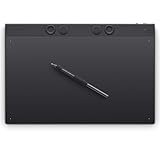
- WACOM’S BEST PEN TECHNOLOGY: Pro Pen 3 offers amazing precision, 8192 pressure levels, tilt support & lag-free tracking for smooth, precise strokes; choose slim, straight or flared grip, adjust balance & button layout for precision and comfort
- DIAL INTO PRODUCTIVITY: Speed up and stay in the creative flow with 10 customizable tablet ExpressKeys & 2 mechanical dials conveniently located at the top of the tablet and close to your keyboard for efficiency
- DESIGNED FOR MODERN MONITORS: With a versatile 16:9 format perfect for multiple monitors and wide displays; large size has a large active area with a small footprint 14.8 x 9.9” / 377 x 253 mm
- SLEEK AND STURDY: Measuring 4mm at its thinnest this professional-grade drawing tablet feels like pen-on-paper on your desk, combined with the robust durability of magnesium making it equally suited for your office or life on the go
- WIRELESS FREEDOM: Use Intuos Pro with USB or connect wirelessly via Bluetooth to multiple computers with a simple switch
The object appears to float
Inspect the contact point and shadow. Generate with a prompt that clarifies where the object sits, then use a separate layer, mask, tonal adjustment, or manually painted shadow to finish the integration.
Fine details are wrong
Zoom in and inspect text, labels, logos, handles, seams, fingers, small hardware, and repeated patterns. Do not assume that a visually convincing overall result preserves every detail of the source object. Retouch or replace inaccurate details manually where accuracy matters.
The feature or model is missing
Check that you are using Photoshop desktop and that the current release, plan, geography, and rollout support the requested feature or model. Partner-model capabilities and reference-image limits are model-specific. Adobe’s release notes and help pages are more reliable than an older tutorial or generalized model list.
Who should use it?
Reference Image for Generative Fill is a strong fit for artists and designers who need to explore many compositing directions while keeping a recognizable subject in the workflow. It is particularly valuable during ideation, mockups, early advertising concepts, room visualization, and concept-art development.
It is less appropriate to treat the feature as a one-click replacement for production compositing when exact product geometry, brand marks, legal accuracy, or repeatable output is required. In those situations, use the AI result as a starting point and plan for conventional masking, correction, and approval.
What the feature does—and does not—promise
| Reasonable expectation | Overstatement to avoid |
|---|---|
| More explicit control over whether a reference represents an object or an entire scene. | Photoshop understands every object perfectly. |
| A way to guide placement, swapping, and scene integration. | Guaranteed exact object transfer. |
| Attempts to adapt scale, rotation, lighting, color, and perspective. | Flawless perspective and lighting in every generation. |
| A faster way to explore compositing ideas. | A replacement for selection work, review, or retouching. |
| Model-specific multi-reference support in documented partner workflows. | Every Photoshop AI model accepts the same number of references. |
Frequently Asked Questions
Is Reference Image for Generative Fill available in Photoshop on mobile or the web?
The workflow described here is the current Photoshop desktop workflow. Adobe’s desktop, web, mobile, and partner-model capabilities can differ, so verify the feature in the version and region you use.
Does the object reference preserve the object exactly?
No. It is a control mechanism that gives generation more specific visual guidance. Photoshop may alter proportions, text, logos, small details, edges, or geometry, so inspect every variation and retouch important results.
How many reference images can I upload?
Adobe’s current documentation says FLUX supports up to three and Gemini up to eight references in the relevant partner-model workflow. These limits are model- and feature-specific and should not be applied to every Photoshop AI tool.
Can I use Reference Image for Generative Fill without an internet connection?
Adobe’s generative-AI FAQ says an internet connection is required. The newer on-device Remove model is a separate feature and does not make Reference Image generation offline.
Do I need a drawing tablet to use the feature?
No. A tablet is optional and does not enable the generation itself. It can make selection cleanup, masking, brushwork, and post-generation retouching more comfortable and precise.
The Bottom Line
Photoshop’s upgraded Reference Image for Generative Fill is best understood as more controllable, reference-guided compositing—not perfect object cloning. Select the target carefully, choose Object when one subject matters, use Swap or Place according to the intended edit, compare variations, and reserve time for manual cleanup. The feature can make exploration faster while leaving the final judgment and finishing work with the artist.
Recommended Free Tools
Quick Recap

Product prices and availability are accurate as of the date/time indicated and are subject to change. Any price and availability information displayed on Amazon at the time of purchase will apply.




