Outdated Drivers Are Slowing You Down
Outbyte Driver Updater · freeOne free scan finds every outdated or missing driver and matches the right update for your exact hardware.
Scan My Drivers Free →ThatPainter is reader-supported. When you buy through links on our site, we may earn an affiliate commission. Learn More
Microsoft Paint es una aplicación incluida en Windows para dibujar y editar imágenes de forma sencilla; no hace falta comprarla por separado. Sirve para añadir formas y texto, rellenar áreas, recortar, cambiar el tamaño o girar imágenes. Paint se incluyó con Windows 1.0, lanzado el 20 de noviembre de 1985.
¿Para qué sirve Microsoft Paint?
Paint está pensado para dibujos sencillos, anotaciones, composiciones básicas y retoques rápidos. Sus herramientas permiten dibujar a mano alzada, usar pinceles y formas, rellenar con color, insertar texto, seleccionar colores y manipular imágenes mediante opciones como recortar, redimensionar y girar. Microsoft lo presenta como una herramienta para crear, editar y manipular dibujos e imágenes (información oficial de Paint).
Una pluma digital es opcional. Puede ser útil si quieres dibujar directamente en la pantalla de un dispositivo táctil compatible; Microsoft menciona Surface Pen y otros lápices ópticos. Comprueba la compatibilidad de la pantalla y del lápiz con tu equipo antes de comprar uno.
Do these 3 things before closing this tab:
1Repair Windows errors before they cause bigger problems2Scan for outdated or missing drivers - takes under a minute3Clear out junk files and repair common Windows errorsHistoria de Microsoft Paint
Windows 1.0: Paint desde 1985
Microsoft incluyó Paint entre los programas de Windows 1.0, cuyo lanzamiento fue el 20 de noviembre de 1985. Desde entonces, la aplicación ha acompañado a Windows como una herramienta integrada para trabajar con dibujos e imágenes.
#1 Best Overall

- Surface pen. Write and draw naturally. Create without limits
- Precisely sketch and shade with 4,096 pressure points that respond to the lightest touch
- Reduced lag/low latency: Ink flows out in real time with no lag or latency
- Connector type: bluetooth 4.0. Use Surface Pen with apps like OneNote, Microsoft Office, Adobe Suite, Sketch able, Bluebeam Revue, Draw board, CorelDraw, and Staff pad
- Compatibility: Surface Book, Surface Book 2, Surface Studio 1st Gen, Surface Studio 2, Surface Laptop 1st Gen, Surface Laptop 2, Surface Go, Surface Pro 3, Surface Pro 4, Surface Pro 5th Gen, Surface Pro 6, Surface 3, Pen Tip Kit
La continuidad de Paint y las novedades recientes
En 2017, ante las noticias de que Paint podría dejar de desarrollarse y pasar a la Windows Store, Microsoft aclaró que la aplicación original seguiría disponible gratis a través de la tienda (aclaración de Microsoft sobre Paint).
Las versiones actuales de Paint para Windows 11 incluyen funciones como capas, eliminación del fondo y herramientas de creación asistida por IA. Microsoft anunció que Cocreator comenzaba a distribuirse a Windows Insiders en 2023. La disponibilidad de las funciones actuales puede variar según el dispositivo, las actualizaciones y el mercado.
Rank #2

- 【Compatibility】❌NOTE:Does NOT work with Surface Laptop Go Series,which belongs to a different series than Surface Laptop and Surface Go.❌NOT COMPATIBLE WITH:Surface Pro12/Surface Laptop Go/Laptop Go 2/ Laptop Go3/Laptop SE/ Surface Hub 2s/Surface Laptop 6/Surface Laptop 7;The F97 supports up to the MPP1.15 protocol and works with most Microsoft Surface devices.[Surface Model List]✔Surface Pro 4/Pro(5th Gen)/Pro 6/Pro 7/Pro 7+/Pro 8/Pro 9/Pro X/Pro 10/Pro 11, ✔Surface Book/Bk 2/Bk 3, ✔Surface Laptop/Laptop 2/Laptop 3/Laptop 4/Laptop 5,✔Surface Go/Go 2/Go 3/Go 4, ✔Surface Studio2/Studio2+;
- 【Operation Guidelines&No Bluetooth Required】Not require Bluetooth connection, press and hold the upper button(Right mouse Button)for 1second to start the Surface Pen, the indicator light appears green, use it directly on devices. If it cannot be used on compatible devices, please check whether your device is connected to other pens, disconnect other pens, and then turn on our pen. If no other device is connected, please check your device model again.(Contact us to know more about the models)
- 【Eraser/Right-click Functions&Package Included】The Surface Pen comes with eraser and right-click functions,the lower key is the eraser,and the upper key is the right mouse button.which helps you to improve your work efficiency.Package Included:1xF97 Surface Pen,1xUSB-C cable,2xReplacement tips, 1xUser manual.Easy to Replace Tip:2 extra nibs for easy replacement at any time.
- 【Fast Charge &Smart Standby】Enjoying Milikilo's pen for surface leading Type-C fast charge and longer battery life, Stylus F97 only takes 40 minutes to fully charge for 80 hours of battery life. Automatically turn in "Sleep Mode" if idle for 10 minutes to save power. Perfect for students, business professionals, and creators who take notes and draw frequently.
- 【Palm Rejection&Double Magnets】With palm rejection technology, you can rest your hand naturally on the screen without fatigue or accidental touches. The F97 pen for surface attaches firmly to your Microsoft Surface tablets with two stronger built-in magnets, Milikilo Surface pen is always there and ready to jot down when inspiration strikes.
Funciones básicas de Paint
| Herramienta o tarea | Para qué sirve |
|---|---|
| Dibujo, pinceles y formas | Crear bocetos, dibujos sencillos y marcas visuales. |
| Relleno y selección de color | Aplicar color a áreas y elegir colores para el dibujo. |
| Texto | Añadir palabras o etiquetas a una imagen. |
| Recortar, redimensionar y girar | Ajustar la composición o las dimensiones de una imagen existente. |
Estas herramientas hacen de Paint una opción práctica para cambios rápidos. Si necesitas un flujo de trabajo especializado, evalúa la tarea concreta en lugar de asumir que Paint ofrece las mismas capacidades que un editor profesional.
What’s actually slowing this PC down?
Pick the symptom - the matching free tool is one click away.
Capas y eliminación de fondo
Las capas permiten organizar partes de una composición por separado, editar una capa sin afectar a las demás, cambiar su orden y combinarlas. Pueden resultar útiles cuando quieres mantener separados, por ejemplo, el fondo y los elementos dibujados encima.
Rank #3

- Take notes naturally: The haptic motor in Surface Slim Pen 2 brings the feeling of writing and drawing on paper to your PC's screen.
- Haptic Signaling: Haptic feedback is only compatible with Surface Pro 11, Surface Laptop Studio 2, Surface Pro 8, Surface Pro 9 and Surface Laptop Studio with Windows 11
- Precise rendering: A sharper pen tip and an improved design let you approach the screen at a perfect angle for ultra-precise tilting, shading and an exceptional 4,096 points of pressure sensitivity.
- Smooth and comfortable: Designed with a minimalist woodworking style, it fits all hand sizes and provides a comfortable grip and easy control.
- After-sales service: This package includes one Slim Pen 2, a Slim Pen 2 Tips replacement (3 Pack), and a pen holder. If you have any questions, please feel free to contact us.
La herramienta de eliminación de fondo usa asistencia de IA para aislar al sujeto y quitar el fondo. Su resultado puede requerir revisión, y tanto esta herramienta como las capas dependen de la versión de Paint disponible.
Funciones de inteligencia artificial y requisitos
Cocreator combina una instrucción de texto con un dibujo hecho en el lienzo para generar una propuesta que luego puedes aplicar y seguir editando. Microsoft Support indica que las funciones Copilot+ descritas requieren un PC Copilot+ y la versión más reciente de Paint; los requisitos y la disponibilidad dependen de la función, el dispositivo y el mercado. Microsoft también advierte que las instrucciones de Cocreator están optimizadas para inglés (requisitos y guía de las funciones Copilot+ en Paint).
Rank #4
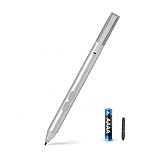
- SURFACE PEN COMPATIBILITY: Fits Surface Pro 11/10/9/8/X/7/6/5/4/3, Surface 12-inch, 13-inch, Surface Go 1/2/3/4, Surface Book 1/2/3/4, Surface Laptop 1/2/3/4/5/6, Surface Laptop Studio 1/2, Surface Duo—plus Kobo, HP, ASUS, Acer MPP devices. ❌NOT for Surface Laptop Go or Laptop 7 (2024), Laptop 8 (2026)
- 2500-HOUR BATTERY, ZERO CHARGING: Forget daily charging. One AAAA battery provide 2500 working hours—about 300 days of note-taking. No Bluetooth, no pairing, no cables. Just insert the battery (Positive pole down), press the button and write in OneNote, Windows Ink or any drawing app. Great for students
- 1024 PRESSURE SENSITIVITY + SIDE BUTTONS: 1024 pressure levels keep handwriting, sketching and app drawing smooth with no lag. Lower key erases, upper key right-clicks—sign documents and mark up PDFs in one tap. Great for artists
- PALM REJECTION + ANTI-LOST CLIP: Rest your palm on the screen and write naturally—palm rejection blocks stray touches. No magnets to interfere with the signal; a sturdy metal clip snaps onto your pocket, bag or Type Cover. Built for commuters
- WHAT'S IN THE BOX + US CUSTOMER SUPPORT: Package includes 1 x MPP 1.51 Surface pen, 1 x AAAA battery, 1 spare nibs, and a manual. Backed by a 18-month warranty and lifetime support. We offer responsive US-based customer support to resolve any issue swiftly
La guía de Microsoft describe además opciones de selección de objetos y edición generativa. No las des por disponibles en cualquier PC con Windows: comprueba la compatibilidad del equipo y la información vigente de Microsoft antes de buscar una función concreta.
Outdated Drivers Are Slowing You Down
One free scan finds every outdated or missing driver and matches the right update for your exact hardware.Free scan · exact hardware matchWindows Errors? Fix Them Before They Spread
Repair common Windows errors and clear accumulated junk for a smoother, more stable PC - no reinstall needed.Free scan · no reinstall¿Cuándo elegir Paint?
| Necesidad | ¿Paint encaja? | Motivo |
|---|---|---|
| Dibujar, añadir formas o texto | Sí | Son tareas básicas contempladas por sus herramientas. |
| Hacer ajustes rápidos a una imagen | Sí | Permite recortar, redimensionar y girar. |
| Organizar elementos separados | Puede encajar | Las capas permiten organizar y editar partes de una composición por separado, si están disponibles. |
| Usar generación o edición asistida por IA | Depende | Las funciones tienen requisitos de dispositivo, actualización y disponibilidad. |
Paint es una herramienta integrada y accesible para dibujos y ediciones sencillas. Si la tarea exige capacidades especializadas, comprueba que la aplicación elegida las tenga; las fuentes consultadas no bastan para comparar en detalle productos de terceros.
Best Value

- 【Fast Charge & Longer Standby, No Panic】Enjoy Metapen’s leading USB-C fast charging and extended battery life. The M2 takes only 1 hour to fully charge, providing up to 100 hours of use. Charge 5 mins = work 24+ hours of standby time, outperforming most brands on Amazon. Perfect for creators, business professionals, and students who need to take notes or draw frequently
- 【4096 Finest Control & Tail Eraser】With 4096 levels of pressure sensitivity, the Metapen Stylus M2 is ideal for artists, photographers, and designers. Accurately draw, write, or annotate in any supported app. The eraser on the tail end quickly removes mistakes, allowing you to edit with ease — just like using a traditional graphite pencil. Windows Ink lets you create sticky notes, capture ideas instantly, and even take and edit screenshots with a single click
- 【Powerful Magnetic Attachment, Never Lose Again】The Metapen M2 firmly attaches to your Microsoft Surface tablets with two stronger built-in magnets, so it’s always ready when inspiration strikes. [Supported Magnetic Attachment Models] Surface Pro 3–Pro 11, Surface Book / Book 2 / Book 3, Surface 3, Surface Go / Go 2 / Go 3, Kobo Libra Colour, Kobo Sage, Kobo Elipsa, Kobo Elipsa 2E
- 【Advanced Cone-Shaped Tip & Premium Feel】Unlike old-fashioned styluses with tubular tips, the Metapen M2 features a cone-shaped tip for stronger signal detection and a streamlined design. The aluminum-alloy body with a rounded-square shape offers a comfortable grip and prevents it from rolling on your desk
- 【Tilt Function & Palm Rejection】The Metapen M2 accurately reproduces both the finest lines and the broadest brush strokes. Tilt the tip up to ±55° to add artistic shading to your drawings. With palm rejection technology, you can rest your hand naturally on the screen without fatigue or accidental touches — and enjoy smooth, uninterrupted writing or drawing
FAQ
¿Qué es Microsoft Paint?
Es una aplicación de Windows para crear y modificar dibujos e imágenes con herramientas como pinceles, formas, texto y opciones de ajuste.
¿Paint viene incluido en Windows?
Sí. Microsoft describe Paint como una aplicación incluida en Windows; no hace falta comprarla por separado.
¿Desde cuándo existe Paint?
Microsoft incluyó Paint en Windows 1.0, lanzado el 20 de noviembre de 1985.
Quick wins for a faster PC:
Repair Windows errors before they cause bigger problemsFix Now →Scan for outdated or missing drivers - takes under a minuteDriver Scan →¿Qué funciones tiene Paint?
Entre otras, permite dibujar, usar pinceles y formas, rellenar áreas, insertar texto, recortar, redimensionar y girar imágenes. Las versiones actuales también pueden ofrecer capas, eliminación de fondo y funciones asistidas por IA.
¿Cocreator funciona en cualquier PC con Windows?
No. Microsoft Support indica que las funciones Copilot+ descritas requieren un PC Copilot+ y la versión más reciente de Paint. La disponibilidad y los requisitos pueden variar según la función, el dispositivo y el mercado.
Quick Recap

Product prices and availability are accurate as of the date/time indicated and are subject to change. Any price and availability information displayed on Amazon at the time of purchase will apply.




