The Tool Desk
Quick wins for a faster PC:
Scan for outdated or missing drivers - takes under a minuteDriver Scan →Clear out junk files and repair common Windows errorsFree Scan →Outbyte PC Repair FREERepair Windows errors before they cause bigger problemsFix Now →Outbyte Driver Updater FREEScan for outdated or missing drivers - takes under a minuteDriver Scan →
ThatPainter is reader-supported. When you buy through links on our site, we may earn an affiliate commission. Learn More
The right drawing tablet depends first on where the pixels are rendered. A pen tablet has no screen and controls a separate monitor; a pen display puts the canvas beneath the stylus but still needs a computer; a standalone pen computer, such as an iPad Pro, runs the drawing software itself.
For most desktop painters, the Wacom Intuos Pro Medium (2025) is the strongest all-round choice. The Xencelabs Pen Tablet Medium is the better-value screenless option, while the new Wacom Cintiq 16 (2025) is the sensible midrange choice if you want to draw directly on the image. This guide treats “2025” as a publication-year cutoff, so late-2025 releases are identified rather than presented as long-tested products.
Quick recommendations
| Best for | Tablet | Type | Important detail |
|---|---|---|---|
| Most desktop artists | Wacom Intuos Pro Medium (2025) | Pen tablet | 10 ExpressKeys, two dials, wireless operation, Pro Pen 3 |
| Value | Xencelabs Pen Tablet Medium | Pen tablet | Large 10.33 × 5.8-inch active area and Windows, macOS, Linux support |
| Drawing directly on screen | Wacom Cintiq 16 (2025) | Pen display | 2560 × 1600 IPS display with built-in feet |
| Large professional canvas | Wacom Cintiq Pro 27 | Pen display | Premium 27-inch workstation display |
| Portable standalone setup | Apple iPad Pro with M5 | Pen computer | Runs drawing apps without a separate computer; Pencil sold separately |
| 4K pen display alternative | Huion Kamvas Pro 19 | Pen display | 18.4-inch 4K display, touch, and broad OS support |
Best overall: Wacom Intuos Pro Medium (2025)
The Wacom Intuos Pro Medium is the best fit for a painter who already has a good monitor and works mainly at a desk. It is screenless, so your hand is on the tablet while the brush appears on the monitor. That takes a short adjustment period, but the tablet is lighter, less expensive, and less vulnerable to screen glare and scratches than a pen display.
Wacom lists the Medium at $379.95 in the United States. Its 291 × 206 mm body has an active area suited to a 16:9 monitor, and the 2025 redesign moves the shortcut controls to the top edge. Medium and Large models have 10 customizable ExpressKeys and two customizable dials; the Small has five ExpressKeys and one dial, so do not assume the three sizes have identical controls.
#1 Best Overall

- WACOM’S BEST PEN TECHNOLOGY: Pro Pen 3 offers amazing precision, 8192 pressure levels, tilt support & lag-free tracking for smooth, precise strokes; choose slim, straight or flared grip, adjust balance & button layout for precision and comfort
- DIAL INTO PRODUCTIVITY: Speed up and stay in the creative flow with 10 customizable tablet ExpressKeys & 2 mechanical dials conveniently located at the top of the tablet and close to your keyboard for efficiency
- DESIGNED FOR MODERN MONITORS: With a versatile 16:9 format perfect for multiple monitors and wide displays; medium size has a large active area with a small footprint 11.4 x 8.1” / 291 x 206 mm
- SLEEK AND STURDY: Measuring 4mm at its thinnest this professional-grade drawing tablet feels like pen-on-paper on your desk, combined with the robust durability of magnesium making it equally suited for your office or life on the go
- WIRELESS FREEDOM: use Intuos Pro with USB or connect wirelessly via Bluetooth to multiple computers with a simple switch
The included battery-free Pro Pen 3 has 8,192 pressure levels, ±60-degree tilt detection, three side switches, replaceable nibs, and interchangeable grips and button inserts. Those figures are useful, but they should not decide the purchase by themselves. Initial activation force, cursor accuracy, nib friction, driver behavior, and how your painting software handles pressure matter more than a large pressure-level number.
Bluetooth is available, as is USB. Wireless battery life is rated at up to 16 hours, with charging taking approximately 2–3.5 hours depending on the cable and power source. Full functionality requires Wacom’s driver. The supported systems listed by Wacom are Windows 10 or later and macOS 13 or later, and downloading the driver and bonus software requires internet access.
Important Intuos Pro corrections
- The 2025 Intuos Pro does not have multitouch. Older Intuos Pro reviews may describe that feature because previous generations included it.
- The included Pro Pen 3 does not provide barrel rotation. Wacom’s compatible Art Pen supports rotation, but it is a separate accessory and the application must support it.
- It is a pen tablet, not a display. It cannot show your painting without a connected computer and monitor.
Best value: Xencelabs Pen Tablet Medium
The Xencelabs Pen Tablet Medium is the value pick for artists who are happy to paint on a separate monitor. Its 10.33 × 5.8-inch active area is generous enough for detailed work without taking over a desk, and the pen provides 8,192 pressure levels and ±60-degree tilt support.
Quick wins for a faster PC:
Repair Windows errors before they cause bigger problemsFix Now →Scan for outdated or missing drivers - takes under a minuteDriver Scan →Clear out junk files and repair common Windows errorsFree Scan →The standard Medium listing is shown at $199.99 on Xencelabs’ US store, but check the exact SKU before buying. Xencelabs sells standard, bundle, bundle-SE, and v2 versions. The standard Medium should not automatically be described as including the Quick Keys remote. That remote is included with particular bundles and provides a separate bank of shortcut buttons rather than placing every control on the tablet.
That separation can be more comfortable: put the tablet centrally and the Quick Keys remote wherever your non-drawing hand naturally rests. It does, however, mean another item to carry and charge. Wireless operation uses the supplied dedicated dongle, not ordinary Bluetooth pairing from the tablet alone.
Xencelabs lists support for Windows, macOS, and Linux, with USB and dongle-based wireless connectivity. It is a particularly good choice for painters who want a large active area, a clean surface, and fewer built-in controls than the Wacom layout. The trade-off is that Wacom’s shortcut ecosystem and long-established application support may be more familiar to some studios.
Rank #2

- Wacom Intuos Medium Bluetooth Graphics Drawing Tablet: Enjoy industry leading tablet performance in superior control and precision with Wacom's EMR battery free technology that feels like pen on paper
- Works With All Software: Wacom Intuos tablet can be used in any software program to explore new facets of digital creativity; draw, paint, edit photos/videos, create designs, and mark up documents
- Wireless Superior Connectivity: Connect wirelessly via Bluetooth or directly using USB-A cable which enables you to work, draw or create whether it's at a desk, on the sofa, in classrom or even outside
- Software and Training Included: Only Wacom gives you software with every purchase. Register your Intuos tablet and gain access to some of the best creative software and Wacom's online training
- Wacom is the Global Leader in Drawing Tablet and Displays: For over 40 years in pen display and tablet market, you can trust that Wacom to help you bring your vision, ideas and creativity to life
Best midrange pen display: Wacom Cintiq 16 (2025)
The 2025 Wacom Cintiq 16 is a replacement-generation model, not the older 15.6-inch 1080p Cintiq 16 that still appears in search results and retailer listings. Wacom launched this version on June 5, 2025.
Its 16-inch IPS panel runs at 2560 × 1600 in a 16:10 aspect ratio. Wacom specifies 100% sRGB and 99% DCI-P3 typical coverage, 290 cd/m² typical brightness, and 1400:1 typical contrast. The battery-free Pro Pen 3 is included, so there is no separate stylus purchase to add to the basic setup.
For a painter moving from paper or an ordinary pen tablet, the main advantage is positional: the stylus touches the same image that your eyes see. That makes tracing, edge control, masking, and direct brush placement easier to learn. The disadvantage is the extra cable and the need for a computer capable of driving the display.
The Cintiq 16 has built-in fold-out feet. Wacom’s larger adjustable stand is optional, so budget for it if you need a steep, ergonomic angle for long painting sessions. The box includes the pen, pen stand, replacement nibs, two USB-C-to-USB-C cables, and a power adapter.
Before buying, check the host computer rather than assuming any USB-C port will work. To reach 2560 × 1600 at 60 Hz, the computer’s video connection must actually support that output. USB-C describes the connector shape, not necessarily its video capability. A pen display also needs the correct USB data connection and sufficient power.
Recommended Free Tools
Best large professional display: Wacom Cintiq Pro 27
The Cintiq Pro 27 is a premium workstation tool for artists who want a large, adjustable canvas and have the desk space, computer, and budget to match. Expert buying guides place it among the leading professional pen displays for its working area, construction, and stand ecosystem.
Rank #3

- WACOM’S BEST PEN TECHNOLOGY: Pro Pen 3 offers amazing precision, 8192 pressure levels, tilt support & lag-free tracking for smooth, precise strokes; choose slim, straight or flared grip, adjust balance & button layout for precision and comfort
- DIAL INTO PRODUCTIVITY: Speed up and stay in the creative flow with 5 customizable tablet ExpressKeys & a mechanical dial conveniently located at the top of the tablet and close to your keyboard for efficiency
- DESIGNED FOR MODERN MONITORS: With a versatile 16:9 format perfect for multiple monitors and wide displays; small size has a large active area with a small footprint 8.4” x 6.4” / 215 x 163 mm
- SLEEK AND STURDY: Measuring 4mm at its thinnest this professional-grade drawing tablet feels like pen-on-paper on your desk, combined with the robust durability of magnesium making it equally suited for your office or life on the go
- WIRELESS FREEDOM: Use Intuos Pro with USB or connect wirelessly via Bluetooth to multiple computers with a simple switch
The current US listing used in the research shows $3,499.95, but display pricing changes frequently. This is not the sensible default for a beginner. It makes more sense for a professional illustrator, concept artist, or studio that will spend many hours each week working directly on a large screen and can justify the cost of the display, stand, cables, and suitable computer.
Best standalone drawing computer: Apple iPad Pro with M5
The M5 iPad Pro is the portable choice because it is a complete computer rather than a monitor accessory. Apple announced it on October 15, 2025, with availability beginning October 22. It comes in 11-inch and 13-inch sizes, with 256GB, 512GB, 1TB, and 2TB storage options. US launch pricing started at $999 for the 11-inch Wi-Fi model and $1,299 for the 13-inch Wi-Fi model.
It supports Apple Pencil Pro and Apple Pencil USB-C, but the Pencil Pro is sold separately. Compatibility is model-specific: Apple Pencil Pro works with the M4 and M5 iPad Pro, M2/M3/M4 iPad Air, and iPad mini with A17 Pro, among other models on Apple’s compatibility list. Do not buy the stylus first and assume it will work with any older iPad.
The Tool Desk
Outbyte PC Repair FREEClear out junk files and repair common Windows errorsFree Scan →Outbyte Driver Updater FREEScan for outdated or missing drivers - takes under a minuteDriver Scan →The fully laminated display and ProMotion refresh rate up to 120 Hz make the iPad Pro responsive for painting. It is also glossy and designed as a general-purpose tablet, not an etched desktop drawing surface. Software availability, file management, cloud storage, shortcuts, and screen texture therefore differ from a Cintiq or Kamvas workflow.
Choose it if you need to paint away from the desk, sketch on location, or use one device for art, browsing, reading, and general work. Choose a pen display instead if your priority is a large desktop canvas and a computer-based application such as Photoshop, Krita, Clip Studio Paint, or another studio tool.
Best 4K alternative: Huion Kamvas Pro 19
The Huion Kamvas Pro 19 combines a relatively large drawing surface with a 3840 × 2160 display. Its 18.4-inch screen is fully laminated, supports 10-point capacitive touch, and uses a 16:9 aspect ratio. Huion lists 16,384 pressure levels, ±60-degree tilt, and a report rate above 260 PPS.
Rank #4
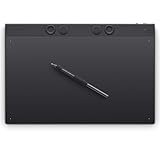
- WACOM’S BEST PEN TECHNOLOGY: Pro Pen 3 offers amazing precision, 8192 pressure levels, tilt support & lag-free tracking for smooth, precise strokes; choose slim, straight or flared grip, adjust balance & button layout for precision and comfort
- DIAL INTO PRODUCTIVITY: Speed up and stay in the creative flow with 10 customizable tablet ExpressKeys & 2 mechanical dials conveniently located at the top of the tablet and close to your keyboard for efficiency
- DESIGNED FOR MODERN MONITORS: With a versatile 16:9 format perfect for multiple monitors and wide displays; large size has a large active area with a small footprint 14.8 x 9.9” / 377 x 253 mm
- SLEEK AND STURDY: Measuring 4mm at its thinnest this professional-grade drawing tablet feels like pen-on-paper on your desk, combined with the robust durability of magnesium making it equally suited for your office or life on the go
- WIRELESS FREEDOM: Use Intuos Pro with USB or connect wirelessly via Bluetooth to multiple computers with a simple switch
The advertised color coverage is 99% sRGB, 96% Adobe RGB, and 98% DCI-P3. It supports Windows, macOS, Android, and Linux, although application and version compatibility should still be checked for your particular setup. The supplied PW600/PW600S pens are battery-free.
Windows Errors? Fix Them Before They Spread
Repair common Windows errors and clear accumulated junk for a smoother, more stable PC - no reinstall needed.Free scan · no reinstallCrashes, No Sound, or Screen Glitches?
Random freezes, missing sound and display glitches usually trace back to one bad driver. Find and replace yours safely.Free scan · under a minuteRetail bundles can differ. Some include the Keydial Mini, cables, power adapter, glove, and a color-calibration report, so check the bundle name rather than treating every Kamvas Pro 19 package as identical. The display can reverse-charge a connected device through the supplied GaN power adapter, but it remains a pen display: it still needs a host computer or compatible device and is not an independent drawing computer.
Late-2025 option: Huion Kamvas Pro 24 (Gen 3)
Huion officially released the Kamvas Pro 24 (Gen 3) on October 22, 2025. It is a valid inclusion in a 2025 buying guide, particularly for artists who want a large-screen alternative, but it should be labeled as a late-year model. Without extended hands-on testing, avoid presenting it as a proven long-term winner. Compare its final regional price, stand arrangement, pen behavior, and driver support with established models before committing to a studio purchase.
Independent reader supportYour contribution helps us test, update, and keep practical guides available for everyone.Pen tablet, pen display, or iPad?
| Type | Requires a computer? | Strengths | Limitations |
|---|---|---|---|
| Pen tablet | Yes, plus an external display | Lower cost, light weight, durable surface, flexible monitor setup | Hand and cursor are in different places at first |
| Pen display | Yes | Direct drawing, easier positional learning, desktop software | Cables, heat, glare, display wear, and higher cost |
| Standalone pen computer | No separate computer required | Portable, self-contained, useful away from the studio | More limited accessory and file-management choices; stylus often costs extra |
For painting at home, begin with the application and workstation you already use. A screenless tablet is often enough if your monitor is accurate and your desk is comfortable. A pen display is worth paying for when direct hand-to-canvas placement will improve your process. An iPad is the better answer when portability is part of the job rather than an occasional bonus.
What to check before you buy
- Measure the usable area. A medium tablet usually gives a better balance than a tiny model for brushwork, but a very large tablet can force broad arm movements on a small monitor.
- Check the operating system and application. Confirm the manufacturer’s driver supports your OS, then check pressure, tilt, touch, shortcut, and display behavior in the exact application you use.
- Inspect the connection requirements. Pen displays normally need video, USB data, and power. Confirm the computer’s ports and adapters before ordering.
- Decide where shortcuts should live. Built-in ExpressKeys are convenient. A separate remote can be positioned more naturally, but it adds charging and transport overhead.
- Plan the surface feel. A textured surface can provide useful resistance but may wear nibs faster. A smooth surface is easier to clean and may suit fast, loose strokes.
- Budget for the missing pieces. Include a stand, spare nibs, a stylus, replacement cables, screen protection, or a computer upgrade where applicable. The iPad Pro, in particular, does not include Apple Pencil Pro.
Setup details that prevent common problems
For a Wacom Intuos Pro, download the driver from Wacom, connect the tablet by USB for the first setup, and configure application-specific shortcuts in the Wacom software. Bluetooth is convenient, but wired operation is the simplest way to isolate a connection problem.
What’s actually slowing this PC down?
Pick the symptom - the matching free tool is one click away.
For a Xencelabs Medium, plug in the supplied wireless receiver and do not look for a normal Bluetooth pairing workflow. If wireless input becomes erratic, test the tablet by USB and move the dongle away from other crowded USB ports or wireless transmitters.
Best Value

- Wacom Intuos Small Bluetooth Graphics Drawing Tablet: Enjoy industry leading tablet performance in superior control and precision with Wacom's EMR, battery free technology that feels like pen on paper
- Works With All Software: Wacom Intuos tablet can be used in any software program to explore new facets of digital creativity; draw, paint, edit photos/videos, create designs, and mark up documents
- Wireless Superior Connectivity: Connect wirelessly via Bluetooth or directly using USB-A cable which enables you to work, draw or create whether it's at a desk, on the sofa, in classroom or even outside
- Software and Training Included: Only Wacom gives you software with every purchase. Register your Intuos tablet and gain access to some of the best creative software and Wacom's online training
- Wacom is the Global Leader in Drawing Tablet and Displays: For over 40 years in pen display and tablet market, you can trust that Wacom to help you bring your vision, ideas and creativity to life
For a Cintiq or Kamvas, connect the display output first, then USB data, then power according to the manual. If the screen works but the pen does not, the video cable is not the only connection to inspect. If the pen works but the display is limited to a low resolution, check the host port, adapter, refresh rate, and operating-system display settings.
In Windows, display settings are under Settings → System → Display. In macOS, use System Settings → Displays. Set the pen display as an extended or mirrored display as appropriate, then use the tablet driver’s display-mapping control to assign the active area to the correct screen. A mismatched mapping is a common cause of inaccurate cursor placement.
FAQ
Is the Wacom Intuos Pro 2025 worth buying?
Yes, if you already have a monitor and want a refined screenless workflow. The Medium model combines a useful active area with 10 ExpressKeys, two dials, wireless operation, and the battery-free Pro Pen 3. It is not the right choice if you specifically want to draw on the screen.
Is the new Wacom Cintiq 16 4K?
No. The 2025 Cintiq 16 has a 2560 × 1600 resolution. It is higher-resolution than the older 1920 × 1080 Cintiq 16, but it is not a 4K display.
Can a Wacom Cintiq or Huion Kamvas work without a computer?
Usually no. These are pen displays, not standalone computers. They show the image generated by a connected host device. The iPad Pro with M5 is the standalone option in this guide because it runs its own operating system and drawing applications.
Do more pressure levels make a drawing tablet better?
Not by themselves. Pressure levels are only one specification. Initial activation force, pressure-curve adjustment, tilt behavior, cursor accuracy, latency, nib friction, surface texture, application support, and driver stability all affect how a tablet feels while painting.
The Bottom Line
Buy the Wacom Intuos Pro Medium (2025) if you paint at a desk and already own a monitor. Pick the Xencelabs Pen Tablet Medium when value and a clean, comfortable screenless setup matter more than built-in controls. Choose the Wacom Cintiq 16 (2025) for direct drawing at a sensible midrange size, the Cintiq Pro 27 for a premium studio canvas, the Huion Kamvas Pro 19 for a 4K pen display, and the M5 iPad Pro when portability and standalone operation outweigh desktop ergonomics.
Do these 3 things before closing this tab:
1Repair Windows errors before they cause bigger problems2Scan for outdated or missing drivers - takes under a minute3Clear out junk files and repair common Windows errorsQuick Recap

Product prices and availability are accurate as of the date/time indicated and are subject to change. Any price and availability information displayed on Amazon at the time of purchase will apply.




