Quick wins for a faster PC:
What’s actually slowing this PC down?
Pick the symptom - the matching free tool is one click away.
Clear out junk files and repair common Windows errorsFree Scan →Fix the driver behind crashes, sound loss and screen glitchesFind Drivers →
ThatPainter is reader-supported. When you buy through links on our site, we may earn an affiliate commission. Learn More
The Wacom One 14 is a larger entry-level pen display for beginners, students, hobbyists, and photographers who want to draw or retouch directly on a screen. It adds a 14-inch Full HD display to the Wacom One family, along with a bonded anti-glare surface, 98% sRGB coverage, and a battery-free pen. But it is not a standalone tablet, does not support touch, and its one-cable USB-C setup works only with a computer that supports DisplayPort Alt Mode.
Launched in September 2025 at roughly $300, the Wacom One 14 was listed at $249 on Wacom’s US store during a later promotion, against a regular listed price of $299.95. That discount is time-sensitive and may not apply in other regions. Check Wacom’s current product listing before treating either figure as current.
As an Amazon Associate I earn from qualifying purchases.
The Tool Desk
Outbyte PC Repair FREERepair Windows errors before they cause bigger problemsFix Now →Outbyte Driver Updater FREEScan for outdated or missing drivers - takes under a minuteDriver Scan →The short version
- What it is: a 14-inch pen display that connects to a Windows PC, Mac, or compatible Chromebook.
- What is new: more physical drawing area than the older 13.3-inch Wacom One, plus a bonded display and anti-glare, anti-fingerprint glass.
- What it is not: a standalone computer, iPad replacement, or screenless tablet.
- Big limitations: Full HD resolution, no multi-touch, no listed built-in shortcut keys, and a USB-C video requirement.
- Best fit: someone who specifically wants to draw directly on the screen without paying Cintiq prices.
What changed?
The product behind the headline is the Wacom One 14, model DTC141/DTC141W0. Its 14-inch screen is only 0.7 inch larger diagonally than the older 13.3-inch Wacom One, so this is not a dramatic size revolution. The extra area is nevertheless useful: the active surface measures approximately 309 × 174 mm, or 12.2 × 6.9 inches.
The more meaningful change is the overall package. The One 14 uses a directly bonded display, which places the image closer to the pen surface and can reduce the visible gap between the nib and cursor. Its anti-glare, anti-fingerprint glass is intended to make everyday drawing more comfortable. These improvements do not make it a premium Cintiq, but they make the basic pen-display experience more polished.
#1 Best Overall

- BIGGER CANVAS, BETTER DETAIL: Redesigned with more drawing area, the laminated 14" crisp IPS Full HD display offers generous space with 98% sRGB color accuracy and a paper-like texture that won’t glare or smudge – keeping you in your creative zone longer
- PRECISE, NATURAL FEEL: Draw with the control that made Wacom a favorite; the battery-free pen never needs charging and captures everything from light lines to bold strokes with Wacom’s responsive pressure sensitivity
- COMPLETE CREATIVE STARTER KIT: Includes trials of Clip Studio Paint Pro, Magma, Concepts & Foxit software, and Skillshare training courses - your jumpstart to creating beautiful art right away
- RELIABLE PERFORMANCE: Wacom's proven reliability works seamlessly with your computer – no driver headaches, mysterious disconnects, or frustrating "why isn't this working?" moments common with cheaper alternatives
- COMPATIBILITY: PC (Windows 10 or later), Mac (OS 13 or later), Chromebook; Easy plug-in via single USB-C: devices requiring HDMI require additional converter, cable and power adapter kit (sold separately)
It is also important not to confuse the new model with the entire Wacom One range. “Wacom One” is now an umbrella family that includes display models such as the One 12 and One 13 touch, as well as screenless One S and One M tablets. The One 14 is an addition to that entry-level family, not a universal replacement for every older model. Wacom’s family page shows the broader lineup.
Pen display, screenless tablet, or standalone tablet?
The Wacom One 14 is a pen display. You connect it to a computer, see your computer’s software on its screen, and draw directly over the image with the included pen. Applications such as Photoshop, Clip Studio Paint, and other creative software run on the host computer—not on the Wacom itself.
Recommended Free Tools
That makes it different from:
- A screenless pen tablet: You draw on a separate surface while looking at the computer monitor. Wacom’s One M, One S, and Intuos products work this way.
- A standalone tablet: An iPad or similar device runs applications independently. The Wacom One 14 cannot do that.
The practical buying question is simple: do you specifically want to draw on the screen? If yes, the One 14 is a sensible entry point. If no, a screenless tablet may be cheaper, lighter, and easier to position on a small desk.
Specifications that matter in practice
| Feature | Wacom One 14 |
|---|---|
| Display | 14-inch IPS, 16:9 |
| Resolution | 1,920 × 1,080 at up to 60 Hz |
| Active area | 309 × 174 mm |
| Color coverage | 98% sRGB typical |
| Brightness | 285 cd/m² typical |
| Contrast | 1,000:1 typical |
| Surface | Direct-bonded, anti-glare, anti-fingerprint glass |
| Pen | Battery-free Wacom One Standard Pen |
| Pressure and tilt | 4,096 pressure levels; up to 60-degree tilt |
| Touch | No multi-touch |
| Dimensions and weight | 336 × 201 × 10 mm; approximately 0.75 kg |
| Connection | One USB-C port |
| Operating systems | Windows 10 or later, macOS 13 or later, latest ChromeOS |
Full HD is adequate, not exceptional. At 14 inches, 1,920 × 1,080 gives a usable canvas for learning, sketching, illustration, and photo retouching. It does not provide the workspace or fine on-screen detail of a higher-resolution professional display. A 16:9 aspect ratio is familiar for video and general computer use, though some artists may prefer a squarer canvas.
Rank #2

- PORTABLE ALL-IN-ONE DESIGN: Thin, lightweight frame houses a creative studio powered by Android 15 OS w/included creative apps plus Google Play Store access - take professional-grade digital art anywhere without extra equipment
- POWERFUL PERFORMANCE SPECS: Snapdragon 8s Gen 3 processor with 12GB RAM delivers smooth performance during memory-intensive tasks and 256GB storage plus expandable microSD slot provides ample space for all your creations
- STUNNING 14" OLED DISPLAY: Crisp 3K (2880 × 1800px) resolution with wide color gamut (100% sRGB & DCI-P3) for vivid colors and true blacks, with Premium Texture etched glass delivers pen-on-paper feel with minimizing parallax
- BEST-IN-CLASS PEN PERFORMANCE: Designed for MovinkPad, this slim version of Wacom Pro Pen 3 delivers 8,192 pressure levels, never needs charging and includes replacement nibs stored in the pen’s back end
- COMPATIBILITY: Windows 11; macOS 14 (Sonoma), 15 (Sequoia) & 26 (Tahoe) NOTE: Windows ARM-based systems and Intel Macs are not supported.
The 98% sRGB figure suits general creative work, but it is not evidence of professional calibration or wide-gamut, print-critical performance. Likewise, 285 cd/m² is reasonable for indoor use rather than exceptionally bright. The battery-free pen needs no charging and provides 4,096 pressure levels, two side switches, and tilt support. The listed specifications do not include multi-touch or built-in ExpressKeys, so expect to use keyboard shortcuts, software controls, or a separate shortcut device.
How setup works
- Confirm that the computer’s USB-C port supports DisplayPort Alt Mode. USB-C alone is not enough.
- Connect the One 14 directly to the computer with the supplied USB-C cable.
- Download and install the current Wacom driver from Wacom’s support pages.
- Restart if the installer requests it.
- Open Wacom’s settings application and select the One 14.
- Set pen-button assignments, display mapping, pressure response, and orientation or calibration options where available.
- Test cursor tracking, pressure, tilt, pen buttons, brightness, and display scaling in your drawing or photo-editing application.
Internet access is required to download the driver. Wacom lists Windows 10 or later, macOS 13 or later, and the latest ChromeOS for this model. Do not assume that Android support advertised elsewhere for parts of the Wacom One family automatically applies to the One 14; confirm compatibility for the exact computer, phone, tablet, and cable.
PC Slower Than It Used to Be?
A free scan shows the junk files, broken settings and background clutter dragging Windows down - then fixes them in one click.Free scan · Windows 10 & 11Outdated Drivers Are Slowing You Down
One free scan finds every outdated or missing driver and matches the right update for your exact hardware.Free scan · exact hardware matchIf the display stays blank
A common mistake is assuming that every modern USB-C port carries video. Some ports provide only charging or data. A hub or dock can also fail to pass DisplayPort Alt Mode through correctly.
- Disconnect hubs and docks.
- Connect the Wacom directly to the computer.
- Try another USB-C port.
- Check the computer’s documentation to confirm video output and support for 1080p at 60 Hz.
- Try the supplied cable or a known-good full-featured USB-C cable.
- Check the operating system’s display settings for a second monitor.
- Update or reinstall the Wacom driver.
A generic USB-C-to-USB-A adapter is not automatically a solution: many carry data but not video. If the computer has no compatible USB-C video output, you need an adapter or dock specifically designed to carry the required display signal—and compatibility is not guaranteed.
Rank #3
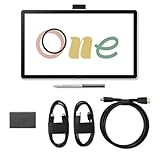
- Connect your Wacom One 14 to a computer using the Wacom Converter and your HDMI and USB cables along with an AC power cable & adapter (power plug sold separately)
- Redesigned with more drawing area, the laminated 14" crisp IPS HD display offers generous space with 98% sRGB color accuracy and a paper-like texture that won’t glare or smudge – keeping you in your creative zone longer
- Draw with the control that made Wacom a favorite; the battery-free pen never needs charging and captures everything from light lines to bold strokes with Wacom’s responsive pressure sensitivity
- Wacom's proven reliability works seamlessly with your computer – no driver headaches, mysterious disconnects, or frustrating "why isn't this working?" moments common with cheaper alternatives
- PC (Windows 10 or later), Mac (OS 11 or later), Chromebook; Easy plug-in via single USB-C: devices requiring HDMI require additional converter, cable and power adapter kit
Who should buy it?
The Wacom One 14 makes the most sense for:
- Beginners moving from paper to digital art.
- Students and hobbyists who want a straightforward pen display.
- Photographers who prefer a pen for masking, retouching, and local adjustments.
- Teachers and visual thinkers working with a computer.
- Existing tablet users who find screenless drawing unintuitive.
- Buyers who want Wacom’s pen technology without moving to Cintiq pricing.
Its light 0.75 kg body is convenient, but “portable” needs qualification. You still need a computer, a cable, and a suitable working surface. It is not a travel computer or standalone sketchbook.
Who should skip it?
Look elsewhere if you need a standalone device, multi-touch gestures, a high-resolution professional display, or a larger color-critical workspace. It is also a poor fit if your computer lacks compatible USB-C video output.
Quick wins for a faster PC:
Fix the driver behind crashes, sound loss and screen glitchesFind Drivers →Clear out junk files and repair common Windows errorsFree Scan →Scan for outdated or missing drivers - takes under a minuteDriver Scan →Some artists will simply prefer a screenless tablet. Drawing while looking at a separate monitor can be comfortable once learned, leaves more desk space available, and often costs less. The One 14’s size alone does not make it professional-grade: it remains a Full HD, entry-level display without touch or listed hardware shortcut keys.
Independent reader supportYour contribution helps us test, update, and keep practical guides available for everyone.Wacom One 14 alternatives
Wacom One 13 touch
The One 13 touch remains relevant if multi-touch gestures matter to your workflow. The newer One 14 gives you more physical display area, but it is not a blanket upgrade because the One 14 explicitly lacks touch. Compare current regional stock and pricing before choosing.
Rank #4

- IMMERSIVE CREATIVE CANVAS: 16" IPS display with 2.5K WQXGA resolution (2560 x 1600) delivers sharp, crisp, detailed visuals for digital art and design
- WACOM’S BEST PEN TECHNOLOGY: Pro Pen 3 with 8192 pressure levels responds to your lightest touch; includes tilt support, 3 shortcut keys for tool access, and a holder that mounts to either side of the display with adjustable angle for quick access
- CINEMATIC COLOR DISPLAY: 99% DCI-P3 and 100% sRGB coverage with 8-bit color depth delivers the wide color gamut used in modern displays and digital media - see your artwork as it's meant to be viewed
- READY TO CREATE: Built-in fold-out legs provide a 20-degree working angle or purchase adjustable stand for personalized comfort
- CONNECTION: includes USB-C cable to connect to Windows/Mac computers with DisplayPort Alt Mode or Thunderbolt 3 or 4 input (computers without DP Alt or TB 3 or 4 input require additional cables)
Wacom One 12
The One 12 is the smaller pen-display option. It is worth considering when desk space and price matter more than the extra canvas area. Promotions and availability vary, so current local pricing is more useful than launch comparisons.
Wacom One M or One S
These are screenless tablets. Wacom’s US store listed the One M at $149.95 and the One S at $99.95 when checked. The M is the better choice for users who want a larger active area; the S suits smaller desks and lighter workloads. Both give up direct-on-screen drawing.
Do these 3 things before closing this tab:
1Repair Windows errors before they cause bigger problems2Scan for outdated or missing drivers - takes under a minute3Clear out junk files and repair common Windows errorsWacom Intuos
Intuos is another screenless alternative. Wacom’s US store listed small models at $39.95 without Bluetooth and $79.95 with Bluetooth, while a medium Bluetooth model was listed at $129.95 but out of stock during the observed check. These are dated US-store signals, not guaranteed current prices. See Wacom’s tablet listings.
Wacom Cintiq 16
The Cintiq 16 is the natural step up for artists who need a larger display and a more advanced creative setup. Wacom’s US store listed it at $699.95 when checked—more than twice the One 14’s regular listed price. That makes it a capability upgrade, not an automatic recommendation for every beginner. See Wacom’s current display range.
Best Value

- Please note: Kamvas 13 (Gen 3) Pen Display is not a standalone product, this device must be connected to a computer/laptop to work.
- All-new Canvas Glass 2.0: HUION Kamvas 13 (Gen 3) drawing tablet for pc features a fully laminated 13.3-inch screen and brand new anti-sparkle canvas glass 2.0 for reduced glare and improved accuracy. It is perfect for designers, artists, and illustrators to unleash their creativity.
- Advanced PenTech 4.0 Technology: The 16384 levels of pressure sensitivity and 2g IAF ensure a fluid and natural drawing experience, while the 3 customized pen side buttons improve your workflow.
- Improved Color Accuracy: With enhanced color accuracy to Avg. ΔE<1.5, 16.7 million display colors, 99% sRGB coverage, and Rec.709 standard color gamuts, HUION Kamvas 13 (Gen 3) digital art tablet delivers stunning visuals.
- Rigorous Color Calibration: HUION Kamvas 13 (Gen 3) drawing monitor includes a factory calibration report for added assurance of color consistency.
Price, accessories, and software
The official US listing includes the display, Wacom One Pen, USB-C-to-C cable, replacement nibs, a nib-removal tool, and documentation. Wacom also advertises complimentary software trials, including up to six months of Clip Studio Paint Pro after registration through Celsys. Software offers can expire or vary by region, date, and registration terms, so treat them as bonuses rather than permanent hardware features.
The regular listed US price is $299.95, while $249 was the observed temporary price. Stock, promotions, taxes, and regional pricing can change. Compare the current price against the One 12, One 13 touch, screenless tablets, and larger displays rather than assuming the launch-era “about $300” figure applies everywhere.
The Tool Desk
Outbyte Driver Updater FREEFix the driver behind crashes, sound loss and screen glitchesFind Drivers →Outbyte PC Repair FREEClear out junk files and repair common Windows errorsFree Scan →Verdict
The Wacom One 14 is a sensible, accessible way to start drawing directly on a computer screen. Its larger workspace, bonded anti-glare display, battery-free pen, and modest entry price make it more appealing than a tiny pen display for many beginners.
It is not the best choice simply because it is newer or larger. Choose it when direct-on-screen drawing is the priority and your computer supports USB-C DisplayPort Alt Mode. Choose a Wacom One M, One S, or Intuos when lower cost, desk space, or screenless use matters more. Choose the One 13 touch if gestures are important, and move to a Cintiq-class display when you genuinely need more workspace or higher-end hardware.
Quick Recap

Product prices and availability are accurate as of the date/time indicated and are subject to change. Any price and availability information displayed on Amazon at the time of purchase will apply.




