Do these 3 things before closing this tab:
1Scan for outdated or missing drivers - takes under a minute2Clear out junk files and repair common Windows errors3Fix the driver behind crashes, sound loss and screen glitches
ThatPainter is reader-supported. When you buy through links on our site, we may earn an affiliate commission. Learn More
Meshy 6 can generate an approximate 3D mesh from a photo, sketch, concept image, or AI-generated image—but it cannot see the hidden sides of a subject. The reliable workflow is to prepare a clean reference, generate the model, inspect it from every angle, repair or remesh it when necessary, and export it for the intended destination.
This guide covers Meshy 6 specifically. As of August 2026, Meshy’s documentation identifies Meshy 7 as the latest model; Meshy 6 remains selectable in the web app and API for existing tutorials, projects, and version-specific workflows.
What Meshy 6 actually creates
Meshy Image-to-3D generates an inferred 3D interpretation of a 2D image. It is not a conventional scan: a single photograph does not contain reliable information about the rear, underside, thickness, or concealed parts of an object.
The Tool Desk
Outbyte PC Repair FREEClear out junk files and repair common Windows errorsFree Scan →Outbyte Driver Updater FREEScan for outdated or missing drivers - takes under a minuteDriver Scan →The result can include several distinct components:
#1 Best Overall

- 【Industrial-Grade Accuracy】Achieve single-frame accuracy up to 0.03 mm and volumetric accuracy of 0.03 mm + 0.05 mm x L(m), faithfully reproducing the finest surface details and complex geometries with exceptional consistency. Full-Field Structured Light accuracy reaches 0.08 mm; VCSEL mode delivers 0.10 mm @ 300-500 mm and 0.20 mm @ 500-800 mm. Engineered to meet the demanding requirements of 3D printing, reverse engineering, and precision modeling applications.
- 【Ultra-Fast Scanning & Robust Frame Rate】Multi-line Laser mode delivers up to 105 fps with NVIDIA GPU acceleration. Full-Field Structured Light mode achieves up to 5,000,000 points/s. The high frame rate ensures a smooth, uninterrupted scanning experience, especially suited for rapidly capturing large objects and complex scenes, significantly boosting overall workflow efficiency.
- 【AI-Powered & Photo-Grade Retopology】 AI object segmentation (Windows only) identifies your target in one click, tracks it throughout the scan, and auto-filters background noise — delivering clean data and streamlining post-processing. The patented 3D Gaussian Splatting converts point cloud and RGB data into true-to-life 1:1 photorealistic models; import photos from your phone or camera to apply real textures, then export in splat format for gaming, animation, and VR.
- 【All-Weather Outdoor Scanning】Multi-line Laser mode operates reliably up to 50,000 lux; with an outdoor filter attached, scanning remains stable in lighting conditions of up to 100,000 lux; VCSEL mode operates reliably in up to 100,000 lux ambient light. Designed to overcome lighting challenges, it provides consistent all-weather performance for construction sites, archaeological digs, and industrial fieldwork.
- 【5 Scanning Modes】NIR band supports Full-Field HD Scanning (markerless, fine structured light), Hybrid HD Scanning (dual projectors, fast high-quality modeling), and VCSEL Rapid Scanning (high-density pattern, fast markerless capture). Blue light band supports 30-Cross Laser Lines Scanning (handles high-reflectivity metals & dark objects) and Single-Line Deep Hole Scanning (captures from deep holes & narrow grooves). Five modes for comprehensive indoor and outdoor coverage.
- Geometry: the mesh’s shape and volume.
- Textures: surface color and, when enabled, maps such as normal, metallic, and roughness maps.
- Topology: the arrangement of polygons across the surface.
- Scale: usually an estimate rather than a measured real-world dimension.
- Rigging: a separate process for characters intended to move.
A visually convincing preview is therefore not proof that the model is dimensionally accurate, watertight, animation-ready, or suitable for manufacturing.
What you need before starting
- A Meshy account and access to Meshy Workspace.
- A PNG, JPG, JPEG, or WEBP image up to 20 MB for the web app.
- A clear idea of the destination: game engine, web viewer, render, AR, character pipeline, or 3D printer.
- A decision about whether one view is sufficient or whether multiple angles are needed.
Meshy 6 versus Meshy 7
Meshy 6 produces a single high-quality result from an image. Meshy 7 is now described in Meshy’s current documentation as the latest model, and the API’s latest value currently maps to Meshy 7.
Choose Meshy 6 when you are reproducing an existing tutorial, maintaining a pipeline that expects v6 behavior, or specifically need its documented texture and PBR behavior. Choose Meshy 7 for a new project when you want the current default model and have no reason to lock the workflow to v6.
Quick wins for a faster PC:
Fix the driver behind crashes, sound loss and screen glitchesFind Drivers →Repair Windows errors before they cause bigger problemsFix Now →The versions should not be treated as interchangeable. Available high-fidelity options, topology behavior, texture handling, and emission-map behavior differ. Select the version explicitly when consistency matters.
Prepare the image carefully
The input image often matters more than another generation attempt. Meshy recommends a clear, front-facing subject on a plain background. For the best chance of a useful result:
- Show one clearly identifiable subject.
- Center it and let it occupy most of the frame.
- Use a front or three-quarter view with an unobstructed silhouette.
- Use even lighting and minimize strong cast shadows.
- Remove unrelated objects, scenery, and background clutter.
- Do not crop limbs, wheels, handles, antennae, or important accessories.
- Avoid heavy blur, reflections, transparent materials, smoke, fire, and complex shadows.
- For characters, show the entire body where possible.
Background contamination is especially damaging: Meshy may interpret a nearby object, shadow, or background shape as part of the subject. If the image is not already isolated, use Meshy’s background-removal option before generation.
When one image is enough
A single image is reasonable for simple or mostly symmetrical objects, rapid concept development, and assets where the hidden sides are not important.
What’s actually slowing this PC down?
Pick the symptom - the matching free tool is one click away.
Rank #2

- EASY TO USE FOR BEGINNERS – Perfect for entry-level users, DIY creators, and 3D printing enthusiasts. Quick start, with simple practice giving optimal scan results.
- SMOOTH WIRELESS SCANNING – WiFi6-powered Ferret Pro ensures fast, stable scanning. Works with Windows, macOS, Android, and iOS for flexible cross-platform use.
- HIGH-PRECISION 3D MODELS – Capture detailed 3D models with full-color 24-bit scanning and anti-shake technology. Offers up to 0.1mm accuracy with full-color scanning. Ideal for objects from 50mm to 2000mm. Not suitable for very small or highly detailed items like jewelry or precision parts.cccc
- VERSATILE OUTPUT & ENVIRONMENT – Export in OBJ, STL, or PLY. Works reliably in most settings, including outdoor light (<30,000 lux). Avoid reflective, transparent, or very dark surfaces for best results.
- LIGHTWEIGHT & PORTABLE – Weighing just 105g, carry and scan anywhere—home, studio, or on the go. Compact, convenient, and ready for travel.
When to use Multi-View
Use Multi-View when the rear or sides matter, the object is asymmetric, or the subject has handles, openings, rear panels, logos, or complex appendages. Provide distinct angles with consistent scale, lighting, and background removal. Additional views reduce guesswork but do not turn the result into a measured scan.
How to turn an image into a 3D model in Meshy 6
- Open Meshy Workspace.
- Choose Model, then Image to 3D.
- Upload or drag in a PNG, JPG, JPEG, or WEBP image.
- Remove the background if the subject is not already isolated.
- Select Meshy 6 if you need the v6 workflow.
- Choose Standard or Smart Topology.
- Enable any relevant options, such as Multi-View, Auto Split, Image Enhancement, or a character pose.
- Click Generate.
- Rotate and zoom the result before deciding whether it is usable.
Image Enhancement can help with blur, noise, contrast, or lighting problems. It cannot recover details that were never visible in the source.
Auto Split can be useful when separate body, clothing, or accessory objects are helpful downstream. A-Pose and T-Pose are intended for humanoid characters, not ordinary products or props.
Standard versus Smart Topology
| Mode | Best for | Trade-off |
|---|---|---|
| Standard | High-detail visual assets, cinematic renders, sculpting, artistic refinement, and many print-oriented projects | Heavier geometry may need optimization before use in a game engine or web viewer |
| Smart Topology | Games, real-time engines, WebGL, interactive applications, and lower-poly prototypes | Small surface details may be simplified; cleanup may still be needed for rigging or deformation |
Smart Topology is not automatically production-ready, and Standard is not automatically suitable for every game or animation pipeline. Select the mode according to the next tool in your workflow, not merely the quality of the preview.
Texturing, PBR maps, and resolution
Geometry and appearance are separate decisions. You can generate an untextured mesh, generate it with texture, or texture it after the geometry is approved.
For API workflows, should_texture: false skips texturing. You can guide texturing with either a prompt of up to 600 characters or a JPG, JPEG, or PNG reference image. Use one or the other: if both are supplied, the prompt takes precedence. A texture reference with substantially different geometry can produce a poor match even when its colors are attractive.
Meshy supports 2K, 4K, and 8K texture resolutions. Higher resolution increases texture detail and resource use. For Meshy 6, the API documentation notes that 8K output does not include an emission map.
Rank #3
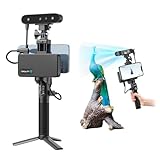
- 【High Accuracy & Fast Scanning】The Creality CR-Scan Ferret Pro 3D scanner delivers up to 0.1mm accuracy, 0.16mm resolution, and 30FPS scanning speed. It captures detailed dimensional data and complex shapes smoothly, creating highly realistic 3D models with ease.
- 【WiFi6 Wireless Transmission】Featuring advanced WiFi6, this handheld 3D scanner offers speeds 3x faster than WiFi5. The high bandwidth ensures stable, efficient data transfer for high-precision scanning and smoother workflow.
- 【Outdoor Scanning & Flexible File Export】Powered by upgraded optical technology and intelligent algorithms, the scanner delivers reliable performance in outdoor environments with ambient light up to 30,000 lux. Export models in OBJ, STL, or PLY formats for seamless integration with 3D printing, design, and reverse engineering workflows. For optimal results, avoid scanning highly reflective, transparent, or extremely dark surfaces.
- 【Anti-Shake Tracking】Equipped with one-shot 3D imaging, the Ferret Pro improves tracking accuracy and scanning success rates. Even with hand movements or quick object shifts, it ensures smooth, error-free scanning—perfect for beginners.
- Ferret Series Performance requirements: Windows: i5-Gen8 CPU or later Windows 10/11 (64-bit), RAM: >8GB, Software: >V2.3.0 Mac OS: M1/M2/M3/M4 series, macOS 11.7.7+ or Intel i5-Gen8+, RAM: >8GB Android: OS: Android 10.0+, RAM: >8GB, Connectivity: Wi-Fi 6, App: V2.0.2 iOS: Model: iPhone 11+, iOS 15+, RAM: >4GB
For a practical workflow, approve the shape first. If the geometry is wrong, retexturing will not fix it. If the geometry is acceptable but the material is wrong, use AI texturing or a separate texture reference rather than regenerating the entire mesh.
How to judge the generated model
Do not trust the front-facing preview alone. Rotate through the front, sides, back, underside, and top, then check:
- Does the back match the intended object, or has it been invented or made overly symmetrical?
- Are holes and openings actually modeled?
- Are thin parts such as fingers, straps, handles, wires, blades, and antennae present and separate?
- Have separate parts been merged together?
- Are there floating fragments, gaps, intersections, or non-manifold sections?
- Are flat surfaces warped?
- Has the underside been filled in incorrectly?
- Are logos and text legible, or merely painted onto a distorted surface?
- Are textures aligned with the geometry?
- Is the polygon count appropriate for the destination software?
- Does the model have a useful scale?
Common failure cases include transparent or reflective objects, strong shadows mistaken for geometry, partially hidden subjects, flat illustrations interpreted as shallow reliefs, and small lettering reconstructed poorly. Treat the result as a generated starting point whenever hidden geometry or exact proportions matter.
How to fix a bad Meshy result
- Try Free Retry for a small defect such as an extra finger or a mesh gap, when the option is available.
- Improve the source image. Remove the background, crop unrelated objects, improve the silhouette, and use more even lighting.
- Regenerate from a clearer angle. Do not repeatedly spend credits on essentially the same ambiguous reference.
- Add Multi-View images when the failure concerns the rear, sides, openings, or proportions.
- Use a texture reference if the geometry is acceptable but the surface appearance is wrong.
- Remesh only after deciding whether you need detail, game performance, deformation, or printing.
- Move to Blender or another DCC application for deliberate corrections, sculpting, retopology, UV work, scale, and manual joining or thickening.
Remeshing can change polygon density or topology, but it cannot reliably reconstruct a missing handle, correct an invented rear panel, or recover an unseen measurement.
Export formats and when to use them
| Format | Best use | Caveat |
|---|---|---|
| GLB | Web, AR, quick sharing, and compact textured delivery | Confirm that the destination handles embedded materials as expected |
| FBX | Unity, Unreal, traditional DCC pipelines, and character workflows | Material behavior can vary between applications |
| OBJ | Broad compatibility and legacy tools | Keep the .mtl file and texture images together |
| USDZ | Apple-compatible AR workflows | Primarily intended for Apple AR pipelines |
| STL | Basic 3D-printing geometry | Does not carry ordinary texture maps |
| 3MF | Newer 3D-printing workflows and some multi-color workflows | Support depends on the slicer and production pipeline |
| BLEND | Blender-native editing where available | Verify availability in your current plan and interface |
Meshy’s public materials list FBX, OBJ, USDZ, GLB, STL, and BLEND for web-app downloads; its help material also identifies 3MF as supported for Meshy 6 and above. Export availability and plan restrictions can change.
Recommended Free Tools
Is the result ready for 3D printing?
Exporting an STL or 3MF does not prove that the model is printable. Before slicing, check:
- Watertightness and non-manifold edges.
- Intersections and internal floating geometry.
- Minimum wall thickness.
- Thin details that may disappear during printing.
- Unsupported overhangs and required supports.
- Orientation and real-world scale.
- Whether separate parts need joining.
- Whether the slicer reports holes or repair problems.
Standard may be preferable when surface detail is important, but it still requires validation in a slicer or mesh-repair tool. Smart Topology may be efficient, yet it is not automatically the best choice for a detailed physical model.
Rank #4

- AI Visual Tracking Technology: Equipped with a new generation of single-frame encoded structured light units that improve surface feature detection for smooth, marker free scanning
- High Precision Scanning: Achieves 0.05mm accuracy using blue light technology, making your model size closely approach reality for detailed reproduction
- Fine Resolution Capability: Features 0.10mm resolution with detailed point clouds that preserve object details providing refined models for printing or display projects
- Versatile Scan Range: Capable of scanning objects ranging from 15mm to 1500mm, accommodating a wide variety of object sizes
- Integrated Software Solution: JMStudio scanning software integrates scanning, editing, and optimizing into one seamless process for efficient workflow
Character-specific advice
Use a full-body, unobstructed image with a neutral pose where possible. Select A-Pose or T-Pose when the model will be rigged. Inspect the face, fingers, ears, hair, clothing intersections, and hidden body surfaces carefully.
Auto-rigging is a separate step. It does not prove that the generated topology will deform cleanly at the shoulders, elbows, knees, hands, or face. A visually successful character may still require retopology and manual weight correction before animation.
Do these 3 things before closing this tab:
1Scan for outdated or missing drivers - takes under a minute2Clear out junk files and repair common Windows errors3Fix the driver behind crashes, sound loss and screen glitchesMeshy 6 through the API
The Image-to-3D API is useful when generation needs to be part of an application, catalog, e-commerce workflow, game pipeline, or automation system. The endpoint is:
POST https://api.meshy.ai/openapi/v1/image-to-3dA minimal Meshy 6 request with textured output could look like this:
curl https://api.meshy.ai/openapi/v1/image-to-3d
  -X POST
  -H "Authorization: Bearer ${YOUR_API_KEY}"
  -H "Content-Type: application/json"
  -d '{
    "image_url": "https://example.com/object.png",
    "ai_model": "meshy-6",
    "model_type": "standard",
    "should_texture": true,
    "enable_pbr": true,
    "texture_resolution": "4k",
    "should_remesh": false,
    "target_formats": ["glb", "fbx", "stl"]
  }'
The request requires either image_url or input_task_id. An image URL must be publicly accessible, or you can use a base64 data URI. The documented API image formats are JPG, JPEG, and PNG.
The response returns a task ID. Retrieve its status with:
Windows Errors? Fix Them Before They Spread
Repair common Windows errors and clear accumulated junk for a smoother, more stable PC - no reinstall needed.Free scan · no reinstallOutdated Drivers Are Slowing You Down
One free scan finds every outdated or missing driver and matches the right update for your exact hardware.Free scan · exact hardware matchcurl https://api.meshy.ai/openapi/v1/image-to-3d/TASK_ID
-H "Authorization: Bearer ${YOUR_API_KEY}"Useful parameters include:
model_type:standardorsmart-topology; the olderlowpolyvalue is deprecated.ai_model:meshy-5,meshy-6,meshy-7, orlatest.enable_pbr: generates metallic, roughness, and normal maps.should_remesh: documented as false by default for Meshy 6 and Meshy 7.topology:quadortriangle.target_formats:glb,obj,fbx,stl,usdz, or3mf.auto_size: estimates real-world height and resizes the model.origin_at: places the origin atbottomorcenter.
auto_size is an estimate, not a substitute for a known measurement. The API’s multi_view_thumbnails option adds four cardinal-view thumbnails and approximately three seconds of latency, and is documented as applying when auto_size=true.
Best Value

- HIGH ACCURACY & FASTER: Boasting an impressive accuracy of up to 0.1mm, a resolution of 0.16mm, and a scanning speed of 30FPS, the Creality CR-Scan Ferret SE 3D scanner demonstrates outstanding performance in capturing extensive dimensional data and intricate details to shape highly realistic models smoothly and quickly
- ANTI-SHAKE TACKING: CR-Scan Ferret SE 3D scanner equipped with the new one-shot 3D imaging technology, this advanced feature enhances tracking efficiency and significantly increases the success rate of scans , ensures smooth, error-free scanning results even with shaky hands or rapid movements, ideal for beginners
- COLORFUL & VIVID TEXTURES: The CR Scan Ferret SE color 3D scanner built-in with the 2MP high-resolution color camera, captures intricate details and colored 3D models in their original colors, vividly bringing every intricate detail to life
- FLEXIBLE SCANNING RANGE: Provides a flexible scanning range of 150mm to 2000mm and a single capture range of up to 560*820mm, easily and efficiently handles the scanning of medium to large objects
- SCAN BLACK/METAL OBJECTS WITHOUT SPRAYING: The Ferret SE is optimized for scanning black or metal objects, it doesn't required you to use a white powder or spray to create a contrasting surface for black objects, much easier and faster to help you to finish your work
Credits, plans, and commercial use
Meshy’s current documentation states that the Free plan includes 100 credits per month, with no credit card required. The published web-app usage table lists Meshy 6 Image-to-3D at 20 credits without texture and 30 credits with texture; AI texturing or retexturing is listed at 10 credits. Credits reset at 00:00 UTC on the first day of each month. Failed generations do not consume credits, and canceled tasks are refunded according to the pricing documentation.
The API pricing documentation lists Meshy 6 Image-to-3D at 20 credits without texture, 30 credits with texture, and 35 credits with 8K texture. Check the current API pricing before building a cost estimate.
Meshy documents Free-plan outputs as using a CC BY 4.0 license with attribution. Paid plans are documented as providing commercial-use rights. These terms, plan names, and prices can change, so review Meshy’s current pricing and licensing documentation for a commercial project.
Plan signals seen on August 16–18, 2026 included Pro at $20 per month for 1,000 credits, Premium at $40 for 3,000, Ultra at $50 for 8,000, Studio at $60 for 4,000, and Enterprise with custom pricing. Treat those figures as dated reference points rather than permanent prices.
When Meshy is the wrong tool
Meshy is well suited to rapid asset creation, concept development, visual prototypes, and generating a starting point for further editing. It is a poor substitute for:
- Photogrammetry or object scanning when multiple captured views and stronger geometric grounding are available.
- CAD when dimensions, tolerances, editable parts, and manufacturing accuracy matter.
- Manual modeling when you need controlled topology, clean deformation, or exact hidden geometry.
For cleanup and refinement, Blender provides free tools for sculpting, retopology, UV editing, rigging, rendering, and mesh repair. It is a downstream control layer, not a one-click image-to-3D generator.
Final verdict
Meshy 6 is a fast way to turn a suitable image into a usable 3D starting point. It works best when the subject is isolated, clearly lit, and visually simple, and when you treat the output as an inferred interpretation rather than a measured reconstruction.
Free tools Windows power users keep installed
One-click scans. No signup required.
Use one image for quick ideation and simple forms. Use Multi-View when the back, sides, openings, or proportions matter. Choose Standard for detail and sculpting, Smart Topology for real-time use, and validate every export before animation or printing. If you are starting a new project without a v6-specific requirement, Meshy 7 is the current model to evaluate.
Quick Recap

Product prices and availability are accurate as of the date/time indicated and are subject to change. Any price and availability information displayed on Amazon at the time of purchase will apply.




