The Tool Desk
Outbyte PC Repair FREERepair Windows errors before they cause bigger problemsFix Now →Outbyte Driver Updater FREEFix the driver behind crashes, sound loss and screen glitchesFind Drivers →ThatPainter is reader-supported. When you buy through links on our site, we may earn an affiliate commission. Learn More
Choose the standard Wacom Intuos if you want an affordable, reliable pen tablet for learning, photo editing, casual drawing, or general creative work. Choose the 2025 Wacom Intuos Pro if you draw professionally, work for long sessions, depend on shortcut controls, or want the most refined pen and surface options.
For most buyers, the Intuos Medium Bluetooth is the best-value choice. The best premium option is the Intuos Pro Medium. Pro does not automatically produce better-looking artwork; its premium is mainly for faster workflow, improved pen response, more controls, and better long-session customization.
At a glance
This comparison covers the currently sold standard Intuos models and the 2025 Intuos Pro, rather than older products such as Intuos 3–5, Intuos Pro 2013 or 2017, Bamboo tablets, or discontinued Pen & Touch models.
Do these 3 things before closing this tab:
1Fix the driver behind crashes, sound loss and screen glitches2Clear out junk files and repair common Windows errors3Scan for outdated or missing drivers - takes under a minute#1 Best Overall

- Wacom Intuos Small Graphics Drawing Tablet: Enjoy industry leading tablet performance in superior control and precision with Wacom's EMR, battery free technology that feels like pen on paper
- Works With All Software: Wacom Intuos tablet can be used in any software program to explore new facets of digital creativity; draw, paint, edit photos/videos, create designs, and mark up documents
- What the Professionals Use: Wacom's industry leading pen technology and pen to paper feeling makes it the preferred drawing tablet of professional graphic designers
- Software and Training Included: Only Wacom gives you software with every purchase. Register your Intuos tablet and gain access to some of the best creative software and Wacom's online training
- Wacom is the Global Leader in Drawing Tablet and Displays: For over 40 years in pen display and tablet market, you can trust that Wacom to help you bring your vision, ideas and creativity to life
| Feature | Wacom Intuos | Wacom Intuos Pro 2025 |
|---|---|---|
| Best for | Beginners, students, hobbyists, photographers and budget-conscious buyers | Professional artists, illustrators, animators, designers and shortcut-heavy workflows |
| Pressure levels | 4,096 | 8,192 |
| Included pen | Battery-free Wacom Pen 4K | Battery-free Wacom Pro Pen 3 |
| Sizes | Small and Medium | Small, Medium and Large |
| Wireless | Bluetooth on selected models | USB and Bluetooth 5.3 |
| Controls | Four customizable ExpressKeys | More advanced, model-dependent physical controls and dial-based workflow features |
| Approximate US price observed | $39.95–$129.95 | $249.95–$499.95 |
Prices and availability are US-specific retail observations from August 18, 2026, and can change. See Wacom’s US tablet store for current listings.
What is the standard Wacom Intuos?
The standard Intuos is Wacom’s affordable screenless pen tablet. You draw on its surface while looking at your computer monitor. It is designed to provide the essential digital-pen experience without the cost or complexity of the Pro range.
Current standard models include:
- CTL-4100: Intuos Small Pen Only
- CTL-4100WL: Intuos Small with Bluetooth
- CTL-6100WL: Intuos Medium with Bluetooth
The Intuos includes the battery-free Wacom Pen 4K, 4,096 pressure levels, two customizable pen buttons and four customizable ExpressKeys. Selected models also include Bluetooth. The official Intuos factsheet lists the Small active area at approximately 152 × 95 mm and the Medium at approximately 216 × 135 mm.
That is enough for sketching, digital painting, Photoshop retouching, masking, annotation, handwriting, signatures and learning digital art. A standard Intuos is not merely an amateur product: many photo-editing and design workflows do not require Pro features.
What’s actually slowing this PC down?
Pick the symptom - the matching free tool is one click away.
What is the Wacom Intuos Pro?
The 2025 Intuos Pro is Wacom’s professional pen-tablet range. Its current model numbers are:
- PTK470: Intuos Pro Small
- PTK670: Intuos Pro Medium
- PTK870: Intuos Pro Large
The Pro range adds a higher-end digitizer and pen system, 8,192 pressure levels, tilt support, USB and Bluetooth connectivity, more sophisticated physical controls, premium construction and a broader accessory ecosystem. Wacom lists Bluetooth 5.3 and up to 16 hours of battery life for the 2025 range on its Intuos Pro product page.
The main reason to buy Pro is not the pressure number. It is the combination of pen response, shortcut access, surface options, ergonomics and long-session workflow. Independent coverage has also highlighted the 2025 Pro’s precise response and low initial activation force, while noting its considerably higher price. See Creative Bloq’s drawing-tablet guide.
Wacom Intuos vs Pro: the important differences
Pressure sensitivity is not the same as drawing quality
Intuos provides 4,096 pressure levels; Intuos Pro provides 8,192. The latter is twice the stated input resolution, but that does not make lines twice as accurate or artwork twice as good.
Windows Errors? Fix Them Before They Spread
Repair common Windows errors and clear accumulated junk for a smoother, more stable PC - no reinstall needed.Free scan · no reinstallCrashes, No Sound, or Screen Glitches?
Random freezes, missing sound and display glitches usually trace back to one bad driver. Find and replace yours safely.Free scan · under a minuteRank #2

- Wacom Intuos Medium Bluetooth Graphics Drawing Tablet: Enjoy industry leading tablet performance in superior control and precision with Wacom's EMR battery free technology that feels like pen on paper
- Works With All Software: Wacom Intuos tablet can be used in any software program to explore new facets of digital creativity; draw, paint, edit photos/videos, create designs, and mark up documents
- Wireless Superior Connectivity: Connect wirelessly via Bluetooth or directly using USB-A cable which enables you to work, draw or create whether it's at a desk, on the sofa, in classrom or even outside
- Software and Training Included: Only Wacom gives you software with every purchase. Register your Intuos tablet and gain access to some of the best creative software and Wacom's online training
- Wacom is the Global Leader in Drawing Tablet and Displays: For over 40 years in pen display and tablet market, you can trust that Wacom to help you bring your vision, ideas and creativity to life
For most beginners, photographers and occasional users, 4,096 levels are sufficient. In practice, the more meaningful Pro advantages are likely to be:
- Lower and more nuanced initial activation response
- More adjustable pressure curves
- Tilt recognition
- Refined tracking
- Different pen and grip options
- Faster access to frequently used commands
Actual results also depend on the application, driver, nib, surface, pressure settings and your own drawing technique. Do not buy Pro solely because 8,192 sounds better.
Pen options and ergonomics
The standard Intuos Pen 4K is battery-free and functional, with two side switches and built-in nib storage and removal features. It is a good match for basic drawing and editing.
The Pro Pen 3 is part of a larger ecosystem. The 2025 Pro supports Pro Pen 3, Pro Pen 2, Pro Pen Slim, Pro Pen 3D and selected third-party EMR pens. However, compatibility is model-specific. Wacom notes that some older pens work with the 2025 Pro but are limited to 2,048 pressure levels. Check the official pen compatibility guide before buying a used pen or accessory.
Free tools Windows power users keep installed
One-click scans. No signup required.
Pro is particularly useful if you have strong preferences about grip thickness, weight, button placement or specialty pens. Those choices matter more during several-hour sessions than they do during occasional retouching.
Shortcut controls
The standard Intuos has four customizable ExpressKeys. You can assign them to undo, redo, brush size, zoom, pan, modifier keys, application-specific commands, display toggle or radial menus.
The Pro is intended for users who want to keep one hand on the tablet controls instead of repeatedly reaching for the keyboard. The 2025 design changed the control placement from earlier Pro generations; independent coverage reports the dials and buttons moving to the top of the tablet rather than the side. Exact control layouts vary by model, so check the product page for the specific PTK470, PTK670 or PTK870.
Pro controls justify the price most convincingly when you:
Rank #3

- WACOM’S BEST PEN TECHNOLOGY: Pro Pen 3 offers amazing precision, 8192 pressure levels, tilt support & lag-free tracking for smooth, precise strokes; choose slim, straight or flared grip, adjust balance & button layout for precision and comfort
- DIAL INTO PRODUCTIVITY: Speed up and stay in the creative flow with 10 customizable tablet ExpressKeys & 2 mechanical dials conveniently located at the top of the tablet and close to your keyboard for efficiency
- DESIGNED FOR MODERN MONITORS: With a versatile 16:9 format perfect for multiple monitors and wide displays; medium size has a large active area with a small footprint 11.4 x 8.1” / 291 x 206 mm
- SLEEK AND STURDY: Measuring 4mm at its thinnest this professional-grade drawing tablet feels like pen-on-paper on your desk, combined with the robust durability of magnesium making it equally suited for your office or life on the go
- WIRELESS FREEDOM: use Intuos Pro with USB or connect wirelessly via Bluetooth to multiple computers with a simple switch
- Draw or retouch for several hours most days
- Frequently change brush size, zoom or canvas rotation
- Use Photoshop, Illustrator, Clip Studio Paint, Blender or similar software
- Need application-specific key mappings
- Prefer using your non-dominant hand on dedicated controls
If you use only undo, zoom and a few keyboard shortcuts, Pro’s control system may not repay its cost.
Surface, construction and customization
Intuos provides a straightforward drawing surface in a lighter, less expensive body. The Pro has a more premium construction and supports replaceable or customizable surface-sheet options. Surface texture is a personal preference: some artists prefer more resistance for control, while others prefer a smoother glide.
A textured surface can also wear nibs more quickly. Replacement availability and cost should be considered, particularly if you draw every day.
Wireless connectivity
Bluetooth is convenient for a cleaner desk, but it does not make the tablet draw better. The pen remains battery-free, while the tablet itself contains a rechargeable battery on wireless models.
The Bluetooth Intuos models list Bluetooth Classic and at least 15 hours of continuous operation in the Intuos factsheet. The 2025 Pro uses USB or Bluetooth 5.3, with Wacom listing up to 16 hours per charge.
USB is preferable when you want the simplest setup, maximum reliability or no concern about charging. Bluetooth performance can vary with the computer, operating system, adapter and driver. Neither product is a standalone tablet: both normally require a compatible computer or host device.
Which size should you buy?
Small
Choose Small for a laptop, compact desk, travel, photo editing, mouse replacement or a wrist-oriented drawing style. It is also a sensible size for someone unsure whether they will enjoy a screenless tablet.
The trade-off is limited room for broad-arm strokes, especially with a large or high-resolution monitor.
Recommended Free Tools
Rank #4

- Wacom Intuos Small Bluetooth Graphics Drawing Tablet: Enjoy industry leading tablet performance in superior control and precision with Wacom's EMR, battery free technology that feels like pen on paper
- Works With All Software: Wacom Intuos tablet can be used in any software program to explore new facets of digital creativity; draw, paint, edit photos/videos, create designs, and mark up documents
- Wireless Superior Connectivity: Connect wirelessly via Bluetooth or directly using USB-A cable which enables you to work, draw or create whether it's at a desk, on the sofa, in classroom or even outside
- Software and Training Included: Only Wacom gives you software with every purchase. Register your Intuos tablet and gain access to some of the best creative software and Wacom's online training
- Wacom is the Global Leader in Drawing Tablet and Displays: For over 40 years in pen display and tablet market, you can trust that Wacom to help you bring your vision, ideas and creativity to life
Medium
Medium is the safest default for most people. It offers noticeably more drawing room than Small without the cost, desk footprint and arm travel of Large. Choose the standard Intuos Medium Bluetooth for general illustration and creative work, or the Intuos Pro Medium for sustained professional use.
Large
Choose Intuos Pro Large if you use a large or multiple-monitor setup, prefer broad arm movement, create calligraphic strokes or already know that you prefer a large physical drawing surface.
Large is not automatically better for professionals. It costs more, occupies substantial desk space and can require excessive hand travel. Match the active area to your monitor mapping, posture, desk and drawing style.
Which tablet is best for each type of user?
| User | Best choice | Why |
|---|---|---|
| First-time buyer | Intuos Small Bluetooth | Affordable, compact and easy to learn with |
| Student or budget buyer | Intuos Small Pen Only or Medium Bluetooth | Provides the essential pen experience without Pro pricing |
| General illustrator | Intuos Medium Bluetooth | More useful active area and strong value |
| Photographer | Standard Intuos | Usually enough for masking, dodge-and-burn and retouching |
| Daily photographer or retoucher | Intuos Pro Small or Medium | More useful when shortcuts and pen feel save time every day |
| Digital painter | Intuos Medium or Pro Medium | Choose Pro for surface, tilt, pen and control preferences—not merely pressure levels |
| Animator or 3D artist | Intuos Pro Medium | Shortcut density and navigation can improve frequent, complex workflows |
| Professional designer | Intuos Pro Medium | Best balance of control, workspace and long-session comfort |
| Large-monitor studio user | Intuos Pro Large | More room for broad strokes and large screen mappings |
| Traveler or small-desk user | Intuos Small Bluetooth or Pro Small | Smaller footprint and easier transport |
Is Intuos Pro worth roughly three times the price?
Buy Pro if its controls, pen response and customization will save you time every week. Buy standard Intuos if you mainly need a reliable pressure-sensitive input device.
Quick wins for a faster PC:
Fix the driver behind crashes, sound loss and screen glitchesFind Drivers →Repair Windows errors before they cause bigger problemsFix Now →Scan for outdated or missing drivers - takes under a minuteDriver Scan →At the US prices observed, standard Intuos models ranged from $39.95 to $129.95, while 2025 Intuos Pro models ranged from $249.95 to $499.95. That is not a minor specification upgrade; it is a substantial workflow investment.
Pro is worth considering when the tablet is central to your paid work, you use it daily, you need tilt or alternative pens, you want a Large size, or you depend on dedicated shortcuts. It is poor value when you are still learning screenless drawing, use a tablet occasionally, have a tight budget or may abandon the hobby after a few days.
Independent reader supportYour contribution helps us test, update, and keep practical guides available for everyone.Setup and troubleshooting
The normal setup process is:
- Connect the tablet by USB or pair it through Bluetooth.
- Download the current driver from Wacom’s support and driver page.
- Install or update Wacom Center or the applicable Wacom desktop software.
- Restart if prompted.
- Select the correct monitor in tablet settings.
- Assign pen buttons and ExpressKeys.
- Set the pressure curve inside the target application.
- Test pressure, tilt, scrolling and shortcuts.
If something fails, identify the symptom first:
- Tablet not detected: try a different data-capable USB cable and port, then restart the computer.
- Pen works but pressure does not: check the application’s tablet settings, Windows Ink or equivalent input mode, and the pressure curve.
- Works in one application only: compare its tablet-input setting with a second application and update the driver if needed.
- Cursor is on the wrong monitor: reassign the tablet to the intended display.
- Bluetooth disconnects: remove the old device entry, pair again and test USB to separate wireless issues from driver issues.
- Buttons stop responding: check application-specific mappings and reset Wacom preferences if settings are corrupted.
- Lag: test USB, another application and a clean driver installation; lag can come from the application, display scaling, wireless connection or driver rather than the tablet hardware.
Older Intuos Pro models: are they still worth buying?
A used 2017 Intuos Pro can still be attractive if it is substantially cheaper and in good condition. It may provide a strong pen experience and useful controls without the cost of a new 2025 model.
Before buying used, check:
- Exact model number and generation
- Current operating-system and driver support
- Surface wear and replacement-sheet availability
- Cable, wireless receiver and battery condition
- Whether the original pen is included
- Availability of compatible nibs and accessories
Do not assume every older accessory reaches the 2025 Pro’s full specification, and do not assume an older model will receive support indefinitely. The value depends on price, condition and your computer’s current requirements.
Best Value
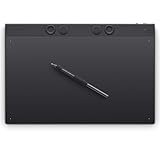
- WACOM’S BEST PEN TECHNOLOGY: Pro Pen 3 offers amazing precision, 8192 pressure levels, tilt support & lag-free tracking for smooth, precise strokes; choose slim, straight or flared grip, adjust balance & button layout for precision and comfort
- DIAL INTO PRODUCTIVITY: Speed up and stay in the creative flow with 10 customizable tablet ExpressKeys & 2 mechanical dials conveniently located at the top of the tablet and close to your keyboard for efficiency
- DESIGNED FOR MODERN MONITORS: With a versatile 16:9 format perfect for multiple monitors and wide displays; large size has a large active area with a small footprint 14.8 x 9.9” / 377 x 253 mm
- SLEEK AND STURDY: Measuring 4mm at its thinnest this professional-grade drawing tablet feels like pen-on-paper on your desk, combined with the robust durability of magnesium making it equally suited for your office or life on the go
- WIRELESS FREEDOM: Use Intuos Pro with USB or connect wirelessly via Bluetooth to multiple computers with a simple switch
Compatibility and special cases
Chromebook, Android and iPad
Compatibility varies by model, operating system and host device. Check Wacom’s current Intuos product page and the requirements for your exact computer before purchase. Intuos and Intuos Pro are generally host-dependent pen tablets, not independent drawing computers.
Left-handed users
Standard Intuos supports right- and left-handed use. For the 2025 Pro, check the orientation and control placement of the exact model before ordering, particularly if you want physical controls positioned for your preferred hand.
Screenless-tablet beginners
Looking at the monitor instead of the pen tip can feel unnatural at first. Begin with a stable monitor mapping and short practice exercises. A Small tablet can reduce the initial hand-travel challenge, but changing sizes repeatedly during the first week may slow adaptation.
If you specifically need to draw directly on the artwork, neither Intuos is the right category. Consider a Wacom Cintiq, Wacom Movink, Wacom One display or another pen display instead.
Alternatives to consider
Wacom One
Wacom One is another entry-level Wacom route. The US store listed the One Pen Tablet from $59.95, One Small at $99.95 and One Medium at $149.95 when checked. It may suit buyers who want a newer simple product but do not specifically need Intuos controls or the Pro ecosystem.
Xencelabs Pen Tablet Medium Bundle
The Xencelabs Medium Bundle is a credible alternative for buyers who want a large active area, two pens and a separate shortcut remote. Creative Bloq listed it at approximately $329.99, compared with $379.95 for the Wacom Intuos Pro Medium. It is less suitable if you specifically want integrated Wacom controls, Wacom’s pen ecosystem or broad legacy compatibility.
See the Xencelabs product page for the current package.
Huion and XP-Pen
Huion and XP-Pen often compete with lower prices, larger active areas and display-tablet options. They can be good value, but compare the exact model’s driver support, warranty, surface, included accessories and operating-system compatibility rather than choosing by brand alone. Visit Huion or XP-Pen for current ranges.
PC Slower Than It Used to Be?
A free scan shows the junk files, broken settings and background clutter dragging Windows down - then fixes them in one click.Free scan · Windows 10 & 11Crashes, No Sound, or Screen Glitches?
Random freezes, missing sound and display glitches usually trace back to one bad driver. Find and replace yours safely.Free scan · under a minuteFinal recommendation
- Cheapest useful option: Intuos Small Pen Only.
- Best beginner option: Intuos Small Bluetooth.
- Best value for most users: Intuos Medium Bluetooth, when available at a sensible price.
- Best professional choice: Intuos Pro Medium 2025.
- Best for large desks and broad-arm drawing: Intuos Pro Large 2025.
- Best portable Pro: Intuos Pro Small 2025.
- Best alternative: Xencelabs Medium Bundle for buyers who prefer a separate shortcut remote and larger bundled workspace.
Standard Intuos is the smarter purchase for most beginners, students, casual artists and photographers. Intuos Pro is the better tool—not necessarily the better value—when its pen response, controls and customization will be used often enough to justify the premium.
Quick Recap

Product prices and availability are accurate as of the date/time indicated and are subject to change. Any price and availability information displayed on Amazon at the time of purchase will apply.




