ThatPainter is reader-supported. When you buy through links on our site, we may earn an affiliate commission. Learn More
To capture a color anywhere on your Windows 11 screen, use Microsoft PowerToys Color Picker: enable it, press the default Win + Shift + C shortcut, and select the color. For a color in an image, Paint is a convenient alternative and supports HEX, RGB, and HSV codes.
1. Use PowerToys Color Picker for any screen color
PowerToys is a separate, free, open-source collection of Windows utilities, not a feature built into every Windows 11 installation. Its Color Picker can sample a visible screen color and copy it in a configurable format.
Set up Color Picker
- Install and open Microsoft PowerToys.
- In PowerToys Settings, select Color Picker.
- Turn on Enable Color Picker.
- Check the activation shortcut. The documented default is Win + Shift + C, but you can change it in settings.
Pick a color from the screen
- Display the color you want to inspect, such as a painted reference image, website, illustration, or application interface.
- Press the Color Picker activation shortcut.
- Move the pointer over the target. For a small area, scroll up to zoom in beneath the cursor before selecting it.
- Left-click to select the color. By default, this copies the color and opens the editor, where you can view HEX and RGB values.
- Paste the copied value into your design software, notes, or code editor.
The default clipboard format is HEX; you can change it in Color Picker settings. Clicking the scroll wheel copies the selection and exits the picker. Right-click closes it without copying. The editor also keeps a history of picked colors that you can copy or export.
Recommended Free Tools
#1 Best Overall
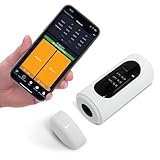
- Ultra-long battery life, 8,000 measurements on a full charge.
- 4mm measuring caliber, to meet a variety of samples to measure color values.
- Support a variety of color values, including RGB, LAB, XYZ, etc.
- Support connecting APP and computer software
- Compact size, easy to carry in your pocket
If the shortcut does not work
- PowerToys is not running: Open PowerToys and confirm that Color Picker is enabled.
- The shortcut was changed: Check the activation shortcut in Color Picker settings.
- The target is too small: Move the pointer close to it, activate the picker, then scroll up to zoom before selecting.
- The output is in the wrong notation: Change the clipboard format in Color Picker settings or inspect another supported format in the editor.
2. Use Paint for a color in an image
If the color is in an image you can open or paste into Paint, Paint provides an image-focused alternative. Microsoft documents that Paint’s color picker supports HEX, RGB, and HSV codes. PowerToys is more convenient when the color is anywhere on screen; Paint is useful when you are already working with an image there.
- Open Paint and open or paste the image containing the color.
- Use Paint’s color picker to select the relevant image color.
- Use Paint’s color-code support to work with the color in HEX, RGB, or HSV format.
Microsoft’s product information confirms the picker and supported formats, but does not specify detailed current-UI steps for reading a sampled value. Avoid relying on a particular button sequence, which may vary by version.
Rank #2

- Adopts a 45°/0° measurement configuration that better aligns with human visual color evaluation.
- Includes 26 evaluation light sources such as D65 and D50.
- Automatic calibration, one-click measurement, and results in 1 second.
- Direct result display for both standalone operation and mobile-connected measurement.
- Supported software: Android, iOS, WeChat Mini Program, Windows.
Compare the methods
| Method | Where the color comes from | Setup and workflow | Best for |
|---|---|---|---|
| PowerToys Color Picker | Any visible screen content | Install PowerToys, enable Color Picker, select a color, and copy its code | System-wide sampling and quick clipboard access |
| Paint | An image open or pasted in Paint | Use Paint’s color picker; supported code formats include HEX, RGB, and HSV | Working with an image in Paint |
| Snipping Tool color picker | Screen content | Availability is limited to Windows 11 AI+ PCs, also called Copilot+ PCs | Users with a supported PC who prefer Snipping Tool |
The Windows 11 Snipping Tool also has a color picker, but Microsoft’s current documentation limits this feature to Windows 11 AI+ PCs (Copilot+ PCs). Do not assume it is available on every Windows 11 computer.
HEX and RGB: what is the difference?
HEX and RGB are different notations for a color’s red, green, and blue components. Use whichever format your destination tool accepts.
Rank #3

- True-To-Life D/8 Reading: The D/8 measuring geometry captures color the way it really looks, helping this color tester show the true tone of a surface for more dependable results.
- Works With App And Software: Connect to the phone app or desktop software to save, share, and manage readings, so this color measurement device fits right into your daily workflow.
- Built-In Integrating Sphere: The 8mm measuring spot and light-splitting design let this color meter read shades in fine detail, so you get steady color measurement across many samples.
- Clear Shade Comparison: See color deviation and tone direction at a glance, so this color reader makes it simple to tell shades apart and check if two samples match up.
- Compact And Travel-Ready: Lightweight enough to pack and go, this handheld color sensor works anytime, anywhere and supports both English and Chinese menus for easy use on the move.
| Format | How it represents color |
|---|---|
| HEX | Two hexadecimal characters represent each red, green, and blue channel. |
| RGB | Three decimal values represent the red, green, and blue channels. |
HEX is common in HTML, CSS, and design software, while RGB is often used in application dialogs and programming interfaces. Neither notation is inherently more accurate; they represent color differently.
How accurate is a screen color picker?
A screen picker reads the displayed pixel, which may differ from the original color specification behind it. For a closer practical match, sample a flat, opaque area in the state you want to reproduce. If the exact source value matters, inspect the original design file or the application’s color settings instead of relying only on a screenshot.
Rank #4

- Professional Colorimeter and Spectrophotometer for Accurate Color Measurement
- Intellint Color Analysis with Pass/Fail Judgment and Color Bias Detection
- Advand Color Matching System with Custom Color Database Creation
- Handheld Design with Built-in Screen for Standalone Operation
- USB Connected Portable Color Tool for Designers and DIY Projects
- Transparency: A transparent layer blends with what is behind it.
- Anti-aliasing: Text and curved edges contain blended pixels. Sample a shape’s flat interior rather than its boundary.
- Gradients: A gradient has many colors; sample the specific point you need.
- Hover and focus states: Controls can change color when hovered or focused. Sample the intended state.
- Scaling: Image, browser, or display scaling can affect which displayed pixel is under the pointer. Zooming helps target a pixel but cannot recover an unseen source value.
- HDR and wide-gamut content: PowerToys documents limitations in these workflows, so its result is not guaranteed to represent the source color in every color-managed context.
Frequently Asked Questions
What is the quickest way to find a color code on Windows 11?
Enable Color Picker in Microsoft PowerToys, press its activation shortcut (default Win + Shift + C), and select the color. The default copied format is HEX; you can change it in settings and view HEX and RGB in the editor.
Can I get a color code from an image in Paint?
Yes. Paint includes a color picker and supports HEX, RGB, and HSV codes. It is a convenient option when the image is open or can be opened in Paint.
Best Value

- 【CAPTURE REAL-WORLD COLORS INSTANTLY】: Use the built-in RGB sensor to scan any object’s color and paint with it digitally in seconds.
- 【16 MILLION+ COLORS & DESIGN TOOLS】: Access endless shades, color-matching guides, and professional palettes via the intuitive Colorpik APPs.
- 【PRO-GRADE PRECISION】: Interchangeable fine fiber tips mimic natural brushstrokes for sketching, shading, and detailing.
- 【24-HOUR MARATHON BATTERY】: 300mAh polymer battery supports all-day creation, with 15-day standby for on-the-go inspiration.
- 【UNIVERSAL COMPATIBILITY】: Works seamlessly with iOS/Android tablets and phones, paired with ergonomic, travel-ready design.
Is the Snipping Tool color picker available on every Windows 11 PC?
No. Microsoft’s current documentation says the Snipping Tool color picker is available only on Windows 11 AI+ PCs, also called Copilot+ PCs.
Why does a sampled color not match the original design value?
The picker samples the displayed pixel. Transparency, anti-aliasing, gradients, hover states, scaling, HDR, or wide-gamut content can affect the result. Sample a flat, opaque area when possible, or check the original design file for its source value.
Can PowerPoint’s Eyedropper sample a screen color?
Yes. PowerPoint desktop has an Eyedropper that can sample screen colors and show RGB coordinates while you work on a slide. It is a specialized option for people already editing in PowerPoint, rather than a general system-wide workflow.
Quick Recap

Product prices and availability are accurate as of the date/time indicated and are subject to change. Any price and availability information displayed on Amazon at the time of purchase will apply.
What’s actually slowing this PC down?
Pick the symptom - the matching free tool is one click away.




