The Tool Desk
Quick wins for a faster PC:
Fix the driver behind crashes, sound loss and screen glitchesFind Drivers →Repair Windows errors before they cause bigger problemsFix Now →Scan for outdated or missing drivers - takes under a minuteDriver Scan →Outbyte Driver Updater FREEScan for outdated or missing drivers - takes under a minuteDriver Scan →Outbyte PC Repair FREERepair Windows errors before they cause bigger problemsFix Now →
ThatPainter is reader-supported. When you buy through links on our site, we may earn an affiliate commission. Learn More
You can run Stable Diffusion locally on a Windows PC without sending prompts or reference images to an online generator. For a new Windows setup, ComfyUI Portable is a straightforward option because it includes its own Python environment and packaged runtime; you do not need separate Python, Git, PyTorch, or CUDA Toolkit installations.
This guide covers choosing the right package, installing a model, generating a first image, and addressing common hardware problems. It also explains how painters can use generated images as references rather than treating them as finished paintings.
Check your hardware before downloading
Stable Diffusion can run on a CPU, but generation will be slow. Choose the ComfyUI Portable package that matches your hardware:
| Hardware | Package or option | Important detail |
|---|---|---|
| NVIDIA RTX 20-series or newer | Standard NVIDIA package | Currently based on CUDA 13.0 and Python 3.13. |
| NVIDIA 10-series or older | NVIDIA CUDA 12.6 package | Uses Python 3.12; the standard package is not intended for these cards. |
| AMD GPU | AMD/ROCm portable package | Experimental. |
| Intel Arc | Intel portable package | Use the Intel-specific build. |
| No suitable GPU | run_cpu.bat |
Works, but generation is slow. |
Download the archive from the official ComfyUI Portable documentation or the ComfyUI repository. Avoid random repackaged archives from video descriptions or file-sharing sites.
#1 Best Overall

- Real Boost Clock- 1882 Mhz Memory Detail- 12288 Mb Gddr6.
- Real-Time Ray Tracing In Games For Cutting-Edge, Hyper-Realistic Graphics.
- Dual Fans Cooling Offer Higher Performance Cooling And Much Quieter Acoustic Noise.
- Package weight - 2.1 Lbs
Install ComfyUI Portable on Windows
- Download the package for your hardware.
- If Windows blocks the archive, right-click it, choose Properties, select Unblock, and click Apply.
- Extract the archive with Windows Explorer or 7-Zip.
- Open the extracted folder and double-click the matching file:
run_nvidia_gpu.bat,run_amd_gpu.bat,run_intel_gpu.bat, orrun_cpu.bat. - Leave the command-prompt window open. Closing it stops ComfyUI.
- If the interface does not open automatically, visit
http://127.0.0.1:8188.
A successful launch prints a line similar to To see the GUI go to: http://127.0.0.1:8188. This address is local to your computer.
Download and install a model checkpoint
ComfyUI is the interface, not the image model. You need a checkpoint before the workflow can generate an image. For a first test, use the SD 1.5 checkpoint referenced by ComfyUI’s first-generation guide:
v1-5-pruned-emaonly-fp16.safetensors
Download it from the model link in that guide or from the Stable Diffusion 1.5 model page. Put the uncompressed file in:
Free tools Windows power users keep installed
One-click scans. No signup required.
ComfyUI_windows_portable\ComfyUI\models\checkpoints\
Do not put it in the outer portable folder or leave it inside a ZIP file. Check that Windows has not changed the filename to v1-5-pruned-emaonly-fp16.safetensors.txt.
- Return to ComfyUI and press R to refresh the model list, or restart the program.
- In the Load Checkpoint node, select
v1-5-pruned-emaonly-fp16.safetensors.
Generate your first image
Open the standard workflow
ComfyUI normally opens with a default text-to-image workflow. If it is not visible:
- Click Fit View in the bottom-right corner.
- Click the folder icon in the sidebar.
- Choose Browse example workflows.
- Select Image Generation.
The workflow includes nodes such as Load Checkpoint, text-encoding nodes, Empty Latent Image, KSampler, VAE Decode, and Save Image.
Add a useful prompt
In the positive text-encoding node, replace the sample text with a specific description, for example: A small red cabin beside a snowy lake, pine forest, soft morning light, detailed digital painting.
For a painterly reference, describe the decisions you want to explore: value structure, edge quality, palette, viewpoint, weather, brushwork, and relationships between large shapes. A prompt such as “low viewpoint, cool blue shadows, warm ochre light, broad simplified shapes, atmospheric distance” gives clearer direction than “a beautiful landscape.” Leave the negative prompt blank for the first test.
Rank #2

- Chipset: NVIDIA GeForce RTX 3060
- Video Memory: 12GB GDDR6
- Memory Interface: 192-bit
- Output: DisplayPort x 3 (v1.4a) / HDMI 2.1 x 1.Avoid using unofficial software
- Digital maximum resolution: 7680 x 4320
Start with a modest canvas
In Empty Latent Image, start with these settings:
| Setting | Starting value |
|---|---|
| Width | 512 |
| Height | 512 |
| Batch Size | 1 |
Larger dimensions, multiple images, high-resolution workflows, ControlNet, LoRAs, upscalers, and multiple loaded models increase memory requirements.
Queue the generation
- Click Run or press
Ctrl + Enter. - When processing finishes, view the result in Save Image.
- Right-click the result to save it locally.
The portable installation normally saves images in ComfyUI_windows_portable\ComfyUI\output\. Images normally contain workflow metadata, so you can often restore the graph by dragging a generated PNG onto the ComfyUI canvas or using Workflows → Open.
Recommended Free Tools
Make the setup useful for painting
A generated image can be a quick visual problem-solving tool. Try making variations while changing one decision at a time:
- Keep the subject but change overcast light to low, warm side light.
- Keep the composition but request a limited palette.
- Change the viewpoint from eye level to a high or low angle.
- Ask for broad masses and simplified detail when studying a reference.
- Test thumbnail compositions before committing to a canvas.
Check anatomy, perspective, lettering, hands, and reflected light rather than assuming the model has handled them correctly. Treat the output as an imperfect visual suggestion. Check the license for each checkpoint, LoRA, and reference image before commercial use; terms are not interchangeable. For example, Stability AI’s license sets different terms for different users and models.
Reduce VRAM use
If generation fails with an out-of-memory message, try these changes in order:
- Set Batch Size to
1. - Reduce the dimensions to
512 × 512. - Close other GPU-intensive programs.
- Launch ComfyUI with
--lowvram. - If needed, try
--novram. - Use a smaller or lower-precision model, and avoid loading unnecessary LoRAs, ControlNets, and upscalers.
To enable low-VRAM mode, edit run_nvidia_gpu.bat and use:
.\python_embeded\python.exe -s ComfyUI\main.py --lowvram --windows-standalone-build
pause
These options can reduce VRAM use at the cost of speed. Increasing the Windows page file does not add physical VRAM and may make generation exceptionally slow.
Run on the CPU
If you have no usable GPU, use run_cpu.bat or edit the batch-file command to use:
Rank #3

- NVIDIA Ampere Streaming Multiprocessors
- 2nd Generation RT Cores
- 3rd Generation Tensor Cores
- Powered by GeForce RTX 3060
- Integrated with 12GB GDDR6 192-bit memory interface
.\python_embeded\python.exe -s ComfyUI\main.py --cpu --windows-standalone-build
pause
Do these 3 things before closing this tab:
1Repair Windows errors before they cause bigger problems2Fix the driver behind crashes, sound loss and screen glitches3Clear out junk files and repair common Windows errorsCPU generation is possible but slow. Keep the resolution and batch size low while testing.
Fix the most common problems
| Problem | Likely cause | What to do |
|---|---|---|
Model dropdown is empty or shows null |
Wrong folder, compressed file, wrong extension, or stale model list | Use ComfyUI_windows_portable\ComfyUI\models\checkpoints\, verify the extension, press R, or restart. |
| “Torch not compiled with CUDA enabled” | Wrong package or a PyTorch installation without CUDA support | Use the correct portable archive for your GPU; avoid manually replacing its packages unless doing a manual installation. |
| Older NVIDIA card will not start | Incompatible modern CUDA package | Use the CUDA 12.6/Python 3.12 package for 10-series and older cards; update the GPU driver if required. |
| “CUDA out of memory” | Too much image area, batch size, or loaded model data | Use 512 × 512 and batch size 1, close other GPU programs, then try --lowvram. |
| Black output | Half-precision VAE issue on some hardware or model combinations | Try --fp32-vae or --cpu-vae. |
| Interface looks broken or runs poorly | Browser compatibility problem | ComfyUI’s system requirements recommend Google Chrome 143 or later and report issues with Chrome 142 and earlier. |
For black images, an example batch-file command is:
.\python_embeded\python.exe -s ComfyUI\main.py --fp32-vae --windows-standalone-build
pause
Share models with another Stable Diffusion installation
You can avoid duplicating checkpoint files if you already use AUTOMATIC1111. In the ComfyUI root directory, copy extra_model_paths.yaml.example, rename the copy to extra_model_paths.yaml, and keep it in the ComfyUI root. For an AUTOMATIC1111 installation on drive D, an example configuration is:
What’s actually slowing this PC down?
Pick the symptom - the matching free tool is one click away.
a111:
    base_path: D:\stable-diffusion-webui\
    checkpoints: models/Stable-diffusion
    configs: models/Stable-diffusion
    vae: models/VAE
    loras: |
         models/Lora
         models/LyCORIS
    embeddings: embeddings
    controlnet: models/ControlNet
Restart ComfyUI after saving. Checkpoint, LoRA, VAE, and ControlNet files belong in paths expected by their corresponding loader nodes; they are not interchangeable. See ComfyUI’s portable documentation for model-path details.
Independent reader supportYour contribution helps us test, update, and keep practical guides available for everyone.Updating ComfyUI
Back up workflows and custom nodes you rely on before updating. The portable folder’s update directory contains:
update_comfyui.batfor the latest commit version.update_comfyui_stable.batfor the latest stable version.update_comfyui_and_python_dependencies.batfor runtime-environment problems, not routine updates.
Use the stable updater when you want fewer surprises. Custom nodes can introduce dependency or compatibility problems after an update.
The Tool Desk
Outbyte PC Repair FREERepair Windows errors before they cause bigger problemsFix Now →Outbyte Driver Updater FREEFix the driver behind crashes, sound loss and screen glitchesFind Drivers →Rank #4
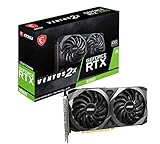
- Strong performance thanks to NVIDIA Ampere with NVIDIA GeForce RTX 3060, 12GB GDDR6, ray tracing and DLSS support
- Display outputs: DisplayPort v1.4a x 3 / HDMI 2.1 x 1
- DUAL FAN COOLING Two fans, combined with a huge heatsink, make the VENTUS series quiet and powerful
- Award winning MSI TORX Fan 3.0 design for high static pressure and effective cooling
- MSI Dragon Center: With just a few clicks, performance can be monitored and optimized in real time
When a manual installation makes sense
Consider a manual installation if you need Linux or macOS, want to manage your own Python environment, or need direct control over PyTorch and dependencies. The ComfyUI repository supports Python 3.13; Python 3.12 is a fallback if custom-node dependencies cause trouble. Python 3.14 may work, but some custom nodes may not be compatible.
Typical commands are:
pip install -r requirements.txt
python main.py
For a manual NVIDIA setup, ComfyUI currently documents:
pip install torch torchvision torchaudio --extra-index-url https://download.pytorch.org/whl/cu130
On Windows, the portable package is usually the simpler first installation because it avoids managing separate Python, PyTorch, and runtime versions.
What about AUTOMATIC1111?
AUTOMATIC1111 remains usable and may suit people who already know its interface or rely on its extensions. Its Windows setup differs from ComfyUI Portable:
- Install Python 3.10.6 and enable Add Python to PATH.
- Install Git.
- Clone the repository with
git clone https://github.com/AUTOMATIC1111/stable-diffusion-webui.git. - Run
webui-user.bat.
Do not substitute Python 3.13 simply because it is newer: the project’s installation instructions specify Python 3.10.6. For limited VRAM, set set COMMANDLINE_ARGS=--medvram or, more aggressively, set COMMANDLINE_ARGS=--lowvram in webui-user.bat.
FAQ
Can I run Stable Diffusion without a graphics card?
Yes. Launch ComfyUI with run_cpu.bat or the --cpu argument. Expect substantially slower generation and start with 512 × 512 images and batch size 1.
Why does my Stable Diffusion model not appear in ComfyUI?
Put the uncompressed checkpoint in ComfyUI_windows_portable\ComfyUI\models\checkpoints\, confirm the filename ends in .safetensors, then press R or restart ComfyUI. Make sure the workflow uses a compatible model-loader node.
How much VRAM does Stable Diffusion need?
It depends on the model and workflow. A basic SD 1.5 test at 512 × 512 with batch size 1 is a sensible low-memory starting point. Larger images, batches, LoRAs, ControlNets, and upscalers require more memory; --lowvram can reduce GPU memory use at the cost of speed.
Is ComfyUI better than AUTOMATIC1111 for a first installation?
For many new Windows users, ComfyUI Portable is simpler because it includes an embedded Python environment and packaged runtime. AUTOMATIC1111 remains a valid choice, particularly for existing users, but its Windows instructions require Python 3.10.6 and Git.
The Bottom Line
For a straightforward Windows start, download the ComfyUI Portable package for your GPU, put v1-5-pruned-emaonly-fp16.safetensors in ComfyUI_windows_portable\ComfyUI\models\checkpoints\, load the Image Generation workflow, and begin at 512 × 512 with batch size 1. Once it works, change one variable at a time so the tool supports deliberate painting studies rather than producing random images.
Quick Recap

Product prices and availability are accurate as of the date/time indicated and are subject to change. Any price and availability information displayed on Amazon at the time of purchase will apply.




