Recommended Free Tools
PC Slower Than It Used to Be?
Free scan · Windows 10 & 11
Crashes, No Sound, or Screen Glitches?
What’s actually slowing this PC down?
Pick the symptom - the matching free tool is one click away.
Free scan · under a minute
Windows Errors? Fix Them Before They Spread
Free scan · no reinstall
ThatPainter is reader-supported. When you buy through links on our site, we may earn an affiliate commission. Learn More
Bing Image Creator turns a written description into a set of AI-generated images. To use it, open Microsoft’s current Image Creator or Designer experience, sign in with a Microsoft account, describe the image, and select Generate. You can then choose a result to download, share, or edit. The interface and available features vary by account, region, device, and Microsoft product, so older tutorials may show different names or controls.
This guide covers the web workflow, prompt-writing and iteration tips, editing options, mobile access, common problems, and the licensing and privacy cautions worth knowing before you use a result.
What is Bing Image Creator?
Bing Image Creator is Microsoft’s text-to-image generator: you describe a scene in words and it creates image options. It is not Bing image search, which finds existing images on the web. Microsoft’s current terms use the name Bing Image Creator; Microsoft support pages and product surfaces may also say Image Creator from Designer or refer to Designer. The service appears across Microsoft’s consumer AI and design products, and its labels and controls can differ between them. Read Microsoft’s current Image Creator terms.
#1 Best Overall

- Multifunctional Drawing Tablet – Ctab 12 is a 12-inch Android 15 tablet, powered by a T616 octa-core processor with 16GB RAM and 256GB ROM (expandable up to 2TB) for smooth multitasking. Ideal for online teaching, Zoom meetings, and digital art creation, it’s perfect for beginners and professionals in drawing, sketching, design, 3D work, and animation.
- Ultra-Sensitive Stylus for Seamless Creativity – This tablet with Stylus comes equipped with a rechargeable pen offering 4096 pressure levels and tilt support, ensuring precise, natural strokes for professional-grade results. The pen attaches magnetically to prevent loss and includes a drawing glove for a comfortable, smudge-free experience—perfect for artists and designers.
- Experience Every Detail in Stunning Clarity – The 12-inch IPS display delivers crisp, vibrant 2K visuals, bringing every brushstroke, movie, or game to life. Wide viewing angles and anti-glare technology ensure accurate colors and comfortable, precise artwork from any position.
- Large Screen with Protective Case – Enjoy a spacious canvas for drawing, sketching, or working on this Android tablet. The included protective case features three folding modes, offering multiple viewing angles while protecting your tablet from scratches and bumps—ideal for creating, typing, or watching videos anywhere.
- 8000mAh Long-Lasting Battery – Android tablet features a powerful 8,000mAh battery, providing up to 6 hours of video playback or creative work. The reinforced Type-C port allows easy charging from any orientation, giving you more uninterrupted time for drawing, streaming, or productivity.
Do not assume that every surface uses the same underlying model or exposes identical controls. Older help material may identify a model such as DALL·E, but model branding and availability can change. Generated results are not guaranteed to be unique or to match a particular existing image exactly.
What you need
- A Microsoft account: The consumer experience generally requires you to sign in. A personal account is the safest assumption for the web generator.
- An internet connection: Image generation is a cloud service.
- A supported region, language, account, and device: Availability and features can vary. Age and safety restrictions may also apply.
Microsoft describes Designer as free to use, but says a subscription may be needed for more frequent creation. There is no single public quota or number of boosts that applies universally, so check what your signed-in interface shows rather than relying on an old tutorial. Microsoft Designer FAQ.
How to create your first image
- Open Microsoft Designer or Microsoft’s current Bing/Copilot Image Creator experience.
- Sign in with your Microsoft account if prompted. If the page is unavailable, see troubleshooting below.
- Enter a description in the prompt field. Include what the image should show and how it should look.
- Select Generate or the equivalent creation button. Some Designer experiences offer Enhance prompt to expand a short description; review any added details before you proceed.
- Wait for the generated options, then select the closest match.
- Use the controls on that surface to download, copy, or share the image, or open it in Designer for further editing.
- If none of the options is suitable, revise the prompt and generate again.
Page layout, prompt history, button labels, and speed indicators can change. The exact sequence may also differ if you enter through Copilot, Photos, SwiftKey, or another Microsoft app. For Designer’s getting-started information, see Microsoft’s Designer guide.
How to write a better prompt
A clear prompt gives the generator useful visual direction. A practical formula is:
Subject + action + setting + composition + visual style + lighting + color palette + optional rendering details + intended use
This is a guide, not required syntax. You do not need magic keywords; describe the result as you would to an illustrator.
- Subject: Say exactly what should appear: “a black-and-white border collie,” “a glass greenhouse,” or “three ceramic bowls.”
- Action or pose: Specify what it is doing: “running through shallow water” or “standing on a rocky overlook.”
- Setting: Place it somewhere: “inside a quiet library,” “on a misty mountain trail,” or “against a plain cream background.”
- Composition: Describe the framing, such as close-up, wide shot, overhead view, centered, symmetrical, or subject in the lower third. You can request negative space on one side for later text.
- Style: Try broad descriptions such as editorial photograph, watercolor illustration, cinematic concept art, flat vector poster, ink sketch, or realistic product photography.
- Lighting and color: Add directions like soft morning light, dramatic side lighting, pastel blue and cream, or high-contrast black and gold.
- Use context: Mention a portrait or landscape composition, phone wallpaper, square social post, or widescreen background when that helps frame the result.
Microsoft likewise recommends adding descriptive details, including adjectives, locations, and artistic styles, rather than relying on a vague one-word prompt. Microsoft’s Image Creator instructions.
Prompt examples
Too vague: “A dog in a park.”
More useful: “A golden retriever running toward the camera through a sunny spring park, shallow depth of field, natural lifestyle photography, soft green background, joyful expression, landscape composition.”
Rank #2

- 【All-in-One Standalone Drawing Tablet】No computer needed. Ready right out of the box. 12" screen, 4096 stylus, 16GB RAM, 256GB storage, Android 15. Runs all your favorite drawing apps smoothly. Perfect for beginners, students, and hobbyists. Create anywhere – from home to coffee shop.
- 【Natural Drawing Feel】4096 pressure levels capture every stroke from delicate lines to bold marks. 60° tilt support lets you shade naturally, just like a real pencil. USI 2.0 ensures compatibility across devices. Magnetic attachment keeps the stylus secure on your portable drawing tablet – no fumbling, no losing.
- 【True Color Canvas】12-inch IPS display with 2000x1200 resolution brings every detail to life. 100% sRGB color gamut ensures vibrant, accurate hues from first sketch to final render. Full-lamination eliminates parallax – your pen tip meets the cursor exactly where you expect. More room to create on this drawing tablet with screen – zero distraction.
- 【Anti-Glare & Eye Comfort】Pre-applied anti-glare screen protector cuts harsh reflections and fingerprints, so you can draw under any light – studio, cafe, or sunlight. Reduced glare means less eye strain, even during marathon sessions. This drawing tablet no computer needed keeps your focus on art, not on squinting.
- 【Open. Smooth. Limitless.】Powered by Android 15 and 16GB RAM (8+8 virtual) – layers pile up, apps multiply, yet zero lag. 256GB storage onboard, expandable to 2TB – room for thousands of artworks, tutorials, and everything you love. Download any creative app from Google Play: ibis Paint, CSP, Krita, you name it. A true art tablet for drawing that adapts to you.
Product image: “A matte-black insulated travel mug on a pale stone pedestal, minimalist studio product photography, soft diffused lighting, clean beige background, centered composition, no people, square crop.”
Poster background: “Abstract blue and violet flowing ribbons on a dark navy background, energetic technology event backdrop, strong negative space in the center for headline text, high contrast, widescreen composition, no lettering.”
“No text” or “no lettering” can reduce unwanted lettering, but it cannot guarantee that the result will be free of stray marks or pseudo-text.
How to improve an image that misses the mark
Change one thing at a time instead of replacing the entire prompt after every unsatisfactory result. That makes it easier to see which direction helps.
- Fix the subject: Make the key object or number of people explicit.
- Fix the composition: Request a centered view, close-up, wider framing, or empty space in a particular area.
- Fix the style: Say whether you want a photograph, illustration, sketch, or another broad treatment.
- Fix unwanted details: Name the object, color, or background element you want changed or removed.
- Generate several options: Choose the closest result rather than expecting every variation to be right.
- Finish in an editor: Crop, adjust, or make local changes in Designer when available.
Try focused revisions such as “Keep the same subject and lighting, but use a centered front-facing composition,” “Make the background simpler and leave empty space on the right,” or “Change the clothing to a navy raincoat; keep everything else unchanged.” Results may still vary; a prompt is direction, not a guarantee of exact control.
If Enhance prompt is available, it can help elaborate a basic idea. Read the expanded wording before generating: it may introduce details you did not intend. See Designer’s prompt guidance.
Do not rely on generated lettering for important text
AI-generated text can be misspelled, incomplete, distorted, or rendered in the wrong language. This matters especially for posters, invitations, labels, thumbnails, and social graphics. Microsoft documents this limitation in its Designer FAQ.
Free tools Windows power users keep installed
One-click scans. No signup required.
For a design that needs accurate wording, generate the visual without critical text, open it in Designer, and add the final wording as a normal text layer. Proofread names, dates, URLs, prices, and any legal, medical, or product information before downloading. Generated lettering should not be treated as verified copy.
Rank #3

- Word-first 16K Pressure Levels: The upgraded stylus features 16,384 levels of pressure sensitivity and supports up to 60 degrees of tilt, delivering smoother lines and shading for a natural drawing experience. With no battery or charging needed, it operates like a real pen, making it easy for beginners to create effortlessly. This functionality helps novice artists develop their skills and explore their creativity without the intimidation of complex tools
- Designed for Beginners: This drawing pad desinged with 8 customizable shortcuts for both right and left-hand users, express keys create a highly ergonomic and convenient work platform
- Perfectly Adapted for Android: The XPPen Deco 01 V3 art tablet supports connections with Android devices running version 10.0 and above. It is recommended to download the XPPen Tools Android application, which adapts to your smartphone's screen aspect ratio, ensuring accurate mapping. It also supports mapping on Android screens with different aspect ratios in portrait mode
- Large Drawing Space, Bigger Bold Inspiration: This expansive drawing pad has10 x 6.25-inch helps you break through the limit between shortcut keys and drawing area
- Easy Connectivity for Beginners: The Deco 01 V3 offers USB-C to USB-C connectivity, plus adapters for USB C. This ensures easy connection to various devices, allowing beginner artists to set up quickly and focus on their creativity without compatibility concerns. Whether using a laptop, tablet, or desktop, the Deco 01 V3 provides a seamless experience, making it an ideal choice for those just starting their digital art journey
Download, share, or edit a result
Controls depend on the product surface, but Microsoft documents options in Designer to download or copy a result, share it, and continue editing. Some workflows may also offer a QR code to send an image to a phone or areas such as My creations or My collages for past work. Do not assume every option appears on every account.
Designer is the more suitable next step when you need to turn a generated visual into a finished graphic. Depending on availability, its tools can include crop and rotate, filters and adjustments, background removal or blur, generative erase, object selection, text layers, frames, collages, templates, and upscaling. Feature access varies by region, account, age, and product surface; Microsoft notes that age requirements for upscaling vary by region. See Microsoft’s image-editing guide.
Use Image Creator on a phone
SwiftKey
Microsoft documents Image Creator in the SwiftKey keyboard on Android and iOS. Open the keyboard’s emoji or content panel, tap Create or the image icon, enter a description, generate images, then select and share one. Labels and availability may vary with the app version and account. SwiftKey instructions.
Do these 3 things before closing this tab:
1Fix the driver behind crashes, sound loss and screen glitches2Repair Windows errors before they cause bigger problems3Scan for outdated or missing drivers - takes under a minuteThis route is convenient for a quick image to share from the keyboard. For detailed layout, precise typography, or further image editing, use Designer where available.
Microsoft Photos and Microsoft 365 Copilot
On supported Windows setups, Photos may include Image Creator in its navigation panel. Its cloud AI features require internet access and a signed-in Microsoft account; options and availability vary. Microsoft Photos responsible AI FAQ.
Microsoft 365 Copilot also supports image generation or editing in certain contexts. Access depends on the app, subscription, and whether you are using web or desktop features; particular Word and PowerPoint workflows may require Copilot Pro and an eligible Microsoft 365 subscription. Check the requirements for the exact app and task before relying on it. See Microsoft’s guidance on editing images in Copilot chat.
Why Bing Image Creator may not work
The page or button is missing
You may be signed out, using a product with a different feature set, or affected by region, language, device, age, or account restrictions. Microsoft may also move the experience between Bing, Copilot, and Designer. Try these steps:
Quick wins for a faster PC:
Scan for outdated or missing drivers - takes under a minuteDriver Scan →Clear out junk files and repair common Windows errorsFree Scan →Fix the driver behind crashes, sound loss and screen glitchesFind Drivers →- Sign in to your Microsoft account.
- Try the standalone Designer or Bing/Copilot route.
- Try a current browser or a private browsing window.
- Temporarily disable browser extensions that may interfere, or check whether a network policy blocks the service.
- Consult the Microsoft support page for the product surface you are using.
- If you only need quick mobile creation, try the SwiftKey route if it is available to you.
Generation is slow
Generation speed can vary with service demand, account state, plan, region, and the current service. There is no reliable wait time to promise across users. If the request seems stalled, check your connection and try again later rather than repeatedly submitting the same prompt.
Rank #4
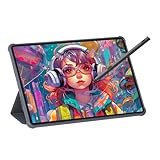
- Stunning Display: Enjoy vibrant colors and crisp details on the 11 inch Nano anti-glare display with a 1920 x 1200 resolution and 90Hz refresh rate
- Rechargeable Pen: The computer graphic tablet is equipped with a rechargeable pen with 4096-level pressure sensitivity and tilt function, making strokes smooth and sensitive
- Soft Light Glass: Nano-etching screen reduces glare/graininess, offers a paper-like texture. Full-laminated design enhances touch precision/image clarity. Soft viewing experience reduces eye strain for natural drawing and extended use. Anti-fingerprint coating ensures cleanliness
- Powerful Performance: Experience seamless multitasking and smooth gaming, 6GB of RAM, and 128GB of storage (expandable up to 1TB)
- All-Day Battery Life: Stay connected and entertained with the long-lasting 8000mAh battery that supports uninterrupted usage throughout the day
Your prompt is rejected
Microsoft applies safety controls, and prompts or image inputs may be monitored for abuse. If a request is blocked, remove graphic or exploitative wording and rephrase the desired scene neutrally. Requests involving sexual content, non-consensual imagery, abuse, or wrongdoing may be disallowed. Do not keep trying to work around a safety block. Microsoft describes its safety approach in its Image Creator guidance and Designer editing guidance.
The result has distorted objects or anatomy
Simplify a crowded scene, reduce the number of people or objects, describe the pose more explicitly, and generate alternatives. Crop or edit the closest result, and do not rely on an unverified detail where accuracy matters.
Independent reader supportYour contribution helps us test, update, and keep practical guides available for everyone.Privacy, people, brands, and rights
Think before uploading a reference image or photo. Be especially careful with children’s photos, identity documents, private family images, client material, confidential product concepts, and pictures of people who have not agreed to the use. Microsoft says prompts and image inputs may be processed to operate, support, secure, and improve its services, and may be subject to abuse monitoring. Review the Microsoft Privacy Statement and the terms for the product you use; do not assume uploads are private by default.
Crashes, No Sound, or Screen Glitches?
Random freezes, missing sound and display glitches usually trace back to one bad driver. Find and replace yours safely.Free scan · under a minuteWindows Errors? Fix Them Before They Spread
Repair common Windows errors and clear accumulated junk for a smoother, more stable PC - no reinstall needed.Free scan · no reinstallUse caution with recognizable people, celebrities, logos, and living artists. A name in a prompt does not guarantee an accurate likeness or logo, and it does not establish permission to publish the result. Microsoft says people, organizations, and living artists can request limits on image-generation requests associated with their names or brands in certain contexts. Legal questions involving publicity, trademarks, copyright, or defamation depend on the particular use and jurisdiction; seek appropriate advice for consequential commercial work.
Microsoft says AI-generated or AI-edited images in Designer receive content credentials identifying their source, based on the C2PA standard. That provenance can be lost when an image is screenshotted, re-exported, compressed, or processed by another service, so metadata is not a complete authenticity guarantee. Designer FAQ on content credentials.
Can you use Bing Image Creator images commercially?
Read the current terms for the exact Microsoft product surface you used before putting an image into advertising, merchandise, publishing, paid client work, or another business use. Microsoft’s Bing Image Creator terms say creations may be used for legal purposes subject to the agreement, the Microsoft Services Agreement, the Code of Conduct, and other restrictions. They also say Microsoft does not claim ownership of prompts or creations, while disclaiming warranties that creations will not infringe third-party rights. Separately, Microsoft’s Designer support FAQ describes Designer as licensed for personal, non-commercial use with a Microsoft account. These documents do not use identical wording, so do not treat them as interchangeable.
Neither statement is a promise of exclusive copyright, originality, or freedom from infringement claims. For a business-critical image, check the applicable terms and assess the image’s rights risks; consider professional advice or a tool and workflow whose commercial terms fit your needs. See the Bing Image Creator terms and Designer FAQ.
When Image Creator is—and is not—a good fit
It can be a convenient choice for brainstorming, mood boards, personal projects, casual social posts, and quick visuals when you already use Microsoft products. It is less suitable when you need perfectly spelled text, precise control of a face or product, a consistent character across many images, reproducible technical settings, transparent or layered files, vector artwork, print-production assets, local offline generation, or guaranteed commercial clearance.
Best Value

- All-in-One Drawing Tablet: This standalone tablet requires no computer connection—start drawing right out of the box. Perfect for artists on the go, its sleek aluminum back provides a comfortable feel and makes the writing tablet an ideal choice for note-taking and capturing ideas.
- 10.95-inch Full HD Graphic Tablet: The combination of a 10.95-inch screen and FHD+ (1920*1200) resolution ensures a high pixel density of 207 PPI, delivering a sharp visual experience. With a 99% sRGB color gamut, every stroke of your artwork is precisely represented.
- Smooth 90Hz Refresh Rate: The digital drawing tablet features a 90Hz refresh rate, ensuring smooth visuals with no lag. This makes images more vivid, allowing you to immerse yourself in a seamless creation experience. The digital drawing pad also enhances your viewing experience, whether you're watching films or playing games.
- Full-Laminated Anti-Glare Screen: The digital art pad features a nano-etched, anti-fingerprint matte surface that significantly reduces glare and provides a natural paper-like texture for a comfortable drawing feel. The full-lamination technology minimizes parallax, enhancing stroke precision and clarity, while also helping to reduce eye strain during prolonged use.
- High-Precision H-Pencil: The drawing pen features Huion's years of experience in line-drawing algorithms, offering better accuracy and preventing line offset while drawing. With 4096 levels of pressure sensitivity and 60° tilt recognition, it brings you a writing experience that feels just like using a real pencil.
If your next step is a finished layout, Designer can add text and design elements. If your work depends on a specific licensing model, consistent brand system, high-volume production, or exact output format, compare tools by their current terms, editing features, consistency, output options, privacy practices, and price—not by image quality alone.
Frequently Asked Questions
Is Bing Image Creator free?
Microsoft describes Designer as free to use, but says a subscription may be needed for more frequent creation. Limits and access can vary; check the current interface and terms for your account.
Do I need a Microsoft account?
A Microsoft account is generally required for the consumer web experience and cloud features such as Image Creator in Photos. Availability may vary by product surface.
The Tool Desk
Outbyte PC Repair FREEClear out junk files and repair common Windows errorsFree Scan →Outbyte Driver Updater FREEFix the driver behind crashes, sound loss and screen glitchesFind Drivers →Is Bing Image Creator the same as Microsoft Designer?
They are related but not identical names or experiences. Bing Image Creator is the image-generation service; Designer also provides a canvas and editing tools. Microsoft’s current product labels and terms vary by surface.
Can Bing Image Creator create text accurately?
Not reliably. It may misspell or distort lettering or use the wrong language. Generate the visual first, then add important text as an editable layer in Designer and proofread it.
Can I edit an image after generating it?
Yes, where the relevant controls are available. You can open a result in Designer for tasks such as cropping, adjustments, text, background edits, and other supported tools.
Can I use generated images commercially?
Do not assume a universal yes. Bing Image Creator and Designer terms use different wording. Read the current terms for the product surface you used, and remember Microsoft does not warrant that an image is free of third-party rights claims.
Do these 3 things before closing this tab:
1Repair Windows errors before they cause bigger problems2Scan for outdated or missing drivers - takes under a minute3Clear out junk files and repair common Windows errorsWhy was my prompt blocked?
Microsoft applies safety controls, and prompts may be monitored. Rephrase a permissible request neutrally; do not repeatedly try to bypass a safety block.
Does Image Creator work on a phone?
Microsoft documents an Image Creator route in SwiftKey on Android and iOS. Availability and labels can vary; Designer and other Microsoft apps may offer different workflows.
Can it make transparent PNGs, logos, or print-ready files?
Do not rely on it for precise logos, transparent layered artwork, or print-production files. Generation and editing options vary, and a brand-like result does not grant permission to use a mark.
How do I delete generated images or history?
History and creation-management controls depend on the Microsoft product surface. Check that surface’s current settings or creation area, and consult Microsoft’s privacy information for relevant account and data controls.
Quick Recap

Product prices and availability are accurate as of the date/time indicated and are subject to change. Any price and availability information displayed on Amazon at the time of purchase will apply.




