Free tools Windows power users keep installed
One-click scans. No signup required.
ThatPainter is reader-supported. When you buy through links on our site, we may earn an affiliate commission. Learn More
You can create and edit images in Gemini by opening Images, describing what you want, then refining the result in the same conversation. Google’s current documentation, reviewed August 18, 2026, uses the names Nano Banana 2, Nano Banana 2 Lite and Nano Banana Pro; the controls available to you can vary by account, country and rollout.
What is Nano Banana in Gemini?
“Nano Banana” is Google’s public-facing name for image-generation and image-editing capabilities inside Gemini Apps, not a separate consumer app. Google’s current documentation describes three options: Nano Banana 2 Lite for speed-oriented drafts, Nano Banana 2 for general generation and editing, and Nano Banana Pro for higher-detail regeneration. Names and controls can change, so use the model selector and Google’s current Gemini image help page if an older tutorial shows a different interface.
| Model | Useful for | Qualification |
|---|---|---|
| Nano Banana 2 Lite | Fast drafts and simple ideas | Speed-oriented; not designed for multiple image references or multiple edits. |
| Nano Banana 2 | Everyday generation, editing, text rendering and reference images | Balances speed and quality; access and usage limits vary. |
| Nano Banana Pro | Higher-detail regeneration, text-heavy images and infographics | Google documents it as a “Redo with Pro” option for eligible Google AI plan subscribers, not as a separate editor. |
Google describes Nano Banana 2 as supporting multiple references and character consistency, but consistency is not exact identity preservation: faces, poses, clothes and small details may drift.
The Tool Desk
Outbyte PC Repair FREEClear out junk files and repair common Windows errorsFree Scan →Outbyte Driver Updater FREEScan for outdated or missing drivers - takes under a minuteDriver Scan →#1 Best Overall

- 【Android 16 Tablet with Gemini AI 3.5】The 11 inch TABWEE T90 brings a cleaner, smarter tablet experience for work, study and home use. Android 16 adds a simpler lock screen, customizable Quick Settings, improved video calls with background blur and portrait light, easier cloud photo selection and enhanced Linux terminal support. With Gemini AI 3.5, you can search, translate, summarize notes, organize ideas and plan tasks more efficiently—ideal for online classes, reading, video calls and light office work
- 【11 Inch FHD IPS Display for Streaming, Reading and Learning】Enjoy a bigger and clearer viewing experience on the 11 inch FHD display with 1920 x 1200 resolution and an 84.9% screen-to-body ratio. The fully laminated TDDI screen delivers more natural colors, smoother touch response, and a more immersive feel when watching movies, reading documents, viewing recipes, or studying online. With Widevine L1 support, dual smart speakers, and 380-nit brightness, this Android tablet is ideal for Netflix-style streaming, YouTube, music, eBooks, online lessons, and comfortable indoor entertainment
- 【24GB RAM + 128GB ROM, More Space for Daily Needs】Android 16 tablet comes with up to 24GB RAM, including 8GB built-in RAM and 16GB virtual memory expansion, helping daily apps run smoothly for browsing, video watching, note-taking, email, and study apps. The 128GB ROM provides plenty of room for photos, documents, music, videos, learning materials, and work files. Need more storage? The TF card slot supports up to 2TB expansion, so you can keep more movies, books, files, and family memories without constantly deleting content. Memory expansion path: Settings > System > Memory Expansion
- 【T615 Octa-Core + 8000mAh Battery for Long Days】Powered by the Unisoc T615 octa-core processor, T90 delivers reliable everyday speed for streaming, video calls, online lessons, reading, emails and document editing. The 8000mAh battery supports up to 11H video playback, 8H daily entertainment or 40H music, while smart power management helps reduce background drain, making it ready for flights, commutes, study sessions and busy workdays
- 【13MP Camera with Google Lens】The 13MP rear camera works with Google Lens to make daily tasks easier. Scan documents, translate text, identify objects, search products, capture handwritten notes, or save useful information in seconds. The 5MP front camera is suitable for video calls and clear face-to-face communication. With dual-band 5G WiFi, Bluetooth 5.0, and support for GPS, GLONASS, Galileo, and Beidou, this Android tablet offers fast downloads, stable wireless connections, easy accessory pairing, and reliable location support for travel, maps, and mobile use
What you need before you start
- A Google Account and access to Gemini Apps in a supported country and language.
- A compatible Gemini web or mobile experience. Work and school accounts may be subject to different policies or administrator settings.
- Google’s current help documentation generally requires users to be at least 18 to generate and edit images in the relevant Gemini experience. School-account restrictions may also apply.
- A Google AI plan is not required for basic image generation, but model access, usage limits, download resolution and advanced features vary by plan, account and region.
Check Google’s Gemini usage-limits page for the current tier information. Avoid relying on a fixed daily quota: Google’s limits can change and may be enforced differently across accounts.
Generate an image in Gemini
On desktop
- Go to gemini.google.com and sign in.
- Open the sidebar and select Images. Google documents this as the current desktop path; depending on your interface, you may instead see an image icon, a Create Image button or an image option in the model selector.
- Choose a template or enter a prompt describing the image.
- Submit it and review the result. If it needs work, request a focused change in the same conversation.
- Download or share the image when it is ready.
For example: Create a cinematic editorial illustration of a red fox walking through a misty pine forest at sunrise, wide composition, warm golden light, detailed watercolor texture, no text. Google recommends starting with a direct instruction such as “create,” “generate” or “draw,” followed by details about the subject, activity, background and style. See Google’s Gemini image instructions for current controls.
On mobile
Open the Gemini app and look for the image-generation option in the available tools or model controls. The exact label and placement can differ from desktop and may change with app updates. If you cannot find it, use the troubleshooting steps below.
Write prompts that give you control
A useful prompt tells Gemini what to make and which visual details matter. Try this formula:
Recommended Free Tools
Create a [format or style] of [subject] [action] in [setting]. Use [composition], [lighting] and [color palette]. Include [important details]. Add the exact text “[text]” in [location]. Avoid [unwanted elements].
Rank #2
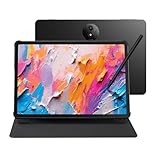
- Tablet, Drawing Pad, and Digital Notebook — All in One: Designed for artists, students, professionals, and entertainment users, the TCL NXTPAPER 11 Plus seamlessly fits into your daily routine. Equipped with an 11.5" 120Hz 2.2K display, it delivers smooth visuals and crisp clarity, while the TCL T-PEN stylus with 4096 pressure levels ensures precise and natural input for writing, sketching, or note-taking
- NXTPAPER 4.0 Display for Enhanced Eye Comfort: With upgraded NXTPAPER 4.0 technology, this tablet offers a more natural, paper-like viewing experience. TÜV-certified low blue light, anti-glare coating, and DC dimming work together to reduce eye strain and eliminate flicker. The built-in Eye Care Assistant intelligently adapts brightness and color temperature while reminding you to take breaks
- 3-in-1 VersaView Modes for Every Scenario: Easily switch between three display modes using the dedicated NXTPAPER Key on this TCL NXTPAPER 11 Plus tablet. Regular Mode delivers vivid visuals for streaming, video calls, and digital art, Ink Paper Mode turns the screen into an e-reader-like display for comfortable reading and note-taking, and Color Paper Mode offers soft, low-saturation tones ideal for comics and magazines
- AI-Powered Productivity & Communication: The TCL NXTPAPER 11 Plus note taking tablet integrates smart tools like voice memo, real-time bilingual subtitles, writing assist, text assist, and a smart translator. Effortlessly convert speech into text, generate and refine content, and translate text, images, or conversations with ease. With “Circle to Search with Google,” you can instantly find information with a simple gesture
- Ample Storage & Powerful Performance: Store your memories, apps, and large files effortlessly—TCL electronics tablets with 256GB built-in storage provide the space you need. Powered by the MTK Helio G100 processor, 8GB + 8GB RAM expansion, and TCL’s custom UI on Android 15, it delivers smooth multitasking with split-screen, floating windows, extended display, and screen mirroring. Note: Built-in storage only; microSD cards not supported
- Subject and action: Name the person, object, animal or scene and what it is doing.
- Setting: Specify the background, place, season or time of day.
- Style: Choose descriptive terms such as watercolor, photorealistic, claymation, oil painting, comic-book or editorial illustration.
- Composition: Ask for a close-up, overhead view, centered subject, portrait or wide shot. Mention empty space if you need room for a headline.
- Light and color: Describe the light source, contrast and palette.
- Text and exclusions: Give exact wording and placement, and say what should not appear.
Social graphic example
Create a vertical social-media poster for a neighborhood farmers market. Show an illustrated basket of tomatoes, peaches and leafy greens on blue gingham cloth, in a clean hand-painted style with warm morning light and generous empty space at the top. Add the exact headline “SATURDAY MARKET” in large dark-green letters. Do not add other words or logos.
Photorealistic product example
Generate a photorealistic product photograph of a matte-black insulated travel mug on a pale stone countertop, three-quarter view, soft window light from the left, subtle condensation, shallow depth of field, premium outdoor-brand advertising style, no logo and no text.
Text inside images
Put short copy in quotation marks, specify capitalization and placement, and keep the layout simple. Google identifies improved text rendering as a Nano Banana 2 capability, but generated lettering can still be wrong. Proofread it before publishing. For long copy or precise typography, generate the artwork without text and add the final lettering in a design tool.
Edit a generated image or upload your own
Refine an image Gemini made
- Open the generated image or continue in its conversation.
- Ask for one or two specific changes rather than rewriting the whole prompt.
- Name the elements that must stay the same, then submit and inspect the revision.
For instance: Keep the subject, pose, clothing and camera angle unchanged. Replace only the background with a snowy mountain village. Or: Make the lighting warmer and soften the shadows. Do not change the person’s facial features. If a sequence of edits drifts too far, start again from the original image.
Edit an uploaded photo
- In Gemini, upload the image you want to work with.
- Describe the requested edit precisely—for example, “Remove the street sign on the left and reconstruct the wall behind it.”
- Review the result for unintended changes, then ask for a correction or narrower edit if needed.
Gemini can also work from multiple uploaded images to create a new image—for example, placing a product from one reference into the setting of another. Use reference images and fixed descriptions when you want a character or object to remain recognizable, but inspect every result for changes to faces, hands, clothing, labels and accessories.
Rank #3

- 9.7" Multi-Touch Retina Display 2048 x 1536 Screen Resolution (264 ppi)
- Apple A10 Fusion SoC and M10 Coprocessor 4G LTE | 802.11ac Wi-Fi | Bluetooth 4.4
- Front 1.2MP FaceTime HD Camera Rear 8MP Camera
- Apple Pencil Support Night Shift | Touch ID Sensor
When to use Nano Banana Pro
Google documents a Pro regeneration workflow for eligible subscribers: generate an image with Nano Banana 2 or Nano Banana 2 Lite, open More, then choose Redo with Pro. Pro is intended for a more detailed result and may be useful for text-heavy art or infographic concepts. Availability depends on the account and plan; if you have already reached the Nano Banana 2 daily limit, you may not be able to run an additional Pro redo. Google’s image help page describes the workflow.
Download, share and check the result
Use Gemini’s download or share control on the image. Google’s current documentation says downloads are available at 1K without an AI plan and 2K with a Google AI plan. “2K” does not guarantee a particular pixel dimension or print-ready quality; inspect the downloaded file and choose output dimensions appropriate to your use.
For painting references, concept art, mockups or social graphics, treat the image as a starting point rather than an unquestioned final. Check proportions, repeated patterns, hands, typography, logos and any factual labels. For print, advertising or professional design, you may need to correct artifacts or finish the layout in a conventional editor.
Common problems and fixes
There is no Images or Create image option
Access can depend on country, language, age, account type, administrator settings and feature rollout. Sign in, try Gemini in a desktop browser, update the mobile app, and check the sidebar and model selector. If you are using a managed work or school account, its policies may restrict the feature; a personal account may have different access. Consult Google’s current help page rather than assuming every account has the same menu.
Gemini replies with text instead of an image
Open the Images area or use a direct opening instruction such as “Create an image of…” or “Generate the image now.” Keep the request focused and choose an image-capable model if a model selector is available.
Rank #4

- 9.7" Retina Display
An edit changes too much
Request one change at a time, say “keep everything else unchanged,” and list the details to preserve. If repeated edits have altered the subject or composition, upload the original again and make the change from that version.
What’s actually slowing this PC down?
Pick the symptom - the matching free tool is one click away.
Text is misspelled or unreadable
Shorten the wording, put the exact text in quotation marks, and ask for large, simple lettering. If it still comes out wrong, create the image without text and add or correct the copy separately.
A character or product no longer matches the reference
Attach the strongest reference again, state the traits that must remain fixed, and avoid changing several variables at once. A generated image can preserve recognizable features without reproducing an exact face, product label or design.
An image is blocked or removed
Google says Gemini may remove images when its systems detect a potential violation of its Terms of Service or Prohibited Use Policy. Remove unsafe or privacy-invasive details and clarify a benign request; do not try to evade safety controls. See Google’s image guidance.
Independent reader supportYour contribution helps us test, update, and keep practical guides available for everyone.Privacy, rights and publication
You do not need Google Photos connected for ordinary image generation. Google separately documents an optional Personal Intelligence workflow that can use connected Google apps, past chats and Google Photos information with permission; the documented workflow is for users 18 or older in the US with a personal Google Account, and Photos connection is unavailable in some US regions. Consider the sensitivity of personal photos before enabling it, and do not upload confidential documents, private IDs, medical images or another person’s photo without appropriate permission.
Quick wins for a faster PC:
Clear out junk files and repair common Windows errorsFree Scan →Scan for outdated or missing drivers - takes under a minuteDriver Scan →Best Value
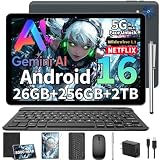
- 【All-Day Productivity – 26+256GB & 8000mAh】This 10 inch Android 16 tablet features 4GB + 22GB virtual memory (totaling 26GB) and 256GB storage, delivering seamless multitasking. It also supports expansion via MicroSD card (not included) up to 2TB, offering ample capacity for storing vast collections of photos, videos, and large files. Gaming tablet boasting an 8000mAh high-capacity battery, it delivers outstanding battery life to keep you powered through busy study days, long trips, or creative sessions
- 【Android 16 Tablet– Faster, Smarter, More Secure】2026 Newest tablet with Keyboard bundle is powered by the fast, smart and secure Android 16 OS with powerful built-in 3562 Octa-core processors for an efficient and smooth streaming experience. No hassle from Bloatware. This Android tablet comes with the Gemini AI engine, enjoy intelligent task optimization, faster app response, and smarter performance. It learns how you use apps, optimizes background tasks automatically, and keeps your experience fluid and responsive. Support split-screen operation for efficient work/study
- 【Stable Connectivity – AI Camera & 5G Wifi & Bt5.0】Dual-band 5G WiFi boosts speeds by 30% and seamless wireless connectivity via Bluetooth 5.0, blending speed and security for seamless access to this AI Android tablet. The 13MP rear camera captures crisp, detailed shots—perfect for scanning documents, snapping landscapes, or casual photography. A 5MP front camera enhances video calls and selfies with AI-powered optimization, even in low light. The USB-C port supports bidirectional fast charging, ensuring you can recharge quickly and get back to your tasks, games, or movies without long downtime
- 【Immersive Cinema Experience – HD IPS Display & Smart Lens】This electronic tablet features a 10.1-inch IPS display that delivers vivid visuals. With Widevine L1 certification, it supports 1080p HD video playback on platforms like Amazon Prime Video, offering an immersive streaming experience. tablet features a built-in 13-megapixel rear camera and a 5-megapixel front camera, allowing you to capture life’s beautiful moments with clarity. Running on Android 16, the tablets Smart Lens feature supports text recognition, translation, and object recognition. The GPS system provides precise navigation and location services, making it the ideal companion for travel and outdoor adventures.
- 【2-In-1 Tablet Pc Kit – Boost Work & Study Efficiency】This tablet with keyboard and pen comes with mouse, Black foldable protective case, anti-glare screen protector, charging head,USB-C charger cable and user manual—ready out of the box. With Google and split-screen functionality, it easily turns into a mini laptop for typing, designing, or note-taking—your best-value 10 inch tablet for school or work.(Tip:Tablets are all the same color, they all silver. The color difference is reflected in the tablet case.)
Google instructs users to follow its Gemini terms and prohibited-use guidance and respect others’ copyright and privacy rights. Do not assume an AI-generated result is automatically cleared for commercial use. Check recognizable people, trademarks, logos, characters and source images; keep records of references and edits for client work. Avoid directing a commercial image to copy a living artist’s distinctive signature style; describe broader visual qualities instead. Legal treatment varies by jurisdiction, so seek professional advice for high-value commercial work.
Fact-check generated maps, diagrams, charts, product details and labels before publication, especially in journalism, education, medical, legal or financial contexts. Human review is essential where an error could mislead or cause harm.
Use an image from Chrome as a starting point
Google documents a separate image-editing workflow in Gemini in Chrome: open an image in Chrome, right-click it, select Create image with Gemini, then describe the transformation or choose a suggestion. Save or copy the result. The context-menu option may be missing for protected or unsupported images, and availability can vary. See Google’s Gemini in Chrome instructions.
Is Gemini image generation free?
Google lists Nano Banana 2 image generation across free and paid tiers, while Nano Banana Pro regeneration is restricted to Google AI plan subscribers. The no-plan workflow is a sensible place to start for occasional images; paid access may matter if you often hit limits, need 2K downloads or want Pro regeneration. Limits and feature availability vary, so check your account and Google’s current limits table.
A plan is less compelling if you only make occasional images, need precise manual retouching, or require production controls that Gemini does not provide. Dedicated design and photo-editing software can be a better fit for exact typography, masking, repeatable layouts and pixel-level correction. Google’s plan information is available at Google One plans and Google AI plans; verify live terms and availability before subscribing.
Quick Recap

Product prices and availability are accurate as of the date/time indicated and are subject to change. Any price and availability information displayed on Amazon at the time of purchase will apply.




