The Tool Desk
Outbyte PC Repair FREERepair Windows errors before they cause bigger problemsFix Now →Outbyte Driver Updater FREEScan for outdated or missing drivers - takes under a minuteDriver Scan →ThatPainter is reader-supported. When you buy through links on our site, we may earn an affiliate commission. Learn More
If your Wacom pen has stopped working, first check the connection and test it in Wacom Center before assuming the pen is broken. The cause may be the driver, macOS permissions, an app setting, display mapping, or model compatibility. Use the symptom guide below to find the right next test.
| # | Preview | Product | Price | |
|---|---|---|---|---|
| 1 |
|
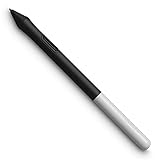
Wacom One Pen, for Wacom One 12, 13 & 14 CP91300B2Z | Buy on Amazon | |
| 2 |

|
Wacom Intuos Pen LP190K | $34.95 | Buy on Amazon |
| 3 |

|
Wacom ACK22207 Ballpoint Refill | Buy on Amazon | |
| 4 |

|
Wacom ACK20001 Standard Nibs, Replacement Nibs | $4.95 | Buy on Amazon |
Match the symptom to the likely cause
| What you see | Where to start |
|---|---|
| No power light or computer detection | Power, cable, port, Bluetooth pairing, or device compatibility |
| Tablet is detected, but the pen does not move the cursor | Driver, pen compatibility, pairing, or pen/tablet hardware |
| Cursor moves, but the app will not draw | Application input settings, Windows Ink/WinTab mode, or nib |
| Drawing works, but pressure does not | Pressure support in the app, brush settings, permissions, or pressure hardware |
| Pen works intermittently, lags, or jumps | Bluetooth, cable or hub, driver, app performance, or sensor |
| Pen draws while hovering | Nib fit or pen sensor |
| Cursor is offset on a pen display | Display selection, mapping, or calibration |
| Cintiq has no picture | Display power, video cable, input, or graphics configuration—not necessarily pen input |
Wacom separates pen-input troubleshooting from display and other device problems. Its pen and touch troubleshooting guide is a useful reference if your symptom falls outside pen input.
1. Find your exact Wacom model and operating system
Before downloading a driver or buying a pen, find the model or SKU on the tablet’s back, packaging, or product documentation. Wacom model numbers often look like CTL-490 or PTH-660. Check your Windows version and architecture (x64 or ARM64), or your macOS version, as well.
#1 Best Overall
- Pressure sensitivity and natural tilt support for more precision and control
- The cordless, battery-free pen never needs to be charged and is light and comfortable to use thanks to Wacom’s EMR (Electro-Magnetic Resonance) technology
- 1 programmable pen button puts shortcuts at your fingertips
- Includes 3 Wacom One Pen nibs
Drivers and pen compatibility vary by model; Wacom pens are not universally interchangeable. Look up your exact product on Wacom’s driver page and check the pen compatibility list before installing a driver or ordering a replacement.
2. Rule out power, cable, port, and Bluetooth problems
- Save your work and close your drawing app.
- Disconnect and reconnect the tablet. Check that its power or status light is on and that every required cable is connected.
- Connect the tablet directly to the computer, using a different USB port if available. For this test, bypass hubs, monitor or keyboard ports, docks, and unnecessary adapters.
- If you normally use Bluetooth, test with a wired connection if your model supports one. If possible, try a known-good compatible cable or another computer.
Wacom recommends a direct connection during troubleshooting; hubs and docks can contribute to inconsistent behavior. If the tablet works over USB but not Bluetooth, investigate pairing or wireless stability before blaming the pen. A connection failure can affect the whole tablet even when the pen itself is healthy.
3. Check or install the model-compatible driver
Use Wacom’s official driver page rather than a third-party download site, and select your exact product and operating system. As of August 18, 2026, Wacom’s U.S. driver page listed driver 6.4.13-4 for Windows 10/11 x64 and Windows 11 ARM64, and macOS 13–15 and macOS 26. That general listing does not mean every older Wacom product is supported by that driver; check the product-specific page.
- Disconnect the tablet.
- Download the compatible driver for your model and operating system from Wacom’s driver page.
- Install it and restart the computer if prompted.
- Reconnect the tablet directly, open Wacom Center, and test pen movement, clicks, buttons, and pressure.
4. Run Wacom Center’s Driver check and diagnostics
Restart the driver
- Open Wacom Center.
- Click the Settings or gear icon, then scroll to Troubleshooting options.
- Select Driver check and let it finish. If it offers to restart the driver, choose that option and test the pen again.
Restarting the driver is quicker than restarting the computer and does not mean you have reinstalled it. If the check does not resolve the problem, reboot the computer before moving on.
Free tools Windows power users keep installed
One-click scans. No signup required.
Test the pen’s signals
Use Wacom Center’s diagnostics to check whether the device and pen are detected, whether the tip registers contact, and whether pressure and pen buttons respond. The available checks depend on the device. Wacom describes its diagnostic features in the Wacom Center support guide.
Rank #2
- The Intuos Pen is compatible with Intuos Art, Comic, Draw and Photo tablets (CTH490AB, CTH490AK, CTH490CB, CTH490CK, CTH490PK, CTH690AB, CTH690AK, CTL490DB and CTL490DW)
- Cordless and battery free, programmable side switch
- 1024 levels of pressure sensitivity
- Not compatible with prior Intuos (CTL480, CTH480, CTH680), Intuos 3, 4, 5, Intuos Pro tablets or Cintiq products
- Pressure changes in diagnostics, but not in your art app: focus on the app, its brush, input mode, or macOS permissions.
- No pressure response in diagnostics: investigate the driver, pen compatibility, nib, and hardware.
- Pen is not detected: revisit the connection, driver, and pairing; hardware may be involved if those checks pass.
- The same area of the tablet repeatedly fails: a persistent dead zone may indicate sensor damage. Wacom identifies undetected sections as a possible sensor problem; stop repeating software fixes and contact support.
5. Reinstall the driver cleanly if a restart did not help
A clean reinstall is more disruptive than restarting the driver and may remove settings. Use Wacom’s operating-system-specific procedure rather than deleting driver files or changing registry entries yourself.
On macOS
- Disconnect the tablet. If you use Bluetooth, turn it off on both the tablet and Mac for the uninstall.
- In Finder, open Applications → Wacom Tablet → Wacom Tablet Utility.
- Under Tablet Software, choose Uninstall and authenticate if asked.
- Restart the Mac, install the compatible driver for your model, then restart again.
- Reconnect the tablet directly and test it in Wacom Center before restoring old preferences.
Wacom’s Mac uninstall and reinstall guide notes that removing the software also removes preferences. If the device works before you restore saved preferences, recreate your custom settings manually rather than importing the potentially corrupted ones. The guide also identifies a legacy exception for Intuos 3 and first-generation Cintiq 21UX DTZ-2100; verify their model-specific driver before using a current release.
On Windows
- Disconnect the tablet.
- Follow Wacom’s official Windows clean-uninstall and reinstall instructions for your product; do not improvise by deleting services or registry entries.
- Restart Windows, install the model-compatible driver, and restart again if prompted.
- Reconnect directly and test in Wacom Center before opening your drawing app.
Wacom’s troubleshooting guide directs users to its Windows-specific procedure when restarting the driver is not enough.
Recommended Free Tools
6. Check macOS privacy permissions
A driver can be installed while the pen remains unresponsive if macOS permissions are missing or were reset during an operating-system update. Open System Settings → Privacy & Security and review the Wacom-related permissions specified in Wacom’s current macOS setup instructions. Permission names and locations can vary across macOS releases, so use Wacom’s driver troubleshooting pages for the instructions that match your version. Restart the Mac after changing permissions, then test again in Wacom Center.
7. If the pen works outside your drawing app, troubleshoot the app
Test in Wacom Center diagnostics, a basic operating-system input field, and—if available—a second drawing app. If the pen and pressure work in Wacom Center or another drawing program but fail in one app, stop reinstalling the driver and focus on that app’s configuration.
Rank #3
- Package Dimensions: 1.0 cms (L) x 5.6 cms (W) x 12.0 cms (H)
- Product Type: Input Pen
- Package Quantity: 1
- Country Of Origin: China
- Confirm the app supports pressure and select a pressure-sensitive brush or tool.
- Check the app’s tablet input mode and Wacom-specific settings. On Windows, the right choice between Windows Ink and WinTab depends on the app, driver, and model; there is no universal on/off setting.
- Check brush size or opacity settings. A brush that does not vary with pressure can make working pressure data look broken.
- Review stroke smoothing or stabilization and app performance if strokes feel delayed.
- If the app’s settings seem corrupted, consult its own instructions for resetting preferences; note any custom setup you may lose.
Wacom’s guidance on pressure, lag, and jumping links the symptoms to app configuration and smoothing as well as driver or hardware problems.
8. Troubleshoot missing pressure separately from missing cursor movement
A pen can move the cursor and click while failing to send pressure data. Test pressure in diagnostics before judging the pen by how it behaves on the canvas.
Recommended Free Tools
- Confirm that the app supports pressure and choose a pressure-responsive brush.
- Check the app’s stylus or tablet settings and, on Windows, its expected Windows Ink or WinTab input mode.
- Test pressure in Wacom diagnostics. If it registers there, concentrate on app settings or permissions.
- If it does not register, run Driver check, restart the computer, and test another app. On macOS, confirm Wacom permissions.
- If pressure fails in diagnostics after these checks, investigate pen compatibility and hardware rather than buying a pen on appearance alone.
9. Fix lag, jumping, dead zones, or drawing without touching
Lag or intermittent input
Try a wired direct connection instead of Bluetooth, then compare behavior in another drawing app. If Wacom Center receives pen input normally but strokes lag only in one app, check its performance and smoothing settings. If USB works and Bluetooth does not, focus on wireless pairing or stability.
Jumping cursor or a dead area
Test the affected spot in diagnostics and repeat the test. A consistent area that fails to detect the pen can point to a damaged tablet sensor, not an app setting. Wacom’s symptom guide discusses sensor-related failures.
Drawing while hovering
Check whether the nib is bent, stuck, worn, or seated incorrectly. Wacom recommends removing the nib, leaving the pen resting on its stand overnight, reinserting the nib, and testing with diagnostics. If unwanted drawing continues, the pen may need replacement. A drop, liquid exposure, or storage under pressure can also be relevant; persistent hover drawing after the nib test calls for support or a compatible replacement pen.
Rank #4
- Compatible with Intuos4 pen, Intuos5 pen and Intuits Pro pen, grip pen, airbrush pen and classy pen
- Package Dimensions: 8.89 H x 0.254 L x 6.35 W (centimetres)
- Package Weight: 0.005 kilograms
- Country of Origin : China
10. Correct cursor offset on a Cintiq or other pen display
First confirm the operating system detects the display, its video connection is secure, and the image appears. Then open Wacom Center and check that the pen is mapped to the intended display. Review Display Toggle or monitor mapping if you use more than one screen; calibrate if your model and driver provide that control.
Do these 3 things before closing this tab:
1Clear out junk files and repair common Windows errors2Scan for outdated or missing drivers - takes under a minute3Repair Windows errors before they cause bigger problemsOn Windows, Wacom gives this calibration path for pen displays: Settings → Hardware & Sound → Tablet PC Settings → Calibrate the screen for pen or touch input → Setup next to “Configure your pen and touch displays.” If the calibration window opens on the wrong monitor, press Enter to move to the next screen, then tap the desired display. Menu names can vary by Windows version.
If the Cintiq is blank, troubleshoot power, video cable, display input, and graphics configuration separately. A blank screen does not establish that the pen is defective.
11. Check legacy-device and pen compatibility
A device that worked before may be affected by an operating-system or driver update if Wacom has ended support for its model. Wacom says unsupported products may be excluded from the latest driver and may no longer receive compatibility improvements. Check the model-specific driver history, your operating-system version and architecture, and whether the pen is listed for that tablet before trying another driver.
Do not assume a newer-looking Wacom pen will work. Use Wacom’s compatibility list. If the device is no longer supported, the available path may be its last compatible driver or operating system, Wacom Support’s advice, or replacement hardware; installing the newest general driver is not a guaranteed fix.
12. Decide whether the pen, cable, or tablet needs service
- Suspect the cable or connection if the device disconnects, only works at a particular cable angle, or behaves normally when a known-good direct connection is used.
- Consider a replacement pen only after the tablet is detected, the driver is functioning, the pen fails diagnostics or another practical test, and the replacement is confirmed compatible with the exact model.
- Contact Wacom about the tablet if diagnostics show a persistent dead zone or the device still fails with a compatible pen and stable connection.
- Do not buy hardware to solve an app or permission failure. A new pen cannot fix an unsupported tablet, damaged cable, missing macOS permission, or app input setting.
For an unresolved issue, contact Wacom Support with the model/SKU, operating system and version, driver version, symptom, connection type, diagnostic results, and troubleshooting already completed. Wacom’s troubleshooting process also recommends providing relevant driver logs.
Quick Recap

Product prices and availability are accurate as of the date/time indicated and are subject to change. Any price and availability information displayed on Amazon at the time of purchase will apply.




