Free tools Windows power users keep installed
One-click scans. No signup required.
ThatPainter is reader-supported. When you buy through links on our site, we may earn an affiliate commission. Learn More
A good brochure template gives you a starting layout, not a finished brochure. Choose the fold and finished size first, plan the panel sequence, then replace the sample text and images with concise content for your audience. Before printing, check the requirements of the printer you will actually use.
Choose a fold that fits the content
The fold determines how many panels readers see and the order in which they encounter them. Pick it before customizing a template: two designs both called “tri-fold,” for example, may have different panel order or fold direction.
| Fold | How it works | Useful for |
|---|---|---|
| Half-fold (bi-fold) | One fold divides the sheet into two halves. | A simple, image-led or artistic presentation. |
| Tri-fold | Three panels fold over one another. | Information grouped into several sections. |
| Z-fold | Alternating folds create a three-panel zigzag. | A timeline, map, image sequence or content revealed progressively. |
| Accordion fold | Alternating folds create four panels. | Content that benefits from unfolding in sequence. |
| Gate fold | Two outer panels fold inward toward a larger central panel. | A presentation with a central reveal when opened. |
| Roll fold | Panels tuck inward, often with each tucked panel slightly narrower. | A compact piece that closes by rolling panels inward; confirm panel widths with the printer. |
These format descriptions and common uses are outlined in Canva’s brochure design guide. Treat them as planning guidance, not production specifications: the printer’s fold template determines the exact panel order and dimensions.
The Tool Desk
Outbyte Driver Updater FREEScan for outdated or missing drivers - takes under a minuteDriver Scan →Outbyte PC Repair FREERepair Windows errors before they cause bigger problemsFix Now →#1 Best Overall

- Easily personalize your own customizable tri-fold brochures, menu cards, event programs and more with templates and designs with Avery Design & Print Online
- Get professional-looking results with 8.5" x 11" tri-fold brochure paper that comes pre-scored for easy folding into 3 equally sized panels
- Print beautiful, double-sided designs on matte white paper with a weight of 47 lbs / 125 gsm
- Each sheet of printable brochure paper is optimized for inkjet printers, resulting in crisp text, vivid images and smudge-free printing
- Item includes 100 printable sheets and 100 mailing seals perfect for creating newsletters, menus, memorial programs, product pamphlets and more
Set the size for the finished piece and market
Brochure size examples vary by market. Canva lists the following formats, but the dimensions alone do not tell you the panel widths, bleed, safe areas or finishing tolerances for a particular print job.
| Market | Size | Dimensions listed by Canva |
|---|---|---|
| International | A3 | 29.7 × 42 cm |
| International | A4 | 21 × 29.7 cm |
| International | A5 | 14.8 × 21 cm |
| International | DL | 11 × 22 cm |
| North America | Letter | 27.94 × 21.59 cm |
| North America | Legal | 21.59 × 35.56 cm |
| North America | Half Letter | 21.59 × 13.97 cm |
| North America | Tabloid | 27.94 × 43.18 cm |
Ask whether the quoted dimensions refer to the flat sheet or the folded, finished brochure. Use the printer’s template or specifications to confirm panel widths, trim, bleed and safe areas before laying out final artwork. Canva’s guide is a starting point for size selection, not a substitute for those job-specific details.
Rank #2

- 🎯 Professional Photo Quality & Universal Compatibility - Experience stunning, high-resolution prints with vibrant colors and razor-sharp text. XXINMOH glossy paper is engineered for compatibility with all inkjet printers, delivering reliable, photo-quality results every time.
- ⚡ Ultra-Lightweight & Resists Printer Jams - Say goodbye to frustrating paper jams! Our specially designed 140gsm/37lb paper is thin and flexible, making it exceptionally reliable for both modern and older printers, ensuring a smooth and uninterrupted printing process.
- ✨ Instant-Dry, Smudge-Resistant Coating - Features a specially formulated glossy coating that dries instantly upon printing. This prevents ink smearing and smudging, allowing you to handle your brochures, flyers, and craft projects immediately with clean, professional results.
- 🏆 Versatile for Crafts & Professional Marketing - Perfect for a wide range of applications—from high-impact marketing brochures and presentations to creative party favors like chip bags and gift tags. It offers the premium quality of expensive brands but at a fraction of the cost, providing exceptional value.
- 📄 Pure & Clean Sheets, No Watermarks - Every sheet in this 100-pack is pure white and completely free of any manufacturer logos or watermarks. This gives you a blank canvas for double-sided printing on either side, ensuring your final designs look perfectly professional and unbranded.
Plan the panel sequence before editing
Decide what a reader should see first and what action they should take. Sketch the flat sheet, mark the front cover, inside reading order and back panel, then fold a rough proof to check that the sequence makes sense. This catches panel-order errors before you invest time in polishing the design.
- Define the purpose: Is the brochure for a business, event, service, organization, class or personal project?
- Name the audience and action: Decide who should read it and what you want them to do next.
- Choose distribution: A handout, rack card, mail piece, event-table brochure and digital PDF can call for different content and production choices.
- Choose fold and size: Match the format to the amount and sequence of information, and confirm it is supported by your printer.
- Map the panels: Mark the cover, inside panels and back panel on a folded dummy before putting copy into a template.
Customize the template with clear, branded content
After choosing a layout with the right panel count and enough room, replace all placeholder copy and graphics. Microsoft’s Publisher guidance describes selecting a brochure from its template gallery, then changing text or graphics and customizing colors, fonts and backgrounds in its brochure-template workflow.
Rank #3
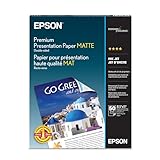
- Perfect for non-glare photographs, craft projects and signage.
- Resists fading up to 72 years.
- Guaranteed to work with all inkjet printers.
- Pack of 50 Sheets
- Use a clear headline and concise copy; break details into short paragraphs, headings or bullets.
- Choose relevant, high-resolution images rather than leaving generic sample photography in place.
- Keep colors and type choices consistent with the organization or project’s branding.
- Include the contact details readers need and a clear call to action.
- Leave enough white space for the panels to remain easy to scan.
These content recommendations are also covered in Canva’s brochure-maker FAQ. Review the design at its actual size, not only enlarged on a screen, and keep essential text away from folds and trim. Ask the printer for the safe area it requires.
Independent reader supportYour contribution helps us test, update, and keep practical guides available for everyone.Prepare the file for home or commercial printing
Printing at home
Check the selected printer, paper size, duplex setting and printable margins before making copies. Microsoft Support’s instructions for printing a brochure with Publisher say to “make sure you are printing one page per sheet, have chosen the correct paper size, and are printing on both sides of the paper” (Microsoft Support, “Print a brochure using Publisher”).
Rank #4

- PPD Glossy Inkjet Brochure and Flyer Paper Lightweight 140gsm/37lb Compatible With All Inkjet Printers. These Double Sided Photo Quality Glossy Papers Are Specifically Designed For Brochure, Flyer, Chip Bag, Party Bag and Many Other Printing Applications When High Quality But Lightweight Photo Paper Is Required.
- Pack of 8.5x11 x 100 Sheets. Perfect for crafts, marketing, and events – Whether you’re designing promotional brochures, crafting chip bags for a party, or printing professional presentations, this lightweight glossy paper adapts to every need with stunning, high-resolution results.
- Unlike Heavier Photo Papers, The Thinner 140gsm Sheets Will Almost Certainly Eliminate Printer Jamming (Especially With Older Printers) and Can Be Folded or Manipulated To Shape With Ease (For Chip Bag Creation for Example). The Specially Formulated and Instant Dry Glossy Coating Makes The 140gsm Paper The Best Choice for Craft, Economical As Well As Business Prints Such as Brochures, Presentations and Pamphlets.
- The PPD Specially Designed 140g/37lb Glossy Brochure Paper Will Print Your Photos and Designs In High Quality. Pictures Will Appear Sharp and Crisp. Text Will Appear Vivid and Clear. This Brochure Paper Will Exceed Your Expectations. It is Equivalent or Superior To More Expensive Branded Papers, But Far More Affordable.
- Product Highlights: Glossy Photo Quality Brochure Paper / Thin and Lightweight 140g/37lb / Compatible With All Inkjet Printers Using Any Ink / Instant Dry No More Smearing / Picture Quality Print / Double Sided Print On Either Side / No Logo or Watermark / Equivalent Or Superior To Main And More Expensive Brands / Pack of 8.5x11 x 100 Sheets.
A margin setting cannot make every printer print to the edge: printable areas vary, and many devices leave an unprinted border. Keep artwork within the printer’s printable area unless your printer supports an appropriate borderless or finishing workflow. Microsoft explains these limitations in its guidance on printers that do not support borderless printing.
Using a commercial printer
Get the printer’s file specifications and template before finalizing the layout. Export format, bleed, crop marks, color handling and text treatment can depend on that provider’s workflow. Microsoft documents a Publisher Pack and Go route that creates PDF and Publisher files for a commercial printer, but another printer may request different formats or settings; see Microsoft’s Pack and Go instructions.
Quick wins for a faster PC:
Clear out junk files and repair common Windows errorsFree Scan →Scan for outdated or missing drivers - takes under a minuteDriver Scan →Repair Windows errors before they cause bigger problemsFix Now →Best Value

- Thin Glossy Paper for DIY Projects: This 135gsm glossy paper is a practical option for chip bags, brochures, flyers, party favors, menus, and light custom print projects
- Smooth Glossy Printable Front: The glossy front side helps printed colors look bright and attractive for event materials, custom packaging, and handmade paper projects
- Lighter Weight for Flexible Use: Thinner than traditional heavyweight photo paper, making it more useful for folded inserts, wrappers, brochure-style pieces, and layered craft use
- Fast Dry for Inkjet Printing: Designed for inkjet use so everyday DIY and small business printing can be handled more easily after output
- Useful for Home, Events and Small Business: A strong fit for custom treats, party supplies, shop inserts, event flyers, and creative paper designs
Canva’s developer export reference describes options for bleed and crop marks, along with PDF options such as CMYK conversion and outlining text. That documentation describes an integration interface, so it should not be taken as a guarantee that every option appears in every consumer editing workflow. Check the export controls available to you and follow the printer’s requirements: Canva’s export reference.
Quick Recap
Use a final preflight checklist
- Does the fold match the content and the printer’s available finishing options?
- Are the flat sheet size, finished size and panel widths confirmed?
- Does a folded proof show the intended cover and reading order?
- Have you replaced every placeholder and checked contact information and the call to action?
- Are essential words clear of folds and trim areas, using the printer’s safe-area guidance?
- Does the export match the printer’s specified file type and settings?
- For home printing, are sheet size, one-page-per-sheet layout, duplex and printable margins set correctly?

Product prices and availability are accurate as of the date/time indicated and are subject to change. Any price and availability information displayed on Amazon at the time of purchase will apply.




