Outdated Drivers Are Slowing You Down
Free tools Windows power users keep installed
One-click scans. No signup required.
Outbyte Driver Updater · freeOne free scan finds every outdated or missing driver and matches the right update for your exact hardware.
Scan My Drivers Free →ThatPainter is reader-supported. When you buy through links on our site, we may earn an affiliate commission. Learn More
There is no single best drawing tablet for everyone. The right 2024 choice depends first on whether you want to draw on a screen, whether you already own a computer, and which software you use. For most computer-connected artists, the Wacom Cintiq 16 is a dependable direct-on-screen choice; professionals who prefer a separate calibrated monitor should consider the Wacom Intuos Pro Medium; value-focused buyers should look at the XP-Pen Artist 16 (2nd Gen); and artists who need a self-contained portable device should choose the 13-inch iPad Air M2 with Apple Pencil Pro.
This is a 2024 market snapshot. Prices and availability refer to the U.S. market as observed in 2024, not current 2026 pricing. Drivers, operating-system support, stock, and product generations may have changed after December 31, 2024. In particular, do not confuse the earlier Pro Pen 2 generation of the Wacom Intuos Pro with the redesigned 2025 Intuos Pro.
Best drawing tablets 2024: quick picks
These are category recommendations rather than one universal ranking. A screenless pen tablet, a computer-connected pen display, and a standalone iPad solve different problems.
The Tool Desk
Outbyte PC Repair FREEClear out junk files and repair common Windows errorsFree Scan →Outbyte Driver Updater FREEScan for outdated or missing drivers - takes under a minuteDriver Scan →As an Amazon Associate I earn from qualifying purchases.
| Tablet | Type | Best for | Screen | Computer required? | 2024 U.S. price context | Main drawback |
|---|---|---|---|---|---|---|
| Wacom Intuos Pro Medium | Screenless pen tablet | Professional desktop work and photo editing | No | Yes | Varied by seller; pen included | You draw while looking at another monitor |
| Wacom Cintiq 16 | Pen display | Direct-on-screen illustration for PC and Mac | 15.6-inch Full HD | Yes | Varied by seller | No touch or 4K resolution; several cables may be required |
| XP-Pen Artist 16 (2nd Gen) | Pen display | Large drawing area at a value price | 15.4-inch Full HD | Yes | Varied by seller | USB-C cables and display compatibility need checking |
| Huion Kamvas Pro 16 (2.5K) | Pen display | QHD detail in a midrange display | 15.8-inch QHD | Yes | Varied by seller | Manufacturer specifications do not replace calibration and driver testing |
| Wacom Movink 13 | Portable pen display | Professional work away from a permanent desk | 13.3-inch Full HD OLED | Yes | $750 U.S. launch price | It is not a standalone computer and has a relatively small screen |
| iPad Air M2, preferably 13-inch | Standalone tablet | Portable drawing, school, and general use | 11- or 13-inch | No | $599/$799 Wi-Fi launch price; Pencil Pro $129 | Apple Pencil Pro and accessories cost extra; apps are mobile versions |
| iPad Pro M4 | Premium standalone tablet | Artists who want the best portable Apple display and performance | 11- or 13-inch tandem OLED | No | $999/$1,299 Wi-Fi launch price; Pencil Pro $129 | Expensive once storage and accessories are added |
| XP-Pen Deco MW | Screenless pen tablet | Beginners who want wireless operation | No | Yes | Varied by seller | Reviewers found the stylus light and noted no built-in pen storage |
| Huion H420X | Ultra-budget pen tablet | Signing, annotations, simple sketches, and trying digital art | No | Yes | Varied by seller | The 106 × 66 mm active area is very small |
| Wacom Cintiq Pro 17 | Professional pen display | High-end studio illustration, animation, and 3D work | 17-inch 4K | Yes | Premium pricing | Expensive and desk-bound |
| XP-Pen Artist 24 Pro | Extra-large pen display | Large-format studio work and animation | 23.8-inch QHD | Yes | Varied by seller | Heavy and unsuitable for frequent travel |
| Xencelabs Pen Tablet Medium | Premium screenless pen tablet | Artists who want wireless use, two pens, and refined controls | No | Yes | Varied by package and seller | Quick Keys may be optional or package-dependent |
The category choices reflect the specifications and 2024 evaluations from WIRED, Popular Science, Expert Reviews, Creative Bloq, and Windows Central. Retail prices for many Windows-connected tablets fluctuated with sales and stock, so a precise un-dated price would be misleading.
First, choose the right kind of drawing tablet
The phrase drawing tablet covers three substantially different products. Choosing the category correctly matters more than comparing pressure-level numbers.
#1 Best Overall

- WACOM’S BEST PEN TECHNOLOGY: Pro Pen 3 offers amazing precision, 8192 pressure levels, tilt support & lag-free tracking for smooth, precise strokes; choose slim, straight or flared grip, adjust balance & button layout for precision and comfort
- DIAL INTO PRODUCTIVITY: Speed up and stay in the creative flow with 10 customizable tablet ExpressKeys & 2 mechanical dials conveniently located at the top of the tablet and close to your keyboard for efficiency
- DESIGNED FOR MODERN MONITORS: With a versatile 16:9 format perfect for multiple monitors and wide displays; medium size has a large active area with a small footprint 11.4 x 8.1” / 291 x 206 mm
- SLEEK AND STURDY: Measuring 4mm at its thinnest this professional-grade drawing tablet feels like pen-on-paper on your desk, combined with the robust durability of magnesium making it equally suited for your office or life on the go
- WIRELESS FREEDOM: use Intuos Pro with USB or connect wirelessly via Bluetooth to multiple computers with a simple switch
1. Screenless pen tablet
A pen tablet is a pressure-sensitive surface with no built-in display. The pen moves a cursor on a separate computer monitor. Wacom Intuos, Wacom Intuos Pro, XP-Pen Deco, Huion Inspiroy, and Xencelabs Pen Tablet models belong here.
What’s actually slowing this PC down?
Pick the symptom - the matching free tool is one click away.
This is usually the most economical serious setup, especially if you already own a good monitor. It is also a strong choice for Photoshop retouching, Illustrator, animation, and long desktop sessions. A separate calibrated monitor can be better for color-critical photo and video work; WIRED specifically favored the Wacom Intuos for that kind of workflow.
The drawback is the hand-eye adjustment: your hand is on the tablet while your eyes are on another screen. Most people can learn it, but traditional-media artists often find a pen display more immediately intuitive.
2. Pen display
A pen display is a monitor with a pressure-sensitive digitizer beneath its surface. You draw directly on the artwork, as with a Wacom Cintiq, Wacom One, Wacom Movink, Huion Kamvas, XP-Pen Artist, or Xencelabs Pen Display.
Pen displays suit illustration, comics, storyboarding, concept art, painting, sculpting, and anyone who dislikes the screenless learning curve. However, a pen display is normally not a standalone computer. It generally needs a Windows PC, Mac, or compatible mobile host. As Windows Central explains, it functions primarily as an additional monitor and input device, although selected models can accept USB-C phones or tablets.
3. Standalone pen computer
An iPad with Apple Pencil, Samsung Galaxy Tab with S Pen, or compatible Microsoft Surface device combines the display, computer, battery, storage, and drawing applications in one unit. This is the most convenient category for travel, sketching outside the studio, school, browsing, and entertainment.
The trade-off is software. Procreate, Clip Studio Paint, Adobe Fresco, Concepts, and other mobile applications can be excellent, but they are not always equivalent to full desktop versions of Photoshop, Illustrator, Blender, After Effects, or Clip Studio Paint. Plugins, file handling, color-management options, brush engines, and shortcut workflows may differ.
A quick decision tree
- You already own a computer and want the least expensive serious option: choose a screenless pen tablet.
- You want to draw directly on the image: choose a pen display.
- You want to work without a computer: choose an iPad or Android tablet.
- You mainly edit photographs on a calibrated monitor: favor a screenless tablet.
- You use Photoshop, Illustrator, Blender, or desktop Clip Studio Paint: favor a computer-connected tablet.
- You use Procreate: an iPad is the natural choice because Procreate is an iPad application.
- You need Linux: confirm support for the exact tablet, driver, distribution, and application before purchase.
- You need Android or ChromeOS: check both pen-input support and display-output requirements. Android compatibility does not necessarily mean that every phone or tablet can drive a pen display.
Best screenless drawing tablets
Wacom Intuos Pro Medium: best screenless tablet for professionals
The 2024-relevant Wacom Intuos Pro is the earlier generation that uses the battery-free Wacom Pro Pen 2. The Medium is the most balanced size for many desktop artists: large enough for controlled strokes without taking over a desk, but easier to manage than a Large model.
It combines Wacom’s pressure-sensitive pen system with Bluetooth, multitouch, shortcut controls, and a Touch Ring. Popular Science highlighted the Intuos Pro Large as its professional choice, while WIRED emphasized the Intuos family for photo and video editing with a separate calibrated monitor. The Medium earns the recommendation here as the better general-purpose size, not because every artist needs the same active area.
Quick wins for a faster PC:
Fix the driver behind crashes, sound loss and screen glitchesFind Drivers →Clear out junk files and repair common Windows errorsFree Scan →Scan for outdated or missing drivers - takes under a minuteDriver Scan →Choose it if: you already have a good monitor, use Photoshop or other desktop applications, want multitouch and physical controls, or spend long sessions at a desk.
Think twice if: you are a traditional-media artist who expects the pen to touch the artwork, or if you need a self-contained travel device.
Generation warning: do not use the current 2025 Wacom Intuos Pro page as if it described the 2024 model. The newer PTK470, PTK670, and PTK870 models use Pro Pen 3 and redesigned controls. The earlier 2024 choice is the Pro Pen 2 generation documented by Wacom’s earlier product information.
Xencelabs Pen Tablet Medium: best premium Wacom alternative without a screen
The Xencelabs Pen Tablet Medium is aimed at artists who want a polished screenless workflow rather than a low-cost starter pad. Xencelabs lists a 10.33 × 5.8-inch active area with a 16:9 aspect ratio, wireless operation through a dedicated dongle, up to 16 hours of battery life, two included pens, 8,192 pressure levels, and 60-degree tilt support. It supports Windows, macOS, and Linux.
Windows Central positioned it as a premium screenless alternative, particularly noting the two pens, wireless operation, Quick Keys remote, and build quality. Check the package carefully: Quick Keys controls may be bundled or optional depending on the version.
Choose it if: you want wireless freedom, two pen sizes, a 16:9 working area, or a more control-oriented professional setup.
Main limitation: it remains screenless, and the total price can rise if the Quick Keys remote is not included.
XP-Pen Deco MW: best beginner screenless tablet
The XP-Pen Deco MW is a sensible first tablet for a beginner who already owns a Windows or Mac computer and wants wireless connectivity without moving immediately to a pen display. Creative Bloq selected it in a May 16, 2024 update, praising its relatively large drawing area, straightforward setup, wireless operation, and 8,192 pressure levels.
Outdated Drivers Are Slowing You Down
One free scan finds every outdated or missing driver and matches the right update for your exact hardware.Free scan · exact hardware matchPC Slower Than It Used to Be?
A free scan shows the junk files, broken settings and background clutter dragging Windows down - then fixes them in one click.Free scan · Windows 10 & 11The same review criticized the light-feeling stylus and the lack of built-in pen storage. Those are reviewer observations rather than universal measurements, but they are useful warnings for buyers who care about a substantial pen or want the tablet to hold the stylus.
Choose it if: you are starting digital art, want a reasonably large screenless surface, or need a wireless tablet for occasional desktop work.
Rank #2

- Wacom Intuos Medium Bluetooth Graphics Drawing Tablet: Enjoy industry leading tablet performance in superior control and precision with Wacom's EMR battery free technology that feels like pen on paper
- Works With All Software: Wacom Intuos tablet can be used in any software program to explore new facets of digital creativity; draw, paint, edit photos/videos, create designs, and mark up documents
- Wireless Superior Connectivity: Connect wirelessly via Bluetooth or directly using USB-A cable which enables you to work, draw or create whether it's at a desk, on the sofa, in classrom or even outside
- Software and Training Included: Only Wacom gives you software with every purchase. Register your Intuos tablet and gain access to some of the best creative software and Wacom's online training
- Wacom is the Global Leader in Drawing Tablet and Displays: For over 40 years in pen display and tablet market, you can trust that Wacom to help you bring your vision, ideas and creativity to life
Main limitation: it requires a computer and will not provide the direct-on-screen experience that some beginners expect.
Huion H420X: best ultra-budget entry point
The Huion H420X is appropriate when the goal is to spend as little as possible while testing digital drawing, signing documents, annotating images, or making simple sketches. Expert Reviews lists it with a 106 × 66 mm active area, 5,080 LPI, 8,192 pressure levels, a battery-free pen, USB connectivity, and a 105-gram tablet weight.
Recommended Free Tools
That active area is the important qualification. It is compact, but many artists will find it cramped for large canvases, detailed line art, or software with numerous panels. Treat it as a low-cost experiment or annotation tool, not a long-term professional drawing surface.
Best computer-connected pen displays
Wacom Cintiq 16: best pen display for most PC and Mac artists
The Wacom Cintiq 16 remains a strong 2024 choice for artists who prioritize Wacom’s pen feel and direct-on-screen drawing over 4K resolution, touch, or portability. Its relevant specifications are a 15.6-inch Full HD IPS display, 1,920 × 1,080 resolution, battery-free Wacom Pro Pen 2, 8,192 pressure levels, 60-degree tilt support, and no multitouch. Wacom’s product information documents the model, while Expert Reviews selected it as a professional pen display.
The 16-inch class is a useful compromise: more comfortable than a small 10- or 13-inch display, but not as imposing as a 22- or 24-inch studio unit. Full HD is adequate at this size, although artists who want a very sharp interface or large detailed canvases may prefer a QHD or 4K competitor.
Connection requirement: it normally needs HDMI and USB, or an appropriate adapter, plus power. It is not a standalone tablet. Check your computer before ordering, especially if it has only USB-C ports.
Choose it if: you want a dependable direct-drawing workflow for illustration, painting, comics, or storyboarding and already have a compatible PC or Mac.
Main limitations: no touch, Full HD rather than QHD or 4K, and more cable and desk requirements than a screenless tablet.
XP-Pen Artist 16 (2nd Gen): best value pen display
The XP-Pen Artist 16 (2nd Gen) offers a 15.4-inch Full HD, fully laminated display, ten shortcut keys, an X3 Elite stylus, 8,192 pressure levels, and 60-degree tilt. XP-Pen specifies claimed coverage of 90% NTSC, 127% sRGB, and 94% Adobe RGB, along with 5,080 LPI pen resolution. It supports Windows, macOS, ChromeOS, Linux, and compatible Android devices.
Those specifications make it a compelling value alternative to a Full HD Cintiq, particularly for artists who want more physical shortcut buttons. The full lamination is intended to reduce the visible gap between the pen tip and the image, although perceived parallax also depends on calibration and viewing angle.
Important cable warning: the Artist 16 is not standalone. XP-Pen says it must connect to a computer or compatible host, and warns that not every USB-C cable works correctly with the model. A USB-C connector alone does not guarantee video, data, and power. Review the manufacturer’s connection guidance before assuming a single-cable setup will work.
Choose it if: you want a large, direct-drawing display, shortcut keys, and broad desktop compatibility at a value-oriented price.
Main limitation: display quality, driver behavior, and calibration should be checked against the seller’s return policy rather than inferred from the specification sheet alone.
Huion Kamvas Pro 16 (2.5K): best QHD midrange pen display
The Kamvas Pro 16 (2.5K) is the better fit for artists who want more workspace and detail than Full HD provides without moving to a large 4K studio display. Huion lists a 15.8-inch IPS screen at 2,560 × 1,440, full lamination, etched anti-glare glass, a 1,200:1 contrast ratio, up to 220 cd/m² brightness, eight programmable press keys, and a battery-free PW517 pen.
Do these 3 things before closing this tab:
1Repair Windows errors before they cause bigger problems2Fix the driver behind crashes, sound loss and screen glitches3Clear out junk files and repair common Windows errorsHuion also lists 8,192 pressure levels, ±60-degree tilt, a report rate above 300 PPS, a 145% sRGB gamut-volume claim, Windows, macOS, Linux, and compatible Android support. These are manufacturer specifications from the Kamvas Pro 16 (2.5K) product page. The 145% sRGB figure describes gamut volume or coverage under the manufacturer’s stated measurement method; it does not prove that every unit is accurately calibrated for print, photography, or color-critical production.
Choose it if: you want QHD detail, a laminated matte surface, a battery-free pen, and physical shortcut keys in a medium-sized display.
Main limitation: confirm driver quality, color calibration, application behavior, and return coverage for your region. A specification sheet cannot establish long-term reliability or out-of-box accuracy.
Wacom Movink 13: best portable professional pen display
Wacom announced the Movink on April 24, 2024, as its first OLED pen display. It is unusually portable: Wacom lists a 13.3-inch Full HD OLED panel, a 420-gram weight, thickness ranging from 4 to 6.6 mm, compatibility with Pro Pen 3, and USB-C connectivity. Wacom lists 100% DCI-P3 and 95% Adobe RGB coverage. The reported U.S. launch price was $750.
The Tool Desk
Outbyte Driver Updater FREEFix the driver behind crashes, sound loss and screen glitchesFind Drivers →Outbyte PC Repair FREEClear out junk files and repair common Windows errorsFree Scan →OLED brings deep blacks, high contrast, and a thin, light design. The trade-off is size: 13.3 inches and 1,920 × 1,080 can feel constrained when desktop applications display toolbars, layer panels, and other interface elements. OLED technology also makes long-term static interface elements a general image-retention consideration. That is not a claim that the Movink will develop burn-in, but anyone leaving the same application panels visible for many hours should review Wacom’s specifications and care guidance.
Rank #3

- WACOM’S BEST PEN TECHNOLOGY: Pro Pen 3 offers amazing precision, 8192 pressure levels, tilt support & lag-free tracking for smooth, precise strokes; choose slim, straight or flared grip, adjust balance & button layout for precision and comfort
- DIAL INTO PRODUCTIVITY: Speed up and stay in the creative flow with 5 customizable tablet ExpressKeys & a mechanical dial conveniently located at the top of the tablet and close to your keyboard for efficiency
- DESIGNED FOR MODERN MONITORS: With a versatile 16:9 format perfect for multiple monitors and wide displays; small size has a large active area with a small footprint 8.4” x 6.4” / 215 x 163 mm
- SLEEK AND STURDY: Measuring 4mm at its thinnest this professional-grade drawing tablet feels like pen-on-paper on your desk, combined with the robust durability of magnesium making it equally suited for your office or life on the go
- WIRELESS FREEDOM: Use Intuos Pro with USB or connect wirelessly via Bluetooth to multiple computers with a simple switch
Choose it if: you travel between workspaces, want a professional pen display that fits in a bag, or need a one-cable USB-C workflow with a compatible host.
Main limitation: it is a display accessory, not a tablet computer. It needs a compatible computer or host device, and the host must provide the required display signal, data, and power.
Wacom Cintiq Pro 17: best large professional display
The Cintiq Pro 17 is the high-end studio choice for artists who want a large but still manageable professional pen display. Its appeal is a 4K screen, wide color coverage, HDR support, and integrated ergonomic controls. It is better suited to permanent desk work than travel and commands a premium price.
Quick wins for a faster PC:
Scan for outdated or missing drivers - takes under a minuteDriver Scan →Repair Windows errors before they cause bigger problemsFix Now →This is the kind of product to consider for detailed illustration, animation, 3D sculpting, and other work where a larger on-screen canvas reduces constant zooming and panning. It is not automatically the best choice for every professional: a photographer who already owns a calibrated reference monitor may prefer a screenless tablet, and a traveling artist may value the Movink or an iPad more.
For display behavior and ergonomics, distinguish specifications from review findings. Creative Bloq’s direct review discusses the display, controls, ergonomics, and drawing response as review observations rather than manufacturer guarantees.
XP-Pen Artist 24 Pro: best extra-large value display
The Artist 24 Pro is for users who want a broad studio canvas without moving to the most expensive professional displays. Popular Science lists a 23.8-inch QHD screen, 20 customizable shortcut keys, a battery-free PA6 pen, 8,192 pressure levels, 60-degree tilt, HDMI and USB-C connectivity, and controls arranged for both right- and left-handed use.
The large screen can be comfortable for broad arm movements, animation, and detailed work. It also takes up substantial desk space and is heavy, so it should be treated as a studio device. Plan the stand, viewing angle, cable routing, and desk depth before buying. Popular Science’s review specifically notes its substantial weight.
Other useful 2024 pen-display option: Wacom One 13 Touch
The Wacom One 13 Touch is a smaller Full HD pen display with a 13.3-inch IPS panel, 4,096 pressure levels, 60-degree tilt, multitouch, and a battery-free pen. Wacom lists Windows, macOS, Android, and ChromeOS compatibility, but display operation depends on whether the host device supports the required output.
It makes sense for artists who value touch gestures such as pinch-to-zoom, panning, and canvas rotation, or who need a more compact Wacom display. It is not the same product as One by Wacom, which is screenless. Wacom explicitly distinguishes the two. The system-requirements page is the appropriate reference for host connections.
Best standalone drawing tablets
iPad Air M2, preferably 13-inch: best standalone value
The 2024 iPad Air introduced the M2 chip in 11-inch and 13-inch sizes. For artists, the 13-inch model offers a more comfortable canvas and interface, while the 11-inch version is easier to carry. Both are genuine standalone computers: they run drawing applications without being tethered to a desktop.
Apple’s U.S. launch prices were $599 for the 11-inch Wi-Fi model and $799 for the 13-inch Wi-Fi model. Apple Pencil Pro cost $129, while the Apple Pencil USB-C cost $79. That makes the basic 13-inch Air plus Pencil Pro setup $928 before a case, stand, storage upgrade, or software subscription. Apple states that the 2024 iPad Air supports both Apple Pencil Pro and Apple Pencil USB-C; verify compatibility if buying a different-generation iPad or used Pencil.
Choose it if: you want Procreate or other iPad drawing applications, portability, one device for art and general use, and performance well beyond a basic sketch tablet.
Main limitation: iPadOS applications are not identical to desktop applications. If your workflow depends on Photoshop plugins, Blender add-ons, After Effects, specialized file handling, or a multi-monitor desktop setup, a computer-connected tablet may be more appropriate.
See Apple’s dated 2024 launch information for the original U.S. pricing and Pencil compatibility.
iPad Pro M4: best premium standalone tablet
The 2024 iPad Pro is the premium portable choice. Apple announced 11-inch and 13-inch models with M4 processors, tandem OLED displays, and Apple Pencil Pro support. U.S. Wi-Fi launch pricing was $999 for the 11-inch model and $1,299 for the 13-inch model, before the $129 Apple Pencil Pro and other accessories.
Recommended Free Tools
The 13-inch configuration with Pencil Pro therefore started at $1,428 before a case or additional storage. The display and performance are excellent reasons to choose it, but they do not turn iPadOS into macOS or Windows. A professional who needs desktop software may get more practical value from a less expensive screenless tablet and a proper computer monitor.
Choose it if: portability, a high-end display, fast mobile performance, and premium drawing applications matter more than desktop plugins and upgradeable storage.
Main limitation: total system cost. Pencil, storage, case, stand, keyboard, and software can substantially increase the initial price. Apple’s M4 iPad Pro announcement provides the dated launch details.
Samsung Galaxy Tab S9 or S9 FE: the Android alternative
Samsung’s Galaxy Tab S9 family is worth considering for artists who prefer Android, want an included S Pen on supported models, or also need a tablet for notes and general use. Independent coverage describes the Tab S9 as a capable drawing and note-taking device, while an artist review examines the Tab S9 FE for drawing.
The important qualification is software. Android can be excellent for sketching, but the preferred application, brush engine, file format, and desktop integration matter more than the stylus specification in isolation. Confirm the exact tablet generation, included or compatible S Pen, application availability, pressure behavior, and export workflow before buying. See Android Authority’s Galaxy Tab S9 review and Parkablogs’ Tab S9 FE drawing review for context.
Microsoft Surface: a Windows-specific standalone route
Microsoft Surface devices can serve as standalone Windows drawing computers when paired with the compatible Surface Pen for the exact model. This route is attractive if you need Windows applications in a portable form, but the product choice is highly model-specific. Check pen compatibility, pressure and tilt support, display size, battery life, thermals, and the performance requirements of your software rather than treating every Surface device as an interchangeable drawing tablet.
How the selections should be judged
Pressure-level counts and display resolution are easy to list, but they do not describe the complete drawing experience. A meaningful comparison should weigh the following.
Rank #4
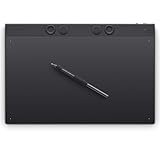
- WACOM’S BEST PEN TECHNOLOGY: Pro Pen 3 offers amazing precision, 8192 pressure levels, tilt support & lag-free tracking for smooth, precise strokes; choose slim, straight or flared grip, adjust balance & button layout for precision and comfort
- DIAL INTO PRODUCTIVITY: Speed up and stay in the creative flow with 10 customizable tablet ExpressKeys & 2 mechanical dials conveniently located at the top of the tablet and close to your keyboard for efficiency
- DESIGNED FOR MODERN MONITORS: With a versatile 16:9 format perfect for multiple monitors and wide displays; large size has a large active area with a small footprint 14.8 x 9.9” / 377 x 253 mm
- SLEEK AND STURDY: Measuring 4mm at its thinnest this professional-grade drawing tablet feels like pen-on-paper on your desk, combined with the robust durability of magnesium making it equally suited for your office or life on the go
- WIRELESS FREEDOM: Use Intuos Pro with USB or connect wirelessly via Bluetooth to multiple computers with a simple switch
Pen performance
- Initial activation force: how lightly the pen must touch before a stroke begins.
- Pressure curve: whether light, medium, and heavy strokes are easy to control.
- Slow-line wobble: visible waviness when drawing deliberate diagonal or vertical lines.
- Tracking and edge behavior: whether the cursor remains accurate near the active-area edges.
- Calibration and offset: especially important on pen displays, where the cursor should meet the nib.
- Tilt: useful when the brush engine changes shading, angle, or texture with pen orientation.
- Pen design: balance, grip, button placement, and whether side buttons are pressed accidentally.
- Charging: battery-free pens simplify ownership; rechargeable pens may add features but introduce another battery.
A quoted figure of 4,096, 8,192, or 16,384 pressure levels is only the maximum input resolution. It does not guarantee a better pressure curve, lower activation force, less wobble, better calibration, or superior drivers. A well-tuned 4,096-level pen can feel better than a poorly tuned pen with twice the number.
What’s actually slowing this PC down?
Pick the symptom - the matching free tool is one click away.
Working area and display size
For screenless tablets, compare the active area with your monitor and aspect ratio. A 16:9 active area maps naturally to many widescreen displays. Multi-monitor setups may require driver configuration so the tablet maps to the intended screen rather than stretching across every monitor.
- 10–13 inches: portable and affordable, but application panels can make the drawing area feel cramped.
- 15–16 inches: the most balanced pen-display size for many users.
- 17–19 inches: more comfortable for professional work without becoming enormous.
- 22–24 inches: useful for broad strokes, animation, and detailed studio work, but generally desk-bound.
- 27 inches and larger: specialist studio equipment requiring substantial desk space and a suitable stand or arm.
Larger is not automatically better. A large screen can encourage broad arm movement, but it costs more, weighs more, requires more desk depth, and may cause neck or shoulder strain if positioned flat.
Resolution, lamination, and parallax
Full HD is often adequate on 10- to 16-inch displays. QHD adds useful workspace and detail on mid-sized displays, while 4K becomes more valuable on larger screens or for highly detailed work. Higher resolution can increase GPU demands and does not automatically improve pen tracking.
Full lamination reduces the visible gap between the cover glass and display layer. That can make the cursor feel closer to the nib, but calibration, viewing angle, and the user’s perception still matter. Matte etched glass can reduce reflections and add friction; glossy surfaces may look more vivid but can show more glare and fingerprints.
Crashes, No Sound, or Screen Glitches?
Random freezes, missing sound and display glitches usually trace back to one bad driver. Find and replace yours safely.Free scan · under a minutePC Slower Than It Used to Be?
A free scan shows the junk files, broken settings and background clutter dragging Windows down - then fixes them in one click.Free scan · Windows 10 & 11Color and image quality
Look beyond gamut percentage. Brightness, contrast, viewing angle, factory calibration, calibration controls, surface finish, and color-profile support all affect the result.
Color gamut is not color accuracy. A manufacturer’s claim such as 145% sRGB describes gamut volume or coverage under a stated measurement method. It does not prove that the display is accurately calibrated, that skin tones are correct, or that a print workflow will match the screen. Photographers, print designers, and video professionals should consider a screenless tablet paired with a calibrated external monitor when color accuracy is central.
Also distinguish the color spaces: sRGB is the common web target, Adobe RGB is relevant to some photo and print workflows, and DCI-P3 is common in modern wide-gamut display and video contexts. A larger percentage is not universally better if the application and delivery target are narrower.
Touch and shortcut controls
Touch can make pinch-to-zoom, panning, and canvas rotation natural, but it can also create accidental marks or gestures. Check whether touch can be disabled independently.
Free tools Windows power users keep installed
One-click scans. No signup required.
Physical ExpressKeys, shortcut keys, dials, touch rings, included remotes, and software controls affect workflow more than a specification list suggests. Consider whether the controls are reachable without lifting your drawing hand, whether they can be assigned per application, and whether the design works for left-handed use. A remote can be useful when the tablet itself has no convenient buttons, but it adds cost and another device to charge or position.
Ergonomics
Check the included stand, available angles, VESA support, cable placement, palm rest, heat, surface friction, and whether the display can be positioned near vertical rather than flat. A technically excellent pen display can become uncomfortable if you lean over it for hours.
Screenless tablets can sometimes be more ergonomic because the artist looks forward at a properly positioned monitor instead of down at a small drawing display. Pen displays offer more immediate visual feedback, but their angle and height deserve deliberate setup.
Wireless operation
Wireless is most useful for screenless tablets. A wireless pen tablet may still require a USB receiver, dedicated dongle, charging, and a vendor driver. Wireless matters less for pen displays because the display still needs a video signal and power; a single USB-C cable can be convenient only when the host supports the required video, data, and power standards.
Compatibility and total setup cost
The tablet’s advertised price is rarely the complete system price. Budget for the items that your particular setup lacks:
- Computer, monitor, or GPU upgrade.
- Apple Pencil, S Pen, or replacement stylus.
- Stand, monitor arm, case, or keyboard.
- HDMI, USB, USB-C, 3-in-1, or proprietary cables.
- Power adapter or powered hub.
- Replacement nibs and pen.
- Drawing software, subscriptions, brushes, and plugins.
- Warranty or accidental-damage protection.
Before buying a pen display
- Identify the host operating system: check the exact Windows or macOS version and the manufacturer’s current driver for the model. Verify Linux support by distribution rather than assuming that a generic driver will work.
- Inspect the ports: determine whether the computer has HDMI, DisplayPort, USB-A, or USB-C with DisplayPort Alternate Mode.
- Check power: some USB-C hosts can provide enough power for a one-cable setup; others need a power adapter or a multi-cable connection.
- Check the cable: USB-C describes the connector shape, not necessarily video capability. XP-Pen specifically warns that other USB-C cables may not work correctly with the Artist 16 (2nd Gen).
- Check software support: confirm pressure and tilt behavior in your drawing application, not only in the operating system.
- Check monitor mapping: decide whether the tablet should control one monitor or a whole multi-monitor desktop.
- Check accessories: determine whether the stand, remote, power supply, and required adapter are included.
Wacom’s Wacom One system-requirements page and XP-Pen’s Artist 16 connection information illustrate why compatibility should be checked at the port and host-device level.
Common problems and practical fixes
The pen display turns on but shows no image
Check that the video cable is connected to the computer’s graphics output rather than an inactive motherboard port, select the correct input on the display if applicable, and confirm that the host USB-C port supports DisplayPort Alternate Mode. Try the manufacturer-supplied cable before substituting another USB-C cable. If the display needs separate power, connect the adapter directly rather than relying on an underpowered hub.
The pen controls the wrong monitor
Open the tablet driver and set the screen or monitor mapping explicitly. This is especially important after adding a second monitor, changing display duplication to extension, or changing the operating system’s display arrangement. Recalibrate the pen after changing the display’s resolution or scaling.
Pressure works in one application but not another
First confirm pressure in a simple supported application such as Krita. Then inspect the drawing application’s tablet API or input setting, brush pressure setting, and Windows Ink or equivalent operating-system option. Vendor drivers and application-specific profiles can conflict. Restart the application after changing the driver setting.
A brand switch causes erratic behavior
Old Wacom, Huion, or XP-Pen drivers can conflict. Uninstall the previous tablet driver, restart the computer, install the correct driver for the new exact model, and restart again. Avoid assuming that a generic driver will provide the same pressure, tilt, button, or display behavior.
Best Value

- Wacom Intuos Small Bluetooth Graphics Drawing Tablet: Enjoy industry leading tablet performance in superior control and precision with Wacom's EMR, battery free technology that feels like pen on paper
- Works With All Software: Wacom Intuos tablet can be used in any software program to explore new facets of digital creativity; draw, paint, edit photos/videos, create designs, and mark up documents
- Wireless Superior Connectivity: Connect wirelessly via Bluetooth or directly using USB-A cable which enables you to work, draw or create whether it's at a desk, on the sofa, in classroom or even outside
- Software and Training Included: Only Wacom gives you software with every purchase. Register your Intuos tablet and gain access to some of the best creative software and Wacom's online training
- Wacom is the Global Leader in Drawing Tablet and Displays: For over 40 years in pen display and tablet market, you can trust that Wacom to help you bring your vision, ideas and creativity to life
For Windows users who still have missing, outdated, or incompatible tablet drivers, Outbyte Driver Updater is an optional way to check for driver updates; it is not required when the manufacturer’s installation works.
macOS does not recognize the tablet correctly
Review the manufacturer’s macOS permissions and input or accessibility instructions, reinstall the current supported driver, and restart after granting permissions. Driver updates can change application profiles and pressure curves, so recheck those settings after an update.
What’s actually slowing this PC down?
Pick the symptom - the matching free tool is one click away.
The cursor is offset from the nib
Confirm that the tablet is mapped to the correct display, set the operating system’s scaling and resolution correctly, and run the manufacturer’s calibration procedure. Parallax can be more noticeable at the edges of a pen display and when viewed from an angle.
Touch creates accidental marks
Disable touch in the tablet driver or use the hardware touch toggle if provided. You can then retain pen pressure and shortcut controls without unwanted palm or finger input.
The replacement pen does not work
Pens are not universally interchangeable, even within one brand. Verify the exact tablet model and exact pen model, pressure and tilt compatibility, nib availability, charging requirements, and whether a used tablet includes its original stylus. Wacom’s distinctions between Pro Pen 2, Pro Pen 3, and older pen families show why model-specific checking matters.
The display feels uncomfortable
Do not use a large pen display flat on the desk for hours if it causes you to hunch. Raise it with the included stand or a suitable arm, position the top of the screen near a comfortable eye level, keep the drawing shoulder relaxed, and check cable routing before committing to a large studio model.
Do these 3 things before closing this tab:
1Fix the driver behind crashes, sound loss and screen glitches2Clear out junk files and repair common Windows errors3Scan for outdated or missing drivers - takes under a minuteWhich tablet should you buy?
- Beginner with less than $100: the Huion H420X is a low-risk entry point, but its 106 × 66 mm active area is restrictive. If possible, step up to a larger beginner model such as the XP-Pen Deco MW.
- Beginner who wants to draw on the image: consider the XP-Pen Artist 10 (2nd Gen), accepting that its 10.1-inch-class area is compact.
- Photoshop photographer: choose the Wacom Intuos Pro Medium with a properly calibrated monitor unless direct-on-screen retouching is essential.
- Professional illustrator using a desktop: choose the Wacom Cintiq 16 for Wacom’s established workflow, or compare the XP-Pen Artist 16 (2nd Gen) and Huion Kamvas Pro 16 (2.5K) for more display resolution or value.
- Animation or 3D artist: prioritize active area, shortcut controls, application compatibility, and desk ergonomics. The Wacom Cintiq Pro 17 or XP-Pen Artist 24 Pro suits a permanent studio better than a small portable display.
- Traveling artist: choose the iPad Air M2 with Apple Pencil Pro for a standalone setup, or the Wacom Movink 13 if you need desktop applications and have a compatible host.
- iPad user who wants Procreate: choose the iPad Air M2 for value or iPad Pro M4 for the premium display and performance. Include the Pencil in the budget.
- Mac or Windows desktop user: all three tablet categories can work; choose based on whether you want a separate monitor, direct drawing, or a standalone computer.
- Linux user: the Xencelabs Medium and selected Huion or XP-Pen models list Linux support, but verify the exact driver, distribution, and application before purchase.
- Student: a screenless tablet is usually the easiest way to reduce cost if a laptop is already available. An iPad Air is more versatile when the device will also serve as a notebook and media tablet.
- Parent buying a first tablet: avoid choosing only by pressure-level count. Confirm the child’s computer, software, available desk space, and whether a small active area will be frustrating.
2024 model and price cautions
Retail prices in 2024 often changed with sales, bundles, regional stock, and included accessories. A retailer’s temporary discount should not be treated as a permanent product value. The dated Apple launch prices are easier to state: the 2024 iPad Air started at $599 for 11-inch Wi-Fi and $799 for 13-inch Wi-Fi, with Apple Pencil Pro at $129; the 2024 iPad Pro started at $999 and $1,299 for 11- and 13-inch Wi-Fi models, also before the $129 Pencil Pro. Wacom reported the Movink launch at $750 in the United States.
For Wacom, Huion, XP-Pen, and Xencelabs, compare the exact model number, included pen, stand, cable, power supply, driver support, replacement nibs, and return policy. In 2026, a successor or remaining old stock may be marketed under a similar name. The fact that a product page is current does not make its specifications a description of the 2024 generation.
Frequently Asked Questions
Are drawing tablets worth buying if they do not have a screen?
Yes. A screenless tablet is often the best value for Photoshop, Illustrator, animation, and photo editing, especially when paired with a good calibrated monitor. It takes some practice because your hand is on the tablet while your eyes are on another screen, but it can save money, desk space, and neck strain.
Is Wacom better than Huion or XP-Pen?
There is no universal answer. Wacom’s Cintiq and Intuos lines are strong choices for established pen behavior, drivers, and a mature professional ecosystem. Huion and XP-Pen often offer larger displays, higher resolution, or more shortcut buttons at value-oriented prices. Compare the exact model’s pen feel, calibration, driver support, cables, warranty, and replacement-pen availability rather than judging the brand alone.
The Tool Desk
Outbyte Driver Updater FREEScan for outdated or missing drivers - takes under a minuteDriver Scan →Outbyte PC Repair FREEClear out junk files and repair common Windows errorsFree Scan →Is 8,192 pressure sensitivity enough for digital art?
Yes. 8,192 levels is more than sufficient for most drawing applications, but the number does not guarantee good strokes. Initial activation force, pressure-curve tuning, wobble, calibration, tilt behavior, and driver quality have a greater effect on how the pen feels.
Can a drawing tablet work with a phone?
Some can, but compatibility is model- and phone-specific. Pen input may work over USB while display output does not. A pen display generally needs a host with USB data, DisplayPort Alternate Mode, and sufficient power for a one-cable setup. Check the manufacturer’s compatibility list instead of assuming that a USB-C phone supports every pen display.
Can a pen display work without a computer?
Normally no. A Wacom Cintiq, Huion Kamvas, or XP-Pen Artist is usually a monitor and pen-input device, not a computer. It needs a compatible PC, Mac, or supported mobile host. An iPad, Galaxy Tab, or Windows Surface device is a standalone computer and can run drawing software by itself.
Is an iPad better than a Wacom tablet?
It depends on the workflow. An iPad is better for portability, Procreate, sketching away from a desk, and general-purpose use. A Wacom screenless tablet or pen display is usually better when you already have a desktop, need full Photoshop, Blender, Illustrator, or desktop Clip Studio Paint, or rely on plugins, large files, multiple monitors, and professional desktop color workflows.
Windows Errors? Fix Them Before They Spread
Repair common Windows errors and clear accumulated junk for a smoother, more stable PC - no reinstall needed.Free scan · no reinstallCrashes, No Sound, or Screen Glitches?
Random freezes, missing sound and display glitches usually trace back to one bad driver. Find and replace yours safely.Free scan · under a minuteWhat size drawing tablet should a beginner buy?
A medium screenless tablet or a 13- to 16-inch pen display is usually the most balanced starting point. A 10-inch display or the Huion H420X can be inexpensive, but a small active area becomes cramped when toolbars and panels are open. Extra-large 22- to 24-inch displays are best reserved for artists with the desk space and a clear need for broad arm movement.
Do I need a 4K drawing display?
Not necessarily. Full HD is often adequate at 10–16 inches, and QHD is a useful middle ground on a 15- or 16-inch display. 4K is most valuable on larger screens or for highly detailed work. It increases display and graphics requirements without automatically improving pressure response or pen tracking.
Does the pen need charging?
Many Wacom, Huion, and XP-Pen pens use battery-free electromagnetic technology, so they do not need charging. Some standalone tablets use an active Pencil or S Pen system with different power arrangements. Check the exact included pen, because replacement pens are not universally compatible even within the same brand.
Can I use a drawing tablet with Photoshop or Blender?
Computer-connected pen tablets and pen displays are designed for desktop applications such as Photoshop, Illustrator, Blender, and desktop Clip Studio Paint, provided the operating system and driver are supported. Confirm pressure and tilt support in the specific application. An iPad may run a mobile version or a separate app with different plugins, file handling, and features.
Free tools Windows power users keep installed
One-click scans. No signup required.
Do drawing tablets work with Linux?
Some do, but support varies by exact model, distribution, driver, and application. The Huion Kamvas Pro 16 (2.5K), XP-Pen Artist 16 (2nd Gen), and Xencelabs Medium list Linux support in their product information, but verify the current driver and your distribution before buying.
What is the difference between Wacom One 13 Touch and One by Wacom?
The Wacom One 13 Touch is a 13.3-inch pen display with a built-in screen and multitouch. One by Wacom is a screenless pen tablet. The names are similar, but they require different setups and solve different problems.
The Bottom Line
Bottom line: choose the Wacom Intuos Pro Medium if you want a professional screenless workflow and already have a good monitor; choose the Wacom Cintiq 16 if you want the safest all-around direct-drawing option for a PC or Mac; choose the XP-Pen Artist 16 (2nd Gen) for a value-focused large pen display; and choose the 13-inch iPad Air M2 with Apple Pencil Pro if you need a standalone portable drawing computer. The best purchase is the one that matches your software, ports, desk, and working style—not the one with the largest pressure-level number.
Quick Recap

Product prices and availability are accurate as of the date/time indicated and are subject to change. Any price and availability information displayed on Amazon at the time of purchase will apply.
Recommended Free Tools




