The Tool Desk
Outbyte Driver Updater FREEScan for outdated or missing drivers - takes under a minuteDriver Scan →Outbyte PC Repair FREERepair Windows errors before they cause bigger problemsFix Now →ThatPainter is reader-supported. When you buy through links on our site, we may earn an affiliate commission. Learn More
For most serious Windows photo editing, start with Affinity by Canva. Its core app is currently free to use and provides the layers, masks, retouching, compositing, and professional tools most people expect from a Photoshop alternative. Choose GIMP if you want open-source software with no vendor account, Paint.NET for simpler everyday editing, Photopea for browser-based PSD work, and darktable or RawTherapee for RAW photography.
As an Amazon Associate I earn from qualifying purchases.
There is no single best free photo editor for every Windows workflow. Editing a JPEG, developing a camera RAW file, organizing 50,000 photographs, painting over an image, and opening a layered PSD are different jobs. The right choice depends on what you edit, whether you need layers or cataloging, whether an account is acceptable, and how much control you want over your files.
Free tools Windows power users keep installed
One-click scans. No signup required.
Version note: Software releases and free-plan conditions change. The version snapshot in this guide includes GIMP 3.0.8, Paint.NET 5.1.12, darktable 5.6.0, digiKam 9.1.0, and RawTherapee 5.12; check the linked official download pages before installing.
Popular on Amazon
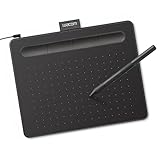
- Wacom Intuos Small Graphics Drawing Tablet: Enjoy industry leading tablet performance in superior control and precision with Wacom's EMR, battery free technology that feels like pen on paper
- Works With All Software: Wacom Intuos tablet can be used in any software program to explore new facets of digital creativity; draw, paint, edit photos/videos, create designs, and mark up documents
- What the Professionals Use: Wacom's industry leading pen technology and pen to paper feeling makes it the preferred drawing tablet of professional graphic designers
- Software and Training Included: Only Wacom gives you software with every purchase. Register your Intuos tablet and gain access to some of the best creative software and Wacom's online training
- Wacom is the Global Leader in Drawing Tablet and Displays: For over 40 years in pen display and tablet market, you can trust that Wacom to help you bring your vision, ideas and creativity to life
Quick picks
| Software | Best for | Free model | Important limitation |
|---|---|---|---|
| Affinity by Canva | Serious editing, retouching, layers, masks, and compositing | Free core app; Canva account required | Account-linked access, possible online entitlement checks, no full photo catalog, and some AI features may require payment |
| GIMP | Open-source Photoshop-style raster editing | Free and GPL-licensed | Steeper learning curve; not a complete Lightroom-style RAW and catalog workflow |
| Paint.NET | Fast, straightforward Windows editing | Free Classic desktop edition; paid Microsoft Store edition | Less capable for complex compositing and advanced RAW photography |
| Photopea | PSD files, no installation, and a Photoshop-like interface | Free with advertising; Premium removes ads and adds account benefits | Browser memory and startup depend on the browser; unsaved work can be lost |
| darktable | RAW development, cataloging, ratings, and batch processing | Free and open source | Complex interface; not a layer-based Photoshop replacement |
| RawTherapee | Detailed technical control over RAW files | Free and open source | Technical workflow and limited compositing tools |
| Microsoft Photos | Quick crops, adjustments, filters, markup, and erase tools | Included with Windows | No layers, deep project files, or advanced compositing workflow |
| digiKam | Managing large photo libraries and metadata | Free and open source | More organizer than creative editor |
| Krita | Digital painting, illustration, and paint-over work | Free and open source | Painting-first rather than photography-first |
What does free mean?
Free photo software is not one category. Before comparing features, identify which of these offers you are considering:
- Free and open source: GIMP, darktable, RawTherapee, digiKam, and Krita. You can install them without buying a subscription, and their source code and licenses provide freedoms that proprietary applications do not.
- Free proprietary desktop software: Paint.NET Classic is free to download from the official site, but it is not open source.
- Free account-linked software: Affinity’s core app is currently free to use, but signing in with a Canva ID is part of the access model.
- Free browser software supported by advertising: Photopea provides its core editor for free and uses advertising to support that version.
- Free tiers with limits: Adobe Express and similar services may restrict assets, storage, AI credits, or other features. A free account with locked core tools is not equivalent to fully free desktop software.
- Included Windows utilities: Microsoft Photos is already available to many Windows users and is useful for quick work, but it is not a full Photoshop replacement.
A trial, a watermarked export plan, or a seven-day promotion should not be described as fully free software. Also separate the license for the application from the rights to your image, fonts, stock assets, plug-ins, and AI-generated content.
1. Affinity by Canva: best overall for serious editing
Canva launched its unified Affinity application on October 29, 2025. It brings photo editing, vector design, and page layout into one Windows application, making it the strongest general recommendation for people who want a modern alternative to Photoshop without paying a monthly Photoshop subscription. The launch announcement describes the core product as free.
Affinity is suited to layer-based work: retouching, selections, masks, compositing, text, adjustments, and multi-element designs. It is a particularly good fit for photographers who also create posters, social graphics, illustrations, or print layouts. For a painting-focused site, its combination of raster Pixel tools and vector/page-layout work is useful when a photograph is only one part of a larger design.
How to start
- Download the Windows version from the official Affinity site.
- Install and launch Affinity.
- Sign in with a Canva ID.
- Choose the Pixel tools or photo-editing workspace for raster editing.
- Save the native Affinity project before exporting a JPEG, PNG, TIFF, or another delivery format.
The important free-use qualifications
Affinity is free to use, but it is not account-free or open source. The Affinity additional terms link the license to a Canva account and allow online entitlement verification. Some features can depend on subscription type or require additional payment. In particular, do not assume that every Canva AI integration is included in the free core application.
Canva says Affinity stores work locally on the device and that Affinity content is not used to train Canva AI features, but those statements should not be confused with completely independent, account-free software. The local editing application, optional Canva-connected services, AI tools, and account entitlement are separate considerations.
Affinity also does not provide a full Lightroom-style photo catalog. It is an editor, not primarily a library manager. Do not describe it as open source, as a guaranteed perpetual license, or as a tool that will work indefinitely without online verification.
Choose Affinity if: you want the most capable general-purpose free editor for layers, masks, retouching, compositing, and design, and you are comfortable creating or using a Canva account.
2. GIMP: best fully free and open-source Photoshop alternative
GIMP remains the best choice for users who want a local, open-source Windows editor without a Canva, Adobe, or other vendor account. It is GPL-licensed and supports layers, channels, alpha transparency, transformations, selections, scripting, plug-ins, multiple undo and redo, and common formats including JPEG, PNG, PSD, TIFF, BMP, GIF, DDS, and PDF. The GIMP 3.0 manual documents its licensing and core capabilities.
The official Windows archive lists GIMP 3.0.8, with the installer dated February 7, 2026. GIMP 3.0 also introduced non-destructive filters for many commonly used filters, updated interface and scaling behavior, and improvements to PSD and other format support. Check the official Windows archive for the current installer rather than relying on an unofficial mirror.
Where GIMP excels
- Complex selections, masks, and layer-based composites.
- Cloning, healing, retouching, and pixel-level corrections.
- Open-source workflows with no account requirement.
- Scripting and plug-in extension.
- Projects that need a native, editable file rather than a flattened JPEG.
Where GIMP can disappoint
GIMP is powerful, but it is less approachable than Paint.NET or Affinity for many beginners. Its interface and terminology take time to learn, and old tutorials or plug-ins written for GIMP 2.10 may not work correctly with GIMP 3.
GIMP is also not a complete Lightroom replacement. It can open some RAW files through supported components or plug-ins, but serious photographers generally need a dedicated RAW developer for camera profiles, demosaicing, highlight recovery, lens correction, cataloging, and non-destructive development. A RAW file is sensor data that must be interpreted; it is not simply a higher-quality JPEG.
PSD compatibility is useful but not perfect. A PSD may open while losing or changing a smart object, adjustment layer, effect, font, plug-in result, or blending behavior. Keep the original PSD and test important files before moving a production workflow.
Also popular on Amazon

- Word-first 16K Pressure Levels: The upgraded stylus features 16,384 levels of pressure sensitivity and supports up to 60 degrees of tilt, delivering smoother lines and shading for a natural drawing experience. With no battery or charging needed, it operates like a real pen, making it easy for beginners to create effortlessly. This functionality helps novice artists develop their skills and explore their creativity without the intimidation of complex tools
- Designed for Beginners: This drawing pad desinged with 8 customizable shortcuts for both right and left-hand users, express keys create a highly ergonomic and convenient work platform
- Perfectly Adapted for Android: The XPPen Deco 01 V3 art tablet supports connections with Android devices running version 10.0 and above. It is recommended to download the XPPen Tools Android application, which adapts to your smartphone's screen aspect ratio, ensuring accurate mapping. It also supports mapping on Android screens with different aspect ratios in portrait mode
- Large Drawing Space, Bigger Bold Inspiration: This expansive drawing pad has10 x 6.25-inch helps you break through the limit between shortcut keys and drawing area
- Easy Connectivity for Beginners: The Deco 01 V3 offers USB-C to USB-C connectivity, plus adapters for USB C. This ensures easy connection to various devices, allowing beginner artists to set up quickly and focus on their creativity without compatibility concerns. Whether using a laptop, tablet, or desktop, the Deco 01 V3 provides a seamless experience, making it an ideal choice for those just starting their digital art journey
Choose GIMP if: open source, local operation, no account, extensibility, and advanced raster editing matter more than a gentle learning curve or an integrated RAW catalog.
3. Paint.NET: best for simple Windows-native editing
Paint.NET is an excellent middle ground between Microsoft Photos and a full professional editor. It handles cropping, resizing, color correction, selections, annotations, retouching, layers, blend modes, transparency, clone-stamp work, curves, levels, red-eye removal, sharpening, and noise reduction without presenting the full complexity of GIMP.
The official free Classic edition is downloaded from the Paint.NET website. A separate Microsoft Store edition is paid; the functionality is the same, while the Store version adds conveniences such as automatic updating. Paint.NET’s license information permits personal, educational, commercial, government, business, nonprofit, and for-profit use.
Current Windows requirements
The official download page lists Paint.NET 5.1.12, dated March 8, 2026. Paint.NET 5 requires Windows 10 version 21H2 or newer, Windows 11, or Windows Server 2022; a 64-bit x64 or ARM64 processor; at least four CPU cores; and a Direct3D 11-capable GPU. The application includes .NET 9, so a separate .NET installation is not required. See the current requirements before installing.
Paint.NET supports PNG, JPEG, JPEG XL, AVIF, HEIC, WebP, JPEG XR, BMP, GIF, TIFF, DDS, TGA, and its native PDN project format. PDN preserves the editable document, but it is not a universal interchange format like JPEG or TIFF. Many advanced formats and functions may require third-party plug-ins.
One limitation that matters
Paint.NET’s history is an undo history for the current session. Closing the image or application clears that history; it is not a persistent adjustment recipe like a RAW editor’s sidecar. Save a PDN project if you need to retain layers, and do not assume that reopening a flattened JPEG will restore previous edits.
The Tool Desk
Outbyte Driver Updater FREEScan for outdated or missing drivers - takes under a minuteDriver Scan →Outbyte PC Repair FREERepair Windows errors before they cause bigger problemsFix Now →Choose Paint.NET if: you mostly edit JPEGs and PNGs, want a native Windows application with a manageable interface, and do not need a full RAW catalog or highly complex compositing workflow.
4. Photopea: best browser-based editor and PSD solution
Photopea is the best option when you cannot or do not want to install software. It runs in a modern browser, uses PSD as its main editable document format, supports raster and vector graphics, and works with 8-, 16-, and 32-bit color depth and multiple color spaces. Its Photoshop-like layout makes it especially useful for opening a PSD on a school, work, borrowed, or locked-down Windows computer.
Basic Photopea paths
- File → Open to load a photo or PSD.
- Drag a file from Windows Explorer into the browser window.
- File → Save as PSD to preserve an editable project.
- File → Export As → PNG/JPG/etc. to create a delivery file.
- File → Script for JavaScript-based automation.
Photopea states in its privacy documentation that files opened in the editor are processed on the device and do not leave it. It can continue working offline after the web application has loaded. That makes it different from a conventional cloud editor that uploads every image for processing, but it still depends on a browser to load the application initially. Optional cloud-storage access is a separate feature, and saving locally is still the safest approach for sensitive work.
The free version is advertising-supported. Photopea’s Premium explanation describes Premium primarily as removing advertisements and adding account-related benefits rather than locking away the core editor.
Photopea’s practical risks
- Large PSDs and high-resolution photographs can run into browser memory limits.
- Closing the tab before saving can lose unsaved work.
- Browser extensions, blocked scripts, corporate policies, or an unreliable connection can prevent startup.
- PSD compatibility is not the same as perfect Photoshop fidelity. Test smart objects, text layers, masks, adjustment layers, fonts, linked assets, effects, and blend modes before converting an important project.
Choose Photopea if: PSD support, no installation, and occasional Photoshop-style editing matter more than having a dedicated desktop application’s performance and project-management features.
5. Best free software for RAW photography
RAW photography needs a different type of application from ordinary JPEG editing. A RAW developer demosaics the sensor data and lets you control exposure, white balance, highlight recovery, color, noise, sharpening, and lens corrections. A catalog application then helps you rate, tag, search, and batch-process the results.
For a workflow that needs both RAW development and layers, use two stages: develop the RAW in darktable or RawTherapee, then send an exported TIFF to Affinity, GIMP, Krita, or Photopea for compositing and pixel-level work.
Also popular on Amazon

- Customize Your Workflow: The 6 customizable press keys on Huion H640P drawing tablet for pc let you assign your most-used commands—like undo, zoom, brush switch, or save—so you can keep your hands on the tablet and your mind on the art. Whether you're a digital painter switching brushes, or a comic artist zooming in and out, these keys keep your workflow smooth and uninterrupted. Plus, the Huion driver lets you save different shortcut profiles for different apps, so you never have to reconfigure when switching software.
- Professional Pen Performance: Huion H640P drawing pad for computer comes with the battery-free PW100 stylus that's always ready when inspiration strikes. With 8192 levels of pressure sensitivity, every light sketch, or bold stroke responds naturally to your hand—just like a real pen. The 5080 LPI resolution and 233 PPS report rate deliver lag-free, precise strokes, so you can draw confidently without second-guessing your cursor. The pen side buttons help you switch between pen and eraser instantly.
- Compact and Portable: Huion H640P computer graphics tablet features a compact, ultra-portable design at just 0.3 inches thin and 0.61 lbs light, so it slides easily into your backpack—perfect for sketching in coffee shops, taking notes in class, or editing on the go between home and studio. The 6x4 inch active area offers enough room for natural pen movements while fitting comfortably on crowded desks, or lecture hall seats.
- Stable Compatibility: Huion H640P graphic drawing tablet works seamlessly with Mac, Windows, Linux PCs, and Android smartphones/tablets (OS version 6.0 or later). Left-handed friendly, and you just need to flip the tablet and adjust the settings in the driver. Please note: H640P does NOT support iPhone/iPad.
- Move Beyond the Mouse: Huion Inspiroy H640P is a pen tablet that replaces your mouse for more natural, precise control. Freehand draw, take notes, or even play OSU—everything you do with a mouse, you can do better with a pen. The precise tip makes it ideal for detailed photo editing, graphic design, or signing PDF. Meanwhile, the ergonomic pen grip helps you avoid the strain that comes from hours of using a mouse.
darktable: best free RAW and catalog workflow
darktable is the strongest free choice for photographers who need RAW development, cataloging, ratings, tags, metadata, masks, batch processing, and non-destructive editing. The official site lists darktable 5.6.0, released June 21, 2026, with Windows x64 and Windows-on-Arm installers. The 5.6 release includes workflow updates, optional AI features, object masks, duplicate filtering, and GPU-related setup improvements.
PC Slower Than It Used to Be?
A free scan shows the junk files, broken settings and background clutter dragging Windows down - then fixes them in one click.Free scan · Windows 10 & 11Crashes, No Sound, or Screen Glitches?
Random freezes, missing sound and display glitches usually trace back to one bad driver. Find and replace yours safely.Free scan · under a minutedarktable opens images read-only and records processing steps in its database and XMP sidecars, leaving the original RAW untouched. The practical workflow is:
- Import photographs into darktable.
- Use lighttable to browse, rate, tag, and select images.
- Open a chosen image in darkroom.
- Adjust exposure, white balance, color, sharpening, noise reduction, masks, and other modules.
- Open the export module.
- Set the target storage to file on disk.
- Choose JPEG for ordinary delivery or TIFF when continuing in a raster editor.
- Select Export.
The darktable export documentation specifically describes TIFF as the appropriate choice when continuing in a raster editor. Keep the RAW originals, XMP files, and darktable library database backed up. Before a major-version migration, make a separate backup because a newer library or configuration may not remain usable by an older darktable version.
darktable is closer to Lightroom than Photoshop. It is not the first choice for a poster made from many layers, a detailed paint-over, or a complex composite.
Choose darktable if: you photograph in RAW, need a searchable library, and prefer a non-destructive, catalog-centered workflow.
Quick wins for a faster PC:
Repair Windows errors before they cause bigger problemsFix Now →Fix the driver behind crashes, sound loss and screen glitchesFind Drivers →Clear out junk files and repair common Windows errorsFree Scan →RawTherapee: best for technical RAW control
RawTherapee is a specialist RAW processor for photographers who want detailed control over demosaicing, exposure, color, sharpening, noise reduction, lens corrections, profiles, and selective editing. The official downloads page lists RawTherapee 5.12, released May 28, 2025, with a Windows 64-bit build.
RawTherapee uses processing profiles and sidecar files rather than functioning primarily as a catalog database. Its file-browser and queue workflow suits photographers who want to work directly with folders and apply a defined profile to many images. The RawPedia editor documentation explains its processing approach and controls.
It is not the easiest answer for someone who only wants to crop a phone photo, and it is not a layer-compositing replacement for Affinity, GIMP, or Photopea. Check support for your exact camera model before committing to any RAW application because camera compatibility and profiles change over time.
Choose RawTherapee if: maximum RAW-processing control matters more than an easy interface or an integrated photo catalog.
6. Built-in and specialist alternatives
Microsoft Photos: best for quick edits with no installation
Many Windows users already have enough editing power for basic jobs. To edit an image, search for Photos from the Windows taskbar, open the image, choose Edit image, or press Ctrl + E. Microsoft documents controls for:
- Crop and straighten.
- Light and color adjustments.
- Filters.
- Markup and drawing.
- Background blur, removal, or replacement where available.
- Generative erase where available.
Use Save as Copy when preserving the original matters. Microsoft says the generative erase and certain background operations are performed locally on the device, but feature availability can vary by Windows version and hardware, including Copilot+ PC features. Photos has no layer stack, plug-in ecosystem, or deep project-file workflow, so it is a utility rather than a Photoshop replacement.
Choose Photos if: the job is cropping, correcting, annotating, filtering, or removing a small distraction and you want the result immediately.
digiKam: best free photo organizer
digiKam is better suited to managing a large collection than to creating a complex layered composite. It provides tags, ratings, metadata, advanced search, face recognition, RAW support through LibRaw, batch operations, and plug-ins. The official site lists digiKam 9.1.0, released June 7, 2026, with official Windows downloads targeting 64-bit Windows 10 or later.
Also popular on Amazon

- PLEASE NOTE:XPPen Artist13.3 Pro drawing tablet Need to connect with computer,you need to use it with your computer or laptop, the 3 in 1 cable is included
- Drawing Tablet with Screen: Tilt Function- XPPen Artist 13.3 Pro supports up to 60 degrees of tilt function, so now you don't need to adjust the brush direction in the software again and again. Simply tilt to add shading to your creation and enjoy smoother and more natural transitions between lines and strokes
- Graphics Tablets: High Color Gamut- The 13.3 inch fully-laminated FHD Display pairs a superb color accuracy of 88% NTSC (Adobe RGB≧91%,sRGB≧123%) with a 178-degree viewing angle and delivers rich colors, vivid images, and dazzling details in a wider view. Your creative world is now as powerful as it is colorful
- Drawing Pad: One is enough- The sleek Red Dial on the display is expertly designed with creators in mind, its strategic placement allows for natural drawing postures. With just one wheel, you can effortlessly zoom in and out, adjust brush sizes, and flip the canvas—all tailored to suit the habits of everyday artists. The 8 customizable shortcut keys allow you to personalize your setup, streamlining your workflow and enhancing creative efficiency
- Universal Compatibility & Software Support:supports Windows 7 (or later), Mac OS X 10.10 (or later), Chrome OS 88 (or later), and Linux systems. Fully compatible with major creative software including Photoshop, Illustrator, SAI, and Blender 3D. Register your device to access additional programs like ArtRage 5 and openCanvas for expanded creative possibilities.
Use digiKam when the problem is finding photographs by date, location, camera, lens, rating, or keyword. Open selected images in Affinity or GIMP when the problem becomes retouching, design, or compositing. A photo manager and a photo editor solve different problems.
Krita: best for painting and illustration
Krita is a strong free, open-source option for digital painting, illustration, and paint-over work. Its strengths include brush engines, stabilizers, vector and filter layers, animation, HDR painting, PSD support, and color management. It can be a useful companion to a RAW developer when a photograph needs hand-painted effects, but it is painting-first rather than photography-first.
Adobe Express Photos: best for screenshots and social content
Adobe Express Photos is a free Windows desktop app for photo editing, screenshot capture, annotation, and integration with Adobe Express designs. It is convenient for quick social graphics and marked-up screenshots, but it is not a full desktop editor with the depth of Affinity or GIMP. Some AI features consume generative credits, and broader Express features are subject to the limits of the free plan.
Which free Windows editor should you install?
Use this decision guide rather than choosing by a universal star rating:
What’s actually slowing this PC down?
Pick the symptom - the matching free tool is one click away.
- I need professional layers, masks, retouching, and compositing: choose Affinity by Canva.
- I need the same type of work without an account and want open source: choose GIMP.
- I want easy everyday editing in a Windows application: choose Paint.NET.
- I need to open or save PSD files without installing anything: test Photopea first.
- I shoot RAW and need a catalog: choose darktable.
- I shoot RAW and want highly technical control: choose RawTherapee.
- I only need crop, filter, markup, or quick erase: use Microsoft Photos.
- I need to organize thousands of photographs: choose digiKam or darktable.
- I want digital painting rather than photographic correction: choose Krita.
- I need a screenshot and annotation tool: use Paint.NET, Microsoft Photos, or Adobe Express Photos.
- I need batch processing for hundreds of photographs: consider darktable, RawTherapee, or digiKam; Photopea scripts can also help with defined tasks.
The best free two-app workflows
Photographers often get a better result from two specialized applications than from forcing one application to do everything.
- JPEG beginner workflow: Microsoft Photos for quick corrections, then Paint.NET for layers, annotations, or a more controlled retouch.
- Open-source photography workflow: darktable for RAW development and cataloging, then GIMP for layers and compositing.
- Professional free workflow: darktable for RAW development, then Affinity for retouching, design, and compositing.
- Browser and PSD workflow: Photopea alone for occasional files, provided the browser can handle the document and the file is saved before closing the tab.
- Large library workflow: digiKam for cataloging and metadata, then Affinity or GIMP as the external editor.
- Painting and photography workflow: darktable or RawTherapee for the photographic base, then Krita for hand-painted effects and illustration.
For continued editing, export from the RAW developer as a 16-bit TIFF when practical rather than an 8-bit JPEG. JPEG is appropriate for delivery, but it discards information and produces a flattened image. TIFF is a better intermediate when the next application needs room for further adjustments.
File formats, editable projects, and backups
A free editor is only useful if you can return to the work later. Keep these four file types conceptually separate:
- Native layered projects: Affinity documents, GIMP XCF files, Paint.NET PDN files, Photopea PSD files, and Krita documents preserve an editable document model.
- RAW sidecars and databases: darktable records edits in its database and XMP sidecars; RawTherapee uses processing profiles and sidecars. These files must stay with the originals and be backed up.
- Flattened exports: JPEGs and ordinary PNGs are delivery files, not reliable substitutes for an editable project.
- Destructive versus non-destructive edits: a non-destructive workflow records adjustments separately or keeps them editable. A saved JPEG usually bakes the result into pixels.
Use this checklist before deleting or overwriting anything:
- Keep the original RAW or JPEG untouched.
- Save the native project before exporting.
- Back up RAW sidecars and catalog databases with the image files.
- Export a JPEG for ordinary sharing and a TIFF when another editor will continue the work.
- Test PSD compatibility using a copy of the file, not the only original.
- Preserve fonts, linked assets, plug-ins, and color profiles needed to reopen the project.
- Download installers from official project websites rather than random mirror sites.
Privacy, accounts, and offline use
If you edit confidential client, medical, legal, or unreleased commercial images, assess more than the word free:
- Most straightforward local choices: GIMP, Paint.NET Classic, darktable, RawTherapee, and digiKam are desktop applications designed for local workflows. Optional plug-ins or services still deserve separate review.
- Affinity: Canva says work is stored locally, but access is linked to a Canva account and the terms allow online entitlement verification. Optional Canva-connected and AI features should be evaluated separately.
- Photopea: Photopea’s privacy documentation says opened files are processed on the device and do not leave it. The editor still needs to load in a browser, and optional cloud-storage access is distinct from local editing. Save sensitive work locally.
- AI features: local generative erase in Microsoft Photos, Canva AI integrations in Affinity, and Adobe Express AI tools have different availability, account, subscription, or credit conditions. Do not assume that an AI button in a free application means unlimited free AI processing.
For a strict no-account, no-ad, local-first workflow, GIMP is the clearest general-purpose choice. For RAW work, add darktable or RawTherapee.
Older Windows PCs and compatibility
Hardware requirements vary with image size, number of layers, RAW resolution, GPU drivers, scratch-disk speed, browser memory, and the number of open documents. Avoid unsupported claims that one application is universally fastest or lightest; no reproducible benchmark is supplied here.
On an older computer, begin with Microsoft Photos or Paint.NET for modest images. Use smaller working copies, close unnecessary documents, keep scratch space available, and avoid opening several large PSDs simultaneously. Affinity, darktable, RawTherapee, and large Photopea documents may be demanding when photographs are high resolution or memory is limited.
Free tools Windows power users keep installed
One-click scans. No signup required.
Architecture matters too. Paint.NET 5 requires x64 or ARM64 hardware and four CPU cores. darktable provides Windows x64 and Windows-on-Arm installers. digiKam’s official Windows download targets 64-bit Windows 10 or later. GIMP’s release documentation provides Windows packages covering x86 and ARM64, though the exact package should be checked at download time.
Also popular on Amazon
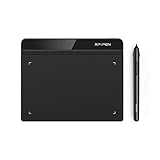
- Battery-Free Pen: StarG640 drawing tablet is the perfect replacement for a traditional mouse! The XPPen advanced Battery-free PN01 stylus does not require charging, allowing for constant uninterrupted Draw and Play, making lines flow quicker and smoother, enhancing overall performance
- Ideal for Online Education: XPPen G640 graphics tablet is designed for digital drawing, painting, sketching, E-signatures, online teaching, remote work, photo editing, it's compatible with Microsoft Office apps like Word, PowerPoint, OneNote, Zoom, Xsplit etc. Works perfect than a mouse, visually present your handwritten notes, signatures precisely
- Compact and Portable: The G640 art tablet is only 2 mm thick, it's as slim as all primary level graphic tablets, allowing you to carry it with you on the go
- Chromebook Supported: XPPen G640 digital drawing tablet is ready to work seamlessly with Chromebook devices now, so you can create information-rich content and collaborate with teachers and classmates on Google Jamboard’s whiteboard; Take notes quickly and conveniently with Google Keep, and effortlessly sketch diagrams with the Google Canvas
- Multipurpose Use: Designed for playing OSU! Game, digital drawing, painting, sketch, sign documents digitally, this writing tablet also compatible with Microsoft Office programs like Word, PowerPoint, OneNote and more. Create mind-maps, draw diagrams or take notes as replacement for mouse
Microsoft ended support for Windows 10 on October 14, 2025. An application may still install on a particular Windows 10 build, but that does not make the operating system supported or secure. Check both the software’s requirements and Microsoft’s Windows support information before setting up a long-term workflow.
Commercial work and licensing
Paint.NET explicitly permits commercial use. GIMP’s software license governs the program, not ownership of photographs edited with it. Photopea states that users own their work and may sell work created in Photopea. Affinity’s Canva-linked terms govern use of the application and connected services.
Commercial users should separately check the license for every font, stock image, plug-in, brush pack, template, AI feature, and third-party asset in the project. A free editor does not automatically grant commercial rights to materials imported into it, and client confidentiality requirements may rule out optional cloud or AI services even when the basic editor is local.
Recommended Free Tools
Frequently Asked Questions
Is Affinity by Canva really free?
The core Affinity application is currently free to use, but it requires signing in with a Canva ID. Affinity’s terms allow online entitlement verification, and some features, particularly certain AI or Canva-connected capabilities, may depend on a subscription or additional payment. It is free to use, not open source or account-free. See the Affinity terms.
Is GIMP better than Affinity?
It depends on the priority. Affinity is the stronger general recommendation for a modern, professional layer-based workflow. GIMP is better when open-source licensing, no vendor account, local operation, scripting, and plug-ins matter most. GIMP also has a steeper learning curve and does not provide a complete Lightroom-style RAW catalog.
Is Paint.NET free for commercial use?
Yes. Paint.NET’s official license information permits commercial, educational, government, business, nonprofit, and personal use. Download the free Classic edition from the official website; the Microsoft Store edition is paid but has the same functionality and adds conveniences such as automatic updating.
Is Photopea safe for private photographs?
Photopea states that files opened in the editor are processed on the device and do not leave it. However, the application initially loads through a browser, optional cloud-storage access is separate, and unsaved work can be lost if the tab closes. For highly sensitive material, a verified local desktop application such as GIMP, Paint.NET, darktable, or RawTherapee may be easier to control.
Do these 3 things before closing this tab:
1Scan for outdated or missing drivers - takes under a minute2Repair Windows errors before they cause bigger problems3Fix the driver behind crashes, sound loss and screen glitchesCan these free editors open RAW files?
RAW support varies by application and camera model. darktable and RawTherapee are the dedicated choices for serious RAW development. GIMP, Paint.NET, Photopea, and Microsoft Photos should not automatically be treated as complete RAW workflows. Check support for the exact camera and whether the application is developing the RAW data rather than merely displaying an embedded JPEG.
Which free editor opens PSD files best?
Photopea is usually the first tool to test because PSD is its main editable document format and it runs in a browser. Affinity, GIMP, and Krita can also open or save PSD files. None guarantees perfect Photoshop fidelity for every smart object, adjustment layer, font, effect, plug-in, or blend mode, so test a copy of an important file.
Which free photo editor works offline?
GIMP, Paint.NET, darktable, RawTherapee, digiKam, and Krita are local desktop applications. Photopea can continue working offline after its web application has loaded, according to Photopea’s documentation, but it remains browser-based. Affinity stores work locally according to Canva but uses account-linked access and may require online entitlement verification.
What is the best free Lightroom alternative for Windows?
darktable is the best broad recommendation for a free RAW-development and catalog workflow, while RawTherapee is preferable for highly technical RAW control. digiKam is stronger when library management, tags, ratings, metadata, and search are the main need. None is a direct replacement for Photoshop-style layer compositing.
What’s actually slowing this PC down?
Pick the symptom - the matching free tool is one click away.
Can Windows Photos replace Photoshop?
Not for layered compositing, advanced retouching, project files, plug-ins, or complex typography. Photos is excellent for quick crops, adjustments, filters, markup, background operations, and erase tools. For a fuller replacement, choose Affinity, GIMP, Paint.NET, or Photopea according to the required complexity.
Do I need both a RAW editor and a photo editor?
Often, yes. Develop the RAW in darktable or RawTherapee, export a 16-bit TIFF, and continue with Affinity, GIMP, Krita, or Photopea when you need layers, compositing, or detailed pixel editing. A single application can be convenient, but specialized two-stage workflows are often easier to control.
The Bottom Line
Bottom line: Install Affinity by Canva for the strongest all-around free Windows editor, provided a Canva account and its entitlement terms are acceptable. Choose GIMP for the best open-source alternative, Paint.NET for easy everyday edits, Photopea for browser-based PSD work, and darktable or RawTherapee when the source files are RAW photographs. For large collections, add digiKam; for digital painting, choose Krita.
Quick Recap


