What’s actually slowing this PC down?
Pick the symptom - the matching free tool is one click away.
ThatPainter is reader-supported. When you buy through links on our site, we may earn an affiliate commission. Learn More
As an Amazon Associate I earn from qualifying purchases.
The best stylus is the one that matches your tablet’s digitizer. Apple Pencil Pro is the strongest choice for artists with a compatible modern iPad; Samsung’s S Pen Creator Edition suits Galaxy Tab artists who want a more substantial grip; Surface Slim Pen 2 is the natural fit for supported Microsoft Surface devices; and Wacom Pro Pen 3 is a replacement or upgrade for specific newer Wacom tablets and displays. For simpler iPad sketching and shared devices, Logitech Crayon USB-C is a practical alternative.
Do not buy by pressure-level numbers or by the word “stylus” alone. First identify the exact tablet model, then check the pen’s compatibility, charging method, replacement nibs, and whether the features you want—such as tilt, hover, barrel rotation, shortcuts, or haptics—work on your device and in your art app.
Quick recommendations
| Stylus | Best for | Key reason to choose it | Important limitation |
|---|---|---|---|
| Apple Pencil Pro | Compatible modern iPads | Squeeze, barrel roll, haptic feedback, hover, magnetic pairing and charging | Does not work with every iPad |
| Samsung S Pen Creator Edition | Compatible Galaxy Tab artists | Drawing-oriented grip and tilt sensitivity without Bluetooth charging | No Bluetooth or Air Actions; verify the tablet model |
| Microsoft Surface Slim Pen 2 | Supported Surface PCs and tablets | Pressure input, zero-force inking, buttons and rechargeable battery | Haptic features depend on the exact Surface hardware and Windows setup |
| Wacom Pro Pen 3 | Supported newer Wacom tablets and displays | Configurable replacement or upgrade pen | Not compatible with older Wacom pen technologies |
| Logitech Crayon USB-C | Simple iPad drawing, annotation and classrooms | Tilt, palm rejection, replaceable tip and USB-C charging | It is not an Apple Pencil Pro feature equivalent |
This is a compatibility-first guide rather than a claim that one pen feels best for every artist. Manufacturer specifications establish supported features and devices, but they do not prove that a stylus has the lowest latency, most natural texture, or best performance in every brush engine.
Popular on Amazon

- 【Stylus for Touch Screen】This stylus can be used on touch screen, designed to replace your fingers, the stylus can free up your fingers and provide higher sensitivity and response on the screen.
- 【Capacitive stylus】This is a capacitive stylus (battery-free, requires no charging, and functions like a fingertip)—not an active stylus. It does not support pressure sensitivity or palm rejection. However, it allows for tapping, scrolling, note-taking, and drawing on touchscreens; if you require professional-grade drawing capabilities on an iPad, please choose an active stylus instead.
- 【2-in-1 Stylus Pen】This stylus features two different tips: a flexible transparent disc tip and a rubber tip. Applying moderate pressure when using the rubber tip ensures full contact with the screen—especially on screens with protective films—thereby enabling stable signal transmission. The combination of the rubber tip and the disc tip offers two distinct touch experiences.Please note that the plastic piece on the transparent disc is an integral part of the tip and cannot be removed.
- 【Works On Capacitive Touch Screens】 Compatible with iPad, iPad Air/mini, iPhone, Samsung Galaxy Tab, Android tablets, Kindle, smartphones, and laptops equipped with capacitive touchscreens.(Laptop models can only be used if they have a touchscreen and support touch input) Also works over most screen protectors — glide, no scratch. If it cannot be used for writing on some devices, This may be due to limitations in the settings of touchscreen devices. If you cannot find a solution, please contact us at any time, and we will help you resolve the issue.
- 【Multiple Usage Scenarios】Whether you are taking notes in class, reviewing documents at work, drawing creative designs, or enjoying mobile games, this universal stylus pen delivers a smooth and comfortable touch experience. It is ideal for writing, sketching, annotating, scrolling, and precise screen control on tablets and smartphones. From daily tasks to creative projects, this stylus helps you capture ideas anytime and anywhere.
How to choose a stylus before you spend money
- Find the exact tablet model. “iPad Pro,” “Galaxy Tab,” “Surface,” and “Cintiq” each describe multiple generations with different digitizers and pen protocols.
- Check the operating-system requirement. A compatible tablet may still need a particular iPadOS or Windows version for some features.
- Decide whether you need artist features or basic input. Tilt can affect shading and brush angle; hover can help position a cursor; squeeze, buttons and barrel rotation can speed up tool changes. None of these is essential for every workflow.
- Check power and storage. Some pens charge and pair wirelessly, some use a rechargeable battery, and some provide core pen input without Bluetooth or charging.
- Confirm nib and accessory availability. Replacement tips, grips and chargers are often model-specific.
A stylus is not a universal capacitive pen. An Apple Pencil, Galaxy S Pen, Surface pen and Wacom Pro Pen communicate with particular digitizers and protocols. A pen that works perfectly on one tablet may do nothing on another, even when both devices have a glass touch screen.
Best premium iPad stylus: Apple Pencil Pro
Choose Apple Pencil Pro if you own a compatible modern iPad and want the richest set of drawing controls. Apple lists support for iPad Pro 11-inch and 13-inch models with M4 or M5, iPad Air 11-inch and 13-inch models with M2, M3 or M4, and iPad mini with A17 Pro. It requires iPadOS 17.5 or later.
Do these 3 things before closing this tab:
1Scan for outdated or missing drivers - takes under a minute2Clear out junk files and repair common Windows errors3Fix the driver behind crashes, sound loss and screen glitchesFor digital artists, the most relevant features are more than pressure and tilt. Barrel roll can change the orientation of supported shaped brushes, which is useful for pencils, markers and calligraphic tools. Squeeze can open a tool palette or trigger an application-specific action. Hover lets you position the pointer before touching the canvas, while haptic feedback can confirm certain interactions. The Pencil also supports double-tap tool switching, magnetic attachment, wireless pairing and magnetic charging. Apple includes Find My support as well.
Compatibility warning: Apple Pencil Pro does not work with every iPad. Older iPad Pro, iPad Air, standard iPad and iPad mini models may require another Apple Pencil generation—or may not support Apple Pencil at all. Check the exact model in Settings > General > About, rather than relying on the tablet’s family name.
For a compatible device, Apple Pencil Pro is the clearest premium recommendation in this guide. It is especially appealing when your drawing app supports hover, squeeze or barrel-rotation behavior. App support can vary, however: the presence of a hardware feature does not mean every brush engine exposes it.
Best Galaxy Tab option for artists: Samsung S Pen Creator Edition
Choose the S Pen Creator Edition for a compatible Galaxy Tab when grip and drawing-oriented tilt behavior matter more than wireless shortcuts. Samsung describes it as compatible with Galaxy Tab S6 series and later generations, including the Tab S10 and Tab S11 families listed in its current support material, along with selected Galaxy phones and Galaxy Book computers that support S Pen input. Exact model compatibility should be checked before ordering. Samsung also states that it is not compatible with Galaxy Z Fold devices.
The Creator Edition has a hard or soft tip, tilt sensitivity and a more substantial grip than a basic S Pen. Its core pen input begins when the tip contacts the screen, and it does not require Bluetooth or charging for that input. That makes it convenient for artists who do not want another rechargeable accessory to manage.
Also popular on Amazon

- Stylus Pen for Touchscreen: No Bluetooth or charging needed—use instantly on any capacitive touch screen (iPad, iPhone, Android, Samsung). Dual rubber tips (5mm/6.6mm) ensure precise control for writing, drawing, or gaming. Lightweight aluminum body with vibrant colors.
- Precision & Comfort Redefined: High sensitivity rubber tip glides smoothly without lag or scratches. Ergonomic design reduces wrist strain for extended use. Compatible with tablets, phones, and Laptops.
- Dual-Tip Flexibility: Switch between 0.20” and 0.26” rubber nibs for detailed art or bold notes. Anti-scratch, fingerprint-resistant tip. Pretty bright metal colors inspire creativity.
- Effortless Multi-Device Compatibility: Works seamlessly on Apple, Samsung, Android, and more. No apps or setup—just pick up and write. Perfect for notes, games, or gifts—ready to spark ideas instantly. Replaceable tips included for long-term use.
- Creative Freedom, Anywhere: Lightweight aluminum stylus with natural grip. Includes 6 replaceable tips and 3 color stylus pens. Perfect for sharing with friends, family, or colleagues, this bundle ensures you’re always equipped to capture inspiration.
The trade-off is important: the Creator Edition does not support Bluetooth features or Air Actions. If you rely on remote button actions, wireless shortcuts or a pen that integrates with a particular tablet’s storage and charging system, the included or model-specific S Pen may be the better choice. The Creator Edition is an artist-focused option, not automatically an upgrade in every Galaxy Tab workflow.
For Galaxy Tab S-series artists who want its grip and tilt features, the S Pen Creator Edition is the relevant Samsung pick. Confirm whether your exact tablet supports the pen before purchase, because Galaxy Tab naming spans several generations and accessory configurations.
Best stylus for Surface illustration: Microsoft Surface Slim Pen 2
Choose Surface Slim Pen 2 if your exact Surface device supports it and you want a rechargeable Windows pen for drawing and hybrid laptop-tablet work. Microsoft lists 4,096 pressure levels, zero-force inking, Bluetooth 5.0, a side button, a top button with eraser functionality, and a rechargeable battery with up to 15 hours of typical usage.
Microsoft lists compatibility across selected Surface Pro, Surface Laptop Studio, Surface Go, Surface Book, Surface Studio, Surface Duo and other devices that support Microsoft Pen Protocol. That list is not a guarantee that every MPP-compatible device receives every feature. In particular, haptic functionality is limited to specific supported hardware and Windows configurations.
Separate two questions when evaluating this pen:
- Will it produce pen input? This depends on the device’s supported pen protocol and drivers.
- Will it provide the full tactile experience? Haptic feedback depends on the particular Surface model, software and configuration.
The Surface Slim Pen 2 makes the most sense for artists already invested in a compatible Surface. It is not a sensible generic purchase for any Windows touchscreen. Verify the exact model in Microsoft’s compatibility information before ordering, and do not assume that pressure input and haptic feedback have identical device requirements.
Best Wacom replacement: Wacom Pro Pen 3
Choose Wacom Pro Pen 3 only when Wacom confirms that your exact tablet or display uses the Pro Pen 3 technology. This is a hardware-specific replacement or upgrade, not a standalone stylus for ordinary tablets.
Wacom’s current Intuos Pro materials list Pro Pen 3 support, and the company describes configuration options for the pen. Wacom also identifies Pro Pen 3 as using newer pen technology introduced with Cintiq Pro 27. It is not compatible with older Wacom devices that use a different pen technology.
Recommended Free Tools
Also popular on Amazon
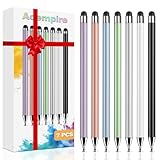
- 【Stylus Pen for Touchscreen】Our stylus pen requires no Bluetooth pairing or charging, you can unleash your creativity anytime and anywhere, just pick up the stylus and express your thoughts freely on the touchscreen.
- 【2-in-1 Stylus Pen】: Tablet stylus for touchscreen, made of lightweight alloy, no need for Bluetooth connection or charging, ready to use after opening the package, comfortable in hand, sturdy, durable and anti-aging, so you can use it anytime, anywhere Easily capture inspiration and make everything feel like writing on paper, giving you a more accurate writing/drawing/touching experience.
- 【High Sensitivity & Precision】Acempire stylus can flexibly fit on the screen without delays, interruptions, or screen scratches, allowing you to have a smoother writing or drawing experience and enhance your creative pleasure.
- 【Compatibility and multi-purpose】: Universal stylus, suitable for touchscreen devices (for nintendo switch stylus, for switch 2 stylus, Apple, Samsung, Moto, Lenovo, Xiaomi, etc., and also compatible with major operating systems, such as: Google, Android, Microsoft, etc.), you can use it like a real pen, You can use our stylus to write on drawing applications, take notes, read news, play games, etc. just like any other touchscreen device.
- 【Professional customer service】: we provide professional 24-hour customer service. If you encounter any product problems, please feel free to contact us through the store, and you will get a solution in the shortest time.
The practical benefit is the ability to match the pen to your setup with supported grips, nibs and other components. That can make sense when you need a replacement for a supported newer Intuos Pro or Cintiq Pro, or when you want to configure the pen’s shape and balance around your working style.
Before buying a Wacom Pro Pen 3, consult Wacom’s model-level accessory matrix. Check both the tablet model and the pen technology. If your older Wacom device originally used another Pro Pen generation, Pro Pen 3 is not a safe substitute merely because the connector, shape or branding looks similar. Replacement nibs are also specific to the supported Pro Pen 3 configuration.
Best practical iPad alternative: Logitech Crayon USB-C
Choose Logitech Crayon USB-C for straightforward iPad sketching, annotation, teaching and shared-device use. Logitech describes it as a pixel-precise digital pencil using Apple Pencil technology, with tilt sensitivity, palm rejection, a replaceable tip, USB-C charging and up to seven hours of active writing time.
Logitech’s current materials describe compatibility with iPads from 2018 onward, but there are model and port caveats. Check the exact iPad and connector before purchase—“iPad from 2018 onward” is not a substitute for a current compatibility list.
What’s actually slowing this PC down?
Pick the symptom - the matching free tool is one click away.
Crayon is attractive when durability, simple setup and USB-C charging matter more than advanced shortcut features. It can be a sensible choice for annotation, classroom sets, casual sketching and users who do not need every control offered by Apple’s premium pen.
Do not treat it as equivalent to Apple Pencil Pro. Logitech’s documented feature set does not establish Apple Pencil Pro’s squeeze, barrel roll, hover, Find My, or magnetic pairing and charging features for Crayon. The Logitech Crayon USB-C is a practical iPad stylus, not the richest iPad drawing tool.
Pressure sensitivity: why bigger numbers do not automatically win
Pressure sensitivity affects how pen force can control brush size, opacity or other parameters, but a published pressure-level figure is not a universal quality score. Microsoft publishes 4,096 pressure levels for Surface Slim Pen 2, while Adonit publishes 2,048 levels for selected Note+ models. That does not allow a meaningful ranking of drawing quality across ecosystems.
Also popular on Amazon

- [Wide Compatibility]-This stylus pen for touchscreen is for capacitive screen electronic product and is specially designed for Android device on the market.The iphone stylus pen is suit with XiaoMi/Huawei/Vivo/Lenovo/Pixel/iPhone 6-15 ,Amazon Fire Series tablet and more other android devices. Some compatible device models- Galaxy Tab A9/A9+/S9/S23 FE/S24/S25/Z Fold5/Z Fold 6/A13 /A25/ (Note: This lenovo pen is not compatible with Microsoft devices,Apple iPad,Kindle devices,Windows,Laptop,S7+, tab s4,S10 and One note app. Please check your device model before placing an order.
- 【Smart Touch Switch & Power Save】-The touch screen pen stylus is easy to use: just double-tap the top of the android tablet capacitive stylus pen . There's no need for drivers or bluetooth settings. This iphone pen uses the USB-C charging port,just 35 minutes of charging will give you 8-10 hours of operation.Our digital pen has smart energy-saving feature, automatically turn to "sleep mode" after 5 minutes of inactivity and avoid unnecessary battery consumption.
- 【High Precise and Sensitive】-The pom tip of the stylist pen is wear-resistant,designed for professionals who need high precision and accuracy,is a great feature for anyone who uses a stylus pen android for designing work or drawing. They are very smooth and high responseon the screen, without lag or jumping.Luntak android stylus pen also a great gift for family and friends who love to create.
- 【Magnetic Absorption】-The magnetic feature is a great convenience for users who want to keep their samsung pen close at hand and prevent it from getting lost,more portable and more easier to organize.(Note: The magnetic function requires a built-in magnet on your tablet; otherwise, it cannot be attached. The magnetic surfaces of other tablets may not be a perfect fit.)
- 【What You Get】-Our tablet pens for touch screen set includes:1* stylist pens,3* Replaceable POM Tips,1* Type-C charging cable,1* User Manual.We support 1-year product warranty and 1-month free return and exchange policy for our pen with stylus tip. If you encounter any issues, please don't hesitate to contact us. Please note the apple pens does not support palm rejection, so avoid touching the screen with your hands.Does not support pressure sensitivity.
The result depends on the tablet’s digitizer, pen protocol, operating system, driver, application and brush engine. Software may smooth or interpret input differently, and some apps may not expose every hardware feature. A lower stated number can still be entirely adequate for a particular workflow, while a high number cannot compensate for an incompatible device or poorly supported application.
The Tool Desk
Outbyte PC Repair FREEClear out junk files and repair common Windows errorsFree Scan →Outbyte Driver Updater FREEScan for outdated or missing drivers - takes under a minuteDriver Scan →For buying purposes, prioritize compatibility and the controls you will actually use. Tilt, hover, shortcut behavior, nib availability and reliable palm rejection may matter more to your work than comparing isolated pressure specifications.
Independent reader supportYour contribution helps us test, update, and keep practical guides available for everyone.Charging, pairing and replacement parts
| Pen | Core input and power model | What to check |
|---|---|---|
| Apple Pencil Pro | Wireless pairing and magnetic charging | Compatible iPad generation and iPadOS version |
| Samsung S Pen Creator Edition | Core input without Bluetooth or charging | Exact Galaxy device support; no Air Actions |
| Surface Slim Pen 2 | Rechargeable battery and Bluetooth | Exact Surface model and haptic support |
| Wacom Pro Pen 3 | Hardware-specific Wacom pen technology | Model-level compatibility and matching nibs/grips |
| Logitech Crayon USB-C | USB-C charging; replaceable tip | Exact iPad and port compatibility |
Accessory compatibility is easy to overlook. A replacement nib that fits physically may not be the correct nib for the pen’s technology. Wacom’s accessory matrix is the authority for Pro Pen 3 grips and nibs, while Logitech identifies the Crayon tip as replaceable. Keep the product generation and model number when shopping for replacements.
Decision tree: which one should you buy?
- You own an iPad Pro with M4 or M5, an iPad Air with M2, M3 or M4, or an iPad mini with A17 Pro: choose Apple Pencil Pro if you want the broadest artist feature set. Choose Logitech Crayon USB-C if you prefer a simpler, USB-C-charged option and do not need Pro controls.
- You own a compatible Galaxy Tab S-series tablet: choose S Pen Creator Edition when a substantial grip and tilt sensitivity are priorities. Choose the included or model-specific S Pen when storage, charging integration or Bluetooth actions matter more.
- You own a Surface device: choose Surface Slim Pen 2 after checking the exact model. Treat haptics as a device-specific feature rather than a universal benefit.
- You own a newer supported Wacom tablet or display: choose the matching Wacom Pro Pen 3 configuration or replacement nibs. Do not use it as a substitute for an older Wacom pen without checking the technology.
- You own a different tablet: stop before purchasing one of these ecosystem-specific pens. Look up the manufacturer’s exact compatible pen, digitizer or protocol. A generic capacitive stylus may work for tapping, but it will not necessarily provide pressure, tilt or palm rejection.
Troubleshooting when a stylus does not work
1. Confirm the model, not just the brand
Open the tablet’s system information and record the complete model name or number. Compare it with the manufacturer’s pen compatibility list. This is the most common fix for a pen that appears to be defective.
2. Check charging and pairing requirements
Apple Pencil Pro requires a compatible iPad and magnetic pairing/charging. Surface Slim Pen 2 uses Bluetooth and a rechargeable battery. Samsung Creator Edition does not need Bluetooth for core input. A charging assumption can send you in the wrong direction when diagnosing the problem.
Free tools Windows power users keep installed
One-click scans. No signup required.
3. Update the supported operating system and drivers
Install the tablet’s supported operating-system updates and official device or Wacom drivers where applicable. Restart the tablet after installation, then test the pen in a basic system writing area before blaming the art application.
4. Test another application
If the pen works in the operating system but not in your art program, check that application’s tablet, pressure, tilt and palm-rejection settings. Hardware support does not guarantee that every app or brush engine uses every feature.
Also popular on Amazon

- 『Better Than Finger』- A stylus has a better touch point than the tip of your finger giving better accuracy to little touch focuses like keys on the console. No more big finger troubles.
- 『Anti-Scratch Tip』- The stylus pen tip was made of soft, and scratch resistant rubber,which can protect your screen from scratching and keep no fingerprints.
- 『Easy To Carry』- Slim body and lightweight. Clip design is great for clipping in your pocket, diary, etc. Great stylus for kids.
- 『Perfect For Sharing』- Get 10 of tablet stylus with an unbeatable price. You can share this tablet pen to your friends or family.
- 『Universal Capacitive Stylus』- 100% compatible with all capacitive touch screen devices,such as iPad,iPhone,tablets,samsung galaxy and so on.
5. Inspect the nib and screen
A loose, worn or damaged nib can cause intermittent input. Replace it only with a model-compatible tip. Remove accessories that interfere with the screen, such as unusually thick protectors, and test again.
6. Treat third-party driver tools as optional
For Windows artists troubleshooting Surface or Wacom hardware, official drivers and manufacturer support should be the starting point. Third-party driver utilities are not required to select or use these pens. If a Windows driver problem persists, a utility such as Outbyte Driver Updater is an adjacent troubleshooting option, not a reason to buy a particular stylus and not a substitute for verifying official compatibility.
What digital artists should prioritize
- Compatibility first: the correct ecosystem matters more than a headline specification.
- Brush controls second: choose tilt, hover, squeeze, barrel rotation or buttons only when your applications support and benefit from them.
- Workflow convenience: magnetic charging, USB-C charging, no-charge operation or a rechargeable battery each suit different routines.
- Replacement support: a pen with available nibs and grips is easier to keep in service.
- App behavior: confirm that your preferred drawing software recognizes pressure and tilt as expected.
Frequently Asked Questions
Can I use Apple Pencil Pro with any iPad?
No. Apple Pencil Pro is limited to particular modern iPad Pro, iPad Air and iPad mini models, and it requires iPadOS 17.5 or later. Check the exact iPad model before buying.
Is Samsung S Pen Creator Edition rechargeable?
Samsung states that the Creator Edition does not require Bluetooth or charging for core pen input. It therefore does not provide the Bluetooth shortcuts or Air Actions associated with compatible active pens.
Does Surface Slim Pen 2 provide haptic feedback on every Windows tablet?
No. Microsoft lists broad compatibility for pen input, but haptic functionality is limited to specific supported Surface hardware and Windows configurations.
Can Wacom Pro Pen 3 replace an older Wacom pen?
Not automatically. Pro Pen 3 uses a newer Wacom pen technology and is not compatible with older devices using different technology. Check Wacom’s model-level accessory matrix.
Quick wins for a faster PC:
Clear out junk files and repair common Windows errorsFree Scan →Fix the driver behind crashes, sound loss and screen glitchesFind Drivers →Is Logitech Crayon USB-C as capable as Apple Pencil Pro for drawing?
No. Crayon offers useful features such as tilt, palm rejection and a replaceable tip, but it should not be presented as having Apple Pencil Pro’s documented squeeze, barrel roll, hover, Find My, or magnetic pairing and charging feature set.
The Bottom Line
Buy for the tablet you already own, not for the stylus specification that looks most impressive. Pick Apple Pencil Pro for a compatible modern iPad, S Pen Creator Edition for a supported Galaxy Tab when grip and tilt matter, Surface Slim Pen 2 for a compatible Surface, and Wacom Pro Pen 3 only for supported newer Wacom hardware. For uncomplicated iPad sketching and shared use, Logitech Crayon USB-C is the practical alternative. In every case, verify the exact model before ordering.
Quick Recap


