PC Slower Than It Used to Be?
Outbyte PC Repair · freeA free scan shows the junk files, broken settings and background clutter dragging Windows down - then fixes them in one click.
Run a Free PC Scan →ThatPainter is reader-supported. When you buy through links on our site, we may earn an affiliate commission. Learn More
Choose the Cricut Explore 3 if the price premium is modest and you expect to make long decals, banners, repeated apparel designs, or other projects that benefit from matless Cricut Smart Materials. Choose the Explore Air 2 when it is substantially cheaper and your projects are mainly cards, labels, small decals, or standard-size iron-on designs.
There is one important 2026 qualification: both are older Explore models, so compare Explore 3’s price with Cricut’s newer Explore machines before buying.
Quick answer
| Reader or project | Better choice | Why |
|---|---|---|
| Cards, labels, scrapbooking and small decals | Explore Air 2 | Its mat-based workflow is sufficient, especially at a deep discount. |
| Long decals, signs and banners | Explore 3 | It can feed compatible Smart Materials without a mat for cuts up to 12 feet long. |
| Repeated shirt or tote-bag designs | Explore 3 | Fewer mat-loading steps can matter more than the cutting-speed claim. |
| Existing Explore Air 2 owner | Keep it unless you need matless cutting | The core cutting, writing, drawing, scoring and foiling capabilities overlap considerably. |
| Advanced fabric, engraving or thick-material work | Cricut Maker | Maker machines support a broader tool and material ecosystem. |
The practical difference is simple: Explore Air 2 is a conventional mat-based cutter; Explore 3 adds a tested matless workflow for compatible Cricut Smart Materials. Explore 3 is not a completely different class of machine.
Free tools Windows power users keep installed
One-click scans. No signup required.
| # | Preview | Product | Price | |
|---|---|---|---|---|
| 1 |

|
Cricut Explore® 5 Essential Bundle + Digital Content, Taupe | $199.00 | Buy on Amazon |
| 2 |

|
Cricut Explore 5 Essential Bundle + Rainbow Sampler | $299.99 | Buy on Amazon |
| 3 |

|
Cricut Explore® 5 + Deluxe Bundle + Digital Content, Taupe | $229.00 | Buy on Amazon |
| 4 |
|
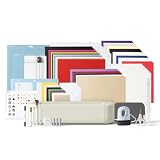
Cricut Explore® 5 Ultimate Bundle + Digital Content, Taupe | $319.00 | Buy on Amazon |
Explore Air 2 vs. Explore 3: specifications
| Feature | Cricut Explore Air 2 | Cricut Explore 3 |
|---|---|---|
| Core functions | Cut, write, draw, score, foil and more | Cut, write, draw, score, foil and more |
| Compatible materials | 100+ materials, according to Cricut | 100+ materials, according to Cricut |
| Tool clamps | Two | Two |
| Bluetooth | Built in | Built in |
| Standard mats | 12 × 12 in and 12 × 24 in | 12 × 12 in and 12 × 24 in |
| Matless cutting | No | Yes, with compatible Cricut Smart Materials |
| Maximum Smart Materials length | Not supported matlessly | Up to 12 ft |
| Maximum mat-based cut area | 11.5 × 11.5 in on a 12 × 12-in mat, or 11.5 × 23.5 in on a 12 × 24-in mat | 11.5 in wide on standard 12-in mats |
| Print Then Cut | White materials, according to Cricut’s comparison table | White and colored materials, according to Cricut’s comparison table |
| Material selection | Physical Smart Set dial | Software-controlled settings in Design Space |
| Speed claim | Fast Mode is up to 2× faster than the original Explore for certain materials | Cricut claims up to 2× faster than Explore Air 2 |
| Roll Holder | Not compatible | Compatible |
| Published dimensions and weight | Approximately 22.17 × 7.01 × 5.91 in; 10.98 lb | Approximately 22.17 × 7.01 × 5.91 in; 10.98 lb |
Specifications are drawn from Cricut’s Explore 3 comparison and quick-start documentation and the Explore Air 2 quick-start guide. Cricut publishes effectively the same dimensions and weight for both, so Explore 3 does not provide a meaningful desk-space advantage.
The biggest difference: Smart Materials and matless cutting
Explore 3 can load compatible Cricut Smart Materials directly into the machine. Cricut says this supports continuous cuts up to 11.7 inches wide and 12 feet long, provided the material and project meet the requirements. Smart Materials include Smart Vinyl, Smart Iron-On and Smart Paper Sticker Cardstock.
#1 Best Overall
- 12 IN (30.5 CM) CUTTING MACHINE: Cricut Explore 5 is the newest generation of our Cricut Explore machines — perfect for making a variety of projects like custom decals, personalized apparel, full-color stickers, cards, and so much more. You can even make in multiples! 30% more compact than previous models, Cricut Explore 5 features an aesthetic new look and simplified interface for a more intuitive experience – all with the same dependable 12 in (30.5 cm) cutting performance. Available in a brand-new Taupe color.
- COMPATIBILITY: Precision-cuts 100+ popular materials, including vinyl, iron-on, cardstock & printable materials, plus this machine writes, draws, foils, scores & cuts intricate designs with precision. Works with six tools, including Deep Cutting Tool (sold separately) for working with thicker materials like foam & rubber. Plus, it features a new hassle-free snap-in pen holder.
- BUNDLE & SAVE: Make a wide variety of projects right out of the box and save even more! The Essential Bundle includes must-have tools and materials like Smart Vinyl, Smart Iron-On, Value Cardstock, Insert Card Sets, and Printable Vinyl. *Materials and accessories value based on comparable Cricut products sold separately. Bundle also includes 25 additional premium-quality images with purchase, plus 1 font.
- FULL-COLOR POSSIBILITIES: Print your design with your home inkjet printer, then your Cricut cutting machine automatically recognizes & precision-cuts around inkjet-printed images to create full-color stickers, decals, apparel & more.
- NO DESIGN EXPERIENCE REQUIRED: Use your mobile or desktop device and connect through Bluetooth to Design Space, our free, easy-to-use app that helps you turn your ideas into something one of a kind. With step-by-step design flows, customizable templates, AI-image generation, and a huge content library, it makes personalization feel effortless. Our free out-of-the box content library includes 3,000+ images, 100+ fonts, and 1,000+ projects to help get you started. Additional content can always be purchased a la carte, or go all in with a Cricut Access Subscription to unlock our ever-growing library for a small reoccurring monthly or annual fee.
For matless cutting, Cricut says Smart Materials should be at least 13 inches wide and 6 inches long. The machine also needs unobstructed space behind and in front of it as the material feeds through.
Explore Air 2 must use a machine mat. Do not feed Smart Materials into it as though it were an Explore 3: Cricut warns that matless use on previous-generation machines can cause jams, poor precision or damage.
What’s actually slowing this PC down?
Pick the symptom - the matching free tool is one click away.
Matless cutting also does not mean that every vinyl or iron-on product works without a mat. Cricut recommends using a mat for other brands’ vinyl and iron-on. The distinction is:
- Explore 3: compatible Cricut Smart Materials can be cut matlessly; ordinary and third-party materials generally still use a mat.
- Explore Air 2: materials must be cut on a compatible machine mat.
This is a workflow convenience, not a universal quality upgrade. It matters most when mat handling becomes the annoying part of the project.
Projects that benefit from Explore 3
- Long wall, vehicle or window decals.
- Banners and long signs.
- Long labels.
- Repeated shirt or tote-bag designs.
- Batch work where repeatedly placing and unloading mats slows you down.
Projects where Explore Air 2 is enough
- Greeting cards and paper crafts.
- Scrapbooking.
- Small decals and labels.
- Standard-size shirt graphics.
- Small and medium cardstock projects.
Is Explore 3 really twice as fast?
Explore 3 is the faster machine on paper, but “up to 2× faster” is not a promise that every project will take half as long. That is Cricut’s maximum claim, and the result varies with the material, operation and design complexity.
Explore Air 2 also has Fast Mode for certain vinyl, iron-on and cardstock settings. Cricut describes that as up to 2× faster than the original Explore Air, not as proof that it matches Explore 3 in every operation.
Do these 3 things before closing this tab:
1Scan for outdated or missing drivers - takes under a minute2Repair Windows errors before they cause bigger problems3Fix the driver behind crashes, sound loss and screen glitchesIn total project time, Design Space preparation, loading, material changes, weeding and transfer can take longer than the cut itself. Explore 3’s advantage is most noticeable for long or repeated projects, particularly when matless loading eliminates several handling steps. For occasional small cuts, the time saved may not justify a large price premium.
Materials, tools and everyday capability
Both machines are designed for more than 100 materials, including cardstock, vinyl, iron-on, glitter paper and bonded fabric. Both can cut, write, draw, score and foil with compatible tools and settings.
Rank #2
- COMPLETE CRICUT EXPLORE 5 KIT: Start crafting right out of the box with the Cricut Explore 5 cutting machine plus Smart Vinyl, Smart Iron-On (HTV), printable vinyl, cardstock, insert cards, and project inspiration. Create decals, labels, stickers, greeting cards, personalized gifts, and custom apparel without purchasing additional supplies. 30% more compact than previous models.
- CUTS 100+ MATERIALS WITH PRECISION: The Cricut Explore 5 smart cutting machine works with vinyl, heat transfer vinyl (HTV), cardstock, printable materials, paper, felt, and more. Create custom home decor, business products, apparel, scrapbook projects, stickers, and event decorations with clean, accurate cuts. Compatible with Cricut Smart Materials for continuous matless cuts up to 12 feet long. Easily make wall decals, signs, banners, labels, and bulk crafting projects while reducing setup time and material waste.
- RAINBOW ESSENTIALS BUNDLE: Make a wide variety of projects right out of the box and save even more! The Essential Bundle includes the all-new Cricut Explore 5 Cutting Machine as well as must-have tools and materials like Smart Vinyl, Smart Iron-On, Value Cardstock, Insert Card Sets, and Printable Vinyl. In addition you will receive 6 Smart Vinyl Sheets (9.5" x 13"), 6 Smart Heat Transfer Vinyl Sheets (9.5" x 13"), and access to 400+ Projects and How-To's in Design Space.
- CREATE STICKERS, SHIRTS, CARDS & MORE: Make custom stickers, vinyl decals, labels, greeting cards, iron-on shirts, tote bags, party decorations, wedding projects, and personalized gifts. This all-in-one Cricut bundle provides the most popular materials needed for a wide variety of projects. Designed for first-time Cricut users and growing makers, this bundle makes setup simple and crafting approachable. A thoughtful gift for birthdays, holidays, Mother’s Day, graduation, weddings, or anyone starting a DIY journey.
- BEGINNER-FRIENDLY CRAFTING MACHINE: Bluetooth connectivity and Cricut Design Space provide an easy setup experience with guided project tutorials and templates. Ideal for first-time Cricut users, hobby crafters, teachers, and small business owners. With step-by-step design flows, customizable templates, AI-image generation, and a huge content library, it makes personalization feel effortless. Our free out-of-the box content library includes 3,000+ images, 100+ fonts, and 1,000+ projects to help get you started.
Neither is a full Cricut Maker replacement. If you need engraving, debossing, rotary cutting, knife-blade work, heavier leather, thick chipboard or advanced fabric workflows, compare the current Cricut Maker and Explore lineups instead.
Material settings and Design Space
Explore Air 2 uses a physical Smart Set dial for common material categories. That is quick and reassuring for beginners who prefer a visible hardware control.
Explore 3 removes the dial and uses software-controlled settings in Cricut Design Space. This keeps more of the workflow in one place and suits Smart Materials projects, but it is not automatically simpler. Users who dislike software menus may find the Air 2 dial more direct for basic cuts.
Both machines rely on Cricut Design Space and include Bluetooth. You need a Cricut account, and the normal setup involves the Design Space desktop program or its iOS and Android apps. Some functions require sign-in and internet access. Cricut can change the interface and feature availability, so verify current menu names in the official Design Space download and setup pages.
Whichever machine you buy, use the recommended material setting, keep the blade clean, and perform a small test cut before committing expensive material. Results depend on blade condition, mat grip, material quality, pressure, speed, design complexity and calibration—not just the machine model.
Print Then Cut and stickers
Neither Explore machine prints. Print Then Cut requires a separate printer: the printer produces the artwork, and Cricut reads registration marks and cuts around it.
Cricut’s comparison table lists Explore Air 2 support for Print Then Cut on white materials and Explore 3 support for white and colored materials. That is a stated capability distinction, not a guarantee of flawless results on every colored, glossy or reflective surface.
A sticker workflow also requires printable sticker paper, a printer, and optionally laminate. Calibration, printer margins, lighting and sensor readability can affect results. If full-color stickers are your main goal, compare the entire printer-paper-calibration workflow—and newer machines—rather than choosing Explore 3 solely because it lists colored-material support.
Rank #3
- 12 IN (30.5 CM) CUTTING MACHINE: Cricut Explore 5 is the newest generation of our Cricut Explore machines — perfect for making a variety of projects like custom decals, personalized apparel, full-color stickers, cards, and so much more. You can even make in multiples! 30% more compact than previous models, Cricut Explore 5 features an aesthetic new look and simplified interface for a more intuitive experience – all with the same dependable 12 in (30.5 cm) cutting performance. Available in a brand-new Taupe color.
- COMPATIBILITY: Precision-cuts 100+ popular materials, including vinyl, iron-on, cardstock & printable materials, plus this machine writes, draws, foils, scores & cuts intricate designs with precision. Works with six tools, including Deep Cutting Tool (sold separately) for working with thicker materials like foam & rubber. Plus, it features a new hassle-free snap-in pen holder.
- BUNDLE & SAVE: Make a wide variety of projects right out of the box and save even more! The Deluxe Bundle includes must-have tools and materials like Smart Vinyl, Smart Iron-On, Value Cardstock, Insert Card Sets, and Printable Vinyl. It's enough supplies to create up to 100 projects. Bundle also includes 25 additional premium-quality images with purchase, plus 1 font.
- FULL-COLOR POSSIBILITIES: Print your design with your home inkjet printer, then your Cricut cutting machine automatically recognizes & precision-cuts around inkjet-printed images to create full-color stickers, decals, apparel & more.
- NO DESIGN EXPERIENCE REQUIRED: Use your mobile or desktop device and connect through Bluetooth to Design Space, our free, easy-to-use app that helps you turn your ideas into something one of a kind. With step-by-step design flows, customizable templates, AI-image generation, and a huge content library, it makes personalization feel effortless. Our free out-of-the box content library includes 3,000+ images, 100+ fonts, and 1,000+ projects to help get you started. Additional content can always be purchased a la carte, or go all in with a Cricut Access Subscription to unlock our ever-growing library for a small reoccurring monthly or annual fee.
Workspace and storage
The machines occupy approximately the same footprint, but neither is genuinely compact in use. Allow room for:
- Material entering behind the machine and exiting in front.
- A 12 × 24-inch mat when needed.
- Several feet of Smart Materials for long Explore 3 cuts.
- Your phone, tablet or computer.
- Weeding and transfer work beside the machine.
Explore 3 adds a tablet tray, a larger storage cup and compatibility with Cricut’s Roll Holder. Those are useful conveniences, but they do not remove the need for feeding clearance or a separate work surface.
Recommended Free Tools
Ongoing ownership costs
Compare the complete setup—not only the machine price.
| Explore Air 2 costs | Explore 3 costs |
|---|---|
| Standard cutting mats | Smart Vinyl and Smart Iron-On for matless projects |
| Replacement Fine-Point blades | Standard mats still needed for scraps and non-Smart materials |
| Ordinary vinyl and iron-on | Replacement blades |
| Transfer tape, pens and scoring accessories | Transfer tape and possibly a Roll Holder |
Explore 3 reduces mat handling; it does not eliminate mats. You will still need them for scraps, small pieces, ordinary materials and third-party vinyl. Smart Materials may also tie you more closely to Cricut’s material ecosystem. Compare prices by material type, dimensions and sale price before assuming matless cutting is cheaper.
For either machine, budget for mats, blades, transfer tape and project materials. Used buyers should also check whether the power supply, blade housing and required accessories are included.
Independent reader supportYour contribution helps us test, update, and keep practical guides available for everyone.Should you buy either one in 2026?
Treat both as legacy-model options, not automatic current defaults. Cricut’s current machine comparison page lists newer Explore-generation products.
The Tool Desk
Outbyte PC Repair FREERepair Windows errors before they cause bigger problemsFix Now →Outbyte Driver Updater FREEFix the driver behind crashes, sound loss and screen glitchesFind Drivers →Cricut’s US Explore Air 2 page prominently presents refurbished inventory and listed a Certified Refurbished Explore Air 2 plus Essentials Bundle at $289 on August 18, 2026. That is a US bundle price—not a bare-machine price—and the included products’ stated value does not automatically make it a bargain. Check the live listing before publication or purchase.
Explore 3 may appear through clearance sellers, marketplaces, used-equipment channels or remaining retailer stock. Do not use its historical 2021 starting MSRP of $299 as a current price benchmark; that figure is only launch context.
Rank #4
- 12 IN (30.5 CM) CUTTING MACHINE: Cricut Explore 5 is the newest generation of our Cricut Explore machines — perfect for making a variety of projects like custom decals, personalized apparel, full-color stickers, cards, and so much more. You can even make in multiples! 30% more compact than previous models, Cricut Explore 5 features an aesthetic new look and simplified interface for a more intuitive experience – all with the same dependable 12 in (30.5 cm) cutting performance. Available in a brand-new Taupe color.
- COMPATIBILITY: Precision-cuts 100+ popular materials, including vinyl, iron-on, cardstock & printable materials, plus this machine writes, draws, foils, scores & cuts intricate designs with precision. Works with six tools, including Deep Cutting Tool (sold separately) for working with thicker materials like foam & rubber. Plus, it features a new hassle-free snap-in pen holder.
- BUNDLE & SAVE: Make a wide variety of projects right out of the box and save even more! The Ultimate Bundle includes must-have tools and materials like Smart Vinyl, Smart Iron-On, Value Cardstock, Insert Card Sets, and Printable Vinyl — plus a Cricut EasyPress Mini LT heat press. It's enough supplies to create up to 135 projects. Bundle also includes 25 additional premium-quality images with purchase, plus 1 font.
- FULL-COLOR POSSIBILITIES: Print your design with your home inkjet printer, then your Cricut cutting machine automatically recognizes & precision-cuts around inkjet-printed images to create full-color stickers, decals, apparel & more.
- NO DESIGN EXPERIENCE REQUIRED: Use your mobile or desktop device and connect through Bluetooth to Design Space, our free, easy-to-use app that helps you turn your ideas into something one of a kind. With step-by-step design flows, customizable templates, AI-image generation, and a huge content library, it makes personalization feel effortless. Our free out-of-the box content library includes 3,000+ images, 100+ fonts, and 1,000+ projects to help get you started. Additional content can always be purchased a la carte, or go all in with a Cricut Access Subscription to unlock our ever-growing library for a small reoccurring monthly or annual fee.
Use the price gap, not the model number
- Small price gap: prefer Explore 3 for Smart Materials, longer cuts and the newer workflow—unless a newer Explore model costs about the same.
- Large price gap: Explore Air 2 can be the better value for ordinary mat-based projects.
- Explore 3 near the price of a newer Explore: investigate the newer model first.
- Used or refurbished Air 2: require a meaningful warranty or return period and compare the total cost after accessories.
- Advanced tools or materials: move to Maker rather than treating Explore 3 as an upgrade for every use case.
Buying used or refurbished: what to test
Before accepting a used machine, test:
- Bluetooth pairing and connection to Design Space.
- Both tool clamps and the blade carriage.
- Mat rollers and material feeding.
- The power connection and included power supply.
- A small test cut that completes without skipping, tearing or stopping.
For Explore 3, also confirm that the seller includes the correct accessories for the advertised configuration and that you have enough clearance to feed Smart Materials. For either model, compare seller reputation, warranty, return policy, shipping, tax and whether the machine has already been heavily used.
Alternatives worth checking
If neither machine fits, consider:
- Cricut Maker for engraving, debossing, rotary or knife-blade workflows, broader fabric work and specialized materials.
- Silhouette Cameo for a competing desktop-cutter ecosystem and different software workflow.
- Siser Juliet for users focused heavily on vinyl and apparel production; verify the current model and price.
- Brother ScanNCut for buyers attracted to an integrated touchscreen and scanner-oriented workflow.
Verify the exact current model, availability, software features and material support for alternatives before comparing prices.
Quick wins for a faster PC:
Clear out junk files and repair common Windows errorsFree Scan →Scan for outdated or missing drivers - takes under a minuteDriver Scan →Repair Windows errors before they cause bigger problemsFix Now →Final recommendation matrix
| Your situation | Recommendation |
|---|---|
| Beginner making cards and small decals | Explore Air 2 if substantially cheaper |
| Long decals, banners or signs | Explore 3, or a newer compatible Explore model |
| Repeated shirt or tote designs | Explore 3 if the premium is modest |
| Current Explore Air 2 owner without long-cut needs | Keep the Air 2 |
| Air 2 owner wanting matless cutting | Upgrade to Explore 3 or a newer Explore model |
| Sticker-focused buyer | Compare printer, paper, calibration and current machine options |
| Advanced fabric or engraving buyer | Choose a Cricut Maker-class machine |
| Both machines at similar prices | Prefer Explore 3, but check newer Explore availability first |
Frequently Asked Questions
Can the Cricut Explore Air 2 use Smart Materials without a mat?
No. Explore Air 2 requires a machine mat. Cricut’s matless Smart Materials workflow is designed for compatible machines such as Explore 3; feeding Smart Materials matlessly into an Air 2 can cause jams, inaccurate cuts or damage.
Does Explore 3 cut every vinyl without a mat?
No. Matless cutting is intended for compatible Cricut Smart Materials. Cricut recommends using a mat for other brands’ vinyl and iron-on.
Is Explore 3 worth upgrading to from Explore Air 2?
Usually only if you need matless Smart Materials, long cuts, repeated projects or the newer workflow. If you mainly make cards, labels and small decals, keep the Air 2 unless the upgrade price is especially favorable.
Which Cricut is better for stickers?
Explore 3 has Cricut-listed Print Then Cut support for white and colored materials, while Explore Air 2 is listed for white materials. Neither machine prints, and sticker results still depend on the printer, paper, calibration, lighting and surface.
Windows Errors? Fix Them Before They Spread
Repair common Windows errors and clear accumulated junk for a smoother, more stable PC - no reinstall needed.Free scan · no reinstallOutdated Drivers Are Slowing You Down
One free scan finds every outdated or missing driver and matches the right update for your exact hardware.Free scan · exact hardware matchThe Bottom Line
Bottom line: Buy Explore 3 for a modest premium when long, repeated or matless Smart Materials projects are central to your work. Buy Explore Air 2 only at a meaningful discount or with a strong refurbished warranty. Before committing to either, compare Explore 3 with Cricut’s newer Explore models at the actual price you can buy today.
Quick Recap

Product prices and availability are accurate as of the date/time indicated and are subject to change. Any price and availability information displayed on Amazon at the time of purchase will apply.




