Quick wins for a faster PC:
Clear out junk files and repair common Windows errorsFree Scan →Scan for outdated or missing drivers - takes under a minuteDriver Scan →Repair Windows errors before they cause bigger problemsFix Now →ThatPainter is reader-supported. When you buy through links on our site, we may earn an affiliate commission. Learn More
You can create Easter invitations, bulletins, worksheets, announcements, menus, and presentations with ordinary Microsoft Word and PowerPoint tools—no dedicated Easter add-in required. Use Word for flowing text and print-ready pages; use PowerPoint for precise visual composition. Then combine a restrained seasonal palette, a few editable shapes or licensed images, and reusable layouts.
Choose Word or PowerPoint first
| Project | Best choice | Why |
|---|---|---|
| Bulletin, worksheet, letter, or multi-page notice | Word | Better paragraph flow, headers, footers, and printing |
| Poster, invitation, or social-style graphic | PowerPoint | More precise placement of text, shapes, and images |
| Reusable presentation | PowerPoint | Slide Master and theme controls |
| Mostly text with a decorative frame | Word | Page borders and paragraph formatting are built in |
| Single-page invitation | Either | Word favors print; PowerPoint favors freeform design |
Start with one visual direction rather than decorating every element. For a secular spring design, try pastel yellow, lavender, mint, and pink. For a church announcement, white, gold, green, and lavender can create a more restrained tone. School and community materials need stronger contrast, while business documents usually benefit from one subtle spring accent.
Decorate a Word page
Add an Easter page border
In desktop Word, open Design > Page Borders. In Borders and Shading, choose Box, Shadow, 3-D, or Custom. Select a line style, color, and width, or choose an available decorative graphic from the Art menu. Use Options to adjust the distance between the border and the page edge, choose the appropriate Apply to setting, and select OK. Microsoft documents these controls in its page-border guide.
Free tools Windows power users keep installed
One-click scans. No signup required.
#1 Best Overall
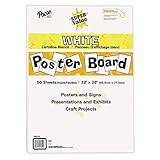
- ECONOMICAL: Great value poster board for use with posters, signs, craft projects, and more; Comes in a reclosable carton for easy storage
- BRIGHT WHITE: White, uncoated poster board will make any presentation or class project look great
- ALL-PURPOSE: Can be used for so much more than presentations such as block printing, stenciling, painting, coloring, vision boards, and more
- USA MADE: Proudly made in America and is acid-free and recyclable
- TRUSTED BRAND: The Pacon brand is part of the Dixon Ticonderoga family of products and is beloved by children, parents, and teachers alike for its bold colors and superior durability
Good Easter treatments include small flowers in the corners, a thin pastel line, or a bottom-only border for a bulletin or menu. Avoid a dense frame on every page of a long document: it uses ink and competes with the text.
Make a border apply to only one page
Word page borders apply to a section, not to an arbitrary page. To decorate a page in the middle of a document, place that page in its own section:
- Insert a section break before the page.
- Insert another section break after it.
- Place the cursor in the isolated section.
- Open Design > Page Borders and select the appropriate Apply to option.
The same section behavior explains why a border may unexpectedly appear on several pages. If you need only the cover decorated, use a first-page setting where available or isolate the cover with a section break.
Always preview and test-print. Many printers have non-printable margins, so a border that looks close to the edge on screen may be clipped on paper.
The Tool Desk
Outbyte PC Repair FREEClear out junk files and repair common Windows errorsFree Scan →Outbyte Driver Updater FREEScan for outdated or missing drivers - takes under a minuteDriver Scan →Decorate Word text, pictures, and callouts
Border a title or paragraph
Select a word, line, or paragraph and choose Home > Borders. Reopen the menu and select Borders and Shading to set the style, color, width, and sides. Check whether Apply to is set to Text or Paragraph; the first surrounds the selected characters, while the second treats the paragraph as the bordered unit. See Microsoft’s text-border instructions.
Useful examples include a lavender bottom rule beneath “Easter Celebration,” pale-yellow shading behind a short greeting, or a green border around event details. Borders should establish hierarchy, not surround every paragraph.
Rank #2

- Sold as 20/Carton.
- Poster board is ideal for signs, posters, and mounting.
- Measures 22"H x 28"W overall.
- White surface to maximize readability.
- 4-Ply.
Format a picture
Select the picture and open Picture Format > Picture Border. Choose a color, then use Weight and Dashes to control the outline. Choose No Outline to remove it. The Picture Styles gallery provides quicker presets. Similar controls are available in PowerPoint; Microsoft describes them in its picture-border guide.
A thin white or pastel border works well around a classroom craft, church event, spring meal, or egg-hunt photograph. Do not combine a thick picture frame, patterned background, elaborate page border, and decorative title on the same page.
Use tables, headers, and footers
A one-cell table is a dependable callout for event information: place the date, time, location, and registration details inside it, then apply a light fill and a simple border. This can also help when using Word for the web, which may preserve borders created in desktop Word but has limitations for adding or editing some text borders.
Put a small flower, egg, or church symbol in the header, and keep the footer for the event name, page number, or contact information. A cover page can carry the strongest decoration; subsequent pages should remain quieter.
Find Easter images, icons, and illustrations
In Microsoft 365, choose Insert > Pictures > Stock Images. Depending on the application and account, you may see categories such as Images, Icons, Cutout People, Stickers, Illustrations, and Cartoon People. PowerPoint also supports stock videos. Search for terms such as Easter, spring, eggs, bunny, flowers, tulips, daffodils, cross, sunrise, or basket.
Microsoft says the full built-in library is available to Microsoft 365 subscribers, while non-subscribers and some perpetual-license users receive only part of it. Availability can also vary by application, platform, account, and region. See Microsoft’s current media-library guidance.
Rank #3

- DIMENSIONS: Each small trifold poster board measures 26 inches x 17 inches when laid flat, perfect size for school presentations and science fair projects
- PACK CONTENTS: Set includes 2 white corrugated display boards, offering excellent value for multiple projects or backup needs
- STURDY DESIGN: Corrugated construction provides stability while standing, ensuring your presentation materials stay securely displayed
- VERSATILE USE: Ideal for science fairs, school projects, business presentations, art displays, and other educational or professional needs
- PRESENTATION READY: Clean white surface offers an excellent backdrop for mounting photos, charts, graphs, and text materials
Built-in assets are convenient, but “royalty-free” does not mean public domain or automatically suitable for every use. Check the applicable license. A web image found through an image search is not automatically free to reuse, especially for commercial communications.
Build Easter artwork from PowerPoint shapes
Shapes are useful when the decoration must remain editable, recolorable, and scalable.
- Egg: Use an oval with a pastel fill, then add arcs or curved lines.
- Basket: Combine a trapezoid or rounded rectangle with an arc for the handle.
- Flower: Arrange circles or petals around a center.
- Sunrise: Combine a semicircle with horizontal rays.
- Banner: Use chevrons or parallelograms.
- Cross: Place two rectangles together and group them.
- Grass: Repeat triangles or create a green freeform strip.
Insert the basic shapes, apply a consistent fill palette, remove outlines that create clutter, and use Align and Distribute for even spacing. Group the finished object so it can be moved or copied as one unit. Microsoft’s broader Office graphics guide covers shapes, pictures, icons, SmartArt, SVG graphics, and related tools.
Create an Easter border in PowerPoint
PowerPoint has no dedicated page-border command. The most dependable method is a rectangle with no fill and a formatted outline, as described in Microsoft’s slide-border instructions.
What’s actually slowing this PC down?
Pick the symptom - the matching free tool is one click away.
- Choose Insert > Shapes and select a rectangle.
- Draw it slightly inside the slide edges.
- Choose Shape Format > Shape Fill > No Fill.
- Use Shape Outline to select a color, weight, and dash style.
- Open Format Shape for additional line controls.
Try a rounded rectangle in pale green, a thin double-line effect in yellow and lavender, or small flower shapes in two corners. Leave a small inset from the slide edge so the border is not clipped in Slide Show view, exported PDFs, or printouts.
If every slide needs the same border, place the rectangle on the Slide Master instead of copying it manually. Add a small corner illustration, footer, or bottom ribbon there as well, but keep the master decoration subtle enough for photographs and text.
Rank #4

- Strong poster board: Our white poster board is 11 inches x 14 inches and is large enough. Made of sturdy double glued paper, it is lightweight, durable and smooth. So you can write or draw as much as you want on the poster board.
- Design: 11in x 14in white poster board has a matte design on both sides, the bright white color will make the design pop. The poster board writes smoothly and is suitable for all kinds of paintbrushes. More options for your DIY poster or display art projects.
- Production and Printing: Large poster board can be printed on the front and back of the poster board using a multifunctional printer or photocopier. The printing is very clear and presents the effect you want. Our poster board can also bring out your unlimited imagination to create your favorite things. Painting DIY, making brochures, photo mats and more.
- Wide Application: Our poster board it suitable for school projects, art, classroom poster displays, craft projects and more. Poster board is also suitable for drawing, marking, printing, posters and other applications, you can let your imagination go wild and create different features. It is the best choice for office, school or home use.
- You Will Get: 18Pack white poster board(11in x 14in), and our 7*24 friendly customer service for peace of mind.
Use Design Suggestions without depending on it
PowerPoint’s current feature is called Design Suggestions, although many users still call it Designer. Add a title, text, or photo, then choose Design > Design Suggestions and review the proposed layouts. It is an idea generator, not a guarantee of an Easter-themed result; you may need to insert a suitable image first and refine the colors manually.
Microsoft says availability depends on the version and account. Desktop access is associated with Microsoft 365 subscribers, while PowerPoint for the web has broader availability. An internet connection, supported connected experiences, and organizational permission may be required. Suggestions may not appear when another person is editing the slide, when content is placed in unsupported manually drawn text boxes or shapes, or when the layout is not supported. See Microsoft’s Design Suggestions guide and troubleshooting page.
Use SmartArt for organized Easter information
SmartArt is better for structured information than for decorative artwork. Choose Insert > SmartArt to create an event schedule, volunteer plan, three-step craft activity, lesson sequence, Good Friday-to-Easter Sunday timeline, or program outline. You can add shapes, change colors, and apply SmartArt styles. Microsoft provides the current steps in its SmartArt guide.
Three practical projects
1. A print-ready Easter invitation in Word
- Set the page size and margins for the intended printer.
- Add a first-page border or a small corner illustration.
- Create a large title such as “Easter Celebration” with one accent color.
- Place date, time, location, and RSVP information in a lightly shaded one-cell table.
- Add one licensed photo or illustration, not several competing graphics.
- Put contact information in the footer.
- Print a test copy and verify that the border and colors survive reproduction.
2. An Easter announcement slide in PowerPoint
- Start with a standard title-and-content layout.
- Add a large title and keep the date, time, and location in a separate readable block.
- Insert one photo, icon, or editable egg or flower illustration.
- Add a thin rectangle border, preferably on the Slide Master if the deck has several slides.
- Use Design Suggestions if available, then remove anything that reduces readability.
- Check the slide in Slide Show view from a normal viewing distance.
3. A low-ink worksheet or bulletin
- Use a dark heading and a pale accent line rather than a full-page background.
- Create activity or announcement boxes with borders and generous white space.
- Use simple outline shapes for eggs, flowers, or grass.
- Keep body text high contrast and large enough for the audience.
- Test the page in grayscale before printing a batch.
Reusable Easter templates
Word template
Save a tested document as a Word template containing a pastel theme, seasonal title style, header illustration, footer, first-page border, event-details table, and placeholders for location, time, contact details, and registration information. Check page breaks and printing before reusing it.
PowerPoint template
Create a small slide system instead of decorating each slide differently: a title slide, event-details slide, photo-and-caption slide, three-column information slide, and closing slide. Keep the border on the Slide Master, define one or two accent colors, and use a consistent font pairing.
Organization templates and custom templates do not automatically support every Design Suggestions scenario. Microsoft discusses these considerations in its guidance on organization templates and custom templates and Designer.
Do these 3 things before closing this tab:
1Clear out junk files and repair common Windows errors2Scan for outdated or missing drivers - takes under a minute3Repair Windows errors before they cause bigger problemsBest Value

- 【12 Premium Tiles for Custom Layouts】 Create your perfect workspace with 12 heavy-weight felt tiles each 11.8"(30cm) x 11.8"(30cm). Effortlessly arrange them into any size or shape bulletin board on your office, home, or classroom wall to organize schedules, ideas, photos, and notes.
- 【Ideal for Home & Office Spaces】 Crafted from dense, high-quality polyester felt, these stylish and functional tiles are perfect for enhancing any indoor environment. Brighten up home offices, boost productivity in corporate settings, inspire creativity in classrooms, or organize kids' rooms.
- 【Easy & Damage-Free Hanging】 Comes with heavy-duty adhesive tabs designed for strong, secure hold on most smooth surfaces. Removes cleanly without leaving marks or residue when needed.
- 【Enhanced Durability & Thickness】 Experience superior quality: Each tile weighs a substantial 150g and features a dense 0.35"(9 mm) thickness. This makes them exceptionally resistant to bending, sagging, and wear, ensuring a smooth surface for pins and a professional look that lasts. Multiple color choices allow for seamless DIY designs.
- 【Improved Workspace Ambiance】 Boasts an impressive NRC rating (up to 0.95) for superior sound absorption. Significantly reduces echo and background noise in busy offices, classrooms, and home offices, creating a more focused and pleasant acoustic environment.
Optional: Microsoft Designer
Microsoft Designer is a separate web-based design tool for invitations, posters, social graphics, and decorative artwork that can later be inserted into Word or PowerPoint. It is not necessary for basic Office work, and it is not a replacement for Word’s pagination or editable Office shapes.
Availability and account requirements can change. Microsoft’s current support information identifies personal Microsoft 365 accounts as the starting point and notes limitations for enterprise users. Check the official support page before relying on it.
Troubleshooting and quality checks
The Word border appears on the wrong pages
Check the section breaks and the Apply to setting in Design > Page Borders. A border follows the section, not merely the page where you clicked.
The PowerPoint border is cut off
Move the rectangle inward, use alignment tools, and check both Slide Show view and the exported PDF. Printers may also clip content near the edge.
Quick wins for a faster PC:
Clear out junk files and repair common Windows errorsFree Scan →Fix the driver behind crashes, sound loss and screen glitchesFind Drivers →Stock content is unavailable
Your Office edition, subscription, platform, account, or region may provide only part of the media library. Use editable shapes or a properly licensed external asset instead.
Text is difficult to read over an image
Use dark text on a light background, move patterned artwork away from essential information, or add a translucent fill behind the text. Avoid script fonts for dates, times, addresses, and instructions, and do not communicate important information through color alone.
Design Suggestions is missing
Check that you are signed in, connected to the internet, using a supported layout, and allowed to use connected experiences. An organization administrator may have disabled the feature, and manual text boxes or simultaneous co-editing can prevent suggestions.
Quick Recap
Final checklist
- Choose Word for flowing, print-oriented documents and PowerPoint for freeform visual composition.
- Use one main decorative motif and a limited palette.
- Check whether a Word page border is affecting the intended section.
- Keep borders inside the printer’s safe area.
- Confirm that images are licensed for the intended use.
- Use high-contrast text and test the design in grayscale.
- Make dates, times, locations, and calls to action easy to find.
- Match the imagery to the context: secular, religious, school, community, or business.
- Test the file in the Office version and on the device where it will be presented or printed.

Product prices and availability are accurate as of the date/time indicated and are subject to change. Any price and availability information displayed on Amazon at the time of purchase will apply.
Free tools Windows power users keep installed
One-click scans. No signup required.




