Crashes, No Sound, or Screen Glitches?
Quick wins for a faster PC:
Repair Windows errors before they cause bigger problemsFix Now →Scan for outdated or missing drivers - takes under a minuteDriver Scan →Clear out junk files and repair common Windows errorsFree Scan →Random freezes, missing sound and display glitches usually trace back to one bad driver. Find and replace yours safely.Free scan · under a minute
Windows Errors? Fix Them Before They Spread
Repair common Windows errors and clear accumulated junk for a smoother, more stable PC - no reinstall needed.Free scan · no reinstall
ThatPainter is reader-supported. When you buy through links on our site, we may earn an affiliate commission. Learn More
Professional-looking art prints come from a controlled workflow—not simply choosing the printer’s highest-quality setting. For paintings, the biggest improvements usually come from photographing or scanning the artwork accurately, preparing the file at its final size, choosing paper for the painting’s character, matching the printer’s media setting, managing color consistently, and making a small proof before using expensive paper and ink.
This guide covers the complete process, from a digital image of the original painting to a sharp, color-consistent finished print.
As an Amazon Associate I earn from qualifying purchases.
The 60-second preflight checklist
- Set the document to the finished print size.
- Crop to the paper’s aspect ratio.
- Check effective resolution at final size; approximately 300 PPI is a useful starting point for closely viewed artwork.
- Use the correct physical paper and printable side.
- Match the printer driver’s media type to that paper.
- Choose one color-management method: application-managed or printer-managed.
- Check scaling, margins, borderless expansion, and orientation.
- Print a small proof before committing to a full-size sheet.
- Allow the print to dry before judging, stacking, framing, or covering it.
Start with an accurate digital file
A printer can only reproduce the information in its source file. For a painting, that source is usually a photograph or scan, so capture quality matters as much as printer quality.
Use even, neutral lighting when photographing artwork. Keep the camera parallel to the painting to avoid perspective distortion, and avoid glare from varnish or glossy paint. A scan can work well for smaller, flat artwork, but textured surfaces, thick impasto, and large canvases may require a carefully lit photograph instead.
Popular on Amazon
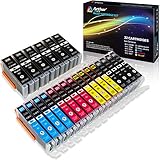
- Includes 6 large Black 251XL, 4 small Black 251XL, 4 Cyan 251XL, 4 Yellow 251XL, and 4 Magenta 251XL Arthur Imaging ink cartridges (total 22 Pack)
- Compatible Printers: Canon PIXMA IP7220, PIXMA IP8720, PIXMA ix6820, PIXMA MG5420, PIXMA MG5422, PIXMA MG5520, PIXMA MG5522, PIXMA MG5620, PIXMA MG6320, PIXMA MG6420, PIXMA MG6620, PIXMA MG7120, PIXMA MG7520, PIXMA MX722, PIXMA MX922, PIXMA MX920, PIXMA MG5500, PIXMA MG5622 inkjet printer
- 250XL: up to 500 pages at 5% coverage; 251xl(bcym): up to 665 pages at 5% coverage ISO19752
- Premium quality ink delivers crisp text and graphics
- Built to ISO9001 and ISO14001 factory standards
Keep an untouched master file separate from the print-ready copy. Make output-specific adjustments on a duplicate so that changes made for one paper or print size do not permanently alter the original.
Recommended Free Tools
Prepare the file at the finished print size
Resolution should be judged at the size you intend to print, not by the largest DPI number advertised by the printer. PPI describes the pixels in your image; DPI describes the printer’s placement of ink dots. They are related to perceived detail, but they are not interchangeable measurements. A printer’s very high DPI specification does not make a low-resolution painting file sharp.
For many closely viewed art and photo prints, approximately 300 PPI at final size is a practical starting point. It is not a universal requirement. A large painting intended to be viewed from across a room may work at a lower effective PPI, while small artwork containing fine lines or lettering may benefit from more source detail. The subject, focus, capture method, printer, paper, and viewing distance all matter. See HP’s explanation of final-size resolution and the distinction between PPI and DPI at HP Tech Takes.
- Decide the finished paper size.
- Decide whether the print will have a border, be trimmed, or run to the edge.
- Crop the image to the paper’s aspect ratio.
- Check the effective PPI at that size.
- Inspect the image at 100% magnification.
- Upscale only when necessary, checking faces, brushwork, fine lines, and texture for interpolation artifacts.
Do not enlarge a file merely to reach a nominal 300 PPI if the extra pixels are artificial. A carefully captured 200-PPI image can look better than a poorly enlarged 300-PPI file.
Sharpen for the print, not the screen
Painting details that look crisp on a backlit display can lose apparent edge contrast on paper. After resizing to the final output dimensions, apply modest print sharpening if needed. The correct amount depends on the image, paper surface, print size, and viewing distance.
The Tool Desk
Outbyte Driver Updater FREEFix the driver behind crashes, sound loss and screen glitchesFind Drivers →Outbyte PC Repair FREEClear out junk files and repair common Windows errorsFree Scan →Glossy paper generally preserves more apparent micro-detail than textured matte paper. Matte and fine-art papers may need a different sharpening treatment, but excessive sharpening creates halos, jagged edges, and unnatural brushwork. Inspect a proof rather than relying on a fixed slider value.
Use the right file format and color space
JPEG is suitable for many ordinary photo-printing workflows. TIFF or another lossless format can be preferable when preserving maximum editing information matters, particularly after extensive adjustments. Export a dedicated print copy rather than repeatedly recompressing the master JPEG.
For many home users, keeping the file in sRGB is the safest choice. Adobe RGB can preserve a wider color range, but it does not automatically create better prints. The complete workflow—capture device, display, application, printer, ink, paper, and profiles—must support and correctly interpret the wider space. A well-managed sRGB workflow is better than an incorrectly converted Adobe RGB file.
For commercial reproduction, follow the print provider’s specification. It may request RGB, CMYK, a particular CMYK profile, or a managed PDF workflow. Do not convert blindly. Large-format workflows can involve soft proofing, embedded ICC profiles, CMYK conversion, or spot colors depending on the production environment; HP outlines these considerations in its large-format printing guidance.
Also popular on Amazon

- What's in the box: 4 Pack Compatible for Canon CRG-067YEL 067 067H toner cartridge set
- Page Yield: Up to 1,350 pages for Canon 067 black toner and 1,250 pages per 067 color toner at 5% coverage (Letter/A4), replacement for MF654Cdw MF656Cdw toner cartridges
- Compatible for Canon imageCLASS LBP633Cdw LBP632Cdw LBP631Cdw MF653Cdw MF651Cw MF654Cdw MF656Cdw MF655Cdw MF652Cdw MF650C LBP630C printer ink
- Package Contents: 1 x 067 067H Black Toner, 1 x 067 067H Cyan Toner, 1 x 067 067H Yellow Toner, 1 x 067 067H Magenta Toner
- High Quality: TRUE IMAGE 067 067H Toner Cartridge Set High Yield committed you with consistency, vibrant color, sharp printing.
Prepare paintings, logos, and layouts correctly
If your painting is part of a poster, greeting card, exhibition label, or portfolio page, keep text and logos vector-based whenever possible. A low-resolution raster logo can look soft even when the painting image is sharp.
- Embed fonts in PDFs, or convert display-critical text to outlines when appropriate.
- Check thin rules, transparency, overprinting, and small type.
- Keep important content inside a safe margin.
- Add bleed only when artwork is meant to extend beyond the trim edge.
- Use the print service’s requested PDF standard when sending work commercially.
Choose paper as part of the artwork
Paper changes more than the print’s surface appearance. It affects black density, contrast, glare, texture, drying, paper white, perceived saturation, and sometimes the apparent sharpness of brushwork. Choose it for the painting and its intended display, not simply because it is labeled “premium.”
| Paper | Good choice for | Trade-offs |
|---|---|---|
| Glossy | High-saturation paintings, landscapes, product images, and maximum apparent contrast | Glare, fingerprints, and reflections that can obscure dark areas |
| Luster, semi-gloss, or satin | Portraits, portfolios, and general art printing | A compromise surface; names and finishes vary by manufacturer |
| Matte | Artwork, monochrome work, and framed prints where glare is undesirable | Lower apparent contrast, less deep blacks, and possible softening of fine detail |
| Fine-art textured paper | Prints intended to echo the physical character of a painting | Texture changes detail and color; paper white and handling require care |
| Plain or presentation paper | Drafts, layout checks, labels, and ordinary documents | Usually unsuitable for a finished art print |
On ordinary office paper, avoid photo or maximum-quality modes unless you are deliberately testing them. Excess ink can cause feathering, bleed-through, slow drying, and paper deformation.
Match printer settings to the physical paper
The driver’s Media Type, Paper Type, and sometimes Source settings affect ink volume, drying behavior, print speed, color treatment, and paper handling. Selecting “glossy” for matte paper, or “plain paper” for a coated art sheet, can produce dull color, smearing, incorrect ink density, or poor feeding.
What’s actually slowing this PC down?
Pick the symptom - the matching free tool is one click away.
- Load the paper in the correct orientation, with the printable side facing the required direction.
- Select the exact paper size.
- Choose the closest—and preferably manufacturer-provided—media type.
- Select the appropriate paper source or rear/manual feed for thicker stock.
- Choose a quality mode suited to the paper and the job.
- Disable automatic scaling when exact dimensions matter.
- Set borderless printing only when edge-to-edge output is intentional.
- Confirm the color-management method.
- Preview the result and make a proof.
Labels and menu locations vary by printer model, operating system, driver, and application. HP documents this variation in its print-settings guidance. Canon and Epson also emphasize matching the media setting to the actual paper surface; see Canon’s workflow guide and Epson’s paper-setting guidance.
Be careful with borderless printing
Borderless modes commonly enlarge the image slightly so it extends beyond the printable area. That prevents a white edge but can crop the painting. Keep important brushwork, signatures, text, and logos away from the edges; preview the crop before printing.
For precision graphics, a deliberate bleed-and-trim workflow is safer. For a first test, print with a visible border to confirm scale and geometry.
Choose one color-management method
Color management is the system that translates colors between your file, display, printer, ink, and paper. The most common mistake is allowing both the application and printer driver to perform color corrections on the same job.
Important: Choose either application-managed color or printer-managed color. Do not enable both for the same print.
Also popular on Amazon
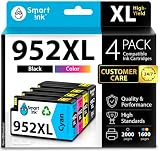
- Compatible with HP OfficeJet 8702 OfficeJet Pro 7720 7730 7740 8200 8210 8216 8218 8700 8710 8714 8715 8716 8717 8718 8719 8720 8724 8725 8726 8727 8728 8730 8732M 8734 8735 8736 8740 8743 8744 8745 8746 8747 printers series
- Package Contents: 1 x Black 952 XL, 1 x Cyan 952 XL, 1 x Magenta 952 XL, 1 x Yellow 952 XL (4 cartridges in total)
- Print More with XL. Page yield: Up to 2,000 pages per XL Black, 1,600 pages per XL color cartridges (Cyan, Magenta, Yellow)
- Customer Care 24/7: We provide exceptional Customer Live Support daily (even on holidays). Call or write to us if you need manufacturer support
- No updates - No headaches: Printer auto-updates may interrupt your printing with compatible cartridges when most needed; we recommend turning off the auto-updates to avoid unpleasant surprises (read the instructions in the photo slides)
Printer-managed color: the simpler starting point
Use this approach for casual sRGB images, standard manufacturer paper, and workflows without a calibrated display or paper-specific ICC profile:
- Keep the image in sRGB.
- Select the correct physical paper and media type.
- Let the printer driver manage color.
- Turn off extra saturation or color corrections unless you have a specific reason to use them.
- Print a test image.
HP describes printer-managed color as the simpler route for straightforward workflows. It is not universally superior; it is simply easier to configure consistently.
Application-managed color: more control, more responsibility
Application-managed color is useful for color-critical paintings, fine-art papers, repeat client work, and anyone using a properly profiled display and a suitable printer-and-paper ICC profile.
- Calibrate or profile the monitor.
- Obtain an ICC profile for the exact printer, ink, and paper combination.
- Select that profile in the printing application.
- Choose a suitable rendering intent.
- Soft-proof if the application supports it.
- Open the printer driver and disable its color adjustment, or choose its application-managed/no-color-adjustment option.
- Match the driver’s media type to the paper and the profile.
- Print a proof.
Controls may be labeled “Photoshop Manages Colors,” “Printer Manages Colors,” “ColorSync,” “Color Matching,” “ICM,” “No Color Adjustment,” or “Color Controls.” The precise labels depend on the application and driver. Adobe explains profile-based printing in its Photoshop color-management documentation, while Canon documents matching the ICC profile, media type, paper source, and driver controls in its Professional Print & Layout workflow.
An ICC profile improves predictability; it does not make reflective paper physically identical to a glowing screen. A profile for “glossy paper” is not automatically correct for every glossy paper.
Soft-proof before using expensive paper
Soft proofing simulates how an image may behave on a particular printer-and-paper combination. It can reveal out-of-gamut colors, reduced saturation, changed shadow detail, and the effect of paper white.
- Select the target printer-and-paper ICC profile.
- Enable soft proofing in the application.
- Turn on a gamut warning if available.
- Inspect saturated colors, highlights, and deep shadows.
- Make a print-specific adjustment copy or layer.
- Leave the master image unchanged.
Do not try to eliminate every warning. Some colors can shift slightly without damaging the image, and aggressive corrections may make the final print less natural. Canon’s Professional Print & Layout software supports ICC profile selection, soft proofing, layouts, and pattern printing for supported workflows.
Free tools Windows power users keep installed
One-click scans. No signup required.
Calibrate the monitor—but know its limits
A display that is too bright encourages you to edit the painting too dark. A display with exaggerated saturation can make a correct print look dull. Adobe describes the monitor profile as foundational to color-managed editing in its color-management documentation.
- Basic: Reduce excessive brightness, avoid strongly colored room lighting, and compare screen and print under stable, neutral illumination.
- Better: Use a hardware colorimeter to create a monitor profile and recalibrate when the display or working conditions change materially.
- Professional: Use controlled viewing illumination, printer-and-paper profiles, and measured test charts when color accuracy is critical.
Never judge a print in direct sunlight and then compare it with a bright screen in a dark room. The viewing environment changes the perceived contrast and color.
Also popular on Amazon

- Replacements for Canon tr8620a Ink Cartridges Package Content: Toatl 15-Packs 280xxl 281xxl ink cartridges replacements for canon ink 280 and 281 cartridges (3 PGBK 280xxl ink, 3 Black 281xxl ink, 3 Cyan 281xxl ink, 3 Magenta 281xxl ink, 3 Yellow 281xxl ink) 280XXL 281XXL ink cartridges
- High Compatibility: 280 281 ink cartridge compatible with canon TR8620a ink cartridges, TR8620, TR8600, TR8622, TR8622a, TR8520, TR8500, TR7520, TR7500, TR7620, TS6120, TS6220, TS6320, TS9520, TS9521C, TS702, TS702a, TS9120 TS8320 TS8120 TS8220 Printer
- Long-lasting Durability: Starink compatible canon tr8620a ink cartridges replacements for canon 280 281 ink cartridges , help you get consistent performance and longevity printing and bring you impressive colors. Lower printing cost per page, and more economical for long-term use
- High Yield: Starink 280 281 ink cartridges replacements for canon ink 280 and 281 cartridges printouts over 600 Pages per replacements for canon pgbk 280 ink(Large Black); 6360 Pages per Black 281 cartridges; 830 Pages per Cyan, Magenta,Yellow (at 5 percent coverage of A4 paper) for cannon ink. High-capacity ink cartridges, more printed pages, ideal for high-demand user
- Quality assured: 280 281 ink cartridge compatible canon tr8620a ink cartridges equipped with the latest upgraded chips to ensure the compatibility. Starink compatible canon 280xl replacements for canon 281 ink cartridges and compatible for canon tr8620a ink cartridges are manufactured strictly in accordance with ISO9001, ISO14001, CE, ROHS, REACH, MSDS, No clogging No Leaking
Make a useful test print
A professional workflow does not begin with a full-size final print. Create a small crop or test sheet using the actual paper, final media setting, scaling behavior, and color workflow.
Include several diagnostic areas:
- A portrait or skin-tone section.
- Neutral grays.
- Saturated red, green, and blue areas.
- Deep shadows with visible detail.
- Highlights close to paper white.
- Fine black text or linework.
- A smooth gradient to expose banding.
When comparing variations, place them on one sheet where possible. Label each version with the paper, profile, media setting, quality mode, and date. Let the print dry before deciding that it is too dark, too saturated, or too warm. Canon’s software includes pattern-printing tools for comparing brightness, contrast, and color variations on a single sheet.
Make print-specific adjustments
Paper reflects light; a monitor emits it. Matte and textured papers often appear less contrasty than glossy media, and their surface or paper white can alter the painting’s character. A print may need a modest adjustment to contrast, shadow detail, or sharpening, but changing saturation to compensate for an incorrect profile usually makes the underlying problem worse.
Judge the result at the intended viewing distance. A print that looks slightly soft under a magnifying glass may look natural on a wall, while over-sharpening can be obvious at normal distance.
Printing black-and-white paintings
Neutral monochrome output can be difficult because a color printer may combine several inks to create gray. A printer’s dedicated black-and-white or advanced monochrome mode may produce more neutral tones and smoother transitions, but the result is model-specific.
Paper also matters. Optical brighteners and the paper’s base tone can make a monochrome print look cool or warm. “Black ink only” is useful for text but is not automatically the best choice for photographic or fine-art monochrome work. On some professional printers, the choice between photo black and matte black depends on the paper type and printer design. Epson’s SureColor P700 information describes dedicated photo and matte black channels and advanced black-and-white capabilities, but those features should not be generalized to every model.
Crashes, No Sound, or Screen Glitches?
Random freezes, missing sound and display glitches usually trace back to one bad driver. Find and replace yours safely.Free scan · under a minutePC Slower Than It Used to Be?
A free scan shows the junk files, broken settings and background clutter dragging Windows down - then fixes them in one click.Free scan · Windows 10 & 11Diagnose common print problems
Washed-out or dull color
Check the physical paper, driver media type, ICC profile, and color-management choice first. Matte paper naturally has less apparent contrast than glossy paper, but an incorrect glossy/matte profile or double color management can make the result substantially worse. Also check whether an overly bright display led you to edit the source file incorrectly.
Prints that are too dark
A monitor set too bright is a common cause. Other possibilities include a wrong profile, unsuitable rendering intent, incorrect media type, or excessive ink density. Lower the display brightness to a realistic level, inspect the physical print under stable light, and make a print-specific adjustment rather than brightening every master image.
Banding or horizontal lines
- Print a nozzle-check pattern.
- Clean the printhead according to the manufacturer’s procedure if the pattern shows missing segments.
- Align the printhead if alignment is indicated.
- Confirm the media type and paper path.
- Try a slower or higher-quality mode.
- Stop repeated cleaning cycles if the pattern does not improve.
Smearing or slow drying
Verify the printable side, paper orientation, media setting, and ink compatibility. Too much ink on unsuitable paper, humidity, and stacking prints face-to-face can all cause smearing. Let sheets dry flat in a clean area and avoid immediately placing them under glass or protective materials.
Also popular on Amazon

- Product Name: XJI 054h toner cartridges high yield replacement for Canon 054h toner cartridge set with chips
- Compatible Printers: Canon Color image CLASS MF640C MF641CW MF642Cdw MF643Cdw MF644Cdw; LBP620C LBP622Cdw LBP623Cdw
- Package Contents: CRG054H 4 pack ( 054H black x1, 054H cyan x1, 054H magenta x1, 054H yellow x1), all with latest chips
- High Page Yield: 054h 054 Black ink cartridges is 3100 pages & 054h 054 ink cartridges color is 2300 pages per cartridge (at 5% coverage on letter/a4 )
- High Quality Printing: Print clear text and vivid image with premium quality toner
Cropped edges or unexpected margins
Check the aspect ratio, paper size, orientation, and any “Fit,” “Fill,” or “Scale to Page” option. Borderless enlargement can crop edges, while the printer’s non-printable margins can create white borders. Disable automatic scaling when exact dimensions matter.
Recommended Free Tools
Paper jams and feed errors
Heavy fine-art stock may require a rear or manual feed and may exceed the limits of a standard tray. Use the recommended path, flatten curled or humid paper, load fewer sheets, and confirm the printer’s supported size and thickness limits. Never force thick media through a tray that is not designed for it.
Colors differ between applications
Different applications may assume different document profiles or apply separate conversions. For critical output, use one controlled application, confirm the embedded profile, record the printer profile and rendering intent, reset driver corrections, and test with a known reference image.
Maintain the printer without wasting ink
- Run a nozzle check before important work.
- Clean the printhead only when the nozzle check indicates a problem.
- Align the printhead when alignment defects or bidirectional artifacts appear.
- Store paper sealed, flat, and away from humidity.
- Use fresh, compatible media.
- Handle glossy and fine-art sheets by the edges.
- Allow prints to dry before stacking, framing, or covering them.
If a printer has been idle and the nozzle check shows missing segments, perform the manufacturer’s standard cleaning cycle and check again. Stop if repeated cycles do not improve the pattern; dried ink, cartridge problems, air in the ink system, or a service issue may require a different solution. Repeated cleaning consumes ink and can fill maintenance tanks. Follow the printer maker’s procedure rather than generic cleaning advice; HP also identifies printhead maintenance and correct print modes as important to consistent output in its quality-printing guidance.
When to print at home—and when to use a service
Home printing is valuable when you need immediate control, one-off proofs, small editions, or the ability to adjust a print while comparing it with the original. It becomes less attractive when you need hundreds of copies, very large output, specialty finishing, or consistent production without spending time on maintenance and proofing.
The Tool Desk
Outbyte Driver Updater FREEScan for outdated or missing drivers - takes under a minuteDriver Scan →Outbyte PC Repair FREERepair Windows errors before they cause bigger problemsFix Now →Compare the total cost, not just the printer price:
- Printer purchase price.
- Ink or cartridge cost and the number of channels.
- Paper and failed-proof costs.
- How often the printer will be used.
- Maintenance and idle-time risk.
- Maximum print width.
- Need for borderless, textured, or fine-art media.
- Required permanence, finishing, trimming, and packaging.
A lab or commercial printer may be more economical for large runs, oversized paintings, specialty finishing, or color-critical production where failed home prints outweigh the convenience of printing yourself.
Buying paths for artists
Improve an existing inkjet first
For many artists, better paper, correct media settings, a manufacturer ICC profile, and a small proof deliver a larger improvement than immediately replacing the printer.
Choose a prosumer photo printer for control
A dedicated photo printer can suit artists who need fine-art media, strong black density, wide gamut, or advanced monochrome output. For example, Epson lists the U.S. SureColor P700 as a 13-inch-wide printer using a 10-color UltraChrome PRO10 configuration. The product page displayed a $849 list price and a $699 promotional price when crawled on August 18, 2026; prices, availability, tax, and promotions change. Epson also warns that third-party supplies may not function properly, so include proprietary ink in the total-cost calculation.
Consider a refillable-tank photo printer for frequent volume
A refillable-tank model may suit artists who print frequently and want mixed photo-and-document use. Epson’s U.S. photo category displayed the EcoTank Photo ET-8550 at $749.99, with a $599.99 promotional price when crawled on August 18, 2026. That price is a dated U.S. snapshot, not a guarantee. Compare print width, ink system, paper compatibility, permanence, and expected volume before buying.
Add calibration and layout tools when needed
A hardware monitor colorimeter can be a more useful upgrade than a new printer when screen-to-print decisions are consistently wrong. Canon Professional Print & Layout is described by Canon as free for supported workflows and offers ICC profile selection, soft proofing, layouts, and pattern printing. It is most relevant to compatible Canon printers and is not a replacement for a commercial prepress or RIP workflow.
Quick Recap
Final printable checklist
- Is the source photograph or scan accurate, sharp, and free of glare?
- Is the crop correct for the finished paper size?
- Is the effective resolution appropriate at final size?
- Has the print copy been sharpened for its actual size and paper?
- Are text and logos vector-based where possible?
- Is the color space suitable for the complete workflow?
- Is the paper appropriate for the painting and display conditions?
- Is the correct printable side loaded?
- Does the driver media type match the physical paper?
- Is scaling intentional?
- Is borderless enlargement accounted for?
- Is exactly one color-management method active?
- Does the ICC profile match the printer, ink, and paper?
- Has a small proof been printed and allowed to dry?
- Has the printer passed a nozzle check before the final job?
- Will the finished print be viewed under suitable light?


