PC Slower Than It Used to Be?
What’s actually slowing this PC down?
Pick the symptom - the matching free tool is one click away.
A free scan shows the junk files, broken settings and background clutter dragging Windows down - then fixes them in one click.
Run a Free PC Scan →Free scan · Windows 10 & 11
ThatPainter is reader-supported. When you buy through links on our site, we may earn an affiliate commission. Learn More
As an Amazon Associate I earn from qualifying purchases.
Yes—you can create polished AI art without paying or knowing how to draw. The practical catch is that “free” usually means limited credits, daily quotas, an account requirement, fewer editing controls, public-by-default images, or restrictions on commercial use.
Free tools Windows power users keep installed
One-click scans. No signup required.
The most reliable beginner workflow is simple: generate an image with Microsoft Designer/Bing Image Creator or Adobe Firefly, refine it with controlled prompts, then finish the result in Canva if you need a social post, flyer, presentation, thumbnail, or invitation. This guide shows you how to do that—and how to avoid the licensing and quality mistakes that make “free” AI art unsuitable for real projects.
#1 Best Overall

- Instant anime art generation in just seconds.
- User-friendly design, no artistic skills required.
- AI-powered creation from simple text descriptions.
- Multiple image dimensions for wallpapers and social media.
- Intuitive home screen for effortless creativity.
What AI art actually is
AI art is an image generated or modified by a machine-learning model from instructions you provide. You might type a description, upload a reference image, ask to replace a background, expand a scene, remove an object, or create several style variations.
Common capabilities include:
- Text-to-image: Create an image from a written description.
- Image-to-image: Transform an existing image while retaining some of its composition or subject.
- Generative fill and expansion: Add, remove, or extend parts of an image.
- Background removal and replacement: Isolate a subject or put it in a new setting.
- Upscaling: Increase apparent detail or output size, subject to the tool’s limits.
- Variations and style changes: Explore different compositions, lighting, or visual treatments.
- AI-assisted design: Combine imagery with layouts, typography, and other design elements.
Writing a prompt does not automatically give you an exclusive image, guaranteed copyright, or permission to use every recognizable person, brand, character, or artwork depicted in the result. Those are separate legal and licensing questions.
What you need before you start
You need only a web browser or supported mobile app, an account for most hosted services, and a one-sentence idea. Decide what the image is for before generating it:
Quick wins for a faster PC:
Clear out junk files and repair common Windows errorsFree Scan →Fix the driver behind crashes, sound loss and screen glitchesFind Drivers →Repair Windows errors before they cause bigger problemsFix Now →- Square social post
- Portrait mobile graphic
- YouTube thumbnail
- Blog header
- Presentation cover
- Phone or desktop wallpaper
- Printable invitation
- Character or product concept
The intended use determines the aspect ratio, framing, resolution, and whether you need empty space for text. Also decide whether the image contains sensitive material. Do not upload confidential client work, unreleased products, private family photos, or personal information until you have checked the service’s privacy and training settings.
For example, Canva says inputs may be shared with technology partners to provide some AI features, while privacy settings affect whether Canva and its partners may use data to improve AI services. See Canva’s AI Product Terms for the current details.
Which free AI art tool should you choose?
There is no single best tool for every beginner. Choose based on the finished result you need, not just on which service produces the prettiest sample image.
| Tool | Best for | Free-access signal | Main caution |
|---|---|---|---|
| Microsoft Designer/Bing Image Creator | Fast first experiments from a sentence | Online image generation with an account required under the current terms | Microsoft says outputs may not be unique and does not guarantee non-infringement |
| Adobe Firefly | More controlled, commercial-oriented creative workflows | Can be tried for free, with generative credits governing usage | Commercial-safety claims apply to Adobe’s own Firefly models, not automatically to every partner model |
| Canva AI | Turning an image into a finished post, flyer, slide, or thumbnail | AI tools are available on the Free plan, with more usage and advanced features on paid plans | AI output may not be exclusive or cleared for every commercial use; library content has separate licenses |
| Leonardo.Ai | Concept art, characters, variations, and iterative workflows | Free users receive a daily token allowance | Free-tier images may be public, and Leonardo retains broad rights over them |
Use Microsoft Designer or Bing Image Creator for the quickest start
Open Microsoft Designer or Bing Image Creator, sign in, enter a description, generate, choose a variation, and download it. The current Image Creator terms say unauthenticated users cannot generate creations. Microsoft also says similar prompts can produce similar images for different users, so do not treat the output as guaranteed unique.
Recommended Free Tools
Microsoft’s Designer terms permit use of creations for legal purposes subject to the applicable agreements and limitations, but Microsoft does not guarantee that a creation will not infringe someone else’s rights. It also receives broad rights to use submitted content in connection with its internet businesses. Review the Designer Image Generator Terms of Use before using the service for a sensitive or important commercial project.
Use Adobe Firefly when commercial considerations matter
Adobe says Firefly can be tried for free and uses generative credits for AI content generation. Its own Firefly models are described as trained on licensed content, including Adobe Stock, and public-domain content where copyright has expired. Adobe describes those models as commercially safe and adds Content Credentials indicating that AI was used in the creation process.
Rank #2

- Free Text2Image AI Art Generator
- Copyright-Free for Personal and Commercial purposes
- Easy-to-use interface
- Powerful AI-powered technology
- Create realistic portraits, abstract landscapes, and more
That language needs to be read narrowly. Firefly may also offer partner models, and Adobe’s statement about its own models does not automatically apply to every model or asset in the product. Open Firefly, choose its image-generation feature, enter a prompt, adjust the available style or composition controls, generate variations, refine the prompt, and download the selected result. Feature names and limits can change.
Use Canva when the image must become a finished design
Canva AI is accessible from the Canva homepage or through the Canva AI button in the editor. Its Free plan includes a range of AI tools, while paid plans provide increased usage and more advanced features.
Canva is particularly useful after generation: place an image into a social post, thumbnail, presentation, flyer, invitation, or marketing layout, then add text separately. Canva says AI can be used for personal and commercial projects, but also warns that commercial users may not have exclusive rights and are responsible for determining whether permission is needed for depicted art, photographs, trademarks, or logos.
If AI output incorporates or modifies Canva library content, the applicable content license still matters. Editing a Canva library photo with AI does not make you its owner. Canva’s Content License Agreement also distinguishes Free and Pro Content; Pro Content is generally licensed for use in a single Canva Design rather than as a standalone asset.
Use Leonardo.Ai for concept exploration
Leonardo is suited to creators who want many character, environment, or style variations. Create an account, open the image-generation tool, choose an available model or preset, describe the image, and generate. Depending on the current plan and interface, you may have access to variations, remixing, upscaling, background removal, or guided generation.
Free users receive a daily token allowance, and token costs vary according to computational intensity. Leonardo’s current pricing information says paid subscribers retain full ownership, copyright, and other intellectual-property rights in images they generate. For free-tier users, Leonardo retains rights to use, reproduce, modify, and distribute images while granting a non-exclusive, royalty-free commercial-use license. Its commercial-use guidance also warns that public images can be used by Leonardo and other users under broad service-related rights. That makes the free tier a poor choice for confidential client work.
Do these 3 things before closing this tab:
1Repair Windows errors before they cause bigger problems2Scan for outdated or missing drivers - takes under a minute3Clear out junk files and repair common Windows errorsThe beginner prompt formula that works
Start with a clear sentence rather than a wall of contradictory adjectives. Use this formula:
Subject + action or scene + setting + composition + lighting + visual direction + mood + aspect ratio + exclusions
For example:
A cheerful orange tabby cat sitting beside a rain-covered café window, cozy urban coffee shop, medium close-up, soft morning light, warm cinematic color palette, detailed digital illustration, square composition, no text, no watermark.
Rank #3
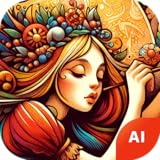 AI Art Generator-AI Drawing Creator
- 1. Instant Art: Create stunning visuals with minimal effort.
- 2. Ad-Free: Enjoy uninterrupted creativity.
- 3. Easy to Use: Simple for everyone, from beginners to pros.
- 4. Save drawings: Free to download your drawings
Each part has a job:
- Subject: What should appear?
- Action or scene: What is happening?
- Setting: Where is it?
- Composition: Is it a close-up, wide shot, overhead view, centered portrait, or rule-of-thirds composition?
- Lighting: Try soft daylight, golden hour, overcast light, studio lighting, or dramatic rim light.
- Visual direction: Specify editorial photograph, watercolor, 3D render, graphic poster, ink illustration, or another broad direction.
- Mood: Calm, playful, mysterious, elegant, energetic, or nostalgic.
- Aspect ratio: Say square, portrait, landscape, phone wallpaper, or banner.
- Exclusions: Add no text, no logo, no watermark, or no extra objects where appropriate.
Do not add terms simply because they sound artistic. A short, coherent prompt with a defined subject and composition is usually easier to control than a long list of incompatible styles.
Generate your first image: a repeatable workflow
1. Define the final job
A wallpaper can place the subject near the edge or leave open space for icons. A thumbnail needs a bold, instantly readable focal point. A presentation cover may need empty space for a title. A printed invitation needs a composition that can accommodate typography without covering the important details.
2. Choose the tool by outcome
- Fastest first experiment: Microsoft Designer/Bing Image Creator.
- Commercial-oriented workflow: Adobe Firefly, especially when using Adobe’s own Firefly models.
- Image plus finished layout: Canva AI.
- Many concept variations: Leonardo.Ai, with its free-tier rights and privacy limitations in mind.
3. Enter one specific prompt
Try these starting points.
Photorealistic image
A small independent bookstore on a quiet rainy street at blue hour, warm light glowing through the windows, cinematic editorial photography, realistic reflections on wet pavement, inviting atmosphere, no people in the foreground, landscape composition, no text or logos.
Fantasy artwork
An ancient tree growing through the ruins of a moonlit stone observatory, tiny glowing moths, deep blue and emerald palette, highly detailed fantasy concept art, atmospheric mist, dramatic scale, vertical composition, no text, no watermark.
Social-media background
Minimal pastel background for a spring skincare promotion, soft peach and cream gradients, delicate botanical shadows, clean negative space on the right for headline text, premium product-photography mood, square composition, no words, no logo.
The Tool Desk
Outbyte PC Repair FREERepair Windows errors before they cause bigger problemsFix Now →Outbyte Driver Updater FREEFix the driver behind crashes, sound loss and screen glitchesFind Drivers →Special offer. See more information about Outbyte and uninstall instructions. Please review EULA and Privacy policy.
4. Generate several options
Choose by purpose, not just by beauty. Check whether the main subject is clear, whether the crop suits the final format, whether faces and hands look plausible, whether there is room for a headline, and whether the image contains accidental letters, logos, or visual artifacts.
Also ask whether the result resembles a recognizable person, brand, character, photograph, or existing artwork too closely. A beautiful result can still be unsuitable for publication.
5. Change one variable at a time
Controlled revisions make it easier to understand what helped. Useful follow-up instructions include:
- “Keep the same subject and pose, but make the lighting softer.”
- “Use a wider composition with empty space on the left.”
- “Remove the extra object in the background.”
- “Make the colors less saturated.”
- “Change the camera angle to a three-quarter view.”
- “Keep the character’s clothing and facial features consistent.”
- “Create a vertical 4:5 composition.”
If you change the subject, style, lighting, camera angle, and background at once, you will not know which instruction improved or damaged the result.
Crashes, No Sound, or Screen Glitches?
Random freezes, missing sound and display glitches usually trace back to one bad driver. Find and replace yours safely.Free scan · under a minutePC Slower Than It Used to Be?
A free scan shows the junk files, broken settings and background clutter dragging Windows down - then fixes them in one click.Free scan · Windows 10 & 11Rank #4

- AI Art Generator
- Photo Cartoon maker
6. Finish the image in an editor
For a social graphic, presentation, flyer, or thumbnail, add the headline, price, date, logo, and call to action in Canva or another design editor. This is usually more reliable than asking the image model to render a long headline inside the artwork.
7. Export and inspect it at its real size
Use the aspect ratio and pixel dimensions appropriate to the destination. Print work may require different resolution and color specifications from a digital post, so check the printer’s requirements. An image that looks sharp on a screen may fail when enlarged. Before publishing, inspect the final export—not only the AI-generated preview—at its intended size.
Five common AI art problems and how to fix them
Bad hands, faces, and objects
Reduce the number of people, simplify interactions between hands and objects, or generate a closer crop. If the tool supports selective editing or inpainting, repair only the defective area. Otherwise, generate several alternatives rather than spending too long trying to rescue one flawed image. Inspect details at 100% before publishing.
Unreadable text
Image models often produce decorative pseudo-text, misspellings, or inconsistent lettering. Add “no text” when words are not needed. Put headlines, labels, prices, and logos in Canva or another editor afterward. If text inside the image is essential, use a tool with a demonstrated text-rendering strength and manually verify every character.
Wrong aspect ratio or crop
State the intended format at the beginning: square, portrait, landscape, banner, or phone wallpaper. Ask for negative space where text will go. Do not rely on cropping a tightly framed subject after generation; the crop may cut off important details.
Bland composition
Describe the camera distance, viewpoint, subject placement, and empty space. “A product on a table” gives the model far less direction than “a centered glass skincare bottle on a pale stone pedestal, close-up, soft window light, empty space on the right for copy, square composition.”
Inconsistent characters
Write a fixed character description and repeat the important identifiers: face, hairstyle, clothing, colors, distinctive accessory, and body type. Generate a base character first, then make controlled variations using a reference image or character feature when the tool supports it.
For example:
A friendly red-haired space mechanic in a navy utility jacket, copper goggles on the head, small crescent-shaped patch on the sleeve, three-quarter portrait, warm studio lighting, detailed digital illustration. Keep the same face, hairstyle, jacket, and color palette in every variation.
Special offer. See more information about Outbyte and uninstall instructions. Please review EULA and Privacy policy.
Even with these techniques, perfect identity consistency across generations is not guaranteed.
Independent reader supportYour contribution helps us test, update, and keep practical guides available for everyone.Useful editing prompts
For a targeted background change, try:
Keep the person, clothing, pose, and lighting unchanged. Replace only the background with a bright coastal landscape and leave clear empty space above the subject.
Best Value
 HD Wallpaper Generator - Create your own with Ai
- Ai powered feature that turns text into stunning wallpapers.
- Generate your own wallpapers from your ideas.
- Personalize your phone with 4K wallpapers.
- Different wallpaper styles.
- Simple and user-friendly interface.
Other practical edits include removing an unwanted background object, widening the scene to create copy space, reducing saturation, changing the time of day, or adjusting the camera angle. Keep the instruction narrow so the tool does not redesign the entire image.
Can you use free AI art commercially?
Sometimes, but “free,” “commercial use,” “ownership,” and “copyright” are not the same thing. Check four separate issues before using an image for a client, product, advertisement, book, or paid social campaign.
The Tool Desk
Outbyte PC Repair FREERepair Windows errors before they cause bigger problemsFix Now →Outbyte Driver Updater FREEFix the driver behind crashes, sound loss and screen glitchesFind Drivers →- Provider license: What does the service permit under the specific free or paid tier?
- Third-party rights: Does the result resemble a protected character, artwork, logo, photograph, brand, or person?
- Privacy and publication: Is the image public, and can the provider or technology partners use your input or output?
- Copyright eligibility: Does your jurisdiction recognize enough human authorship in the final work for copyright protection?
Microsoft’s terms permit creations for legal purposes subject to the agreement, but disclaim guarantees that the output does not infringe third-party rights. Canva says its AI can be used for commercial projects but warns that output may not be exclusive or cleared for every use. Leonardo’s rights differ substantially between its free and paid tiers. Adobe’s commercial-safety statement is tied to the relevant Adobe Firefly models.
Do not assume that an AI-generated logo is safe to trademark, that an image of a real person can be used in advertising, or that asking for a famous artist’s exact style eliminates legal or platform risk. When the project is valuable or sensitive, review the current provider terms and obtain professional legal advice.
Privacy and public-image warnings
Privacy can matter more than image quality. Leonardo says free-tier images may be public and subject to broad provider rights, while paid users can keep designs private. Microsoft says it may use submitted content in connection with operating its internet businesses. Canva says inputs may be shared with technology partners for feature delivery.
Before uploading a source image, ask:
- Does it contain a client’s confidential information?
- Does it show an unreleased product?
- Does it include children, private individuals, or identifying details?
- Have the people shown consented to the upload and intended use?
- Does the account or plan provide private generation?
- Can the provider use the input to improve services?
If the answer raises concern, use a non-sensitive placeholder or choose a workflow with terms and privacy controls suitable for the project.
What’s actually slowing this PC down?
Pick the symptom - the matching free tool is one click away.
What to do when the tool does not work
- Sign-in required: Create or use the required account; do not assume anonymous generation is supported.
- Quota exhausted: Wait for the allowance to reset, reduce high-compute actions, or use another free service.
- Generation is slow: Try again later; queues and throttling can change.
- A safety filter blocks the prompt: Remove unnecessary references to real people, brands, or sensitive subjects and describe the scene more neutrally.
- A feature is missing: It may be limited by plan, country, language, model, or current interface.
- The result is public: Do not use the free tier for confidential material unless the current terms and privacy settings make that acceptable.
Free access can also vary by country and language. Canva specifically notes that some AI products may not be available everywhere.
Beginner checklist before downloading
- Is the aspect ratio correct for the destination?
- Is the subject clear at the final display size?
- Have you inspected hands, eyes, faces, edges, and repeated patterns?
- Are there accidental words, logos, watermarks, or signatures?
- Is there enough empty space for your design text?
- Does the image resemble a real person, brand, character, or protected artwork?
- Have you checked the provider’s current free-tier and commercial-use terms?
- Have you considered whether the generation is public?
- Did you avoid uploading confidential or personal material?
- Have you saved the prompt, tool, account tier, and generation date?
- Have you checked the final export at its intended size?
Tool recommendations by scenario
| Your goal | Start here | Why |
|---|---|---|
| Casual experimentation | Microsoft Designer/Bing Image Creator | Simple path from a sentence to generated variations |
| Small-business marketing | Adobe Firefly, then a design editor | Adobe provides a more clearly articulated commercial-oriented workflow for its own models |
| Social posts and presentations | Canva AI | The image and layout workflow are integrated |
| Concept art and character exploration | Leonardo.Ai | Useful for iterative variations and guided workflows |
| Private client work | Check paid privacy and rights options first | Free tiers may expose images or grant broad provider rights |
| Standalone exclusive artwork | Do not rely on a free AI tier without reviewing its terms | Free access does not guarantee exclusivity or copyright |
Bottom line
Start with a clear use case, choose a tool that matches the finished job, describe the subject and composition precisely, generate several options, and refine one variable at a time. Add important typography separately in a design editor, inspect the image for artifacts, and review privacy and usage rights before publishing.
For a quick experiment, try Microsoft Designer or Bing Image Creator. For a more commercial-oriented workflow, consider Adobe Firefly’s own models. For finished layouts, Canva is the practical choice. For intensive concept iteration, Leonardo can be powerful—but its free-tier privacy and rights trade-offs deserve particular attention.
Quick Recap





