The Tool Desk
Windows Errors? Fix Them Before They Spread
Repair common Windows errors and clear accumulated junk for a smoother, more stable PC - no reinstall needed.Free scan · no reinstallOutdated Drivers Are Slowing You Down
One free scan finds every outdated or missing driver and matches the right update for your exact hardware.Free scan · exact hardware matchOutbyte PC Repair FREERepair Windows errors before they cause bigger problemsFix Now →Outbyte Driver Updater FREEScan for outdated or missing drivers - takes under a minuteDriver Scan →
ThatPainter is reader-supported. When you buy through links on our site, we may earn an affiliate commission. Learn More
If Illustrator colors have turned gray, first identify where the problem occurs: the entire document, selected vector objects, swatches, placed images, the preview, an exported PDF, or the printed page. Then check the document color mode, the selected object’s actual color type, the Color panel display, and the color-management settings used for output.
| Symptom | Most likely cause | First fix |
|---|---|---|
| Everything looks gray, including new objects | Document mode, preview, proofing, or an artwork conversion | Check File > Document Color Mode and the active preview settings |
| Existing objects are gray but new objects work normally | The selected artwork was converted to grayscale | Select it and use Edit > Edit Colors > Convert to RGB or Convert to CMYK |
| New swatches offer only black-to-white values | The object or swatch is grayscale, or the Color panel is displaying grayscale sliders | Change the Color panel display and inspect the swatch type |
| Colors are dull only in CMYK | RGB colors are outside the printable CMYK gamut | Choose a printable CMYK color or use the printer’s profile |
| One placed photo is gray | The linked or embedded image is grayscale | Edit or replace the source image, or colorize it when appropriate |
| The PDF is gray but Illustrator looks normal | PDF conversion, profiles, overprint, or viewer interpretation | Review export color settings and inspect the PDF in Acrobat |
| The print is gray while the screen looks correct | Printer profile, paper, ink, proofing, or conversion | Use the printer’s ICC profile and production specifications |
1. Check the document color mode
Illustrator’s document color mode controls the document’s working color model. It does not necessarily restore colors that have already been converted to grayscale.
As an Amazon Associate I earn from qualifying purchases.
Choose:
File > Document Color Mode > RGB Color
File > Document Color Mode > CMYK Color
Adobe generally recommends RGB for screens, websites, apps, video, and other digital output, and CMYK for commercial or office printing. Neither mode is universally better.
- RGB is usually the appropriate working mode for screen-based work and can represent vivid colors that print cannot reproduce exactly.
- CMYK is usually appropriate when a printer requests process-color artwork or when the design must be evaluated against a print condition.
- Grayscale uses black-to-white tonal values rather than chromatic color.
If the document is RGB or CMYK but an object remains gray, the object itself may still contain grayscale color data. Changing the document mode changes the working model; it does not reconstruct discarded color information.
Popular on Amazon
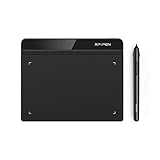
- Battery-Free Pen: StarG640 drawing tablet is the perfect replacement for a traditional mouse! The XPPen advanced Battery-free PN01 stylus does not require charging, allowing for constant uninterrupted Draw and Play, making lines flow quicker and smoother, enhancing overall performance
- Ideal for Online Education: XPPen G640 graphics tablet is designed for digital drawing, painting, sketching, E-signatures, online teaching, remote work, photo editing, it's compatible with Microsoft Office apps like Word, PowerPoint, OneNote, Zoom, Xsplit etc. Works perfect than a mouse, visually present your handwritten notes, signatures precisely
- Compact and Portable: The G640 art tablet is only 2 mm thick, it's as slim as all primary level graphic tablets, allowing you to carry it with you on the go
- Chromebook Supported: XPPen G640 digital drawing tablet is ready to work seamlessly with Chromebook devices now, so you can create information-rich content and collaborate with teachers and classmates on Google Jamboard’s whiteboard; Take notes quickly and conveniently with Google Keep, and effortlessly sketch diagrams with the Google Canvas
- Multipurpose Use: Designed for playing OSU! Game, digital drawing, painting, sketch, sign documents digitally, this writing tablet also compatible with Microsoft Office programs like Word, PowerPoint, OneNote and more. Create mind-maps, draw diagrams or take notes as replacement for mouse
2. Check whether the Color panel is only displaying grayscale sliders
The Color panel can display values in different models. Seeing black, white, or a single gray slider does not prove that the entire document is grayscale.
- Open
Window > Color. - Open the Color panel menu.
- Choose RGB or CMYK.
This changes how color values are displayed in the panel. It does not, by itself, convert the document or the selected object. Illustrator’s reference documentation distinguishes the Color panel display mode from the document color mode.
After changing the panel display, inspect the selected object’s fill and stroke. If the object still has only a grayscale value, continue with the object-level fixes below.
3. Convert a grayscale vector object back to a color model
Use this method for vector artwork that is genuinely grayscale, such as a shape, path, compound path, or selected group.
- Use the Selection tool to select the object.
- Choose
Edit > Edit Colors > Convert to RGBin an RGB document, orEdit > Edit Colors > Convert to CMYKin a CMYK document. - Open
Window > Color. - Enter the desired RGB or CMYK values, or apply a color swatch.
Adobe documents these conversion commands in its current Illustrator color-mode guidance.
Conversion changes the object’s color model; it cannot reliably recover the original hue if the artwork was previously converted to grayscale. If the original colors matter, use Edit > Undo immediately when possible, or restore an earlier version of the file.
Also popular on Amazon
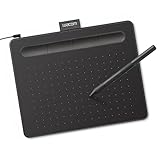
- Wacom Intuos Small Graphics Drawing Tablet: Enjoy industry leading tablet performance in superior control and precision with Wacom's EMR, battery free technology that feels like pen on paper
- Works With All Software: Wacom Intuos tablet can be used in any software program to explore new facets of digital creativity; draw, paint, edit photos/videos, create designs, and mark up documents
- What the Professionals Use: Wacom's industry leading pen technology and pen to paper feeling makes it the preferred drawing tablet of professional graphic designers
- Software and Training Included: Only Wacom gives you software with every purchase. Register your Intuos tablet and gain access to some of the best creative software and Wacom's online training
- Wacom is the Global Leader in Drawing Tablet and Displays: For over 40 years in pen display and tablet market, you can trust that Wacom to help you bring your vision, ideas and creativity to life
If converting the object does not change its appearance
Check the following before converting more artwork:
- In the Tools panel, make sure you are editing the Fill, not only the Stroke.
- Open
Window > Appearanceand look for multiple fills, strokes, effects, or a gray attribute covering the color you changed. - Check opacity, blending mode, opacity masks, clipping masks, and gray overlays.
- Determine whether the object is inside a group, compound path, symbol, or placed image.
- Isolate or expand a group only when necessary, and preserve an untouched copy first.
4. Recolor several objects with Adjust Color Balance
For selected vector artwork, Adjust Color Balance can convert and recolor multiple fills or strokes at once.
- Select the objects.
- Choose
Edit > Edit Colors > Adjust Color Balance. - Enable Fill, Stroke, or both.
- Choose RGB or CMYK from the Color Mode menu.
- Enable Convert if Illustrator needs to convert the selected colors into that model.
- Set the component values.
- Click OK.
RGB mode provides Red, Green, and Blue controls. CMYK mode provides Cyan, Magenta, Yellow, and Black controls. The dialog also includes a Grayscale option with a Black control. See Adobe’s current Adjust Color Balance documentation for the control behavior.
Duplicate the artwork before using a bulk conversion. Be especially careful with global process colors, spot colors, tints, gradients, transparency, overprinting, and exact brand colors. Global and spot colors can behave differently from ordinary non-global process colors: changing a linked swatch or tint relationship may affect many objects, while a non-global process color does not behave the same way.
Crashes, No Sound, or Screen Glitches?
Random freezes, missing sound and display glitches usually trace back to one bad driver. Find and replace yours safely.Free scan · under a minuteWindows Errors? Fix Them Before They Spread
Repair common Windows errors and clear accumulated junk for a smoother, more stable PC - no reinstall needed.Free scan · no reinstall5. Repair gray or unexpected swatches
A gray-looking swatch is not necessarily broken. It may be a legitimate grayscale swatch, a tint of black, a spot color whose on-screen simulation looks gray, or a neutral process color.
Illustrator’s main swatch types include:
- Process Color: Built from CMYK process inks.
- Global Process Color: Linked throughout the artwork; editing the swatch updates objects that use it.
- Spot Color: Represents a premixed ink used instead of, or in addition to, process inks.
To inspect a swatch:
- Select an object using the swatch.
- Open
Window > Swatches. - Double-click the applied swatch.
- Check Color Type and Color Mode.
- Redefine or convert it as RGB or CMYK when appropriate.
- Preserve or deliberately create a global swatch if the color should update throughout the artwork.
Do not casually convert a spot-color swatch in a print-production file. Spot colors may be required for a brand ink, metallic, varnish, limited-color process, or a printer-specific workflow. Each additional spot color can also require an additional plate and increase production cost. Their final appearance depends on the ink, paper, press, and printer—not only the number shown in Illustrator. Adobe explains these distinctions in its swatch documentation and spot- and process-color guidance.
Also popular on Amazon

- Word-first 16K Pressure Levels: The upgraded stylus features 16,384 levels of pressure sensitivity and supports up to 60 degrees of tilt, delivering smoother lines and shading for a natural drawing experience. With no battery or charging needed, it operates like a real pen, making it easy for beginners to create effortlessly. This functionality helps novice artists develop their skills and explore their creativity without the intimidation of complex tools
- Designed for Beginners: This drawing pad desinged with 8 customizable shortcuts for both right and left-hand users, express keys create a highly ergonomic and convenient work platform
- Perfectly Adapted for Android: The XPPen Deco 01 V3 art tablet supports connections with Android devices running version 10.0 and above. It is recommended to download the XPPen Tools Android application, which adapts to your smartphone's screen aspect ratio, ensuring accurate mapping. It also supports mapping on Android screens with different aspect ratios in portrait mode
- Large Drawing Space, Bigger Bold Inspiration: This expansive drawing pad has10 x 6.25-inch helps you break through the limit between shortcut keys and drawing area
- Easy Connectivity for Beginners: The Deco 01 V3 offers USB-C to USB-C connectivity, plus adapters for USB C. This ensures easy connection to various devices, allowing beginner artists to set up quickly and focus on their creativity without compatibility concerns. Whether using a laptop, tablet, or desktop, the Deco 01 V3 provides a seamless experience, making it an ideal choice for those just starting their digital art journey
6. Fix a grayscale or 1-bit placed image
A raster image can be grayscale even when the Illustrator document is RGB or CMYK. Vector conversion commands will not necessarily repair it.
For a grayscale or 1-bit image, Adobe documents this colorization route:
Recommended Free Tools
- Select the image.
- Select the Fill box in the Tools panel.
- Open
Window > Color. - Apply black, white, a process color, or a spot color.
There is an important exception: Adobe notes that a grayscale image with an alpha channel cannot receive a process color. In that case, use a spot color or edit the source image in a raster editor.
If the placed asset is a full-color photograph that merely looks gray, inspect the source file instead. Possible causes include desaturation or grayscale adjustments in Photoshop, a low-opacity overlay, a blending mode, a profile conversion, or a linked-file update. Edit and save the source image, then update or relink it in Illustrator.
7. Determine whether a preview mode is simulating gray output
Compare the artwork in several views:
- Normal Preview
- Outline mode
- Overprint Preview
- Proof Colors or other proofing settings
- The original Illustrator artwork
- A freshly exported PDF
- The printed output
Outline mode displays paths without their normal appearance. It is not a color conversion. If color returns in Normal Preview, the artwork may be intact.
Overprint, separations, and proofing previews can also make colors look different because Illustrator is simulating ink interaction or a print condition. Use Flattener Preview or Separations Preview when investigating transparency, overprinting, spot colors, and separation behavior. Adobe discusses these print-preview issues in its spot and process color documentation.
Quick wins for a faster PC:
Clear out junk files and repair common Windows errorsFree Scan →Scan for outdated or missing drivers - takes under a minuteDriver Scan →Also popular on Amazon
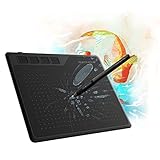
- 【FOR DIGITAL ART & CREATION】-- Perfect for beginner who starts digital drawing, sketching, graphics design, 3D art work, animation, etc. Also meet basic use of professionals who requires portable feature especially during travel.【FOR ANNOTATING AND SIGNATURE】--You can sign and write in excel, word, pdf, ppt, etc.【FOR ONLINE MEETING & ONLINE CLASS】It works with most online meeting programs, like Zoom, and so on. 【FOR Osu! & GAMING】--It's a large help for playing rythm games like Osu!
- 【PASSIVE PEN】--Battery-free pen cuts the inconveneince of charging the pen. 【8192 HIGH LEVEL PEN PRESSURE & 4 CUSTOMIZABLE EXPRESS KEYS】It will provide you precise control and accuracy at your fingertips, to bring more natural lines and enhance creative performance. 4 customizable express keys could be set to more functions as you like. Using them while working will largely improve your work flow.
- 【COMPATIBILITY OR APPLICATION】-- It compatible with Windows 7 or later and macOS 10.12 or later. Noted: It is not compatible with ipad or iphone. Work with most art programs like Adobe Photoshop, Illustrator, Clip Studio, Lightroom, Sketchbook Pro, Manga Studio, CorelPainter, FireAlpaca, OpenCanvas, Paint Tool Sai2, Krita and so on.
- 【266 PPS REPORT RATE + 5080LPI RESOLUTION + 10MM PEN READING HEIGHT + 6.5*4 INCHES ACTIVE AREA】-- This size is more portable and lightweight, easy to be carried around in the laptop bag to the workplace, school, and travel. But it’s also big enough for digital painting, handwriting, playing games and animation design, etc.
- 【HUMANIZED DESIGN】-- 4 rubber feet are created to ensure the stability of the tablet from slipper. 【LEFT & RIGHT HANDED SUPPORT】--Set 180 degree roate inside GAOMON Driver to set left hand mode.
8. Understand dull colors after switching to CMYK
Colors that look muted are not necessarily grayscale. RGB displays generally offer a wider gamut than CMYK printing, so vivid RGB colors—especially neon or highly saturated colors—may have no exact CMYK equivalent.
Illustrator can flag an out-of-gamut color with a warning triangle in the Color panel or Color Picker and shift it to the closest available CMYK equivalent. That conversion can reduce saturation without removing all hue.
The practical solution is usually to choose a printable CMYK color rather than repeatedly forcing an RGB value into a print document. For serious print work, use the commercial printer’s supplied ICC profile and reliable printed CMYK references. Do not judge process-color accuracy from an uncalibrated monitor alone.
9. Troubleshoot a gray or muted exported PDF
If the Illustrator file looks correct but the PDF looks gray, investigate export and color management before changing the artwork again.
The Tool Desk
Outbyte PC Repair FREEClear out junk files and repair common Windows errorsFree Scan →Outbyte Driver Updater FREEFix the driver behind crashes, sound loss and screen glitchesFind Drivers →PDF workflows can leave colors unchanged, tag content for color management, convert colors to sRGB, convert colors to CMYK, or assign ICC profiles to grayscale, RGB, and CMYK content. Adobe lists these policies—including Leave Color Unchanged, Tag Everything for Color Management, Tag Only Images for Color Management, Convert All Colors to sRGB, and Convert All Colors to CMYK—in its PDF color-management documentation.
- Export a test PDF using the printer’s supplied preset or instructions.
- Compare the PDF in Acrobat with Illustrator’s Normal Preview.
- Check whether the PDF contains RGB, CMYK, or grayscale objects.
- Confirm whether export is converting all colors to CMYK or sRGB.
- Check whether profiles are embedded or omitted.
- Ask the print provider which output intent and PDF standard they require.
- Avoid repeatedly converting the Illustrator file because one PDF viewer displays muted colors.
10. Check print-specific black and gray problems
100% black versus rich black
100% black is usually safer for small type and fine lines. Rich black combines multiple CMYK inks and may appear darker on press, but excessive ink coverage can create registration, drying, or production problems. Follow the printer’s ink-coverage requirements.
Also popular on Amazon
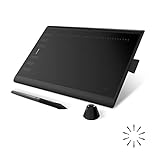
- Working Area Configuration - HUION art tablet equips with a 10 x 6.25 inches working area, providing the user with the most comfortable size to work; the 10mm slim structure and minimalist design of appearance make the drawing tablet more attractive.
- Tilt Function Battery-free Stylus: This computer graphics tablet come with a battery-free stylus PW100, no need to charge, allowing for constant uninterrupted drawing. ±60° tilt support enables imitation of lines input with diverse drawing gestures, with accuracy ensured.
- Press Keys:12 programmable press keys plus 16 programmable soft keys, you can set shortcut keys on drawing tablet's driver based on your preferences, such as erase, zoom in/out, scroll up and down, and so on.
- Compatibility: HUION graphics tablet supports Windows 7 or later/ macOS 10.12 or later/ Android 6.0 or later/ Linux (Ubuntu). A USB adapter is required to connect to a Mac computer. H1060P supports various mainstream design and drawing software, including PS, SAI, AI, CDR, etc. (Please note: The H1060P is compatible with Ubuntu, but it requires the use of the Xorg display server. Wayland is not supported.)
- NOTE: You can easily connect your phone to the art tablet via the OTG connector; while iPhone and iPad are NOT at the moment. The cursor will not show up in the SAMSUNG Galaxy S series at present. If you are not sure whether the product is compatible with your Phone or any help, please contact us.
Do not use the Registration swatch for ordinary artwork
The Registration swatch places color on every plate. It is not ordinary black. Adobe warns that registration-colored type can register poorly and appear muddy; use black ink for ordinary text and fine details.
Paper and ink change the result
A spot color or neutral gray can look different on coated and uncoated paper, under different lighting, and with different inks. Numerical values and an on-screen simulation cannot predict every press result. A printer proof or approved printed reference is more reliable.
What not to do
- Do not repeatedly change the document mode when only one object or image is grayscale.
- Do not confuse the Color panel’s display mode with the document’s color mode.
- Do not convert the entire file before identifying the affected content.
- Do not overwrite the original before testing a conversion.
- Do not convert spot colors without checking plates, brand requirements, transparency, and printer specifications.
- Do not assume muted CMYK color means Illustrator is stuck in grayscale.
- Do not use the Registration swatch for normal text or artwork.
- Do not rely solely on an uncalibrated monitor to judge printed color.
Quick checklist
- Is the problem in the whole file or only one object?
- Is the document RGB or CMYK?
- Is the selected object genuinely Grayscale?
- Is the Color panel merely displaying grayscale sliders?
- Is the affected element a placed raster image?
- Is Outline, Overprint, Separations, or proof preview active?
- Is the color outside the CMYK gamut?
- Did PDF export convert or assign a profile?
- Are opacity masks, blending modes, overprinting, or spot colors involved?
- Did you preserve an original copy before converting?
The menu paths above reflect Adobe Illustrator documentation current through February 2026; older releases may use different labels or place controls differently.
Frequently Asked Questions
Can Illustrator recover the original colors after a grayscale conversion?
Usually not reliably. Converting the object back to RGB or CMYK changes its color model, but it cannot reconstruct hue information that was discarded. Use Undo or an earlier file version when the original colors must be preserved.
Why are my Illustrator swatches only black and white?
The Color panel may be displaying Grayscale, the selected object may be grayscale, or the swatches themselves may be grayscale or neutral. Change the panel to RGB or CMYK, then inspect the selected swatch’s Color Type and Color Mode.
Why does one image look gray while the rest of my Illustrator artwork is colored?
The placed or linked raster image is probably grayscale, desaturated, or affected by its own profile or appearance settings. Inspect the source image separately; vector color-conversion commands do not automatically restore a grayscale photograph.
Free tools Windows power users keep installed
One-click scans. No signup required.
Should I use RGB or CMYK in Illustrator?
Use RGB when the final destination is primarily a screen and CMYK when a printer requests it or the work must be evaluated for a print condition. The correct choice depends on the output workflow, not on a universal rule.
Why does my spot color look different when printed?
Spot-color appearance depends on the specific ink, paper, press, proofing conditions, and printer profile. The monitor simulation and numeric swatch value cannot guarantee the final printed appearance.
Quick Recap


