The Tool Desk
Free tools Windows power users keep installed
One-click scans. No signup required.
Outbyte PC Repair FREERepair Windows errors before they cause bigger problemsFix Now →Outbyte Driver Updater FREEFix the driver behind crashes, sound loss and screen glitchesFind Drivers →
ThatPainter is reader-supported. When you buy through links on our site, we may earn an affiliate commission. Learn More
To make a collage on Pinterest, open the Pinterest app, tap the plus (+) button, choose Collage, add Pins or images, arrange the layers, and tap Next to publish, save as a draft, download, or share it. Pinterest Collage is a layer-based composition tool: you can combine complete Pins, cut out objects from Pins, upload photos, add text and drawings, and change the background.
The menu can look different on iPhone, Android, desktop, and business accounts. Pinterest also says that some collage tools are not available on every account or device. The instructions below reflect Pinterest’s documented workflow; labels may change as the feature is updated. Check Pinterest’s current Collage help page if an option is missing.

As an Amazon Associate I earn from qualifying purchases.
Quick wins for a faster PC:
Clear out junk files and repair common Windows errorsFree Scan →Fix the driver behind crashes, sound loss and screen glitchesFind Drivers →Repair Windows errors before they cause bigger problemsFix Now →How to Make a Collage on Pinterest
What is a Pinterest collage?
A Pinterest collage is an interactive design made from separate images and cutout layers. It is more flexible than saving several Pins to a board and different from a carousel, which presents multiple cards in one Pin. It is also different from exporting a conventional JPEG or PNG collage from an image editor.
You can use a collage for a mood board, outfit plan, room-design concept, recipe idea, gift guide, or product collection. Its layers can include full Pins, isolated objects from Pins, uploaded images, personal photos, text, drawings, backgrounds and, for some users, product cutouts.
#1 Best Overall

- 1,000+ Images Across Diverse Themes – Including nature, food, architecture, vintage photos, abstract patterns, and backgrounds, making it perfect for vision boarding, journaling, and unique DIY projects.
- 228 Perforated Pages – Easily tear out images for crafting, sharing, or hosting a craft night with friends.
- 24 Creative Prompts & Tips – Get inspired with prompts like designing a collage around a word or recreating a favorite book character; tools and tips are also included for every skill level.
- High-Quality 8.5” x 11” Magazine Format – Printed in the USA on high-quality paper for durability and vibrant colors.
- Perfect Gift for All Ages – A thoughtful gift for kids, teens, and adults who love hands-on creativity, mindfulness activities, and art projects.
How to make a collage in the Pinterest app
The basic steps are the same on iPhone, iPad, Android phones and Android tablets:
- Open the Pinterest app and sign in.
- Tap the plus (+) icon at the bottom of the screen.
- Select Collage.
- In the collage composer, tap the add (+) button.
- Search Pinterest, browse suggestions, open saved Pins, or choose an image from your device.
- Choose a complete Pin or select part of a Pin to create a cutout.
- Tap Add or Edit to refine the selection when necessary.
- Repeat the process until you have all the layers you need.
- Arrange and edit the collage, then tap Next.
- Add the Pin information and choose Publish, or use the available options to save it as a draft, download it, or share it.
On some accounts, you may also be able to add photos with the camera, use previously created cutouts, browse recent saves, or add brand-kit images if you are an eligible business user.
How to make a collage on Pinterest from a computer
On the Pinterest website, sign in and use the creation control in the left-side navigation:
- Select the plus/create control on the left.
- Choose Collage.
- Select a Pin from the available tabs or upload an image.
- Add the entire Pin or select a portion to turn into a cutout.
- Arrange and edit the layers.
- Select Next, add the collage details, and choose Publish.
Business accounts may show an additional route. Select the control at the top left and choose Create collage. Alternatively, open your profile, choose Create, and select Collage. The exact controls can vary by account and rollout.
How to add images and cutouts from Pins
In the composer, the add control generally lets you choose among Pinterest content, saved Pins, suggestions, and images stored on your device. Depending on the platform and account, you may also be able to take a photo with your camera or reuse an existing cutout.
Rank #2
Add an entire Pin
Select the plus icon on the Pin to add the complete image as a layer. This is useful when you want to preserve the whole composition rather than isolate one object.
Recommended Free Tools
Cut out an object from a Pin
Open the Pin in close-up and select the object or area you want. Pinterest’s cutout tools can automatically detect an object, after which you can add the cutout to the collage.
For more control, use:
- Select: Automatically detects an object or area.
- Add: Restores parts that were left out.
- Erase: Removes unwanted portions.
- Shapes: Creates a cutout within a selected shape.
Zoom in and adjust the cropper when edges need more precision. Automatic selection may struggle with hair, transparent objects, shadows, text, or low-contrast boundaries. If the result is rough, use Add and Erase manually rather than discarding the whole layer.
Start a collage from an individual Pin
If you have already found the image you want, open the Pin in close-up and tap its options or visual-search control. Choose Add to collage, or the equivalent collage option shown on your account. Select the portion to cut out, or add the Pin to a new or existing collage draft, then continue in the composer. Pinterest also documents related visual-search and cutout behavior in its visual search guidance.
How to edit a Pinterest collage
Once layers are in the composer, you can refine the design using the available editing tools:
Outdated Drivers Are Slowing You Down
One free scan finds every outdated or missing driver and matches the right update for your exact hardware.Free scan · exact hardware matchWindows Errors? Fix Them Before They Spread
Repair common Windows errors and clear accumulated junk for a smoother, more stable PC - no reinstall needed.Free scan · no reinstallRank #3

- What you will get: Our 200 pieces Scrapbooking Supplies Pack include 80*washi stickers,120*vintage printing papers.
- Design: 80pcs washi stickers with 40 designs, 2 pieces of each; 120pcs vintage printing papers with 60 designs , 2 pieces of each.
- Theme: Artistic designs, including Van Gogh Art, the Starry Night painting, sunflowers, abstract oil paintings, postage stamp stickers, antique handwritten script, old newspaper articles advertisements, music sheets and more.
- Multi-use:This scrapbook paper and stickers pack is perfect for junk journal pages, collages, vintage diary, crafting projects, wrapping, cards and books.They are also perfect for decorating your album, gift package,certificates, invitations, poetry scrolls, letters, maps,envelops, organizer, laptop, bedroom, luggage case, water bottle, cup, cellphone etc.
- Ideal Gift: this large ephemera kit specially curated for junk journaling enthusiasts, you can use them whole or cut them into smaller pieces for collage projects.These pack is the perfect addition to your personal belongings and also make thoughtful gifts for journal lovers, craft friends, anniversary, birthday and holidays, etc.
- Drag layers to move them.
- Press and hold a cutout on mobile, or select a layer on the web, to reorder it.
- Resize, rotate, crop, or reshape cutouts.
- Duplicate a cutout or layer.
- Delete unwanted layers.
- Add text with the Text tool.
- Write or sketch with the Draw tool.
- Upload more photos or use the device camera.
- Select empty collage space to change the background color.
- Apply motion filters, color filters, or borders to existing cutouts.
- Use undo and redo while editing.
On mobile, pressing and holding a cutout generally reveals actions such as duplicate and delete. On the website, select the layer to reveal its controls. Pinterest’s interface may place these actions in different menus after an update.
How to save, download, share, or publish a collage
When the visual arrangement is finished, select Next. From the following screen, you can generally:
- Publish the composition as a Pinterest Pin.
- Save as a draft if you want to finish it later.
- Download it to your device where that option is supported.
- Share it to another social platform or through an available sharing option.
A published collage is a Pinterest Pin, not merely a private arrangement in the editor. Before publishing, check the layer edges, text, background and order carefully.
Can you edit a Pinterest collage after publishing?
Only minor Pin details can normally be changed after publication, such as the title and whether other people can remix it. Pinterest does not describe the published collage’s visual contents as freely editable. Finish the composition before selecting Publish; if you need substantial visual changes, create a new collage or edit a downloaded copy in another image editor.
Quick wins for a faster PC:
Scan for outdated or missing drivers - takes under a minuteDriver Scan →Repair Windows errors before they cause bigger problemsFix Now →This limitation is consistent with Pinterest’s general Pin-creation guidance, which explains what can and cannot be changed after a Pin is published.
Rank #4

- Aesthetic Scrapbooking Supplies Kit: A large collection of junk journaling supplies kits suitable for scrapbooking beginners or journaling enthusiasts
- Value Set: Each package comes with approximately 260 pieces of assorted paper & sticker ephemera kit, including 80 pieces of washi stickers, 120 pieces of scrapbook papers, 20 pieces of hangtags, 20 pieces of PET stickers (opaque) and 20 pieces of transparent PET stickers. A large collection of all kinds of vintage style junk journal goodies
- Multi-usage: This scrapbook kit works well for art journal, collages, mixed media art, decoupage, scrapbooking, decorative planners, diary and bullet journals, paper crafting, gift wrapping, handmade cards, boxes and packages, gift tags, home decoration, thank you notes, photo albums, school projects and much more. Add a natural touch to your artifacts and impress the recipient
- Large Variety of Materials: A wide selection of scrapbooking materials with different patterns in a variety of natural styles, featuring rich and beautiful designs
- High-Quality Materials: Printed on high-quality paper with matte finishing, these approximately 260 piece paper and sticker pack with mixed sizes and designs are easy to peel off, handwriting friendly and printer friendly
How to remix a Pinterest collage
Remixing lets another user start with an existing collage and create a new design from it, but only when remixing is enabled and available.
Remix on the Pinterest website
- Open the published collage.
- Select Remix collage.
- Edit the existing design and add Pins, cutouts, text, drawings, or uploaded images.
- Select Next to publish, download, share, or save the result as a draft.
Remix in the mobile app
- Open the Collage composer.
- Choose Remix a collage.
- Select a collage and tap Use.
- Edit the design and publish or save it.
You may be able to replace existing cutouts. The Keep original shape option preserves the replacement cutout’s existing size and shape when supported.
Turn remixing on or off
- Open your published collage.
- Open the menu and select Edit Pin.
- Find Enable remixing.
- Turn the setting on or off.
If remixing is enabled, other users may use the collage and its added elements in their own designs.
Are Pinterest collages shoppable?
Some product cutouts can show shopping information such as price and availability, but Pinterest describes shoppable collages as having limited availability. Do not assume that shopping details will appear for every account, product, country, or collage.
When shopping is available, a viewer can open the collage, select a product cutout, and choose Shop to visit the product page associated with the Pin. Product availability, pricing, delivery and retailer policies are handled by the retailer; Pinterest provides additional information in its shopping help guide.
Best Value
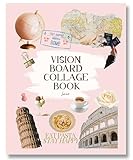
- Elevate Your Vision – Manifest goals with this vision board clip art book that includes collage-style vision board pictures and collage books art cut out that you can trim and layer creatively; build inspiring vision boards with diverse visuals that help you stay motivated and focused on your dreams with this vision board kit for women!
- Upgraded Quality & Vibrant Colors – This vision board collage kits for adults offer thick, high-quality pages with vivid prints. A top choice among junk journal kit and diy vision board books collage supplies for adults, it’s designed for durability and easy crafting.
- Convenient & Cost-Effective – One of the must have vision board supplies magazines for collage scrapbooking with pre-selected images, eliminating the need for separate collage magazines. Includes easy-to-tear, perforated pages for seamless collaging.
- Perfect for Groups & Gifts – Whether for a modern vision board party, personal growth, or gifting, this dream board collage kit and mood board vision book journal sparks creativity can also be used as a vision board for kids. A mindful activity for women, men, teens, and goal-setters.
- Sustainable & Thoughtfully Designed – Made with FSC-certified paper from responsibly managed forests, this vision board supplies for women ideal for manifestation journal, manifest book board for vision board pro and collage books creation supports eco-conscious living while helping you stay inspired.
What to do if the Collage option is missing
Pinterest says that some collage tools may not be available on every account or device and that availability is expanding across the web, iOS and Android. A missing option does not necessarily mean you are using the wrong steps.
Try this checklist:
- Update Pinterest from your device’s app store.
- Close and reopen the app.
- Sign out, then sign back in.
- Look under the bottom plus (+) button on mobile.
- Try the Pinterest website if the app does not show Collage.
- Try the mobile app if the browser does not show it.
- Open a Pin in close-up before looking for cutout or add-to-collage controls.
- Upload a local image to check whether the problem affects one particular Pin.
- Check your profile for saved collage drafts.
- Use Shuffles or an external image editor if native Collage remains unavailable.
These steps can help identify an interface or content issue, but Pinterest does not guarantee that they will resolve an account-specific availability problem.
What’s actually slowing this PC down?
Pick the symptom - the matching free tool is one click away.
Pinterest Collage vs. Shuffles
Native Pinterest Collage is the better choice when your source material is already on Pinterest, you want the result published as a Pinterest Pin, or you want to use saved Pins, Pinterest recommendations, or potentially shoppable product cutouts. It also offers a browser workflow for accounts with access.
Shuffles is a separate Pinterest collage app for iOS and Android. It is suited to a more standalone, mobile-first creative workflow. According to Pinterest’s current help information, Shuffles is not created through a desktop web browser. Sign in with a Pinterest account, tap the plus icon, create the design, and choose whether to post it publicly or keep it private. See Pinterest’s Shuffles guide for its current workflow.
Choose an external editor when you need a conventional static JPEG or PNG, precise typography, templates, extensive alignment controls, or the ability to make final visual changes after publication. Pinterest Collage itself is enough for basic layer-based compositions; Canva or another editor is not required.
Copyright reminder
Use photos and artwork that you own, have permission to use, or are otherwise entitled to reuse. The fact that an image appears in a Pinterest Pin does not automatically grant permission to republish it elsewhere. Pinterest’s cutout feature changes how an image can be arranged; it does not remove copyright or licensing obligations.
Free tools Windows power users keep installed
One-click scans. No signup required.
Quick Recap
Sources
- Pinterest: Create a collage
- Pinterest: Shuffles
- Pinterest: Shopping with Pinterest
- Pinterest: Create a carousel

Product prices and availability are accurate as of the date/time indicated and are subject to change. Any price and availability information displayed on Amazon at the time of purchase will apply.




