Windows Errors? Fix Them Before They Spread
Outdated Drivers Are Slowing You Down
One free scan finds every outdated or missing driver and matches the right update for your exact hardware.Free scan · exact hardware matchPC Slower Than It Used to Be?
A free scan shows the junk files, broken settings and background clutter dragging Windows down - then fixes them in one click.Free scan · Windows 10 & 11Outbyte PC Repair · freeRepair common Windows errors and clear accumulated junk for a smoother, more stable PC - no reinstall needed.
Fix My PC Now →ThatPainter is reader-supported. When you buy through links on our site, we may earn an affiliate commission. Learn More
In the current Windows 11 version of Microsoft Paint, open the image, choose Remove background, check that the unwanted area shows Paint’s checkerboard pattern, then save the result as a PNG. If a white layer remains underneath, hide or delete that layer before exporting.
That process removes a background. It does not necessarily make the entire photograph semi-transparent. Paint’s background removal, transparent canvas, and whole-image opacity are separate things.
As an Amazon Associate I earn from qualifying purchases.
Do these 3 things before closing this tab:
1Repair Windows errors before they cause bigger problems2Fix the driver behind crashes, sound loss and screen glitches3Clear out junk files and repair common Windows errorsWhat “transparent” means in Paint
People usually mean one of three different results:
- Transparent background: the background is removed and replaced by transparent pixels, so the subject can sit over another image or color.
- Transparent selection: an older Paint feature that treats a selected color or area as transparent while moving or pasting it. This is not the same as exporting a clean transparent image.
- Semi-transparent picture: the entire image is made partly see-through, such as 50% opacity. The current Paint features documented by Microsoft focus on background removal, layers, and transparent areas—not a general whole-image opacity slider. Office has a separate 0–100% transparency control, but that documentation does not describe Paint: Microsoft’s Office transparency guide.
A white area is not automatically transparent. It may simply be an opaque white background.
Popular on Amazon
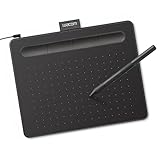
- Wacom Intuos Small Graphics Drawing Tablet: Enjoy industry leading tablet performance in superior control and precision with Wacom's EMR, battery free technology that feels like pen on paper
- Works With All Software: Wacom Intuos tablet can be used in any software program to explore new facets of digital creativity; draw, paint, edit photos/videos, create designs, and mark up documents
- What the Professionals Use: Wacom's industry leading pen technology and pen to paper feeling makes it the preferred drawing tablet of professional graphic designers
- Software and Training Included: Only Wacom gives you software with every purchase. Register your Intuos tablet and gain access to some of the best creative software and Wacom's online training
- Wacom is the Global Leader in Drawing Tablet and Displays: For over 40 years in pen display and tablet market, you can trust that Wacom to help you bring your vision, ideas and creativity to life
Before you start
- Use the current Paint app on Windows 11, with the relevant features available in your installed version.
- Keep the original image unchanged and save the transparent copy under a new name.
- Use PNG when transparency must survive export. JPEG does not preserve alpha transparency; PNG is the practical choice for logos, cutouts, icons, and overlays. See Adobe’s image-format guide.
Microsoft introduced layers and transparency to Paint beginning with version 11.2308.18.0 for Windows Insiders in 2023. The exact button position and wording can differ by Windows update and Paint build: Microsoft’s Paint announcement.
Remove a picture’s background in Paint
- Open Paint from the Windows Start menu.
- Open the image with File > Open, or drag it into the Paint window.
- Find and select Remove background in the toolbar. On a narrow window, the command may be inside an overflow menu.
- Wait for Paint to process the image. Removed areas should appear as a gray-and-white checkerboard.
- Zoom in and inspect difficult edges, especially around hair, fingers, thin wires, lace, shadows, and narrow gaps. Press Ctrl+Z if the result needs to be discarded.
- Open the Layers panel if the canvas still looks white. A visible white or solid-color layer beneath the subject can cover the transparent area.
- Hide or delete that background layer if you want the final image to contain transparent pixels.
- Choose File > Save as > PNG picture. Use a new filename so the original remains available.
- Reopen the PNG or place it over a dark or colored background to verify the result.
The checkerboard is Paint’s editing display for transparent portions; it is not part of the exported image. The reliable test is whether a new background shows through the saved PNG.
Make only part of an image transparent
For a simple logo, icon, or image with a solid background, you can work manually:
Also popular on Amazon

- Word-first 16K Pressure Levels: The upgraded stylus features 16,384 levels of pressure sensitivity and supports up to 60 degrees of tilt, delivering smoother lines and shading for a natural drawing experience. With no battery or charging needed, it operates like a real pen, making it easy for beginners to create effortlessly. This functionality helps novice artists develop their skills and explore their creativity without the intimidation of complex tools
- Designed for Beginners: This drawing pad desinged with 8 customizable shortcuts for both right and left-hand users, express keys create a highly ergonomic and convenient work platform
- Perfectly Adapted for Android: The XPPen Deco 01 V3 art tablet supports connections with Android devices running version 10.0 and above. It is recommended to download the XPPen Tools Android application, which adapts to your smartphone's screen aspect ratio, ensuring accurate mapping. It also supports mapping on Android screens with different aspect ratios in portrait mode
- Large Drawing Space, Bigger Bold Inspiration: This expansive drawing pad has10 x 6.25-inch helps you break through the limit between shortcut keys and drawing area
- Easy Connectivity for Beginners: The Deco 01 V3 offers USB-C to USB-C connectivity, plus adapters for USB C. This ensures easy connection to various devices, allowing beginner artists to set up quickly and focus on their creativity without compatibility concerns. Whether using a laptop, tablet, or desktop, the Deco 01 V3 provides a seamless experience, making it an ideal choice for those just starting their digital art journey
- Select the subject or the area you want to preserve.
- Copy and paste it onto a separate layer if your Paint version supports layers.
- Hide the original image or background layer.
- Erase unwanted pixels around the subject, preferably while zoomed in.
- Save as PNG and test the export over a non-white background.
This is workable for simple shapes and clean backgrounds, but it is not a professional masking workflow. Similar foreground and background colors, hair, fur, glass, smoke, reflections, and soft shadows can produce rough edges.
Use Object Select when it is available
On supported Windows 11 Copilot+ PCs, Paint may offer Object select. Select it, hover over an object, and click when Paint highlights the detected element. You can then copy, move, erase, or continue editing the selection. Availability depends on the device and app version, and Microsoft notes that some connected AI features have Microsoft-account and internet requirements. Details are in Microsoft’s Paint Copilot+ documentation.
What to do if “Remove background” is missing
- Update Paint through the Microsoft Store.
- Confirm that you opened the current Windows Paint app rather than an older or classic Paint program.
- Check the toolbar’s overflow menu and make sure the window is wide enough to show all controls.
- Try Windows Photos. Microsoft’s Photos editor includes a Background panel with Remove, Replace, and masking controls, and Microsoft says the AI separation process is performed locally on the device: Photos editing instructions.
- For difficult edges, use a layer-based desktop editor or a browser tool only if uploading the image is acceptable.
Older Paint releases, including classic Paint, may not provide the current background-removal and layer workflow. Paint 3D should not be assumed to be installed or supported on every system; Microsoft’s current guidance points users toward Paint, Photos, or other available tools.
Recommended Free Tools
Also popular on Amazon

- Customize Your Workflow: The 6 customizable press keys on Huion H640P drawing tablet for pc let you assign your most-used commands—like undo, zoom, brush switch, or save—so you can keep your hands on the tablet and your mind on the art. Whether you're a digital painter switching brushes, or a comic artist zooming in and out, these keys keep your workflow smooth and uninterrupted. Plus, the Huion driver lets you save different shortcut profiles for different apps, so you never have to reconfigure when switching software.
- Professional Pen Performance: Huion H640P drawing pad for computer comes with the battery-free PW100 stylus that's always ready when inspiration strikes. With 8192 levels of pressure sensitivity, every light sketch, or bold stroke responds naturally to your hand—just like a real pen. The 5080 LPI resolution and 233 PPS report rate deliver lag-free, precise strokes, so you can draw confidently without second-guessing your cursor. The pen side buttons help you switch between pen and eraser instantly.
- Compact and Portable: Huion H640P computer graphics tablet features a compact, ultra-portable design at just 0.3 inches thin and 0.61 lbs light, so it slides easily into your backpack—perfect for sketching in coffee shops, taking notes in class, or editing on the go between home and studio. The 6x4 inch active area offers enough room for natural pen movements while fitting comfortably on crowded desks, or lecture hall seats.
- Stable Compatibility: Huion H640P graphic drawing tablet works seamlessly with Mac, Windows, Linux PCs, and Android smartphones/tablets (OS version 6.0 or later). Left-handed friendly, and you just need to flip the tablet and adjust the settings in the driver. Please note: H640P does NOT support iPhone/iPad.
- Move Beyond the Mouse: Huion Inspiroy H640P is a pen tablet that replaces your mouse for more natural, precise control. Freehand draw, take notes, or even play OSU—everything you do with a mouse, you can do better with a pen. The precise tip makes it ideal for detailed photo editing, graphic design, or signing PDF. Meanwhile, the ergonomic pen grip helps you avoid the strain that comes from hours of using a mouse.
Why the result still looks white
A white layer is still visible
Open Layers and hide the background layer. Removing the background from the subject layer does not help if an opaque white layer remains underneath.
The file was saved as JPEG
JPEG cannot retain transparent pixels. Return to the source image, remove or hide the background again, and export as PNG.
The viewing app displays transparency as white
Some viewers show transparent areas against white by default. Place the PNG over a colored or dark background, or reopen it in an editor that displays a checkerboard.
Also popular on Amazon
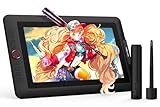
- PLEASE NOTE:XPPen Artist13.3 Pro drawing tablet Need to connect with computer,you need to use it with your computer or laptop, the 3 in 1 cable is included
- Drawing Tablet with Screen: Tilt Function- XPPen Artist 13.3 Pro supports up to 60 degrees of tilt function, so now you don't need to adjust the brush direction in the software again and again. Simply tilt to add shading to your creation and enjoy smoother and more natural transitions between lines and strokes
- Graphics Tablets: High Color Gamut- The 13.3 inch fully-laminated FHD Display pairs a superb color accuracy of 88% NTSC (Adobe RGB≧91%,sRGB≧123%) with a 178-degree viewing angle and delivers rich colors, vivid images, and dazzling details in a wider view. Your creative world is now as powerful as it is colorful
- Drawing Pad: One is enough- The sleek Red Dial on the display is expertly designed with creators in mind, its strategic placement allows for natural drawing postures. With just one wheel, you can effortlessly zoom in and out, adjust brush sizes, and flip the canvas—all tailored to suit the habits of everyday artists. The 8 customizable shortcut keys allow you to personalize your setup, streamlining your workflow and enhancing creative efficiency
- Universal Compatibility & Software Support:supports Windows 7 (or later), Mac OS X 10.10 (or later), Chrome OS 88 (or later), and Linux systems. Fully compatible with major creative software including Photoshop, Illustrator, SAI, and Blender 3D. Register your device to access additional programs like ArtRage 5 and openCanvas for expanded creative possibilities.
Automatic removal cut into the subject
Undo the operation and try a manual selection, Object Select where supported, or a dedicated editor with more detailed masking controls. Fine detail and low contrast are common causes.
Holes inside the subject disappeared
Inspect handles, wheels, letter counters in logos, gaps between fingers, and other enclosed spaces. Automatic removal can mistake visually similar internal areas for background.
Independent reader supportYour contribution helps us test, update, and keep practical guides available for everyone.Choosing an alternative
| Tool | Best for | Trade-off |
|---|---|---|
| Paint | Quick, occasional cutouts on Windows 11 | Feature availability and edge precision vary |
| Windows Photos | A Windows-native fallback with Remove, Replace, and masking controls | Not intended for advanced compositing or batch work |
| Canva | Removing a background and immediately making a presentation, flyer, or social graphic | Canva currently advertises one free background-removal use; continued use and additional tools may require Pro. Images are uploaded to an online service: Canva’s feature page |
| Adobe Express | Background removal plus templates, resizing, and broader content creation | Some removal features may require Premium, and plan details can change: Adobe Express pricing |
| Dedicated desktop editor | Privacy, detailed masking, layers, and repeat work | Requires installation and a steeper learning curve |
For personal, confidential, customer, or unpublished images, a local tool is generally the safer starting point. Do not assume that an online remover is private; check the specific service’s current privacy policy.
Also popular on Amazon
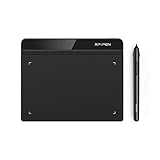
- Battery-Free Pen: StarG640 drawing tablet is the perfect replacement for a traditional mouse! The XPPen advanced Battery-free PN01 stylus does not require charging, allowing for constant uninterrupted Draw and Play, making lines flow quicker and smoother, enhancing overall performance
- Ideal for Online Education: XPPen G640 graphics tablet is designed for digital drawing, painting, sketching, E-signatures, online teaching, remote work, photo editing, it's compatible with Microsoft Office apps like Word, PowerPoint, OneNote, Zoom, Xsplit etc. Works perfect than a mouse, visually present your handwritten notes, signatures precisely
- Compact and Portable: The G640 art tablet is only 2 mm thick, it's as slim as all primary level graphic tablets, allowing you to carry it with you on the go
- Chromebook Supported: XPPen G640 digital drawing tablet is ready to work seamlessly with Chromebook devices now, so you can create information-rich content and collaborate with teachers and classmates on Google Jamboard’s whiteboard; Take notes quickly and conveniently with Google Keep, and effortlessly sketch diagrams with the Google Canvas
- Multipurpose Use: Designed for playing OSU! Game, digital drawing, painting, sketch, sign documents digitally, this writing tablet also compatible with Microsoft Office programs like Word, PowerPoint, OneNote and more. Create mind-maps, draw diagrams or take notes as replacement for mouse
Can Paint make the entire photo 50% transparent?
Not as a workflow you should assume is available in Paint. The modern Paint features documented by Microsoft create transparent areas through background removal and layers. If you need a precise global opacity value—such as 25%, 50%, or 75%—use an editor that explicitly provides an opacity control. Do not confuse a transparent background with a translucent photograph.
Frequently Asked Questions
Can an old version of Microsoft Paint create a transparent PNG?
Classic Paint may not include the current layers and background-removal workflow, and some older versions can flatten transparent areas. Update Paint if possible; otherwise use Windows Photos or a layer-based editor.
Is PNG better than JPG for a transparent image?
Yes. PNG can preserve transparent pixels, while JPEG cannot. Saving a cutout as JPEG usually replaces transparency with a solid background.
Can Paint remove a complex background?
It can attempt automatic removal, but hair, fur, smoke, glass, shadows, and low-contrast edges may need manual refinement or a more advanced masking tool.
Does the checkerboard pattern appear in the saved image?
No. The checkerboard is Paint’s way of displaying transparency. Test the exported PNG over a colored background to confirm that the pixels are genuinely transparent.
Is online background removal safe for private photos?
Treat it as a service-specific privacy decision. Online tools require an upload, so use a local Windows tool for sensitive images unless you have reviewed and accepted the provider’s terms and privacy policy.
Quick Recap


