ThatPainter is reader-supported. When you buy through links on our site, we may earn an affiliate commission. Learn More
Yes—Surface Pro is good for drawing if you want a portable Windows computer that also works as a pen tablet. Its pressure-sensitive Surface Slim Pen, built-in kickstand and desktop creative apps make it a capable choice for illustration, design and photo editing. It is less compelling if your top priority is the most consistent pen feel, the largest drawing area or the lowest total cost.
The current range is the Surface Pro 12th Edition, in 12-inch and 13-inch sizes. Older Surface Pro models differ in screen, processor and pen support, so their reviews are not interchangeable with this generation.
Quick verdict: who is Surface Pro good for?
| Artist or workflow | Verdict |
|---|---|
| Student who needs one device for classes and art | Excellent fit if the total cost works |
| Hobbyist who sketches and illustrates | Good, though potentially more computer than needed |
| Photoshop or Illustrator user | Strong fit; check ARM compatibility for the exact apps and plug-ins |
| Clip Studio Paint, Krita or Concepts user | Promising fit; test pen behavior and settings in your preferred app |
| Artist focused on precise line art | Capable, but compare it in person with an iPad or Wacom-based device |
| Desktop artist who already owns a computer | A dedicated pen display may offer more drawing area for the money |
| Procreate user | An iPad is the natural choice; Procreate is not a Windows app |
The useful distinction is not simply “computer versus tablet.” It is whether you want a Windows computer that can draw, or a drawing-first tablet that can also handle computer-like tasks. Surface Pro is strongest in the first role.
Free tools Windows power users keep installed
One-click scans. No signup required.
#1 Best Overall

- [This is a Copilot+ PC] — The fastest, most intelligent Windows PC ever, with built-in AI tools that help you write, summarize, and multitask — all while keeping your data and privacy secure.
- [The Power of a Laptop, the Flexibility of a Tablet] — Surface Pro 12” is a 2-in-1 device that adapts to you. Use it as a tablet for on-the-go tasks, prop it up with the built-in kickstand, or attach the Surface Pro Keyboard (sold separately) to turn it into a full laptop.
- [Incredibly Fast and Intelligent] — Powered by the latest Snapdragon X Plus processor and an AI engine that delivers up to 45 trillion operations per second — for smooth, responsive, and smarter performance.
- [All Day Battery Life] — Up to 16 hours of battery life[1] means you can work, stream, and create wherever the day takes you — without reaching for a charger.
- [Brilliant 12” Touchscreen Display] — The PixelSense display delivers vibrant color and crisp detail in a sleek design — perfect for work, entertainment, or both.
Which Surface Pro model should an artist choose?
Microsoft currently lists 12-inch and 13-inch Surface Pro 12th Edition models. Both have 2880 × 1920 resolution and a 3:2 aspect ratio, but the larger model gives you more room for the canvas, tool panels and reference images. Resolution alone does not determine how comfortable a screen feels for drawing: physical area and the space an app’s interface occupies matter too.
| Feature | 12-inch Surface Pro | 13-inch Surface Pro |
|---|---|---|
| Screen | 12-inch PixelSense LCD, 2880 × 1920, 90Hz, 220 ppi | 13-inch PixelSense, 2880 × 1920, up to 120Hz; LCD or OLED depending on configuration |
| Processor | Snapdragon X Plus, 8-core | Snapdragon X2 Plus or X2 Elite, depending on configuration |
| Weight | About 1.5 lb | About 1.97 lb |
| Connections | Two USB-C/USB 3.2 ports | Two USB-C/USB4 ports and Surface Connect |
| Pen storage and charging | Magnetic storage and wireless charging on the back of the tablet | Available through compatible keyboards |
| Best suited to | Travel, notes, sketching and moderate illustration | More detailed work, larger canvases and split-screen references |
The 12-inch model is the more portable entry point, but its 90Hz screen and smaller workspace are compromises for artists who draw for long sessions or need room for palettes. It remains suitable for sketching and general illustration. The 13-inch model’s higher refresh option can make moving strokes and interface elements look smoother; it does not by itself guarantee more accurate lines or eliminate pen latency.
Choose the 13-inch model if drawing is a substantial part of your work, you use large canvases, or you want the option of an OLED screen. OLED can deliver deep blacks and strong contrast, but weigh that against reflections, your preferred brightness, color-management needs and the demands of long sessions. The 12-inch is a sensible choice when portability matters more than workspace.
Microsoft’s product page has shown changing prices and configurations: the 12-inch listing has appeared at different starting prices, while the 13-inch has been listed from $1,499.99. Treat those as volatile US listing prices, not a guaranteed current offer. Check the live page for the exact screen, memory, storage and included accessories before buying.
Free tools Windows power users keep installed
One-click scans. No signup required.
For configuration, 16GB of memory is a practical baseline for ordinary illustration and design. Consider 32GB if you routinely handle large Photoshop files, many open applications, animation or 3D work. More storage is useful for local source files and asset libraries. These are buying guidelines, not requirements set by Microsoft: canvas dimensions, layer count and software make a substantial difference.
How good is the Surface Slim Pen 2 for drawing?
Microsoft specifies compatibility with Surface Slim Pen and Slim Pen 2, Microsoft Pen Protocol support and up to 4,096 pressure levels. The Slim Pen 2 also supports tilt, rechargeable operation and haptic feedback on supported devices and apps. It stores and charges magnetically on compatible hardware; the exact arrangement depends on the Surface model and keyboard.
Rank #2
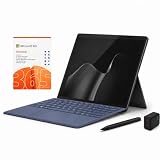
- 2026 NEW RELEASE, 12TH EDITION: Introducing the Microsoft Surface Pro 13-inch (12th Edition), newly released in 2026. Package includes the Surface Pro tablet, Microsoft Surface Pro Keyboard, Microsoft Slim Pen 2, AC power adapter, Microsoft 365 Personal 1-year subscription, and a third-party 65W dual USB-C fast charger.
- NEXT-GEN SNAPDRAGON X2 PLUS & AI POWER: Redefine what a tablet can do. Powered by the revolutionary Snapdragon X2 Plus processor, this Copilot+ PC delivers lightning-fast performance and groundbreaking AI capabilities. The integrated NPU (Neural Processing Unit) accelerates advanced AI tasks, enhances video calls, and optimizes system efficiency, granting you unprecedented all-day battery life that keeps up with your busiest schedules without needing a charger.
- SEAMLESS VERSATILITY: LAPTOP TO CANVAS – Adapt to any environment effortlessly. Click the included Surface Pro Keyboard Cover into place to transform your device into a high-performance traditional laptop with comfortable, tactile typing. Detach or fold the keyboard back to switch instantly into tablet or studio mode. The included Slim Pen 2 provides a natural, lag-free writing and drawing experience with tactile signals that feel like pen on paper.
- OPTIMIZED SOFTWARE & MICROSOFT 365 INCLUDED: Maximize your workflow on Windows 11. Disclaimer: This device utilizes an advanced ARM-based CPU architecture designed for maximum efficiency and battery life. While most standard apps run flawlessly via native ARM support or seamless emulation, please verify compatibility with your software provider for highly specialized or legacy x86/x64 applications. To ensure you have the best tools on day one, we’ve included a full 1-Year Microsoft 365 Subscription.
- PREMIUM HARDWARE & CONNECTIVITY SPECS: Immerse yourself in the stunning 13-inch PixelSense Flow Display featuring a crisp 2880 x 1920 resolution, an adaptive 120Hz refresh rate, and Dolby Vision IQ support. Built for modern connectivity, it features Dual USB-C / USB4 ports for blazing-fast data transfer and multi-monitor support, ultra-fast Wi-Fi 7, Bluetooth 5.4, and an upgraded ultra-wide front-facing studio camera designed for crystal-clear virtual meetings.
Those specifications make it a capable art stylus, but pressure-level count is not a score for line quality. Artists also notice how lightly the pen must press to start a stroke, how pressure maps to brush size or opacity, whether the cursor tracks the tip, how the nib moves across the glass, and how well an app handles tilt, touch and palm rejection.
The Slim Pen 2 has a flat, carpenter-pencil-like profile. That makes it easy to stow and works with compatible keyboard charging, but it may feel less natural than a round pen during a long drawing session. Its nib provides some friction on the glass, though screen protectors can change the feel. Try the pen shape in hand if possible, and check replacement nib availability for your model.
Independent reviews have found the pen capable while noting that the experience varies between applications; Creative Bloq’s Slim Pen 2 review, for example, reports mixed results across drawing apps. Artist testing on Surface Pro 11 has also reported wobble in diagonal strokes. That is most relevant to long, controlled lines, technical drawing and comic inking; loose sketching and painterly marks are less dependent on ruler-straight diagonals. These observations concern earlier hardware and should be treated as a reason to test the current device, not proof that every 12th Edition unit behaves identically.
There is no single trustworthy “lag” number to apply across models and apps: perceived response depends on the screen, pen, firmware, brush engine and workload. The 13-inch model’s 120Hz option is a useful display advantage, but it is not a substitute for testing your own software. Nor should you expect perfect palm rejection in every configuration. Windows settings, application touch handling, hand position, drivers and firmware all affect whether your palm is ignored. In your main art app, look for its tablet, touch or palm-rejection options and test a few strokes before relying on them.
Drawing performance, screen and battery
The 3:2 display is a practical compromise for art and everyday computer work: it offers useful vertical space for a canvas and desktop interface, and also suits documents and web pages. On the 13-inch model, the added physical room makes it easier to keep tool panels open while drawing. You can connect an external display for a larger workspace, but that changes the setup from a self-contained tablet into a desk workstation.
Surface Pro can handle mainstream illustration, design and photo-editing workflows, but the result depends on the particular application, file and configuration. Very large canvases, many layers, intensive brushes, 3D scenes and animation can impose a different load from sketching. For those workloads, check the software’s requirements and choose memory and storage accordingly; do not assume that a portable tablet behaves like a high-powered desktop under sustained work.
Rank #3

- [This is a Copilot+ PC] — The fastest, most intelligent Windows PC ever, with built-in AI tools that help you write, summarize, and multitask — all while keeping your data and privacy secure.
- [The Power of a Laptop, the Flexibility of a Tablet] — Surface Pro 12” is a 2-in-1 device that adapts to you. Use it as a tablet for on-the-go tasks, prop it up with the built-in kickstand, or attach the Surface Pro Keyboard (sold separately) to turn it into a full laptop.
- [Incredibly Fast and Intelligent] — Powered by the latest Snapdragon X Plus processor and an AI engine that delivers up to 45 trillion operations per second — for smooth, responsive, and smarter performance.
- [All Day Battery Life] — Up to 16 hours of battery life[1] means you can work, stream, and create wherever the day takes you — without reaching for a charger.
- [Brilliant 12” Touchscreen Display] — The PixelSense display delivers vibrant color and crisp detail in a sleek design — perfect for work, entertainment, or both.
Microsoft’s battery figures are estimates from video-playback testing, not promises for drawing: the company lists up to 16 hours for the 12-inch model and up to 15.5 hours for the 13-inch. Brightness, refresh rate, brush workload, cloud sync, background apps and connected devices can all change real-world runtime. Keep a charger available for extended sessions, particularly away from a desk.
The kickstand is useful for adjusting the tablet to a shallow drawing angle, but Surface Pro is still a thin tablet rather than a drafting table. At a desk, remove the keyboard and set the kickstand to a comfortable angle; on a lap, check that the stand is stable and that the screen does not force your wrist into an awkward position. For long sessions, a separate stand or desk arm may be more comfortable. An external monitor is another option when you want the Surface to serve as the computer while you draw on a larger display.
Drawing apps and Windows on ARM
The Surface Pro’s major creative advantage is running Windows desktop software rather than limiting you to a tablet-only app ecosystem. Mainstream programs such as Photoshop, Illustrator, Clip Studio Paint, Krita, Concepts and Rebelle are reasons artists consider it. Windows file management, fonts, peripherals and desktop workflows can also be valuable if your work depends on them.
The current range uses Snapdragon processors, so verify compatibility rather than assuming every Windows app, plug-in and driver behaves as it would on an Intel or AMD computer. Some software may run natively on ARM; other software can rely on Microsoft’s Prism emulation. Compatibility can differ for a program’s plug-ins, utilities and connected hardware. A program installing successfully does not establish that every feature works.
The Tool Desk
Outbyte PC Repair FREERepair Windows errors before they cause bigger problemsFix Now →Outbyte Driver Updater FREEScan for outdated or missing drivers - takes under a minuteDriver Scan →| Workflow | What to verify before buying |
|---|---|
| Photoshop | Current ARM support, required plug-ins and pen behavior in your tools. An Adobe community report describes an Alt-click pen interaction issue on Snapdragon Surface hardware; it is an example to check, not evidence that Photoshop is broadly unusable. |
| Illustrator | Current ARM support and any extensions, fonts or linked desktop workflows you depend on. |
| Clip Studio Paint | Current version, pen behavior and your preferred brush and shortcut setup. |
| Krita | Current ARM or emulated status, tablet settings and pressure response in your preferred brushes. |
| Concepts or Rebelle | Pen, touch and haptic support in the exact version you intend to use; features can differ by app. |
| 3D, animation or rendering tools | ARM support, performance for your workload, drivers and plug-in compatibility. |
| Printers, scanners and calibration tools | ARM-compatible drivers and support for the specific model and utility. |
Reviews of the Surface Pro 11 and other Snapdragon Surface devices offer useful context on Windows-on-ARM compatibility, but they are not a substitute for checking the current 12th Edition and your exact software. Before purchase, list your must-have apps, check each developer’s current ARM support information, then check plug-ins and peripheral drivers separately. If a particular tool is business-critical, test it on the exact model or confirm support with its developer or your organization’s IT team.
Surface Pro vs. iPad Pro for drawing
Neither is a universal winner. Surface Pro is the better fit when you need full Windows desktop software, Windows-only tools, desktop plug-ins, familiar file handling or a device that can replace a laptop. It is also useful if you want to type, browse and work in conventional desktop apps between drawing sessions.
Rank #4

- [Copilot+ AI PC with Snapdragon X Plus] Powered by Snapdragon X Plus with an AI-ready NPU for modern Copilot+ PC experiences, efficient multitasking, video meetings, document work, web browsing, streaming, and everyday productivity.
- [Compact 12" PixelSense Touchscreen] The 12-inch PixelSense touchscreen offers a portable yet practical workspace for browsing, reading, documents, notes, video meetings, and presentations. Its compact size is ideal for students, travel, meetings, coffee shops, and everyday work.
- [Ready-to-Use 2-in-1 Setup] Includes Surface Pro 12-inch, compatible backlit keyboard, stylus pen, 65W dual usb-c/usb-a fast charger, and Microsoft 365 Personal 12-month subscription card. Use it for emails, assignments, documents, meetings, notes, and presentations right out of the box.
- [Touch, Type, Write & Create] Switch between touchscreen, keyboard, and pen workflows. Use touch for browsing and reading, the keyboard for typing emails and documents, and the stylus pen for handwritten notes, sketches, and creative ideas.
- [Important Compatibility & Accessory Note] Keyboard and stylus are third-party compatible accessories, not original Microsoft Surface accessories. Snapdragon X Plus is ARM-based and supports most mainstream apps, but some older, specialized, plugin-based, or driver-dependent software may have limited compatibility.
iPad Pro is a more natural choice when drawing is the main activity, you want a tablet-first interface, or you rely on iPad-native apps such as Procreate. It has a strong reputation for a responsive drawing experience, but the evidence here does not establish a universal pen-accuracy winner over Surface Pro. Compare the devices with your own app and type of mark-making rather than choosing from a blanket claim about lag or precision.
Remember to compare complete setups, not tablet prices alone. Surface Pro’s pen is a separate purchase, and a keyboard adds cost if you expect laptop use. For either device, confirm which pen and software are included with the exact configuration.
Recommended Free Tools
Surface Pro vs. Samsung Galaxy Tab
Choose between them primarily on operating system and app requirements. Surface Pro runs Windows desktop software; a Galaxy Tab is an Android tablet with a tablet-focused app ecosystem. Samsung’s S Pen devices are commonly associated with Wacom EMR technology, a different pen approach from Microsoft’s active rechargeable Slim Pen. The S Pen is a good fit for people who prefer its feel and do not need Windows-only creative tools.
Surface Pro suits desktop Adobe workflows, Windows peripherals and people who want one device to replace a computer. Galaxy Tab suits Android drawing apps, a more tablet-first experience and artists who prefer the S Pen. Check the apps you actually use on each platform before deciding.
Surface Pro vs. Wacom, Huion and XP-Pen
A Surface Pro is a standalone computer with a built-in screen and pen input. A Wacom Cintiq, Huion Kamvas or XP-Pen Artist display is generally a screen-and-pen peripheral that connects to a separate computer. That distinction matters more than a simple brand comparison.
- Choose Surface Pro if you need to draw away from a desk, want a Windows computer in the same device, and value portability over a large canvas.
- Choose a pen display if you already have a suitable computer and want a larger drawing surface or a more dedicated studio setup for the budget.
Pen displays usually mean more cables, a separate computer and possible driver or multi-monitor setup work. In return, they can offer more screen area and a desk-oriented workflow. Check the particular device’s driver support and ergonomics; these products vary. A standalone Windows pen computer may be another option, but assess its pen quality, compatibility, weight and thermal behavior model by model.
Best Value
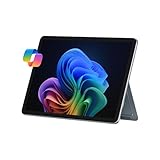
- [This is a Copilot+ PC] — The fastest, most intelligent Windows PC ever, with built-in AI tools that help you write, summarize, and multitask — all while keeping your data and privacy secure.
- [The Power of a Laptop, the Flexibility of a Tablet] — Surface Pro 12” is a 2-in-1 device that adapts to you. Use it as a tablet for on-the-go tasks, prop it up with the built-in kickstand, or attach the Surface Pro Keyboard (sold separately) to turn it into a full laptop.
- [Incredibly Fast and Intelligent] — Powered by the latest Snapdragon X Plus processor and an AI engine that delivers up to 45 trillion operations per second — for smooth, responsive, and smarter performance.
- [All Day Battery Life] — Up to 16 hours of battery life[1] means you can work, stream, and create wherever the day takes you — without reaching for a charger.
- [Brilliant 12” Touchscreen Display] — The PixelSense display delivers vibrant color and crisp detail in a sleek design — perfect for work, entertainment, or both.
Accessories and the real cost
For pressure-sensitive drawing, the essential extra is a compatible Surface Slim Pen. Microsoft lists the pen separately for the current range. A keyboard is not required to draw, but is useful if the tablet is also meant to replace a laptop. Depending on the model, compatible keyboards provide a place to store and charge the pen. Check the exact bundle rather than assuming the pen or keyboard is included.
- Essential for drawing: compatible Surface Slim Pen or Slim Pen 2.
- Useful for laptop replacement: the model-compatible Surface Pro Keyboard or Pro Flex Keyboard.
- Situational: a screen protector if you want a different surface feel, replacement nibs, a stand for extended sessions, or a USB-C hub for peripherals.
- Budget separately: your chosen drawing software, if it is paid or subscription-based.
Work out the full setup as tablet + pen + (keyboard, if needed) + software + any required adapters. A low base price can be misleading when accessories are separate, and sale pricing can change. Confirm what is in the box and the current configuration price on Microsoft’s product page before comparing it with an iPad bundle or a pen display.
Who should buy Surface Pro?
Surface Pro makes the most sense for students, designers and illustrators who need a portable Windows computer and want to draw directly on its screen. It is especially compelling if your work moves between sketching and desktop tasks—editing files, using Windows-only tools, joining meetings or typing—without carrying a separate laptop and tablet. The 13-inch model is the more comfortable pick for sustained illustration and larger canvases; the 12-inch model makes more sense when lower weight and compact travel matter more.
Who should look elsewhere?
Consider another device if you mainly want an inexpensive drawing tablet, already own a powerful desktop and do not need a portable computer, or need a substantially larger canvas for daily studio work. An iPad is the straightforward choice for Procreate-first artists. A Samsung tablet may suit people who prefer Android and the S Pen. A Wacom, Huion or XP-Pen display may be better value for a desk-based artist who already has a computer. If your work depends on legacy plug-ins or specialist drivers, verify them before buying rather than relying on general Windows compatibility.
Final verdict
Surface Pro is a capable drawing device and an unusually versatile art computer, not an automatic replacement for every dedicated tablet. Buy it when Windows software, portability and all-in-one convenience matter enough to justify the pen, possible keyboard and compatibility checks. If pen feel, expansive canvas space or focused tablet drawing matters more than desktop flexibility, compare alternatives in your actual workflow before spending.
Quick Recap

Product prices and availability are accurate as of the date/time indicated and are subject to change. Any price and availability information displayed on Amazon at the time of purchase will apply.




