Crashes, No Sound, or Screen Glitches?
Recommended Free Tools
Outbyte Driver Updater · freeRandom freezes, missing sound and display glitches usually trace back to one bad driver. Find and replace yours safely.
Find the Right Drivers →ThatPainter is reader-supported. When you buy through links on our site, we may earn an affiliate commission. Learn More
PosteRazor turns an existing image into a multipage PDF you can print on ordinary paper and assemble into a larger poster. It is a free, open-source tiling utility—not a poster-design editor—so prepare or edit the artwork elsewhere first. The SourceForge project currently lists version 1.5.2; its project page shows an update date of October 9, 2019, so the listing should not be mistaken for evidence of recent development.
What PosteRazor does
The basic workflow is simple: choose a raster image, specify paper and finished-poster dimensions, export a PDF divided into tiles, then print and join the pages. PosteRazor’s original project site describes a five-step wizard and versions for Windows, macOS, and Linux. It also references a WebAssembly-based browser version. See the original project site for its description.
The desktop software is listed as GNU GPL v2 on SourceForge. Common raster formats listed in SourceForge project material include TIFF, PNG, JPEG, BMP, and GIF, though format support can depend on the build. Do not assume it will open every professional or camera format; convert an unsupported image to a common raster format first.
PosteRazor divides artwork; it does not create a layout, add typography, retouch photographs, or make a small image genuinely high-resolution. It is useful for classroom charts, maps, signs, DIY murals, enlarged artwork, and patterns when a standard home or office printer is all you have.
#1 Best Overall
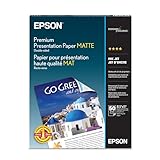
- Perfect for non-glare photographs, craft projects and signage.
- Resists fading up to 72 years.
- Guaranteed to work with all inkjet printers.
- Pack of 50 Sheets
Availability and download safety
As checked August 18, 2026, SourceForge lists PosteRazor 1.5.2 as the latest release. The same project page reports its last update as October 9, 2019. Treat it as an older utility that may still suit a straightforward job, rather than as a newly maintained product or a guaranteed fit for every current operating system.
Start at the SourceForge project page, its files page, or the original project website. Check the filename and version before opening an installer, and avoid unrelated download aggregators. An operating-system security warning is a prompt to verify the file’s source; it is not proof of either safety or danger. Do not disable security software or run unverified commands to force an install.
Rank #2
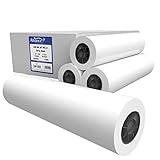
- OEM specifications for optimum moisture content.
- 20 lb bond paper
- CAD ink jet rolls
- 2" core size.
- Untaped / 4 rolls per carton
The separate posterazor.org site describes itself as an independent community hub. For project history and release claims, use the original project and SourceForge rather than treating that third-party site as the official source.
Do these 3 things before closing this tab:
1Clear out junk files and repair common Windows errors2Scan for outdated or missing drivers - takes under a minute3Repair Windows errors before they cause bigger problemsMake a poster with PosteRazor
- Prepare the image. Start with the largest, cleanest version available. Crop it to the intended poster proportions if you want it to fill the full area; otherwise, preserving its proportions may leave blank space or require a crop. Keep faces, lettering, and other important details away from planned seams where possible.
- Open the image in PosteRazor. The project describes a wizard-style workflow. Exact controls can vary by build, so follow the installed version’s prompts rather than relying on a label that may have changed.
- Choose paper and orientation. Match the setting to the paper loaded in the printer. A4 measures 210 × 297 mm; US Letter measures 8.5 × 11 inches. Choose portrait or landscape to suit the image and avoid wasting pages.
- Set the finished poster size. Enter the desired width and height, or specify the page layout if that is how your version presents the choice. Larger poster dimensions generally mean more tiles. The available area on each sheet is smaller than its nominal size on printers that cannot print to the edges.
- Set margins and overlap. Account for the printer’s non-printable margins and choose whether adjacent tiles should share a strip of image. Overlap makes alignment and trimming more forgiving but uses paper and requires trimming. No overlap saves that shared area but makes joins less tolerant of small errors. Start with a modest overlap and test adjacent pages before committing to a large print run.
- Export the multipage PDF. Save it somewhere easy to find, with a descriptive filename such as
poster-36x24in-letter-overlap.pdf. Each PDF page represents one tile. - Print a test page. Use a ruler or a known feature to check scale, confirm paper size and orientation, and inspect sharpness and color before printing every tile.
- Print the complete set and assemble it. Keep the paper, orientation, and scale settings consistent across all pages. Arrange the sheets, match the image, trim only the edges needed for clean joins, then tape the reverse for a temporary poster or mount it on a suitable backing.
Print the PDF at the intended size
The PDF is only half the job: print-dialog scaling determines the physical result. Select the same paper size and orientation used in PosteRazor, choose Actual Size or 100%, and turn off options such as Fit to page or Shrink oversized pages. These settings can silently reduce the tiles and make the assembled poster too small or difficult to align.
Rank #3

- [HIGH QUALITY]: Our white cardstock 8.5 x 11 is made from heavyweight 85 lb (230 GSM) offset paper with a smooth matte finish, and even ink absorption and measures 11 inches x 8.5 inches, Cardstock paper is perfect for writing, drawing, doodling and creating fun and unique covers.
- [Excellent design]: This 8.5 x 11 white cardstock has an Double sided matte design, with a smooth feel and smooth pen strokes, suitable for a wide range of pens (markers, pens, pencils, crayons, etc.). The card is perfect for creating eye-catching posters and making your artwork shine.
- [Production & Printing] 11 x 8.5 Cardstock Ideal for book covers, body copy, inserts, illustrations, maps, posters, colorful packaging, and more. Both the front and back of the card stock for a printer can be printed on multifunction printers and photocopiers, but please refer to your printer manual before ordering to ensure the printer can handle 85 lb (230 GSM) cover paper.
- [MULTIFUNCTIONAL APPLICATIONS] Cardstock paper is thick and strong, rendering it ideal for personal use, office and school supplies, art projects, business communications, posters, printed documents, and more. The cardstock paper holds ink well and delivers rich, vibrant colors and sharp images with perfect results. Unleash your creativity by cutting, folding, and gluing to your favorite size or shape. Card stock paper can be used to create brochures, menus, photo mats, and more.
- [Package] You will receive 30 sheets of white cardstock 8.5 X 11 to ensure you have enough paper for multiple projects.
Print one page first and measure it. For a pattern, map, or other size-critical project, this check is essential. If the measurement is wrong, verify the paper size in both the PDF viewer and printer driver and check for automatic scaling before printing the rest. Adobe’s poster-printing instructions explain the same general principles for tiled PDFs, including scale and overlap.
Estimate how many sheets you need
A rough planning estimate is:
tiles across ≈ ceil(poster width ÷ usable page width)tiles down ≈ ceil(poster height ÷ usable page height)
Multiply the two results for an approximate page count. “Usable page” means the printable tile area after allowing for printer margins and the overlap strategy—not the full nominal sheet. For instance, a Letter sheet is 8.5 × 11 inches, but a printer’s margins reduce the area available for image. The real count also depends on orientation, the requested poster dimensions, and how the software lays out the image. Use PosteRazor’s preview or page count for the actual export rather than treating this estimate as a guarantee.
Free tools Windows power users keep installed
One-click scans. No signup required.
Rank #4

- 36lb Coated Bond Paper
- Conforms to OEM specifications for optimum performance
- Compatible with multiple makes of wide format inkjet printers such as HP, Canon, and Epson
- 2 inch core rolls
- Proudly made in the USA
Join the sheets cleanly
- Lay out the pages on a clean, flat surface and keep any labels visible until you understand the order.
- Match image content across seams; paper edges alone may not align accurately.
- Trim only the edges necessary to make a clean join. Removing too much can remove the overlap you need for alignment.
- Build the poster a row or column at a time, checking each seam before securing it.
- Use tape on the reverse for a temporary display. For a stiffer result, mount the joined sheets on cardboard, foam board, or another appropriate backing.
A test with two neighboring tiles is a practical way to check overlap, scaling, and trimming before you print a full set. If seams still show, align the artwork rather than forcing paper edges together; small differences in printer feed or trimming can leave edges uneven.
Common problems and fixes
| Problem | Likely cause | What to try |
|---|---|---|
| The assembled poster is too small | The viewer or printer driver scaled the PDF, or the wrong paper size was selected. | Print at Actual Size/100%; verify paper size and orientation in both the viewer and driver. Test a page with a ruler. |
| There are gaps or misaligned seams | Scaling changed between pages, margins or overlap were unsuitable, or trimming removed too much. | Use identical settings for every page, retain overlap for alignment, and match image content. Re-export with more overlap if needed. |
| The enlarged image looks blurry | The source did not contain enough detail for the chosen physical size. | Use a larger original if available. Tiling spreads existing pixels over a larger area; it cannot restore missing detail. Consider the normal viewing distance for a wall poster. |
| The PDF has more pages than expected | The poster is large relative to the printable area, overlap is substantial, or orientation wastes space. | Try larger paper, a better-matched orientation, a smaller target, or cautiously reduced overlap. For an unwieldy page count, a print shop may be more practical. |
| Colors vary between sheets | Different print settings, paper, ink levels, or driver corrections can alter output. | Use the same preset and paper throughout, print in one batch when possible, and avoid changing color settings mid-job. |
| The app will not launch | The older build may be unsuitable for the system, or the file may have triggered a security control. | First verify the download came from the project’s SourceForge location and check its version. Do not bypass security controls blindly; consider the project-linked browser option or another PDF tiling workflow. |
| Export fails or takes too long | A very large image or poster may exceed what the particular build and system can comfortably handle. | Reduce image dimensions, try a smaller test export, and close other applications. The project does not publish a universal maximum file size; use another workflow for demanding production files. |
Which alternative fits your job?
- Adobe Acrobat: If the artwork is already a correctly sized PDF, Acrobat’s Poster print option may be more direct than converting the page to an image. Its documentation covers tile scale, overlap, cut marks, labels, and printing oversized pages: Adobe’s poster and banner printing guide.
- Rasterbator: Choose this browser-based tool if you want a halftone or other artistic treatment as well as tiling. It also offers plain tiling. Its site describes the effects, and its guide recommends actual-size printing and a test page.
- Block Posters: Consider it for a quick browser workflow if you are comfortable uploading the image and checking the current terms and limits. Its creation page displays a $5 USD premium option; limits and pricing can change.
- A print shop: Choose large-format printing for a single-sheet result, professional color consistency, durable materials, or finishes such as lamination, vinyl, or mounting. It avoids the home-assembly seams, though cost depends on the provider, location, size, and material.
Is PosteRazor worth using?
PosteRazor remains a sensible choice when you already have a raster image, want a free local tiling workflow, and are willing to print and assemble the pages yourself. It is less suitable for designing artwork, producing polished one-piece prints, or getting current commercial support. Check the listed version and your system’s compatibility, then test the print scale before committing paper and ink.
Quick Recap

Product prices and availability are accurate as of the date/time indicated and are subject to change. Any price and availability information displayed on Amazon at the time of purchase will apply.




