Quick wins for a faster PC:
Windows Errors? Fix Them Before They Spread
Repair common Windows errors and clear accumulated junk for a smoother, more stable PC - no reinstall needed.Free scan · no reinstallCrashes, No Sound, or Screen Glitches?
Random freezes, missing sound and display glitches usually trace back to one bad driver. Find and replace yours safely.Free scan · under a minuteClear out junk files and repair common Windows errorsFree Scan →Scan for outdated or missing drivers - takes under a minuteDriver Scan →
ThatPainter is reader-supported. When you buy through links on our site, we may earn an affiliate commission. Learn More
The Wacom Cintiq 24HD touch was an exceptional large-format pen display when it was reviewed on October 14, 2012—but its touch layer was only selectively useful. Pinch-to-zoom and two-finger canvas rotation worked well in creative applications. More complex gestures were cumbersome, and the reviewer did not consider them worth the roughly $1,100 premium over the non-touch Cintiq 24HD.
This is a historical review, not a current buying recommendation. The 24HD touch was a tethered display requiring a host computer, not a standalone tablet, and its 62.9-pound chassis makes it more like studio furniture than a portable art tool.
| # | Preview | Product | Price | |
|---|---|---|---|---|
| 1 |

|
Wacom Cintiq 24HD Graphic Monitor (CINTIQ24HD) - DTK2400 | $1,799.00 | Buy on Amazon |
| 2 |

|
Wacom Cintiq 22, Drawing Tablet with Full HD Screen & Pro Pen 2 | $1,105.71 | Buy on Amazon |
| 3 |

|
Wacom Cintiq 24, Drawing Tablet with QHD Screen & Pro Pen 3 | $1,299.95 | Buy on Amazon |
| 4 |

|
Wacom Cintiq 16, Drawing Tablet with QHD Screen & Pro Pen 3 | $699.95 | Buy on Amazon |
| 5 |
|
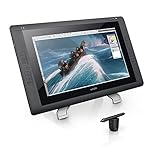
Wacom DTK2200 Cintiq 22HD 21-Inch Pen Display Tablet, Black | $1,752.79 | Buy on Amazon |
What the Cintiq 24HD touch added
The Cintiq 24HD touch retained the original Cintiq 24HD’s huge 24-inch drawing surface, articulated stand, ExpressKeys, Touch Rings, and 1,920×1,200 resolution. Its defining addition was projected-capacitive multi-touch.
| Feature | Cintiq 24HD touch | Change from the original 24HD |
|---|---|---|
| Touch | Multi-touch gestures | New |
| Display gamut | Approximately 97% Adobe RGB | Up from approximately 92% |
| Controls | Touch toggle, on-screen keyboard, and control reminders | Revised |
| Resolution | 1,920×1,200 | Unchanged |
| Chassis and stand | Large articulated design | Broadly unchanged |
| Review-era price | About $3,699 | About $1,100 more than the non-touch model |
Those figures come from the original Engadget review and are 2012 review-era prices, not current retail prices.
#1 Best Overall
A professional pen display, not a computer
The Cintiq 24HD touch connected to a computer over USB and DVI. Artists worked directly on the screen in applications such as Photoshop and Corel Painter, while the computer supplied the operating system and software.
The 24-inch 16:10 H-IPS panel was aimed at professional illustrators, painters, photographers, animators, and designers. Side-mounted programmable ExpressKeys and Touch Rings provided dedicated shortcuts, while the broad bezel gave the user somewhere to rest a forearm during long sessions.
Its physical design was both a major strength and a serious limitation. The adjustable base and articulated support arms allowed the display to move between relatively flat and upright positions, making it possible to work more like a drafting table than a conventional monitor. The stable stand also let artists change their drawing angle throughout a long session.
That flexibility came with a 62.9-pound (28.6-kilogram) weight. Moving the unit, unpacking it, or placing it on a weak desk required real planning; the review noted that multiple people were needed to get it out of the box. This was a fixed-studio device, not something to carry between rooms or take to a client.
Display quality: wide gamut, modest resolution
The display offered a 24-inch H-IPS panel with a matte coating, approximately 97% Adobe RGB coverage, 1.07 billion colors, a 500:1 contrast ratio, a 178-degree viewing angle, and brightness up to 300 cd/m2. These were impressive specifications for a professional pen display of its period.
Rank #2
- Creative Pen Display: Animation tablet features optimized display and premium pen technology ideal for creative hobbyists, enthusiasts, or students for use on campus, in the studio, or at home
- Precision Pen Performance: Included Pro Pen 2 features tilt recognition, virtually lag-free tracking, 8192 levels of pressure sensitivity, and 2 customizable switches for easy access to shortcuts
- Vibrant Color Display: Windows and macOS tablet features LCD display with HD resolution and showcases uniform brightness, high resolution, and true to life color quality
- Fingertip Control: Relaxed parallax gives you full control with your fingertips, and combined with the super responsive Wacom Pro Pen 2, makes creating feel as natural as drawing on paper
- Includes: Wacom Cintiq 22 digital drawing pad, Pro Pen 2, 3 replacement nibs, nib remover, 3-in-1 connectivity cable, AC adapter, power cable, and quick start guide
However, the 1,920×1,200 resolution was spread across a large 24-inch panel. At the close viewing distance required for drawing, pixels were visible. That mattered particularly for detailed photo retouching, fine line work, and users accustomed to modern high-density screens. The display’s color-gamut specification should not be mistaken for independent colorimeter testing: the available review reported the coverage but does not establish modern measured color accuracy.
In historical context, the panel was capable and useful. By current 24-inch professional-display standards, its pixel density is low. Modern products in the same broad category offer substantially higher resolutions, including 2,560×1,440 and 3,840×2,160 panels.
The pen remained the best reason to buy it
The included battery-free Wacom pen supported 2,048 levels of pressure sensitivity, had an eraser on its top end, and came with ten replacement nibs stored in the pen holder.
In Photoshop and Corel Painter testing, the reviewer encountered no meaningful pen-performance problems. Pressure response was valuable for brush opacity, stroke width, painting, image cleanup, hand-rendered lettering, and other work where a light or heavy hand needs to produce different marks. Drawing directly on the image remained the Cintiq’s central advantage over a mouse and its main appeal over an off-screen pen tablet.
The 2,048-level figure is historically accurate but should not be compared literally with current specifications. For example, Wacom’s current Cintiq 24 Touch advertises a Pro Pen 3 with 8,192 levels. That generational difference does not by itself prove that the newer pen will feel four times better; pressure implementation, calibration, software, and latency all matter.
Rank #3
- EXPANSIVE CREATIVE WORKSPACE: Immersive 23.8" IPS display with 2.5K WQHD resolution (2560 x 1440) provides a spacious canvas for pro-level projects
- WACOM’S BEST PEN TECHNOLOGY: Pro Pen 3 with 8192 pressure levels responds to your lightest touch; includes ±60° tilt support, 3 shortcut keys for tool access, and a holder that mounts to either side of the display with adjustable angle for quick access
- DIGITAL-FIRST COLOR ACCURACY: 100% sRGB coverage with 8-bit color depth ensures your artwork displays exactly as intended across all digital platforms - no color shifts from screen to screen, device to device
- READY TO CREATE: Comes with fully adjustable stand for optimal positioning or use the 75x75 VESA mount for flex arm compatibility
- CONNECTION: includes USB-C cables and power adapter to connect to Windows/Mac computers with DisplayPort Alt or Thunderbolt 3 or 4 input (computers without DisplayPort Alt or TB 3 or 4 input require additional cables)
Which touch gestures were actually useful?
The touch interface worked best when it handled simple navigation:
- Pinch to zoom: useful for moving quickly between an overall composition and fine detail.
- Two-finger canvas rotation: helpful for turning a canvas to a comfortable drawing angle without changing the physical display.
- Non-pen-hand navigation: the artist could use one hand for zooming or rotating while the other stayed focused on the pen.
Engadget found two-finger zooming and rotation close to flawless in testing. Those gestures fit naturally into painting and Photoshop workflows because zooming, panning, and rotating are frequent operations. They could reduce trips to the keyboard and make the large canvas feel more directly manipulable.
Why multi-touch did not justify the price
The problem was that “multi-touch” suggested a broader advantage than the working experience delivered. Gestures involving more than two or three fingers were harder to execute consistently and less comfortable during an art session. Rather than relying on elaborate gestures, the reviewer ended up programming commonly used actions into simpler two-finger commands.
Touch also did not replace the physical ExpressKeys for many commands. Dedicated buttons were often faster and more predictable for tool changes, modifier keys, and application-specific shortcuts. Touch could become a distraction when the artist wanted precise pen input, particularly when a hand rested on the surface or moved between the active area and the broad bezel.
The fair conclusion is not that all touch gestures failed. Simple two-finger navigation was genuinely useful; complex gesture control was not mature enough to transform the workflow. The review’s judgment was specific to its testing and workflow: the added touch functionality and display improvements did not justify the approximately $1,100 premium.
Rank #4
- IMMERSIVE CREATIVE CANVAS: 16" IPS display with 2.5K WQXGA resolution (2560 x 1600) delivers sharp, crisp, detailed visuals for digital art and design
- WACOM’S BEST PEN TECHNOLOGY: Pro Pen 3 with 8192 pressure levels responds to your lightest touch; includes tilt support, 3 shortcut keys for tool access, and a holder that mounts to either side of the display with adjustable angle for quick access
- CINEMATIC COLOR DISPLAY: 99% DCI-P3 and 100% sRGB coverage with 8-bit color depth delivers the wide color gamut used in modern displays and digital media - see your artwork as it's meant to be viewed
- READY TO CREATE: Built-in fold-out legs provide a 20-degree working angle or purchase adjustable stand for personalized comfort
- CONNECTION: includes USB-C cable to connect to Windows/Mac computers with DisplayPort Alt Mode or Thunderbolt 3 or 4 input (computers without DP Alt or TB 3 or 4 input require additional cables)
Setup and period-specific connectivity
Once the hardware was in position, basic setup was reported to take under ten minutes:
- Place the display and stand securely.
- Connect USB and DVI to the host computer.
- Install the Wacom driver.
- Calibrate the pen.
- Configure ExpressKeys, Touch Rings, touch behavior, and application-specific commands.
- Open a supported creative application and test pressure, buttons, and gestures.
Mac users with Mini DisplayPort or Thunderbolt computers needed a separate DVI adapter; the original review cited approximately $30 for one. That is a 2012-era connection requirement, not current compatibility guidance. Anyone considering a used unit should verify operating-system support, available drivers, adapters, cables, and power equipment for the specific computer before buying. The historical user manual documents the display’s ExpressKeys, Touch Rings, display toggle, and multi-touch functions.
Independent reader supportYour contribution helps us test, update, and keep practical guides available for everyone.Original alternatives and value
In the review-era lineup, the non-touch Cintiq 24HD was listed at approximately $2,599, compared with about $3,699 for the touch version. The smaller Cintiq 22HD was listed at roughly $1,999. An Intuos5 touch paired with a separate monitor was another option for artists who wanted pen and touch input without drawing directly on the screen.
The non-touch 24HD was the clearest value alternative for someone who wanted the huge workspace and adjustable stand but preferred keyboard shortcuts and physical controls. The 22HD offered a less imposing route into professional direct-on-screen drawing. The touch model made most sense for a fixed studio whose artist repeatedly used pinch zoom and canvas rotation and did not mind paying heavily for that convenience.
Recommended Free Tools
Buying a used Cintiq 24HD touch
The 24HD touch is now best treated as a legacy product. Wacom’s current U.S. catalog highlights newer displays, but the supplied sources do not establish comprehensive 2026 driver or replacement-parts support for this older model.
Best Value
- 22 inches HD display features a wide format, full HD resolution and extra wide viewing angle
- Work naturally and intuitively directly on screen; Sketch, paint, design and edit directly on the surface of the screen
- Wacom's most advanced pressure and tilt sensitive pen technology replicates the natural effects and experience of working with conventional tools such as pens, markers, and brushes
- Time saving express keys, work easier and faster with customizable express keys, 1 touch access to your favorite shortcuts
Before buying one second-hand, check:
- Every area of the screen for dead pixels, uneven backlighting, and other panel aging.
- Pen pressure across the entire surface, including light strokes and maximum pressure.
- ExpressKeys, Touch Rings, touch enable/disable controls, zoom, and rotation.
- The stand’s hinges, adjustment range, locking or release mechanism, and signs of damage.
- The original pen, nibs, proprietary cables, power equipment, and DVI connection.
- Driver availability and practical compatibility with the intended operating system.
- Whether the desk can safely support a 28.6-kilogram display.
Do not assume that a low used price makes it a straightforward modern replacement. A cheap unit can become difficult to use if its pen, cable, stand, display, or driver support is compromised.
How it compares with current Wacom displays
Wacom’s current products are not specification-for-specification replacements, but they show how much the category has changed. The Cintiq 24 Touch has a 23.8-inch 2,560×1,440 display, 10-finger touch, Pro Pen 3, and a much lighter design. The non-touch Cintiq 24 is the more logical current choice for buyers who want a large pen display without paying for touch.
For professionals who need 4K resolution and broad-gamut color, the Cintiq Pro 24 offers a 3,840×2,160 panel and approximately 99% Adobe RGB coverage. The Cintiq Pro 22 adds 4K resolution, 120Hz refresh, 10-finger touch, and Pro Pen 3 support, but its smaller size and separately handled stand make it a different proposition.
Current prices and availability change, so check Wacom’s display catalog directly. These newer products are category comparisons, not evidence that the 24HD touch remains supported or that any one model is its formally documented successor.
Final verdict
The Cintiq 24HD touch was a landmark professional tool: its pen input was responsive, its workspace was enormous, and its articulated stand was unusually well suited to serious drawing. But the pen experience and ergonomics were more compelling than the touch interface.
For the October 2012 review, two-finger zooming and canvas rotation were worthwhile conveniences. More complicated gestures were awkward, and the roughly $1,100 premium over the non-touch 24HD was difficult to defend. Today, its historical strengths remain clear, but higher-resolution, lighter, and better-connected displays make it a niche used-market choice rather than a sensible default for most artists.
Quick Recap

Product prices and availability are accurate as of the date/time indicated and are subject to change. Any price and availability information displayed on Amazon at the time of purchase will apply.
Do these 3 things before closing this tab:
1Repair Windows errors before they cause bigger problems2Fix the driver behind crashes, sound loss and screen glitches3Clear out junk files and repair common Windows errors



